Razer Cortex can break at launch, sign-in, game detection, boosting, recording, or Remote Play. The quickest fix is to start where the problem shows up and avoid old Cortex 9 workarounds that no longer match the current app. Use the sections below in order if Cortex is completely stuck, or jump to the one that matches your issue.
1. Confirm the Windows version first
Current Razer Cortex supports Windows 11 and Windows 10 64-bit, so install it only on a supported Windows version. Use DOWNLOAD NOW on Razer’s Cortex page, then run RazerCortexInstaller.exe.
Select RAZER CORTEX, click INSTALL, and select Launch RAZER CORTEX. Click GET STARTED, then sign in with your RAZER ID. Razer separately links an older version for Windows 7, Windows 8, and Windows 10 32-bit.
2. Repair Razer Cortex from Windows
Right-click the Razer icon and select Exit All Apps. Search Windows for Apps & features and open it, then click Search sort, and filter by drive.
Type Razer, click Razer Cortex, and select Modify. Click Yes at User Account Control, then click REPAIR. After repair finishes, click GET STARTED!.
3. Reinstall Cortex when it will not launch
This fixes Cortex installs that still will not open after repair. Open Start, then enter Add or remove programs and click the result. Type Cortex under Apps & features.
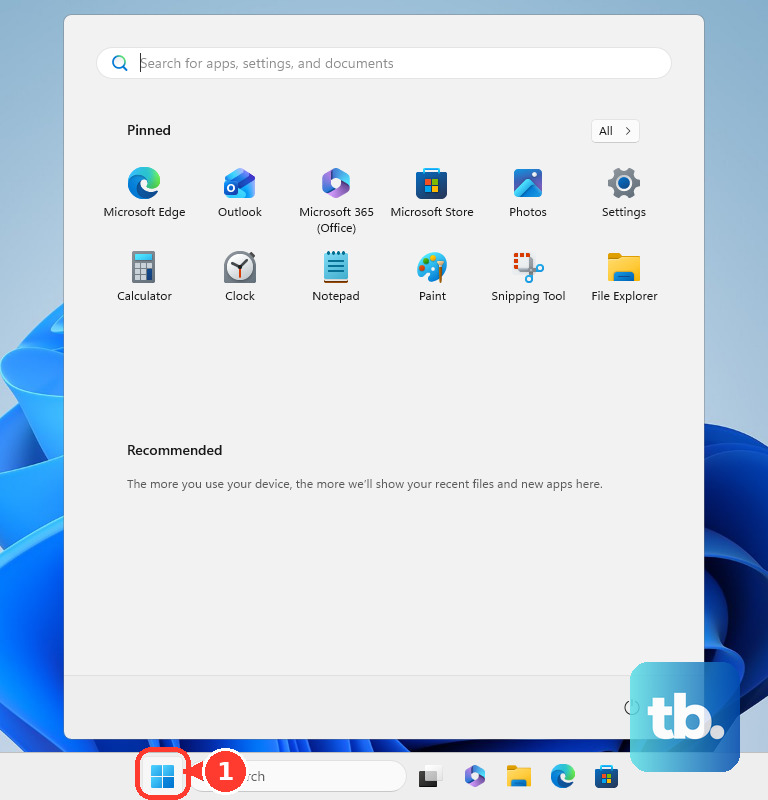
Click Razer Cortex, then Uninstall. Select Uninstall, then click Yes at User Account Control. In RAZER GAMING SOFTWARE, select UNINSTALL. Check RAZER CORTEX and click UNINSTALL.
Select YES, REMOVE, then click CLOSE. Return to Razer’s Cortex page and click DOWNLOAD NOW, then run RazerCortexInstaller.exe. Select RAZER CORTEX, click INSTALL, and select Launch RAZER CORTEX. Click GET STARTED, then sign in with your RAZER ID.
4. Update Razer software manually
Click the arrow on the lower-right of the desktop to expand the system tray. Right-click the Razer THS icon, then select Check for Updates from the menu. Click CHECK FOR UPDATES, then click UPDATE when a new update is available.
5. Fix Razer ID sign-in problems
Cortex needs an internet connection before you log in, and most Razer Cortex features can work offline after login. For a blocked password, use Password Recovery. Enter your Razer ID email address, hit Next, and open the password reset link sent to that email.
For authenticator code trouble on Android, use Settings > Date & Time > Use network-provided time. For authenticator code trouble on iOS, use General > Date & Time > Set Automatically. If OTP access is lost, use a working authenticator app or backup codes. Then contact Razer Support when neither is available.
6. Recover missing games in My Library
This fixes missing games, broken platform sync, and launch failures from Cortex. Open Razer Cortex and go to LAUNCHER > MY LIBRARY. Launch the game from your PC while Cortex is running, or click the Refresh icon to scan installed games.
To connect a platform, click the + icon. Then click Connect platforms, go to PLATFORMS, and click CONNECT. Enter your username or gaming platform profile link, then click CONNECT. Make sure the username or profile link is correct, the platform profile is public, and games exist in that platform library.
For a manual entry, click the + icon, then click Add game. When Cortex cannot launch a game from MY LIBRARY, open the game launcher first and run the game manually. Keep the game and launcher installed in the same folder with the default installation path, then scan so both are added to MY LIBRARY. If the game still will not run through Cortex, launch it directly from the PC with Cortex running in the background.
7. Correct booster and cleanup settings
If Cortex causes lag while you use Discord or video apps, turn off Auto-Boost from GAME BOOSTER > BOOST > Auto-Boost. If you still need boosting, use GAME BOOSTER > BOOST > Specials. Disable Enable CPU Core.
When System Booster changes affect Windows behavior, use SYSTEM BOOSTER > SPEED UP. Click RESTORE TO WINDOWS DEFAULT, then restart the PC. For cleanup problems, use SYSTEM BOOSTER > SYSTEM CLEAN. Toggle Scheduled cleanup, or click Customize system clean to avoid deleting recent files or cookies.
8. Restore clips overlay and Remote Play
For Game Clips, open GAME CLIPS and click Start Clipping. Enable recording in settings or use the shortcut key to toggle recording, then use the designated shortcut to save a clip. Then check the My Videos folder. Change the save directory in settings when clips are saving somewhere else.
For FPS overlay features, go to GAME BOOSTER > IN-GAME. Turn on the in-game features, then customize FPS overlay position, display size, and color there. For Remote Play connection problems, uninstall both the Remote Play app and the Razer Nexus app from the mobile device.
Restart the mobile device, reinstall both apps, then pair and connect again. For first Remote Play pairing, keep the PC and mobile device on the same Wi-Fi or local network. For a video capture or encoding error, update the integrated graphics card and graphics card drivers. Confirm the host PC runs at least Windows 11 version 23H2 with a GPU that can hardware-encode H264 or H265, since software encoding is not supported.
9. Send logs when reinstalling fails
This gives Razer Support the Cortex logs they need after repair and reinstall fail. Download the log collector tool for Razer Cortex 11, unzip it, and run LogTool.exe. Click Output. Upload the generated password-protected zip from the desktop to Dropbox, OneDrive, or Google Drive.
Send Razer the log link in a private message with access permission. If Windows Security recently blocked Razer or Cortex activity, open Windows Security > Virus & threat protection > Manage settings > Manage controlled folder access > Allow an app through Controlled folder access. Then add the Razer executable. On a managed school or work PC, ask the administrator to allow the Razer executable through Controlled Folder Access policy.
Frequently Asked Questions
Does Razer Cortex need the internet to work?
Yes, Cortex needs an internet connection before you log in. After login, most Razer Cortex features can be used without an internet connection.
What Windows versions does current Razer Cortex support?
Current Razer Cortex supports Windows 11 and Windows 10 64-bit. Razer separately links an older version for Windows 7, Windows 8, and Windows 10 32-bit.
Why are my games missing from Razer Cortex?
The usual fixes are refreshing LAUNCHER > MY LIBRARY, running the game while Cortex is open, connecting the platform under PLATFORMS, or adding the game manually with the plus icon.
What should I send Razer Support if Cortex still will not launch?
Use the Razer Cortex 11 log collector tool, run LogTool.exe, click Output, upload the generated password-protected zip, and send Razer the private link with access permission.