Project64 can refuse to open, crash after launch, show a black screen, lose plugins, or fail with one specific game. Start with the checks that remove the biggest Windows and install problems first, then move into plugins, security blocks, compatibility settings, and a clean reinstall.
1. Make Sure Your PC Supports Current Project64
This fixes installs that fail because Windows or the hardware does not match current Project64 requirements.
Confirm the PC is running 64-bit Windows 10 or Windows 11.
Check that the CPU is a 1GHz or faster Intel or AMD processor with SSE2.
Confirm the PC has at least 2GB RAM.
Check graphics support for the plugin you plan to use: DirectX 8, OpenGL 3.3, or Vulkan 1.1.
Open the official Project64 stable release page and choose Project64 3.0.1 Installer or Project64 3.0.1 Zip.
Run the installer, or extract the zip, then launch Project64 again.
2. Update Windows And Install Driver Updates
On Windows 11, go to Start > Settings > Windows Update > Check for updates.
Choose Download & install for every offered update, then restart.
On Windows 10, go to Start > Settings > Update & Security > Windows Update > Check for updates.
Again, choose Download & install for every offered update, then restart.
On Windows 11, go to Start > Settings > Windows Update > Advanced options > Optional updates.
Select the listed driver updates, choose Download and install, then restart.
On Windows 10, go to Start > Settings > Update & Security > Windows Update > Advanced options, turn on Receive updates for other Microsoft products when you update Windows, then go back to Windows Update, choose Check for updates, and select View optional updates when it appears.
Next, select the listed driver updates, choose Download and install, then restart.
For a specific graphics, sound, Bluetooth, or controller problem, right-click Start > Device Manager, expand Display adapters, Sound, video and game controllers, or Bluetooth, right-click the device, then choose Update driver > Search automatically for updated driver software.
If you downloaded a driver from the PC or device maker first, choose Browse my computer for drivers instead.
3. Switch To A Supported Plugin Setup
Open Project64.
Go to Options > Configuration > Plugins.
For general performance, set Video (graphics) plugin to GLideN64 in HLE.
Set RSP plugin to Parallel-RSP in HLE.
Set Audio plugin to Azimer's audio v0.70 WIP 10 in HLE.
Set Input plugin to Project64 input or N-Rage input plugin.
Choose Apply or OK, then restart emulation.
For an accuracy-first setup, set Video (graphics) plugin to Parallel-RDP in LLE, RSP plugin to Parallel-RSP in LLE, and Audio plugin to Azimer's audio v0.70 WIP 10 in LLE.
4. Repair Missing Plugin Folders Or Invalid Video Plugins
This fixes empty plugin lists, missing video plugin messages, and Project64 folders broken after a move or zip extraction.
Open Project64 and go to Options > Configuration > Directories.
Set Plugin directory to $AppPath\Plugin\, or choose the other plugin-directory option and browse to the folder that contains Project64 plugin DLLs.
Choose OK, then restart Project64.
Return to Options > Configuration > Plugins.
Open Video (graphics) plugin and choose a compatible listed video plugin.
Choose OK.
5. Test The ROM Before Changing More Settings
Use a legally obtained, verified-good ROM dump.
Open the known-good, unmodified game in Project64.
When a ROM hack crashes, freezes, or fails to load, open the unmodified base game.
Treat a hack-only failure as a ROM or patch problem.
6. Try The Latest Nightly Build
This tests the latest Project64 development code when the stable build still fails.
Open the official Project64 nightly builds page.
Choose the newest listed Windows Installer or Windows Zip for the latest Dev-4.0.0 build.
Install the build, or extract the zip.
Open Project64.
Test the same ROM and the same plugin settings again.
7. Clear Windows Security Blocks Carefully
Download Project64 only from the official Project64 download page before allowing anything through Windows security.
When Microsoft Defender blocks that verified official download, open Windows Security > Protection history.
Select the blocked Project64 item, choose Actions, then choose Allow.
Redownload Project64 from the official Project64 page and run it again.
When Microsoft Defender quarantines the verified official file again, go to Start > Settings > Privacy & security > Windows Security > Virus & threat protection > Manage settings > Exclusions > Add or remove exclusions > Add an exclusion.
Choose File or Folder, then select the official Project64.exe file or Project64 folder.
When Controlled folder access blocks saves or configuration files, open Windows Security > Virus & threat protection > Manage ransomware protection > Allow an app through Controlled folder access > Add an allowed app, then browse to Project64.exe.
On Windows 11, turn off Smart App Control only when it blocks the official Project64 install or update and no per-app bypass is available: open Windows Security > App & browser control > Smart App Control settings > Off.
8. Use Compatibility Settings For Launch Or Fullscreen Crashes
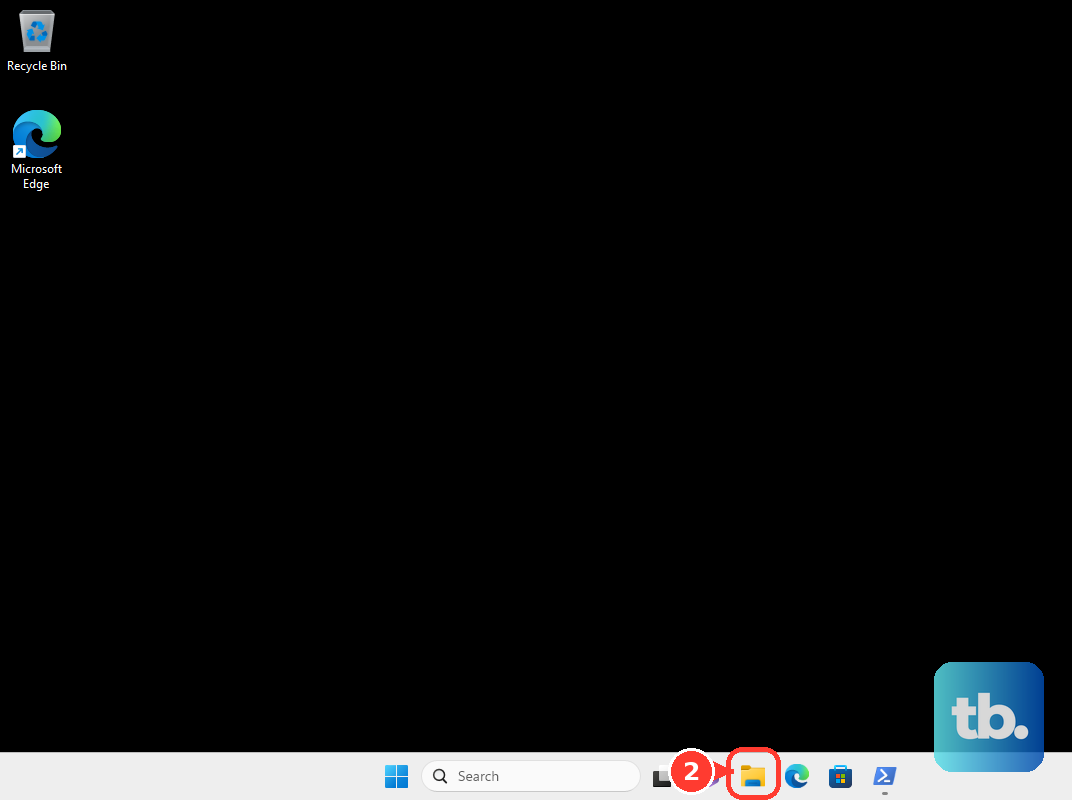
Open File Explorer and locate Project64.exe.
Right-click Project64.exe and choose Properties.
Open the Compatibility tab.
Check Run this program in compatibility mode for.
Choose Windows 10 or Windows 7 as a test.
For fullscreen crashes, check Disable fullscreen optimizations.
Choose Apply > OK, then relaunch Project64.
For permission-related install, config, save, plugin, or cache failures, search Project64 from Start, right-click Project64, choose Run as administrator, and approve the User Account Control prompt.
Use administrator mode once for the blocked write, then go back to normal launches for gameplay.
9. Reinstall Project64 And Skip Old Fixes
This fixes missing files, corrupt installs, failed updates, and plugin folders that still do not load correctly.
On Windows 11, go to Start > Settings > Apps > Installed apps.
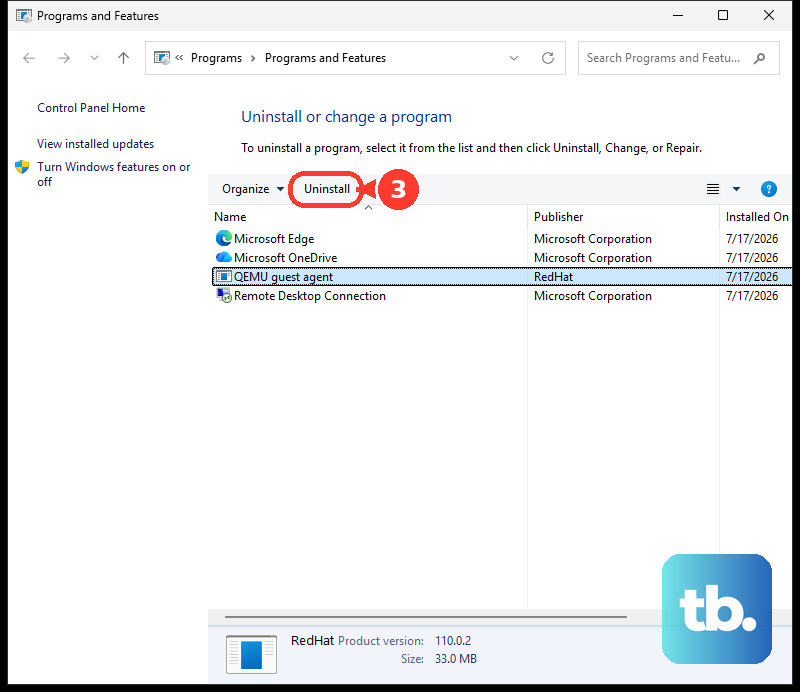
Find Project64, open More, then choose Uninstall.
To use Control Panel instead, search Control Panel > Programs > Programs and Features > Project64 > Uninstall or Uninstall/Change.
Reinstall Project64 from the official stable release page, or test the official nightly page.
When the Support Project64 window appears, wait until Continue is enabled and keep using Project64 for free, or support Project64 on the official page and enter the emailed code to remove the prompt.
Skip tutorials that tell you to edit Project64.cfg, change Run Count, downgrade to Project64 1.6 or Project64 2.3.x, or use repacks from third-party portals.
On a managed PC, ask the administrator to review the official Project64 file or folder through the device's security policy tools.
After you finish the official checklist, use the Project64 site link for Join our Discord when Project64 still fails.
Frequently Asked Questions
Why does Project64 show a black screen on Windows?
Update Windows and drivers first, then use the supported general plugin setup: GLideN64 for video, Parallel-RSP for RSP, Azimer's audio v0.70 WIP 10 for audio, and Project64 input or N-Rage for input.
Should I install Project64 3.0.1 or a nightly build?
Install Project64 3.0.1 first from the official stable release page. Use the newest official Dev-4.0.0 nightly only when the stable build still fails.
Why is Windows blocking the Project64 installer?
Microsoft Defender, SmartScreen, Controlled folder access, or Smart App Control can block Project64. Allow only a verified official Project64 download, and keep exclusions limited to the exact file or folder.
Do I need to pay to use Project64?
No. Project64 remains free. When the Support Project64 window appears, wait for Continue or enter a support code from the official support page.