A Microsoft account problem notification means Windows needs fresh account attention: a sign-in, password reset, verification code, stale account cleanup, or saved credential removal. Start with the account Windows is using, then move outward to old personal, work, school, phone, backup, and notification settings.
The steps below use current Microsoft-documented account paths. Microsoft's Phone Link troubleshooting page also lists a Shared experiences > Fix now repair route, which this guide skips in favor of the account-specific fixes below.
1. Reconnect the Microsoft account Windows uses
Use this first when the PC is signed in with a local account or Windows keeps asking you to connect a Microsoft account for built-in features.
Open Start > Settings > Accounts > Your info.
Select Sign in with a Microsoft account instead.
Follow the prompts and select Next.
Select Sign out and finish.
Sign back in and let Windows sync the account state.
Microsoft recommends using a Microsoft account instead of a local account for Windows integration, security, and sync.
2. Refresh the password that Windows keeps rejecting
Open Start > Settings > Accounts > Sign-in options.
Select Password.
Select Change.
Follow the prompts to update the password.
Select Forgot my current password if Windows asks you to verify the account and you cannot use the current password.
If you cannot get into Windows, reset it from the sign-in screen. Select I forgot my password, verify the account, and create the new password.
Another supported sign-in-screen path is Sign-in options > Web sign-in > Forgot my password.
You can also reset the password in a browser at account.live.com/password/reset. Enter the Microsoft account, verify your identity with the code Microsoft sends, then create the new password.
3. Unlock the account when Microsoft blocks access
A locked or temporarily suspended Microsoft account keeps Windows asking for attention even when the password is right. Go to account.microsoft.com, sign in, get the security code, and enter it when Microsoft prompts you.
If the sign-in page does not show Next, select the aka.ms link shown in the locked-account message and follow the reinstatement form instructions.
4. Recover the account when verification codes are gone
Use recovery when the email address, phone number, or other verification method on the account is no longer available.
- 1.Start with Microsoft’s Sign-in Helper.
- 2.If Microsoft directs you to the Account recovery form, gather the account details you can provide.
- 3.Open the Account recovery form.
- 4.Enter a working contact email address.
- 5.Answer as many account questions as possible.
- 6.Submit the form and check for Microsoft’s result email within 24 hours.
There is a firm limit here: Microsoft support cannot bypass two-step verification when you no longer have access to alternate verification methods.
5. Remove old accounts that still live on the PC
Stale accounts can keep the notification coming back after you have already fixed the main sign-in. Start with old personal accounts used by apps.
Open Start > Settings > Accounts > Email & accounts.
Choose the account you want to remove from the device.
Next to Remove account, select Remove.
For a former work or school account, use a different page: open Start > Settings > Accounts > Access work or school, select the dropdown next to the account, choose Disconnect, then select Yes.
To remove a separate Windows user, open Start > Settings > Accounts > Other user. Under Other users, select the flyout for that account, then select Remove next to Account and data.
This removes that user’s sign-in information and data from the device, not the cloud Microsoft account.
6. Clear credentials that keep signing in badly
Use Credential Manager after a password change, account removal, or repeated Microsoft sign-in prompt. It is the supported Windows place to view and delete saved credentials.
Search the taskbar for credential manager.
Select Credential Manager.
Select Web Credentials or Windows Credentials.
Expand the saved credential tied to the affected Microsoft account, connected app, MicrosoftAccount, or MicrosoftOffice entry.
Select Remove.
Restart the PC.
Sign in again when Windows asks.
7. Stop backup and phone links from retriggering prompts
Windows Backup can remember preferences through your Microsoft account. To stop that sync, open Start > Settings > Accounts > Windows backup.
Under Remember my preferences, turn the setting off or clear the individual preference checkboxes.
To delete previously backed-up settings, visit your Microsoft Account Devices page, find Cloud synced settings, and select Clear stored settings.
If Phone Link or mobile-device integration is tied to the prompt, remove the linked phone instead of trying to uninstall Phone Link. Open Windows Settings > Bluetooth & devices > Mobile devices > Manage devices, then select Remove for the listed device.
Microsoft documents Phone Link as deeply integrated into Windows and says it cannot be uninstalled.
8. Update Windows when account repairs do not stick
Install current updates after the account repair so Windows has the latest account and sign-in fixes.
Open Start > Settings > Windows Update.
Select Check for Windows updates.
If updates are available, select Download & install.
Restart when Windows prompts you.
If Windows Update fails, run its troubleshooter. On Windows 11, start with the automated Windows Update troubleshooter in the Get Help app.
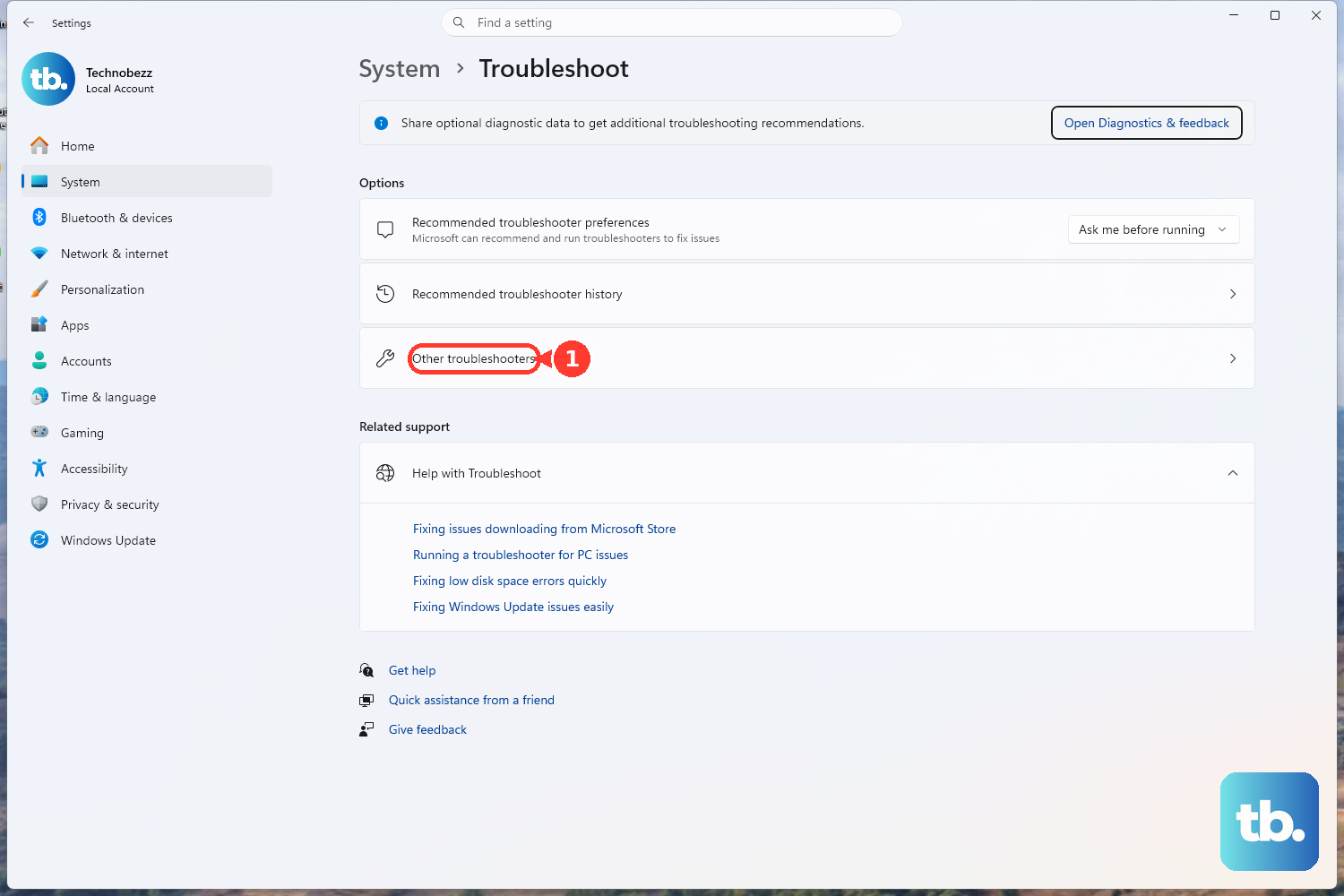
If that does not resolve it, open Start > Settings > System > Troubleshoot > Other troubleshooters.
Under Most frequent, select Run next to Windows Update, restart when it finishes, then check for updates again.
9. Silence the alert after the account is fixed
Notification settings hide alerts; they do not repair a Microsoft account problem. Use them only after you have signed in, fixed the password, removed stale accounts, cleared credentials, and checked Windows Update.
To turn off all notifications, open Start > Settings > System > Notifications, then switch Notifications off.
To change one sender, open Start > Settings > System > Notifications, select the app under Notifications from apps and other senders, then adjust banners, notification center, lock screen content, sound, or priority.
For temporary silence, open notification center and select the bell icon with zZ.
To schedule quiet time, open Start > Settings > System > Notifications, expand Turn on do not disturb automatically, and configure the conditions.
Frequently Asked Questions
Why does Windows keep saying there is a Microsoft account problem?
Windows needs the account to authenticate again, verify identity, recover from a password issue, or stop using an old personal, work, school, or linked phone account that remains connected to the PC.
Does removing a Microsoft account from Email & accounts delete it forever?
No. Removing it from Windows Email & accounts removes it from that device. It does not delete the cloud Microsoft account.
Can I uninstall Phone Link to stop Microsoft account problem notifications?
Microsoft does not provide a supported uninstall path for Phone Link because it is deeply integrated into Windows. Remove the linked mobile device from Windows Settings instead.
What should I do if the Microsoft account problem is tied to a hacked account?
Start Microsoft’s sign-in helper, then open Windows Security > Virus & threat protection > Scan options > Full scan > Scan now. After the scan, sign in and change the password, or reset the password if you cannot sign in.
Can Microsoft support bypass two-step verification for account recovery?
No. Microsoft says support cannot bypass two-step verification when you no longer have access to alternate verification methods.