Your Logitech USB headset plays audio, but nobody can hear you. The usual cause is a muted headset, the wrong input device, a blocked microphone permission, or an app still listening to another mic. Start with the quick hardware checks, then move through the operating system and calling app so you fix the setting that is stopping the microphone.
1. Prove the USB connection is clean
Start here because it takes less than a minute and removes hubs, adapters, and stale app detection from the equation.
- 1.Unplug the Logitech headset from the computer.
- 2.Plug the USB-A or USB-C connector directly into a computer USB port.
- 3.Move the headset to a different computer USB port.
- 4.Remove USB hubs and adapters while you test.
- 5.Close and reopen the app that needs the microphone.
This check applies to Logitech USB headsets that appear as USB audio devices, including H390, H340, H570e, Zone Wired, Zone Wired 2, and Logitech G USB headsets.
2. Clear the headset mute state
On H390 and H570e-style in-line controls, press the Mute button once. On the H390, the mute light flashes when mute is active. On the H570e, the mute button turns red when mute is active.
For headsets with boom-position mute, move the microphone boom down and place it near mouth level. On Zone Vibe and Zone Wired-style products, stowing or rotating the boom mutes the mic, and lowering or rotating it back unmutes it.
For the H390, use the in-line Mute button as the verified mute control. The boom position helps voice pickup, but the mute control is the button. If the USB connection is good, clear mute before digging into Windows or macOS.
3. Select the Logitech mic in Windows
When Windows listens to a laptop mic, webcam mic, or monitor mic, the headset can still play sound while the Logitech microphone stays unused.
Open Start > Settings > System > Sound. Under Input, open Choose a device for speaking or recording, then select the Logitech headset microphone. Select the arrow beside the Logitech microphone.
Choose Microphone test > Start test, then speak into the mic. Choose Stop test. Select Play under Recorded sample.
On that same input page, unmute the microphone if Windows shows a mute control. Raise the Volume slider, then test again. Windows 11 is the current primary Windows target; Windows 10 paths still appear in Microsoft docs, but Windows 10 support ended on October 14, 2025.
4. Allow microphone access in Windows
Open Start > Settings > Privacy & security > Microphone. Turn on Microphone access, then turn on Let apps access your microphone. For Microsoft Store apps, turn on the individual app toggle shown on the page.
For desktop apps such as Chrome, Discord, Zoom, Teams, and Logitech apps, turn on Let desktop apps access your microphone. A correct input device still fails when Windows privacy settings block the app.
For Teams, check the app permission directly as well. On Windows, turn on microphone access for Microsoft Teams. On macOS, open System Settings > Privacy & Security > Microphone, then turn on Microsoft Teams.
5. Repair the Windows audio device setup
Use these Windows checks after the headset is selected and permissions are on.
Enable the recording device by opening Start > Settings > System > Sound > Advanced > More sound settings > Recording. Select the Logitech microphone. Open Properties, then set Device usage to Use this device.
Set it for calls in the Recording tab by selecting the Logitech microphone. Choose Set Default Communication Device. Use Set Default too when you want it as the general recording input.
Raise the classic input level by opening Properties > Levels. Raise the microphone level, then make sure the level is not muted.
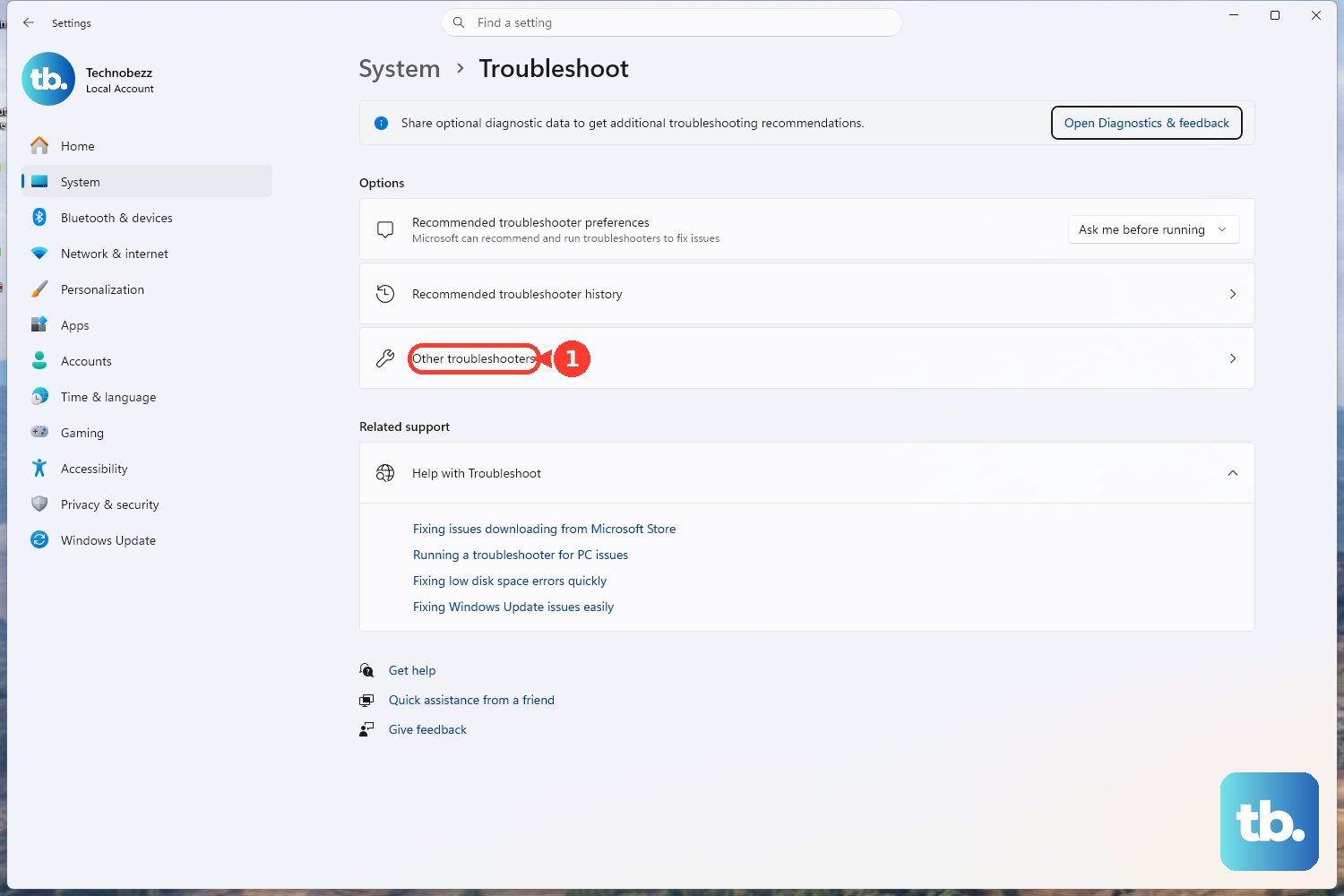
Run the audio troubleshooter by opening Start > Settings > System > Troubleshoot > Other troubleshooters > Audio > Run. If Windows opens Get Help, continue the automated audio troubleshooter there.
If the headset is missing or disabled, use Device Manager. Right-click Start, then open Device Manager. Expand Sound, video and game controllers, then enable the Logitech or USB audio device.
For a missing device, use View > Show hidden devices. Use Action > Scan for hardware changes. To reinstall the device, right-click it, choose Uninstall device > Uninstall, then restart the PC.
6. Switch macOS to the Logitech input
Open Apple menu > System Settings > Sound > Input. Select the Logitech USB headset or USB audio device. Drag the Input volume slider higher.
Quit the recording, calling, or meeting app. Open Apple menu > System Settings > Privacy & Security > Microphone. Turn on access for the app that needs the Logitech mic, then reopen the app.
Then test the mic again. Set the headset as the input device first. Then give the app permission to use it.
For Dictation, open Apple menu > System Settings > Keyboard > Dictation. Choose the microphone source shown there.
If your voice sounds filtered in an app that supports Mic Modes, open the app. Click Video in the menu bar, then choose Mic Mode. Choose Standard to revert to standard mic processing.
7. Fix the browser or meeting app
If the Logitech mic works in system settings but fails in calls, the website or meeting app is using the wrong input or has its own microphone block.
Chrome: open More > Settings > Privacy and security > Site settings > Microphone. Choose the Logitech microphone as the default microphone. Allow sites to ask for microphone access.
For a blocked site, open the site. Use the address bar site controls or View site information. Set Microphone to Allow, then reload.
Edge: open Settings and more > Settings > Privacy, search, and services > Site Permissions > All sites. Select the website, then set Microphone to Allow.
Firefox: open the menu button. Go to Settings > Privacy & Security > Permissions > Microphone > Settings. Set the site to allow access, then choose Save Changes.
Safari: open Safari > Settings > Websites > Microphone. Select the website, then choose Allow for trusted sites.
For Zoom, open the desktop app. Select your profile picture. Go to Settings > Audio.
Under Microphone, choose the Logitech microphone. Check the input level, then use Zoom's mic test. During a meeting, use the arrow beside Mute or Unmute to pick the Logitech microphone.
For Google Meet, click the arrow next to the microphone icon. Select the Logitech microphone under microphone. You can also open More options > Settings > Audio.
To unmute in Meet, click Turn on microphone. When Chrome gets stuck after updates or extension use, enter chrome://restart in the address bar. Rejoin the meeting.
For Discord, open the cogwheel icon. Go to User Settings > Voice & Video > Input Device. Select the Logitech microphone.
Under Input Mode, test Voice Activity against Push to Talk. Also check that no headset or computer hardware mute is engaged.
8. Use Logitech software only when your model supports it
Basic Logitech USB headset setup starts with the operating system's USB audio support, not a random driver download.
For any model, start at official Logitech Support. Use FIND YOUR PRODUCT or Downloads & Apps, then search the exact headset model. Logitech documentation for simple USB headsets such as H340 says no extra software is needed.
For supported Logitech G gaming headsets, download G HUB from Logitech's official G HUB page. Open G HUB, then select the supported headset. Check microphone settings, device settings, firmware, and BLUE VO!CE options such as presets, effects, gain, filters, and device options.
For supported Logitech business headsets, install Logi Tune from Logitech's official Logi Tune page. Open Logi Tune, then select the headset under MY DEVICES. Click the red info icon, choose Check for update, and follow the prompts while keeping the headset connected.
Do not use Logitech Options, Logitech Firmware Update Tool, third-party Logitech USB headset driver portals, or Logitech Gaming Software as current first-line fixes. Logitech Options and Firmware Update Tool are no longer maintained, third-party driver portals are not the right source, and current Logitech G headset setup uses G HUB unless the exact product page says otherwise.
9. Escalate managed-device blocks to IT
Stop troubleshooting locally when a work or school computer says microphone settings are managed by your organization, Teams audio settings are unavailable, or Chrome and Edge microphone prompts never appear. Those symptoms point to device, browser, or app policy.
For managed Windows PCs, an administrator controls microphone access with Windows privacy policy settings. Managed Chrome and Edge environments also allow or block audio capture for websites. Business fleets manage supported Logitech headset firmware through Logi Tune and Logitech Sync, which is an admin path rather than a home-user setting.
Frequently Asked Questions
Why does my Logitech USB headset play sound but the mic does not work?
The speaker and microphone use separate settings. Set the Logitech headset as the input device in Windows or macOS, raise the input volume, and allow microphone access for the app.
Do I need a Logitech USB headset driver download?
For simple USB headsets such as H340, H390, and H570e, Logitech documentation commonly says no extra software is needed. Use official Logitech Support, G HUB, or Logi Tune only when your exact model supports it.
Why is my Logitech mic muted after I unmute the app?
The headset can still be muted locally. H390 and H570e-style models use an in-line mute button, while some Zone-style headsets mute when the boom is stowed or rotated away.
What should I check when only Zoom, Teams, Meet, or Discord cannot hear me?
Keep the system input set to the Logitech mic, then select the Logitech mic inside that app and confirm the app or website has microphone permission in Windows, macOS, or the browser.
Can a work laptop block a Logitech USB headset mic?
Yes. Managed Windows, Chrome, Edge, Teams, and Logitech fleet settings can block microphone access or hide settings. Contact the device owner or IT admin when the controls say they are managed.