Discord on PS5 usually breaks in one of four places: the service is down, the accounts are not linked correctly, the voice channel is not being joined the right way, or the PS5 audio/network settings are blocking it.
Start with the quick status and update checks, then move through Game Base, voice transfer, mic, network, and account restrictions until Discord voice works again.
1. Check outages before changing settings
Check service status first. If Discord or PlayStation Network is down, your PS5 setup is not the problem.
Open Discord Status and check API, Gateway, and Voice.
Next, open PlayStation Network Service Status and check the current PSN service status.
When either service shows an outage, wait for service to recover, then try Discord voice on PS5 again.
2. Update your PS5 and restart cleanly
On PS5, go to Settings > System > System Software > System Software Update and Settings.
If Update Available appears, select Update System Software.
After the update finishes, restart the console from the PS5 power menu.
To keep Discord from failing because the console is behind on system software, go back to System Software Update and Settings and turn on Download Update Files Automatically and Install Update Files Automatically.
3. Link Discord and PlayStation again
Discord voice on PS5 needs your Discord and PlayStation accounts linked. On the console, press the PS button to open the control center, then select Game Base > Discord > Link Account and follow the on-screen instructions.
You can also link from a browser through Account Management > Linked Services > Discord.
From Discord, open User Settings > Connections > Add, select the PlayStation logo, and sign in with your PlayStation sign-in ID and password.
If joining or transferring voice keeps failing after the accounts were already linked, reset the connection. On PS5, go to Settings > Users and Accounts > Linked Services > Discord > Unlink Account > Yes, Unlink, then link it again from Game Base > Discord > Link Account.
4. Join Discord from Game Base
There is no standalone Discord app to install on PS5. The current PS5 method uses account linking plus Game Base > Discord, or voice transfer from Discord on mobile, desktop, or web.
- 1.Press the PS button to open the control center.
- 2.Select Game Base.
- 3.Open the Discord tab.
- 4.Select a server.
- 5.Choose the voice channel.
- 6.Select Join.
For a Discord direct voice chat, go to Game Base > Discord > Direct Voice Chats, pick the player or group, then select Start Voice Chat. If that chat is already active, select Join.
5. Transfer voice from Discord
On mobile, open Discord and join the voice channel.
Then swipe up for audio control, choose Join on PlayStation, select your PS5, and press Transfer Voice.
On PS5, press the PS button and select the voice chat card.
On desktop or web, join the voice channel in Discord, press the ellipses in the focused voice channel view, choose Transfer Voice to PlayStation, select Transfer to PlayStation, choose your PS5, and press Transfer Voice.
To let Discord wake your PS5 from Rest Mode, go to Settings > System > Power Saving > Features Available in Rest Mode and turn on Enable Turning On PS5 from Network.
6. Switch back to Discord chat audio
If you joined Discord but still hear or speak through another chat, switch the active voice chat from the PS5 control center. Discord notes that you cannot stay in a PlayStation Party while you are part of Discord voice chat.
Press the PS button to open the control center.
Select the voice chat card.
Look at the ongoing voice chats shown above the current chat.
Select the Discord voice chat to start chatting there.
After that, use the same voice chat card for fast audio fixes: choose Audio Balance to adjust voice chat versus console audio, use Mute All to mute other members, open More > Voice Chat Settings to adjust microphone level, select a member to change that member's volume, or select Leave to exit.
7. Fix your headset and microphone
When Discord connects but nobody hears you, start with the mute state. Press the mute button on the DualSense controller to unmute the mic.
Go to Settings > Sound > Audio Output > Output Device.
Choose the correct headset, controller, TV, or audio device.
If you use headphones, adjust Output to Headphones.
Go to Settings > Sound > Microphone.
Choose the correct Input Device.
Select Adjust Microphone Level and set the mic level again.
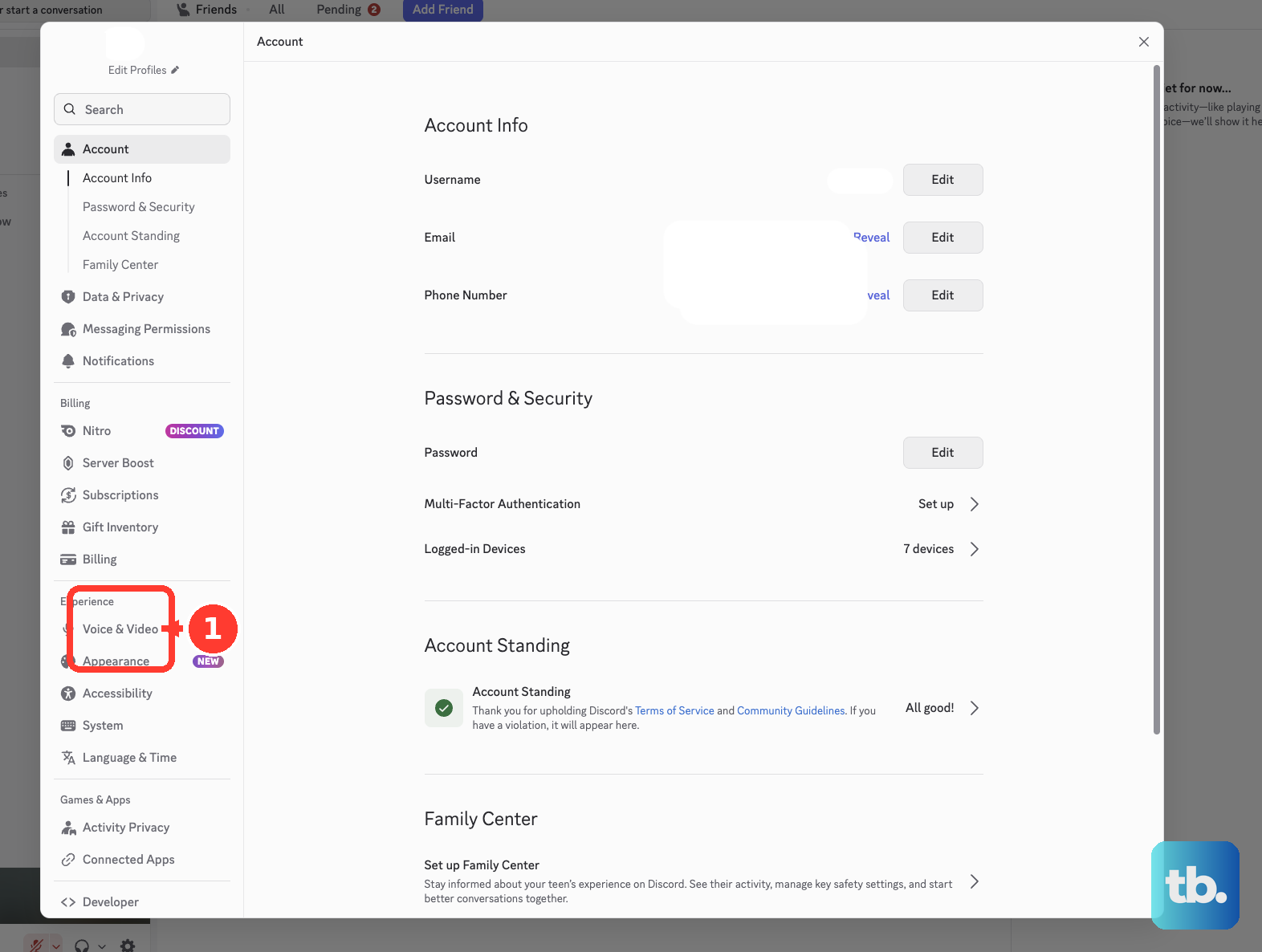
Before transferring from Discord on mobile, desktop, or web, also check Discord itself. On desktop or browser, open the cogwheel for User Settings > Voice & Video, verify Input Device and Output Device, and run Mic Test. On mobile, tap your avatar, tap the cogwheel, open Voice under App Settings, and check Input Mode and Output volume.
8. Repair the network route
Discord voice errors like ICE Checking, No Route, RTC Connecting, and Connecting point to the network path.
Restart your modem, router, and PS5.
Check for an internet provider outage.
For Wi-Fi, go to Settings > Network > Settings > Set Up Internet Connection, choose your Wi-Fi network, and select Connect.
For wired internet, go to Settings > Network > Settings > Set Up Internet Connection > Set Up Wired LAN > Connect.
Make sure the router is not IPv6-only. PS5 supports IPv6, but not IPv6-only networks.
If Discord is running through a VPN, use a VPN with UDP support.
On a work or school network, ask the network admin whether Discord is blocked.
If you are the Discord server admin and the voice channel still fails, open Voice Channel Settings > Overview > Region Override and temporarily switch the voice region.
On a PS5 Pro CFI-7000 with a compatible access point, highlight the access point, press the options button, open Advanced Settings, and test Multi-Link Operation turned on and off.
9. Clear PS5 cache or rebuild the database
Turn off the PS5.
Hold the power button and release it after the second beep to start Safe Mode.
Connect the controller with a USB cable and press the PS button, since wireless controllers do not work in Safe Mode.
Select Clear Cache and Rebuild Database.
Select Clear System Software Cache for system feature issues or performance drops.
Select Rebuild Database to scan the drive and recreate the content database.
Use Safe Mode after the simpler fixes when Game Base, notifications, or other PS5 system features keep acting wrong.
If the PS5 will not update normally, use a PC or Mac to create PS5 > UPDATE on a FAT32 or exFAT USB drive, save the official update file as PS5UPDATE.PUP, plug it into the PS5, start Safe Mode, then select Update System Software > Update from USB Storage Device > OK.
If the PS5 gets stuck in Safe Mode or system features stay frozen, hold the power button until the console beeps and shuts down, remove the power cable for 20 minutes, reconnect it, then turn on the PS5.
10. Open account restrictions and status sharing
For a managed child account, family settings control Discord access. A family manager can go to Settings > Family and Parental Controls > Family Management, select the child account, and keep Communication and User-Generated Content from being set to Restrict when Discord access is intended.
If Discord was already linked and needs to be blocked for a child account, unlink Discord in Linked Services under Family Management, then set Communication and User-Generated Content to Restrict. PlayStation also states that Discord is not available to every child account.
If Discord voice works but your PlayStation status or game activity does not appear in Discord, go to Settings > Users and Accounts > Privacy > View and Customize Your Privacy Settings and set Who can see your online status and what you're currently playing to Anyone. Then set your PS5 online status to Online from your profile or the control center. In Discord, also open User Settings > Connections > PlayStation Network and turn on Display PlayStation Network as your status.
Frequently Asked Questions
Can you install Discord as an app on PS5?
No. Discord is not a standalone PS5 app. Use Game Base > Discord after linking your accounts, or transfer voice from Discord on mobile, desktop, or web.
Can I use Discord on PS5 without my phone?
Yes. After your Discord and PlayStation accounts are linked and your PS5 system software is current, join server voice channels directly from Game Base > Discord.
Why does Discord connect on PS5 but nobody can hear me?
The mic is muted or the wrong input is selected. Press the DualSense mute button, then go to PS5 Settings > Sound > Microphone and choose the correct Input Device.
Why does Discord get stuck on RTC Connecting or No Route?
Those errors come from the network route. Restart the modem, router, and PS5, check for an ISP outage, make sure any VPN supports UDP, and confirm Discord is not blocked on the network.
Why does my PlayStation game activity not show on Discord?
In Discord, open User Settings > Connections > PlayStation Network and turn on Display PlayStation Network as your status. Then set Who can see your online status and what you're currently playing to Anyone, and set your PS5 online status to Online. PSN child accounts do not support activity status sharing.