Apple CarPlay not working after iOS 18 usually means the update exposed a wireless pairing, cable, Siri, or restriction setting problem. Apple also fixed a rare wireless CarPlay connection issue in iOS 18.4.1 for certain vehicles. Start with the update, then move through the connection checks that Apple documents for wired and wireless CarPlay.
1. Install iOS 18.4.1 or later
This fixes the iOS 18 wireless CarPlay issue Apple documented for certain vehicles.
- 1.Open Settings.
- 2.Tap General.
- 3.Tap Software Update.
- 4.Tap Download and Install.
2. Check the wired CarPlay connection
Start your car. Confirm Siri is turned on. Plug your iPhone into the vehicle USB port marked with a CarPlay icon or smartphone icon. For a Lightning iPhone, use an Apple Lightning to USB Cable.
Then disconnect the cable and reconnect with a different USB Cable. Use another compatible USB data port in the vehicle. For USB-C iPhones, skip USB-C to Lightning adapter combinations that disrupt CarPlay and use a direct USB cable.
3. Set up wireless CarPlay again
Press and hold the steering-wheel Voice Command button, then put the stereo in Wireless or Bluetooth mode. On your iPhone, open Settings > Wi-Fi, turn on Wi-Fi, tap the Info button for the CarPlay network, and turn on Auto-Join.
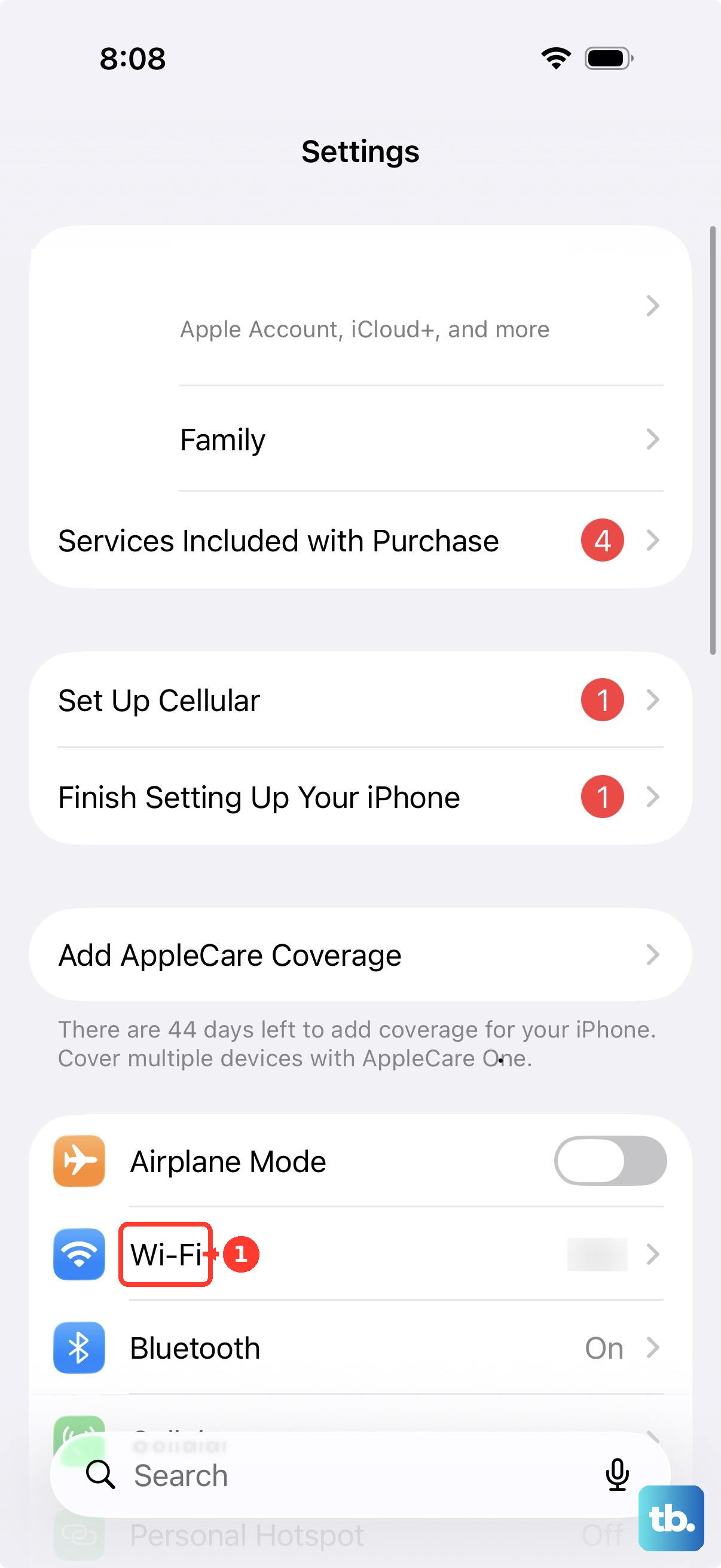
Next, open Settings > General > CarPlay and select your car. If CarPlay is connected but does not open on the dashboard, select the CarPlay logo on the vehicle display.
4. Turn on Bluetooth Wi-Fi and Siri
Open Settings. Tap Bluetooth and turn Bluetooth on. Return to Settings. Tap Wi-Fi and turn Wi-Fi on.
After that, tap the CarPlay network and turn Auto-Join on. Open Settings, then tap Apple Intelligence & Siri or Siri. Tap Talk & Type to Siri and turn on Siri or Hey Siri.
5. Restart your iPhone and car
This clears temporary connection failures after the update without removing settings. On iPhone X or later, press and hold either Volume button and the Side button. Drag the Power Off slider.
Wait 30 seconds. Press and hold the Side button until the Apple logo appears. Finally, restart the car or infotainment system using the vehicle manufacturer’s Restart instructions.
6. Allow CarPlay in Screen Time
Open Settings. Tap Screen Time. Tap Content & Privacy Restrictions.
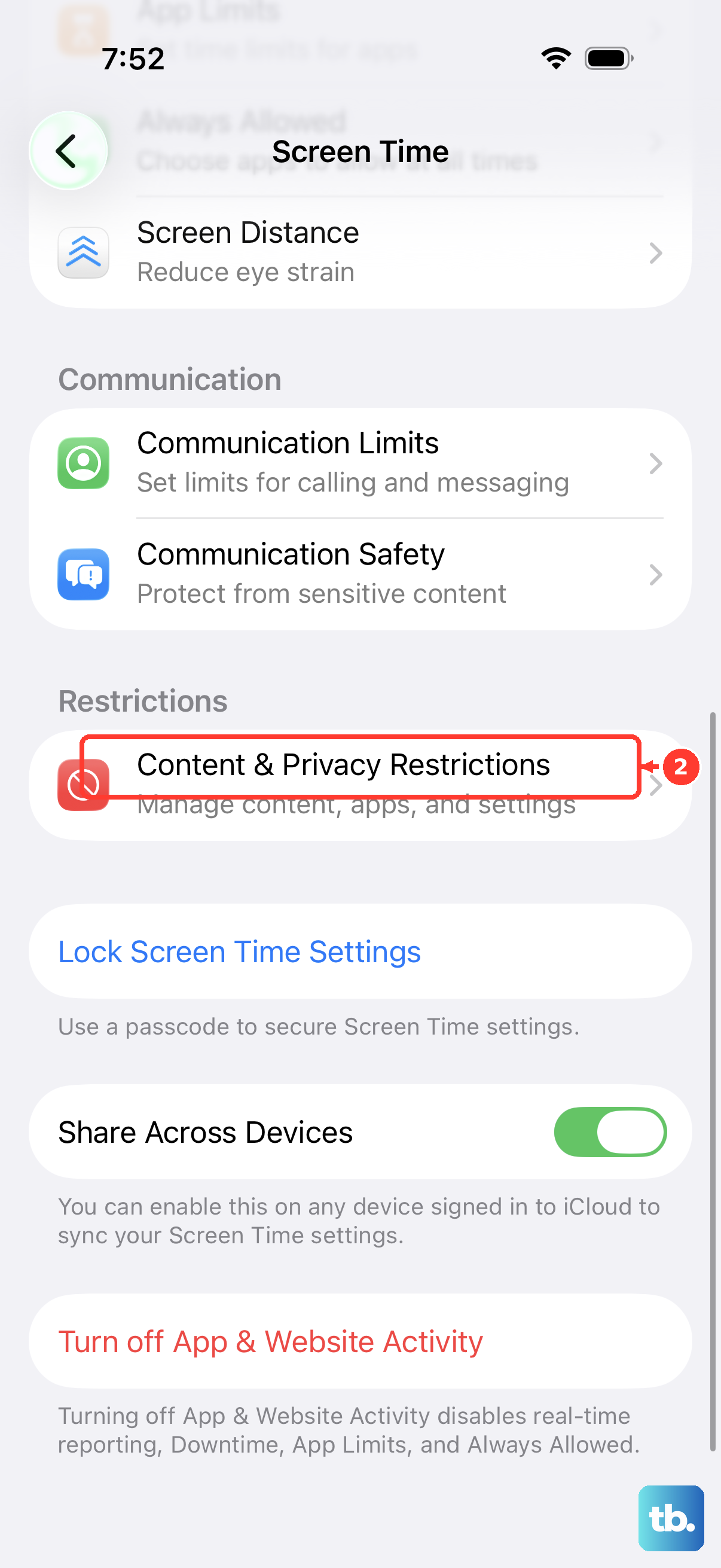
When Content & Privacy Restrictions is on, tap Allowed Apps & Features (shown as Allowed Apps on iPhones running older iOS versions). Turn on CarPlay.
7. Forget the car and pair again
This removes stale CarPlay pairing data left behind after the iOS update. Open Settings. Tap General. Tap CarPlay.
Select your car. Tap Forget This Car. Set up CarPlay again using the wired or wireless steps above.
8. Reset network or privacy settings
Open Settings. Tap General. Tap Transfer or Reset iPhone.
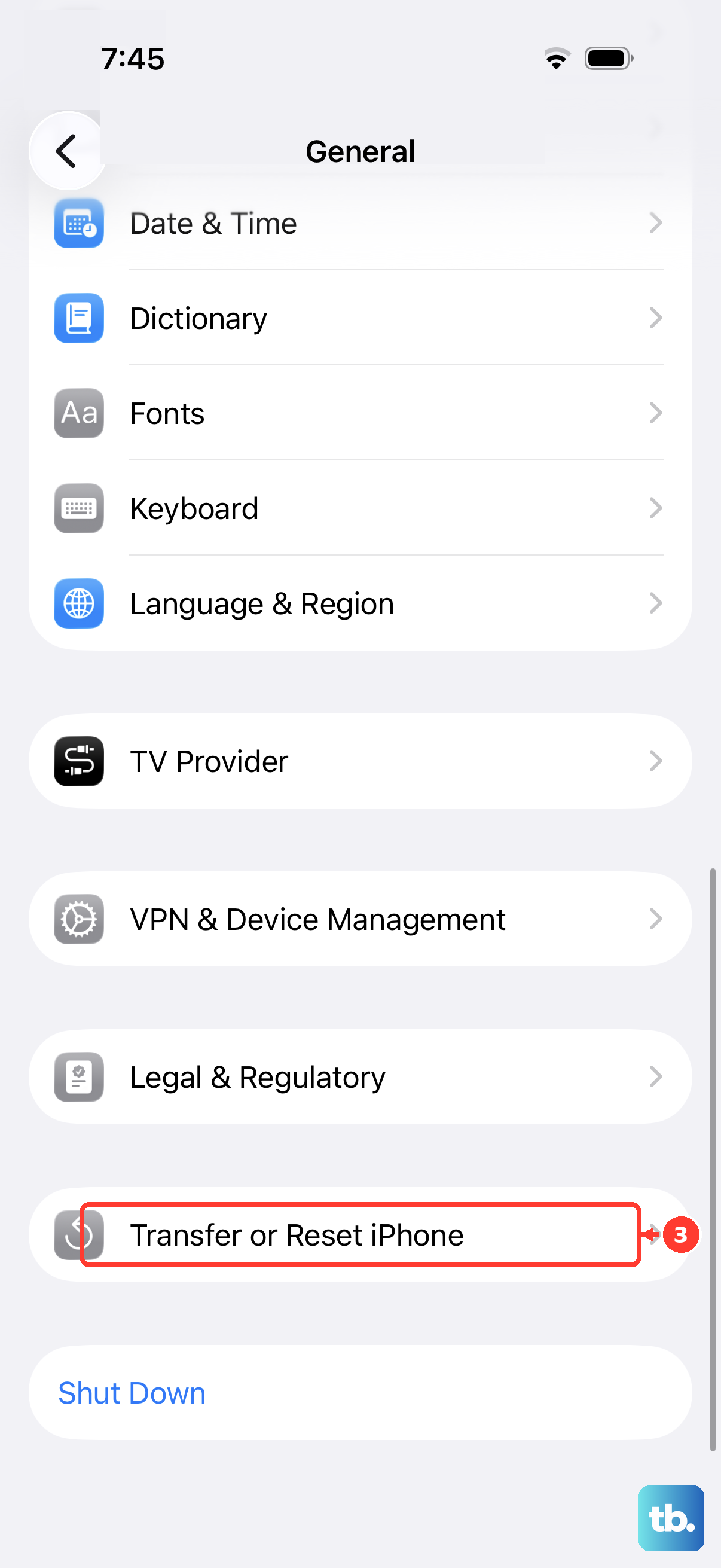
Tap Reset. Tap Reset Network Settings. For broken USB trust or accessory prompts, tap Reset Location & Privacy from the same Reset menu, then reconnect the vehicle and respond to the prompts.
Reset Network Settings removes saved Wi-Fi networks and passwords, cellular settings, and VPN or APN settings not installed by a configuration profile or device management.
Frequently Asked Questions
How do I know my car supports CarPlay?
Check Apple’s CarPlay vehicle and region support pages. Apple says to contact the vehicle manufacturer if you are not sure whether your car supports CarPlay.
What should I do if CarPlay works but an app is missing?
Go to Settings > General > CarPlay > your car > Customize, then add, remove, or reorder supported CarPlay apps. Only CarPlay-supported apps appear there.
Can a work or school iPhone block CarPlay?
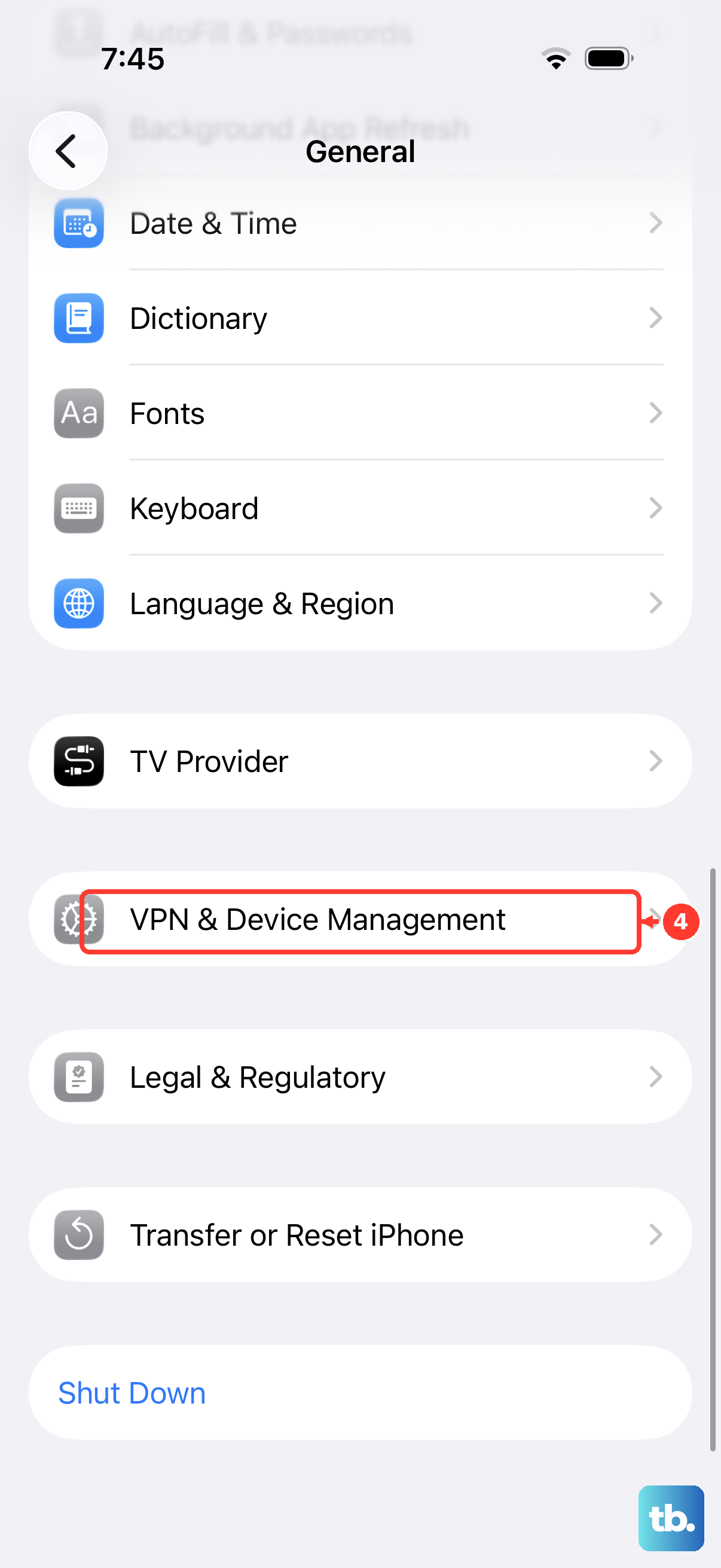
Yes. A configuration profile, VPN, or device management setting can affect Siri or network behavior. Check Settings > General > VPN & Device Management; managed devices may prevent removal.
Should I erase my iPhone to fix CarPlay?
Use Erase All Content and Settings only as a last resort after updates, connection checks, Siri, restrictions, pairing, and resets fail. Back up first because it removes your content and settings.