Android Auto sometimes stops launching, pairing, or showing on the car display after a phone, app, or security update. Start with the fastest reset, then rebuild the phone-to-car connection that broke. These fixes cover supported Android Auto setups in 2026: an Android 9.0 or newer phone, an active data plan, and a compatible vehicle or stereo. Android Auto is not available on devices that run Android (Go edition).
Restart the phone and update Android Auto
Press the phone's Power button for about 30 seconds, or until the phone restarts. If prompted, tap Restart, then tap Restart again.
Open Google Play Store, then tap your profile icon. Open Manage apps and device, then under Updates available, tap See details.
Tap Update next to Android Auto if it appears, or tap Update all. For future fixes, open Android Auto's Play Store details page, tap More, and turn on Enable auto-update.
Check for a newer phone system update
A follow-up Android patch fixes problems that start right after an OS or security update. Open Settings, then System, then Advanced, then System update, and follow the on-screen steps.
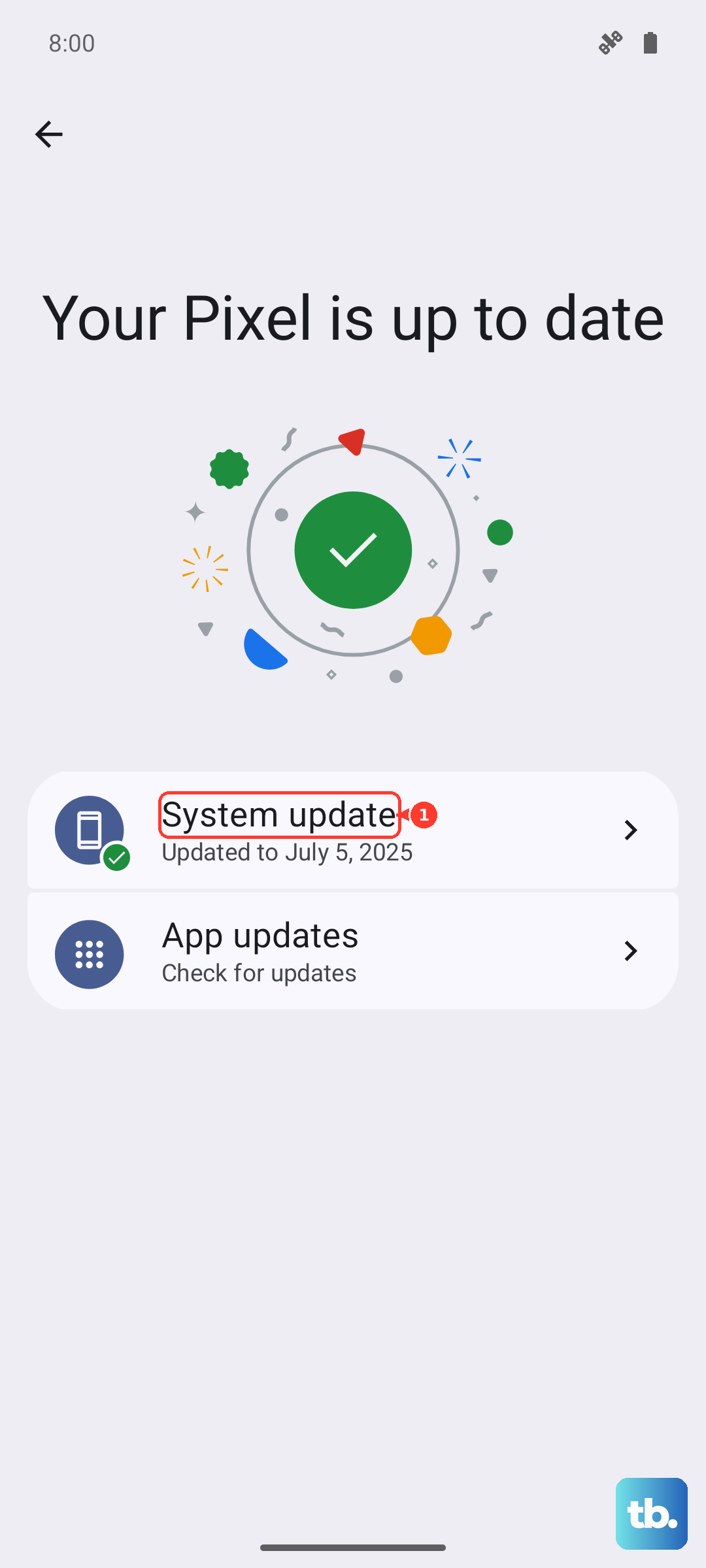
On some phones, open Settings, then About phone or About tablet, then Software update. Use the path your phone shows. If the phone is already up to date and Android Auto still will not start, rebuild the cable, car, and pairing setup next.
Rebuild the wired connection
This fixes wired Android Auto failures where the car stops recognizing the phone after an update. Put the car in Park with the infotainment system on. Then plug a USB cable into the vehicle's USB port.
Connect the other end of the cable to your Android phone. Follow the prompts on the phone and car display. Use a high-quality USB cable under 3 feet, or 1 meter.
Remove USB hubs and cable extensions from the setup. Try the cable that came with the phone, or use a recent USB-IF-certified cable.
Reconnect wireless Android Auto
The most common wireless cause after an update is stale Bluetooth, Wi-Fi, or Location state between the phone and car. On the phone, open Settings, then Bluetooth, and turn Bluetooth on. Keep Wi-Fi and Location on during setup.
Press and hold the steering wheel voice command button to open the car's new-phone pairing menu. Follow the on-screen steps to pair the phone and car over Bluetooth.
If Android Auto does not start after pairing, follow the prompts on the car display or tap Android Auto on the car display. Wireless Android Auto requires a compatible phone with Android 11.0 or newer and 5 GHz Wi-Fi support, plus a compatible wireless car or stereo.
Forget old cars and pair again
Unplug the phone from the car, then open Settings. Tap Connected devices, then Connection preferences, then Android Auto.
Tap Previously connected cars, then tap the top-right menu. Tap Forget all cars.
Plug the phone into the car again and complete setup. If wireless Android Auto still fails, clear the car from Saved devices, remove old phones from the car's memory, then pair again with Pair new device.
Fix permissions and unused app settings
This fixes Android Auto when an update removes access to Location, Nearby devices, Phone, Contacts, SMS, Microphone, Notifications, or other required permissions. Open Settings, then tap Apps, then Android Auto.
If Android Auto is hidden, tap See all apps, then tap Android Auto. Tap Permissions, then open each denied permission Android Auto needs and choose Allow.
Open Settings, then Location, then App location permissions. Tap Android Auto. Choose the needed location option, such as Allow only while using the app. Return to Settings, then Apps, then Android Auto, and turn off Pause app activity if unused.
Clear Android Auto cache and app data
Use this when Android Auto opens incorrectly, connects halfway, or keeps failing after the connection and permission fixes. Clearing cache is the lighter reset; clearing storage or data makes you set up Android Auto again.
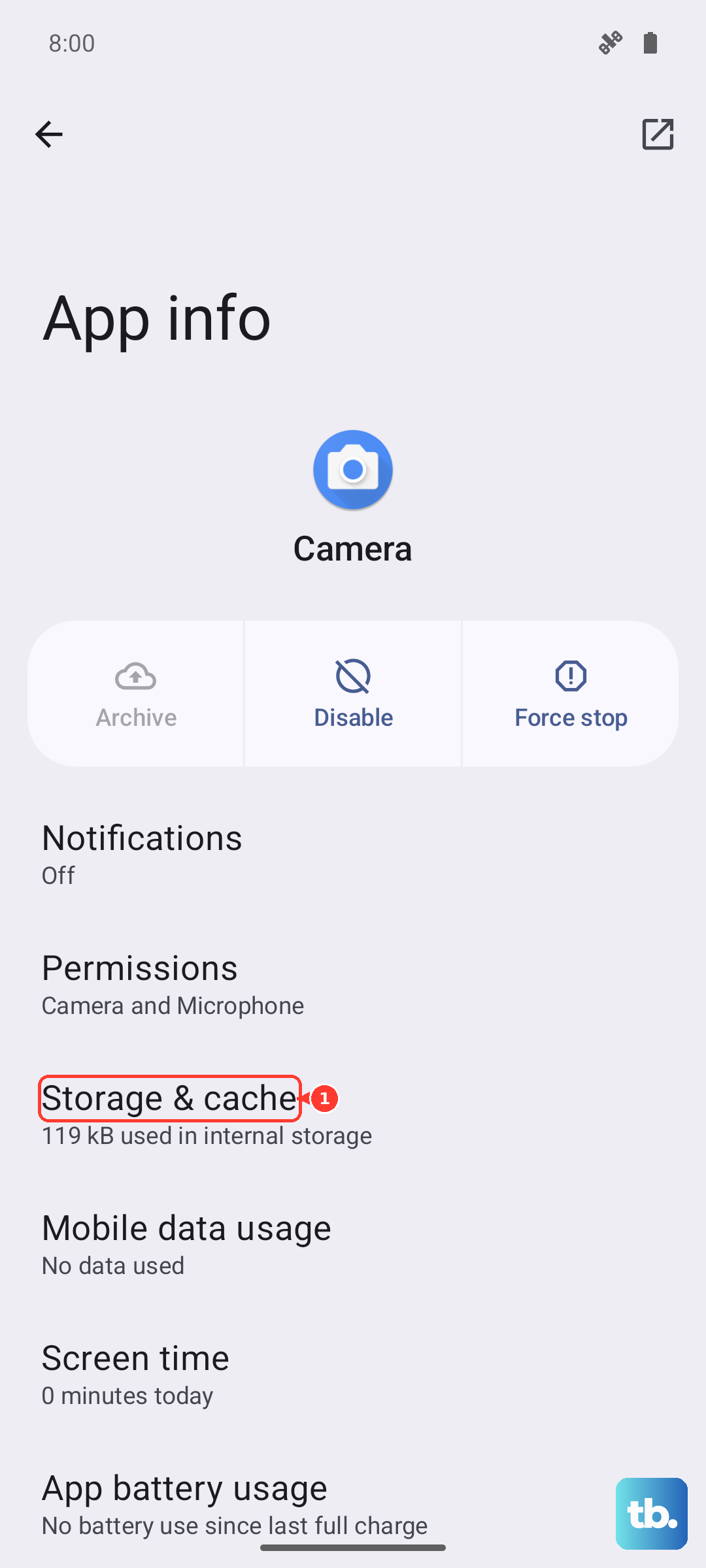
Open Settings, then Apps, then Android Auto. Tap Storage & cache.
Tap Clear cache.
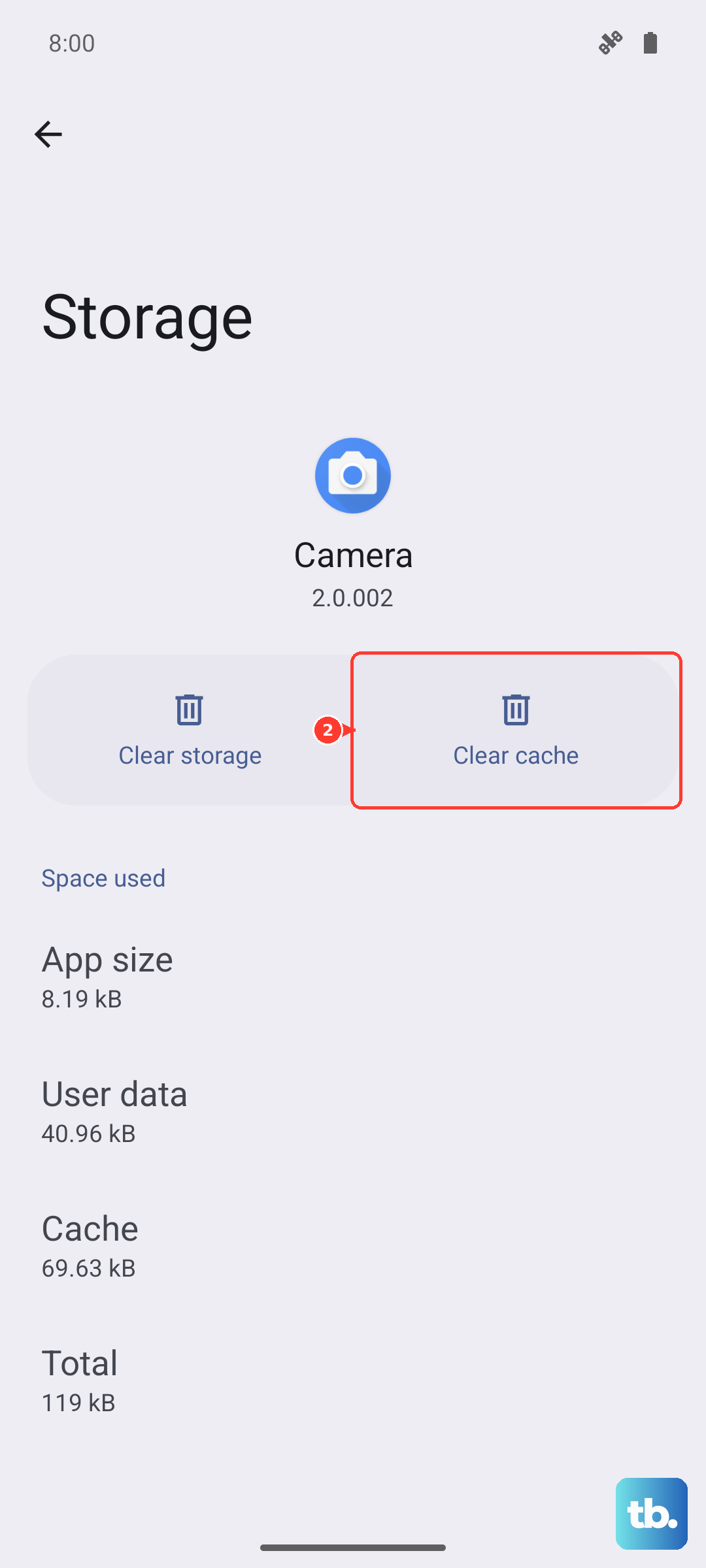
Try Android Auto again. If the problem continues, return to Storage & cache and tap Clear storage or Clear data.
Reconnect the phone to the car and complete Android Auto setup again. Use Google Play updates instead of APK downgrades; Android 10 and newer phones have Android Auto built in for car-display use.
Update Google Play services and the Play Store
Open Settings, then tap your profile picture, then tap All services. Under Privacy & Security, tap System services, then tap Google Play services.
Tap Update or Install if either button appears. If Android Auto will not update through Google Play, open Settings, then Apps & notifications, then See all apps, then Google Play Store, then Storage.
Tap Clear Cache, then tap Clear data. Reopen Play Store and update Android Auto again. Use Google Play services Clear all data only as a last resort because it deletes device-saved information such as passwords, transit cards, COVID cards, and virtual payment cards, and requires account or payment reauthentication.
Reset connections or check a managed phone
This fixes deeper Bluetooth and Wi-Fi connection state problems after the usual Android Auto resets fail. Open Settings, tap System, then tap Reset options.
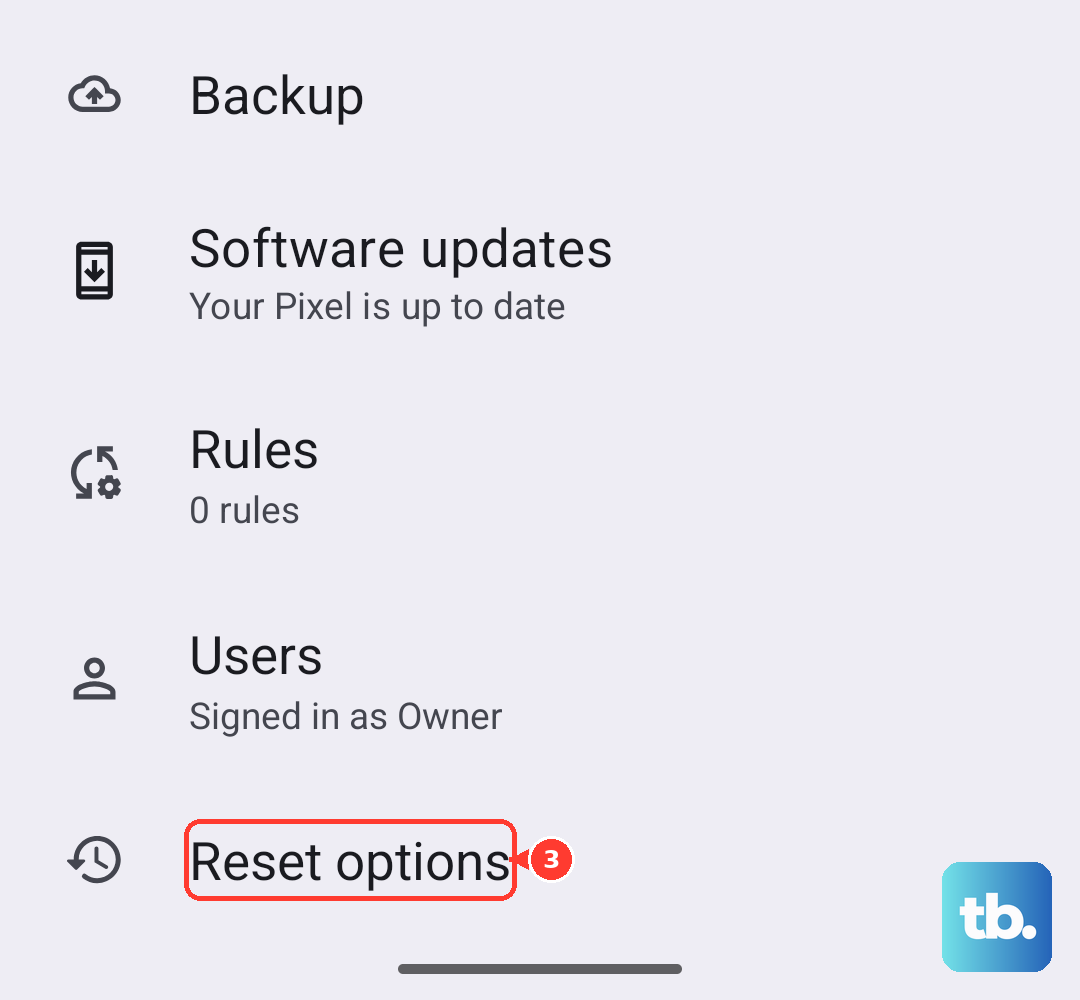
Tap Reset Bluetooth & Wi-Fi, then tap Reset settings. Reconnect Wi-Fi and Bluetooth devices, then set up Android Auto again.
If the phone is managed by work or school and Play Store says an app is not approved by an admin, contact IT. Managed phones need Android Auto and required apps approved or assigned before they install, update, or appear normally.
As a true last resort, back up the phone, then open Settings, then System, then Reset options, then Erase all data (factory reset). This erases device data and apps, so use it only after app, cable, vehicle, Bluetooth, Wi-Fi, permission, and update fixes have failed.
Frequently Asked Questions
Why did Android Auto stop working right after an update?
An update can leave Android Auto with stale car pairing data, missing permissions, broken Bluetooth or Wi-Fi state, or an outdated Play services component. Start with a phone restart, Google Play updates, and a fresh car connection.
Do I need to install Android Auto separately?
Android Auto is built into supported phones running Android 9.0 and up, so you do not have to install a separate app from the Play Store to use it with your car display. Updates still come through Google Play when available.
What cable should I use for wired Android Auto?
Use a high-quality USB cable under 3 feet, or 1 meter. Avoid USB hubs and cable extensions, and try the cable that came with your phone or a recent USB-IF-certified cable.
Should I factory reset my phone to fix Android Auto?
Only as a last resort. A factory reset erases device data and apps, so try updates, cable replacement, car reconnection, permissions, cache clearing, and Bluetooth/Wi-Fi reset first.