Your Astro A50 mic is silent when the boom is muted, the base station is on the wrong input, or your device is listening to the wrong microphone. Start with the headset and base station, then move through the exact Windows, Mac, console, Discord, and firmware settings that control voice input.
1. Drop the boom mic and check PLAYSYNC
Rotate the boom mic down and forward. The mic is muted when the boom sits fully upright. Logitech says the mute point has a mechanical engagement feel, so move it past that point before testing again.
Press PLAYSYNC on the headset under the power switch. Watch the Base Station Input LED Indicator and stop on the platform you are using.
A50 GEN 5: cycles XBOX, PlayStation, then PC. A50 X: cycles XBOX, PC, then PlayStation.
2. Reconnect the base station directly
Connect the Base Station to its dedicated power adapter. On PC, plug the A50 or A50 X directly into a computer USB port. For A50 X, skip the USB HUB, KVM Switch, and other intermediary accessory paths. On console, connect the USB cable to the matching rear port labeled XBOX, PS, or PC.
3. Select the Astro mic in Windows
Select Start.
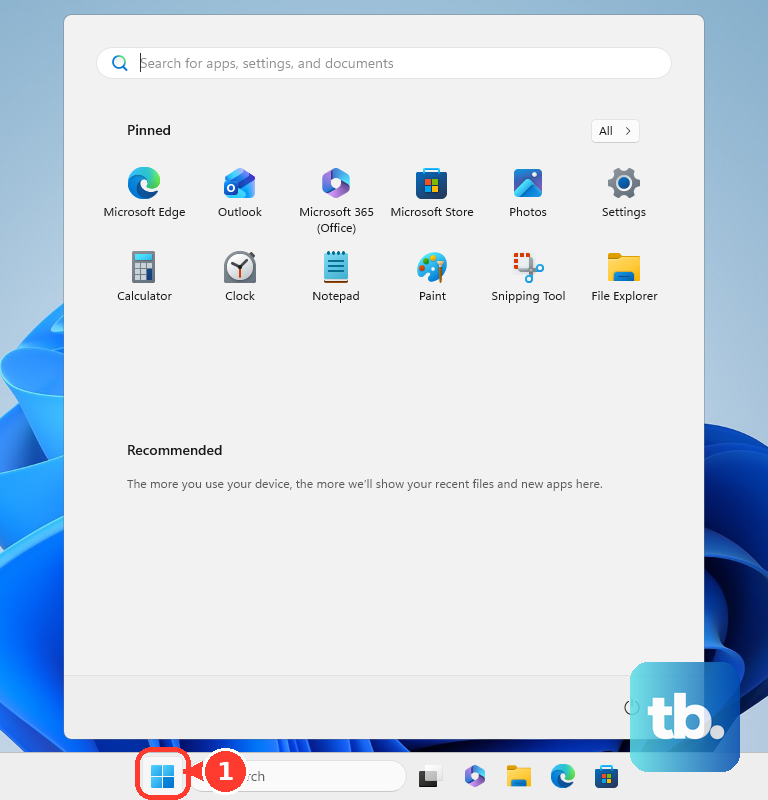
Open Settings. Go to System > Sound. Under Input, open Choose a device for speaking or recording. Select A50 X Mic Out for A50 X or A50 Mic Out for A50 GEN 5.
Open that device's Properties page. Under Input settings, select Start test. speak normally. Select Stop test.
Select Play. Move the Input volume slider up when the recording is too quiet. When the Astro microphone is missing, right-click Start. Open Device Manager.
Expand Sound, video and game controllers. Right-click the audio device. Select Uninstall device. Check Attempt to remove the driver for this device.
Select Uninstall. Restart the PC. Return to Device Manager.
Select Scan for hardware changes. Right-click the audio driver and select Update driver.
4. Open Windows microphone permissions
Windows blocks voice input when app permission is off. Use the Windows 11 path Start > Settings > Privacy & security > Microphone.
Turn on Microphone access. Turn on Let apps access your microphone. Under Choose which apps can access your microphone, turn on the app you use for chat or recording. For desktop apps, turn on Let desktop apps access your microphone.
5. Set the Astro input on Mac
Open Apple menu > System Settings > Sound > Input. Select the Astro headset or base-station microphone in the input device list. Raise the input volume in the same Input settings area when your voice is too quiet.
Give your chat or recording app permission. Go to Apple menu > System Settings > Privacy & Security > Microphone. Turn microphone access on for that app.
6. Pick the right PS5 and Xbox voice settings
On PS5: go to Settings > Sound > Microphone. Change Input Device to USB Headset (A50) or USB Headset (A50 X). Open Adjust Microphone Level. Confirm the meter responds.
When PS5 input works but chat goes to the wrong place, press the PS button. Open Control Center > Game Base.
Select your party. Use the voice chat card drop-down to switch between party chat and game chat. Use the slider on that card to adjust voice-chat balance.
On Xbox Series X|S with A50 GEN 5: dock the headset in the Base Station. Power it on. Press PLAYSYNC until it reaches XBOX mode. Undock it.
Leave it powered on until Xbox shows the assignment notification. Go to XBOX Settings > Volume and audio output > Headset audio. Set Headset format to Stereo uncompressed or Dolby Atmos for Headphones.
On Xbox Series X|S with A50 X using HDMI and USB: open XBOX Settings > Volume and audio output. Under Speaker audio, choose Stereo uncompressed for TV or stereo speakers, or choose Dolby Atmos for home theater (HDMI only) for that setup. Under Headset audio, choose Stereo uncompressed or Dolby Atmos for Headphones. Leave everything else under Additional options unchecked.
For blocked Xbox voice chat, open Profile & system > Settings > Account > Privacy & online safety > Xbox privacy. For multiplayer or cross-network voice issues, go to View details and customize > Communication & multiplayer. Allow voice and text communication.
7. Correct Discord and Chrome voice access
In Discord, select the cogwheel icon for User Settings. Open Voice & Video. Open the Input Device drop-down.
Select the Astro microphone. Under Input Mode, choose Voice Activity or Push to Talk. For Voice Activity, adjust Automatically determine input sensitivity or the manual input sensitivity control.
For Discord in Chrome, select the browser ellipsis menu. Open Settings > Privacy and security > Site Settings > Microphone. Under Customized behaviors, find Discord under Not allowed to use your microphone.
Select the trashcan icon. Join a Discord voice channel. Select Allow when Chrome prompts you.
8. Update firmware with Logitech G HUB
For A50 X LIGHTSPEED and A50 GEN 5, use Logitech G HUB on PC or Mac, or the Logitech G Mobile App on iOS or Android.
In G HUB, select the headset from the home screen. Open device Settings. Follow the firmware update instructions when G HUB reports that firmware is out of date.
For A50 GEN 3 and A50 GEN 4, Logitech lists Astro Command Center as the older supported tool. Use DOWNLOAD ACC FOR MICROSOFT STORE or DOWNLOAD ACC FOR MAC from Logitech's Astro Series Software page only for those older models.
Do not use Logitech's standalone Firmware Update Tool for Astro A50 firmware. Logitech says that tool is no longer supported or maintained.
Frequently Asked Questions
Why does my Astro A50 mic work in Windows but not Discord?
Discord is set to a different input device or input mode. Open User Settings > Voice & Video, set Input Device to the Astro microphone, then check Voice Activity, Push to Talk, and input sensitivity.
What should I select as the Astro A50 mic on Windows 11?
Select A50 X Mic Out for A50 X. Select A50 Mic Out for A50 GEN 5. The path is Start > Settings > System > Sound > Input.
Does Astro Command Center fix A50 X or A50 GEN 5 mic problems?
No. Logitech lists G HUB and the Logitech G Mobile App for A50 X LIGHTSPEED and A50 GEN 5. Astro Command Center is listed for A50 GEN 3 and A50 GEN 4.
Why is my Astro A50 mic muted even though the headset is on?
The boom mic mutes when it is fully upright. Rotate the boom down and forward until it passes the mechanical mute point.
What do I do when the microphone setting is locked on a school or work computer?
Contact the device admin. Managed Windows and macOS devices use organization policy to control microphone access, so the admin must allow microphone access for the app you use.