When your Android phone suddenly stops making or receiving calls, the cause is almost always one of a few things: a network or carrier hiccup, a setting that is silently filtering calls, a SIM that has lost its connection, or a phone that needs VoLTE to place a call at all. Most of these are fixable in a couple of minutes once you know where to look.
This guide walks through 15 fixes in the order you should try them, starting with the quick toggles and ending with a full reset. Menu names differ slightly between stock Android (Pixel) and Samsung Galaxy phones, so both paths are noted where they diverge.
Read also - Android Not Receiving Texts From iPhones? Here's How to Fix It
Why Your Android Phone Cannot Make or Receive Calls
Calls can fail in two directions, and the direction tells you where to look. If you can receive calls but not place them, the problem is usually fixed dialing, call barring, or no outgoing signal. If you can place calls but not receive them, suspect Do Not Disturb, a blocked number, or call forwarding sending calls elsewhere.
If calls fail both ways, the issue is almost always network level: no signal, an inactive SIM, an account problem, or a phone that no longer supports the calling technology your carrier uses. Use the table below to jump to the most likely fix for your symptom.
| Symptom | Most likely cause | Where to start |
|---|---|---|
| Cannot place or receive any calls | No signal, inactive SIM, or VoLTE not enabled | Fixes 1-5, 9, 12 |
| Can receive but cannot make calls | Fixed dialing or call barring | Fixes 7-8 |
| Can make but cannot receive calls | Do Not Disturb, blocked number, or call forwarding | Fixes 4-6 |
| No Service or Not Registered on Network | SIM or carrier registration | Fixes 9, 11-12 |
| SIM not detected | Loose or damaged SIM | Fix 9 |
Turn Airplane Mode Off and On
Airplane mode cuts every radio on the phone, including the cellular connection your calls travel over. If it is on, no call will go through in either direction.
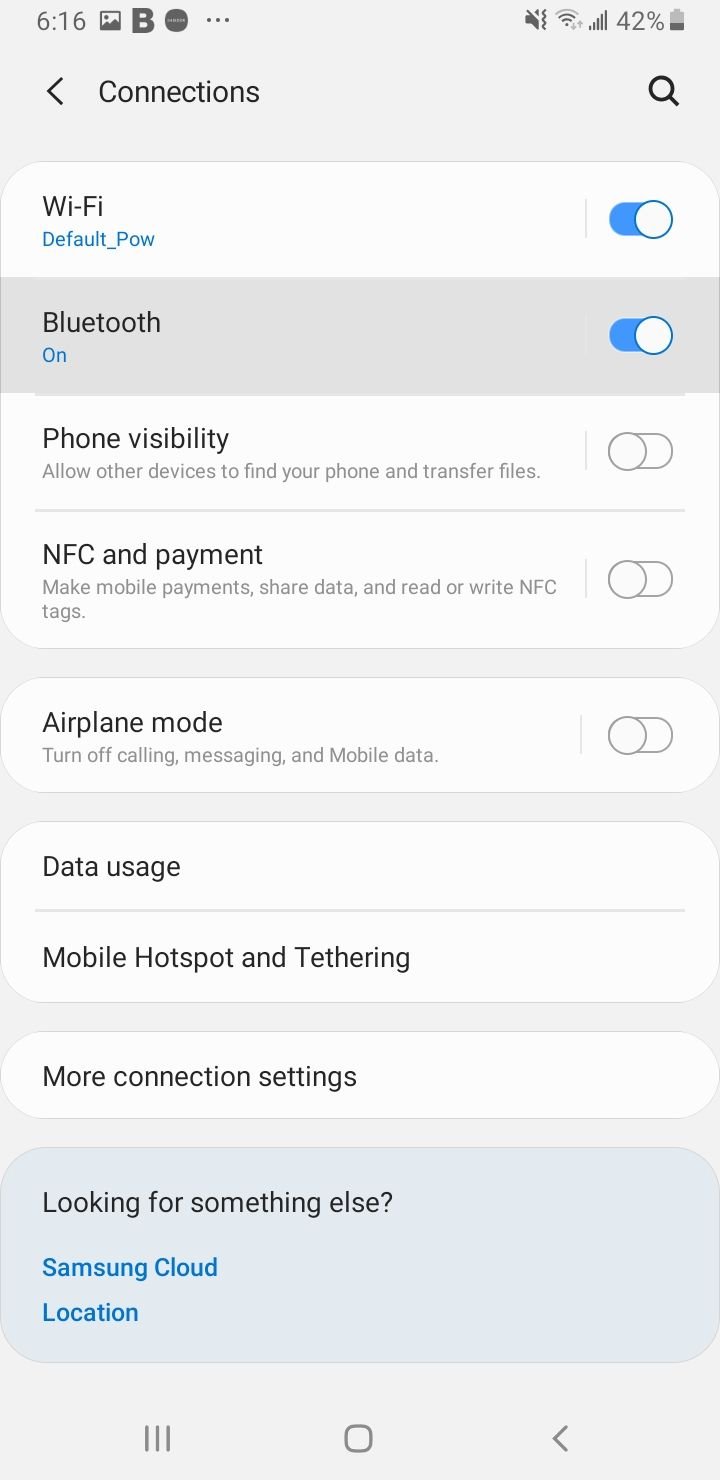
Swipe down from the top of the screen to open Quick Settings and check the airplane icon. Even if it looks off, tap it on, wait about ten seconds, then tap it off again. This forces the phone to re-register with the nearest cell tower and clears many temporary call failures.
Restart Your Phone
A restart clears the temporary system state that handles your network connection, and it is the single most effective fix for a phone that worked fine yesterday and not today. Hold the power button (or power plus volume up on phones without a dedicated menu) and tap Restart.
If a restart helps for a while and the problem keeps coming back, that points to a software conflict or a failing SIM rather than a one-time glitch. In that case, work through the rest of this list to find the real cause.
Check Your Signal and Account Status
Look at the signal bars in the status bar. One bar or no bars means weak coverage, and weak coverage prevents calls long before it kills your data. Step outside, move toward a window, or try a different room and see if the bars climb.
If you see No Service everywhere, the issue may not be your phone. Confirm your plan is active and your bill is paid through your carrier's app or website, since a suspended line will block calls instantly. You can also check whether your carrier reports an outage in your area.
Disable Do Not Disturb
Do Not Disturb silences incoming calls without any obvious sign, which is the most common reason a phone rings for no one. It can also switch on automatically through a schedule or a connected device.
On stock Android, open Quick Settings and tap the Do Not Disturb tile to turn it off, or go to Settings > Notifications > Do Not Disturb. On a Samsung Galaxy, the toggle lives under Settings > Notifications > Do Not Disturb or in the Quick Settings panel. While you are there, check any schedules so it does not re-enable itself overnight.
Remove the Caller From Your Blocked List
If only certain people cannot reach you, they may be on your blocked list. Spam protection can also block numbers automatically, sometimes without you ever adding them.
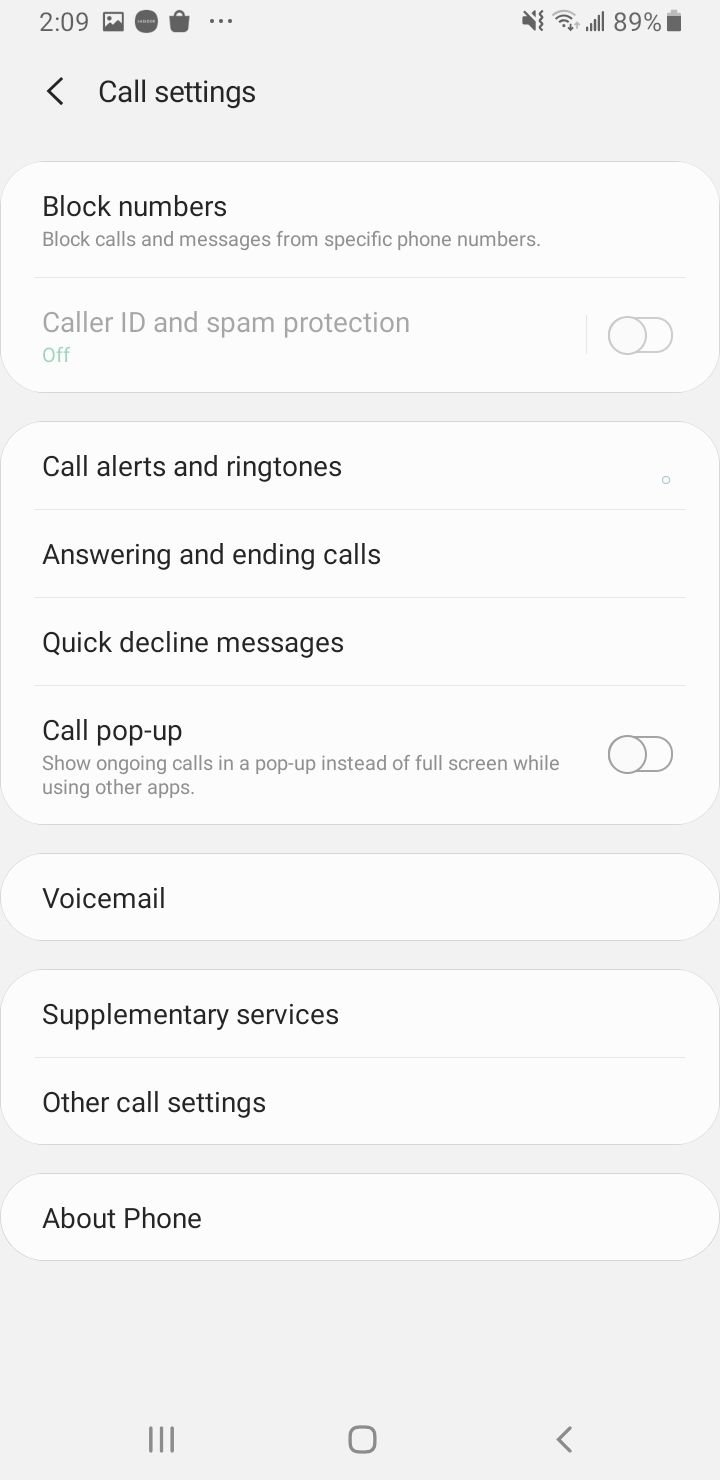
Open the Phone app, tap the three-dot menu, then open Settings > Blocked numbers. Remove anyone you want to hear from. In the same Settings menu, look for Caller ID and spam and review it, since aggressive spam filtering can silently divert legitimate callers.
Turn Off Call Forwarding
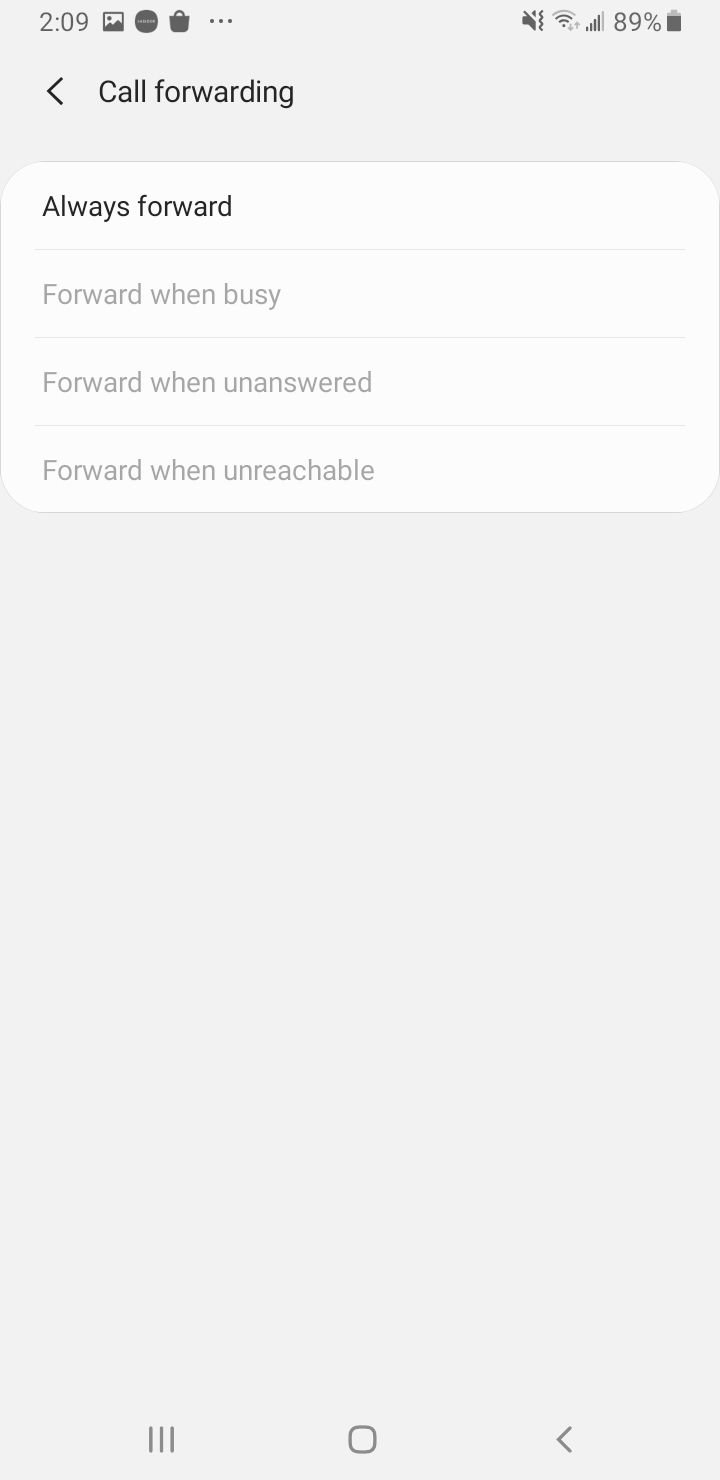
Call forwarding sends your incoming calls to another number, so your phone never rings even though the line works perfectly. It can be left on by a voicemail setup or an old carrier setting.
Open the Phone app, tap the three-dot menu, then open Settings > Calls > Call forwarding (the wording may read Supplementary services on some phones). Disable every forwarding option that is switched on, then place a test call to confirm.
Check Call Barring and Fixed Dialing
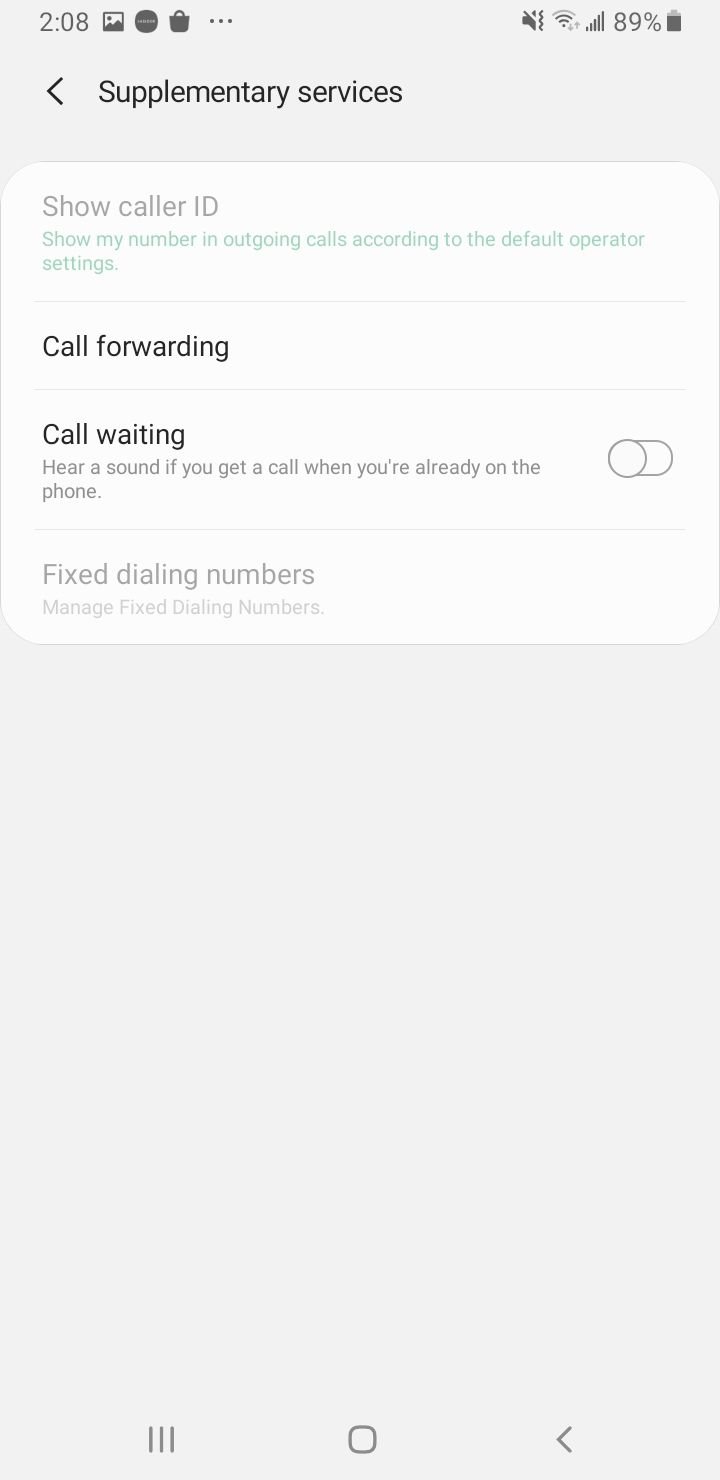
If you can answer calls but cannot make them, two carrier features are the usual cause. Call barring can block outgoing calls entirely, and Fixed Dialing Numbers (FDN) restricts dialing to a saved list.
In the Phone app, open Settings > Calls > Call barring and make sure outgoing calls are not barred. For Fixed Dialing, open Settings > Calls > Additional settings (or Supplementary services) > Fixed Dialing Numbers and turn FDN off. Turning FDN off usually requires your SIM PIN2, which your carrier can provide if you do not have it.
Reseat or Test Your SIM Card
A SIM that has shifted in its tray, collected dust, or started to fail will drop your connection and show errors like No Service or Not Registered on Network. Reseating it is a fast, safe first step.
Power the phone off, use the ejector tool to open the tray, then remove the SIM, wipe the gold contacts with a dry cloth, and reinsert it firmly. If errors persist, test the SIM in another phone. If the other phone also fails, ask your carrier for a free replacement SIM.
Toggle the SIM Off and On in Settings
Modern Android lets you disable and re-enable a SIM in software, which re-registers it with the network without touching the tray. This often clears a stuck connection faster than a full restart.
On stock Android, go to Settings > Network and internet > SIMs, choose the affected SIM, turn it off, wait a few seconds, then turn it back on. On Samsung, the path is Settings > Connections > SIM manager. The phone should re-register and start receiving calls again within moments.
Enable VoLTE and Wi-Fi Calling
This is the fix many people miss. Carriers have shut down their old 3G voice networks (in the US this happened through 2022, with similar shutdowns continuing worldwide), so calls now ride on VoLTE, which is voice over the 4G LTE network. If VoLTE is off or your phone does not support it, you may have data but no calling ability at all.
On Samsung, look for the toggle at Settings > Connections > Mobile networks > VoLTE calls, and turn on Wi-Fi Calling at Settings > Connections > Wi-Fi Calling. On stock Android, open Settings > Network and internet > SIMs, tap your SIM, and use the calling toggles there. On the newest phones VoLTE may be on permanently with no switch to flip. Wi-Fi Calling needs an active Wi-Fi connection and lets you place calls where cell coverage is poor.
Update Your Phone and Carrier Settings
Outdated system software can carry bugs that break the dialer or the network connection. Carrier settings updates ship the configuration your network needs to register correctly, so both are worth checking.
Check for system updates at Settings > System > System update on stock Android, or Settings > Software update > Download and install on Samsung. Install anything available, then restart. A current update can also be what enables VoLTE on a phone that lacked it before.
Clear the Phone App Cache
The Phone app stores cached data that can become corrupted and cause the dialer to crash, freeze, or fail to connect calls. Clearing the cache leaves your contacts and call history intact.
Go to Settings > Apps > Phone > Storage and cache, then tap Clear cache. Restart the phone and test a call. Clear storage is a heavier option that resets the app's data, so try cache first.
Test in Safe Mode
A third-party app, especially a call recorder, dialer replacement, or security tool, can interfere with calls. Safe Mode starts the phone with only built-in apps so you can confirm whether one of your installs is the culprit.
Press and hold the power button, then touch and hold Power off until Safe mode appears, and tap it. If calls work normally in Safe Mode, restart to exit, then uninstall recently added apps one at a time until calls return.
Reset Network Settings
If calls still fail, resetting network settings clears every cellular, Wi-Fi, and Bluetooth configuration and rebuilds them from defaults, which fixes corrupted connection data. It does not delete photos, apps, contacts, or messages, and it does not remove an eSIM by default.
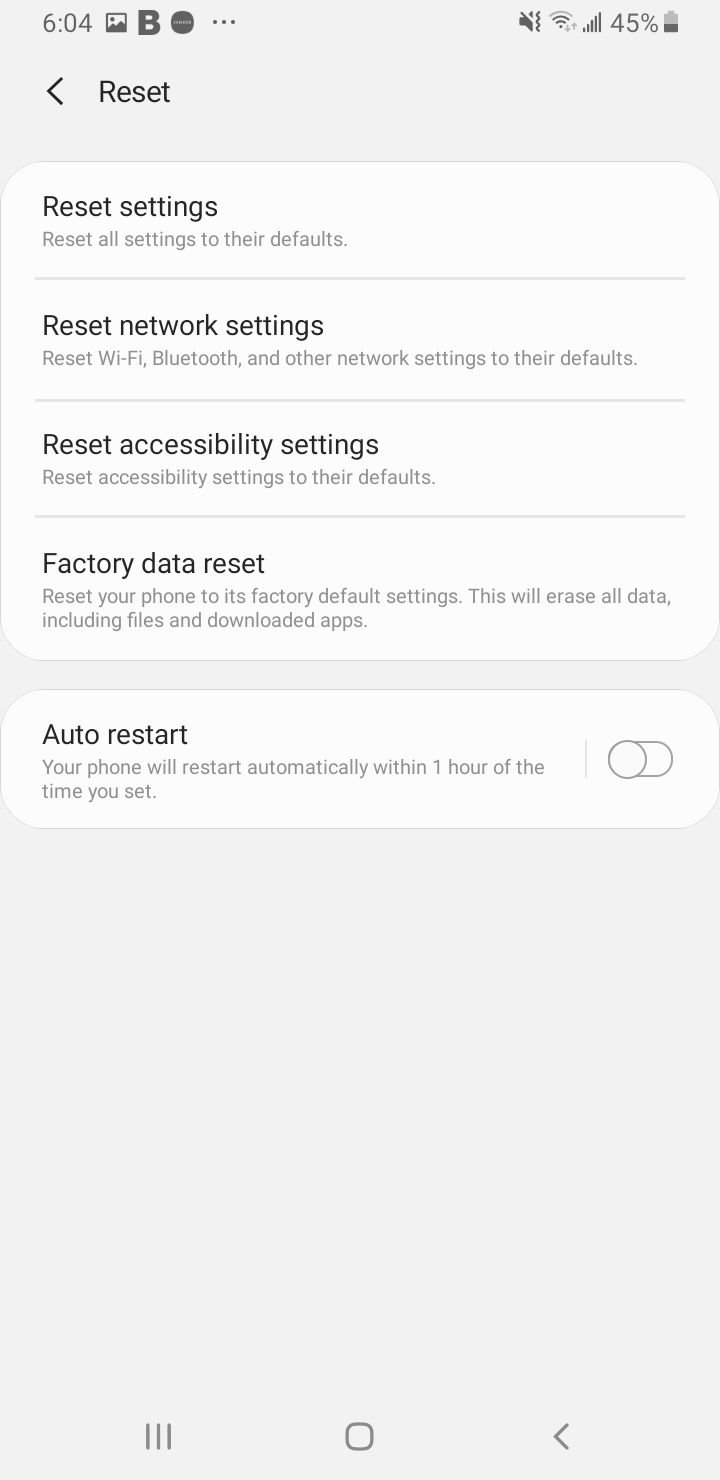
On stock Android, go to Settings > System > Reset options > Reset Mobile Network Settings. On Samsung, go to Settings > General management > Reset > Reset mobile network settings, then confirm with your PIN. Note that this erases saved Wi-Fi passwords and Bluetooth pairings, so you will reconnect those afterward.
Factory Reset as a Last Resort
A factory reset wipes the phone back to its original state and clears any deep software problem that survived everything above. It erases everything, so back up your photos, contacts, and messages first.
Back up through Settings > Google > Backup (or Samsung Cloud), then go to Settings > System > Reset options > Erase all data (factory reset) on stock Android, or Settings > General management > Reset > Factory data reset on Samsung. If calls still fail after a clean reset, the cause is hardware or carrier side, and your manufacturer or carrier support should take it from there.
Read also - How to Fix Mobile Network Not Available on Android
Frequently Asked Questions
Why can I receive calls but not make them?
This usually points to a setting that blocks outgoing calls rather than a network failure. Check that call barring is off, that Fixed Dialing Numbers is disabled, and that Airplane mode is not on. If those are clear, confirm your account is active and your outgoing call balance is in good standing with your carrier.
What does Not Registered on Network mean?
It means your phone could not authenticate with your carrier's network, so the line cannot send or receive calls. Common causes are a loose or unprovisioned SIM, an account issue, or VoLTE not being enabled on a phone whose carrier has retired 3G voice. Reseating the SIM, toggling it in Settings, and enabling VoLTE are the first things to try.
Will resetting network settings delete my data?
No. Resetting network settings only clears saved Wi-Fi passwords, Bluetooth pairings, and cellular configuration. Your photos, apps, contacts, messages, and accounts are untouched, and an eSIM is not removed by default unless you specifically choose that option.
Why does my phone show No Service when others nearby have signal?
If nearby phones on the same carrier have signal and yours does not, the problem is on your device or SIM rather than the tower. Reseat or test the SIM in another phone, toggle the SIM off and on in Settings, and reset network settings. If a known-good SIM still shows No Service, the phone's antenna or modem may need service.
Do I need VoLTE to make calls in 2026?
On most networks, yes. Carriers have shut down or are phasing out older 3G voice networks, so voice calls now run over VoLTE on the 4G LTE network. If your phone supports VoLTE, turn it on in your connection settings, and install any pending system or carrier update that may be required to enable it.
First published October 15, 2025. Last updated June 4, 2026.