That thin sliding tab on the side of your Galaxy phone is the Samsung edge panel handle. Swipe it inward and a floating window appears with shortcuts to apps, tools, and contacts. It is genuinely useful for some people, but for many it is just something they trigger by accident when they grip the phone.
If the sidebar keeps popping out when you do not want it, the fastest fix is to switch the whole feature off, which takes about ten seconds. If you would rather keep it but make it less intrusive, you can move the handle, shrink it, fade it out, or change which panels appear.
This guide covers both paths. It starts with turning the edge panel off and removing the handle, then walks through every customization option, all verified against current One UI on Galaxy phones and tablets.
Quick Reference for Every Edge Panel Change
Use this table to jump straight to the toggle that does what you want. Each setting lives inside the same Edge panels menu, so once you are there the rest is fast.
| What you want | Where to go |
|---|---|
| Turn off the edge panel and hide the handle | Settings > Display > Edge panels, toggle off |
| Move the handle to the other side | Settings > Display > Edge panels > Handle > Position |
| Resize or fade the handle | Settings > Display > Edge panels > Handle |
| Hide or show a specific panel | Settings > Display > Edge panels > Panels |
| Lock the handle so you stop moving it | Settings > Display > Edge panels > Handle > Lock handle position |
| Bring the edge panel back | Settings > Display > Edge panels, toggle on |
How to Turn Off the Edge Panel
If you never use the sidebar and just want the handle gone, turning off the feature is the cleanest option. It removes the handle from every screen so you stop triggering it by accident.
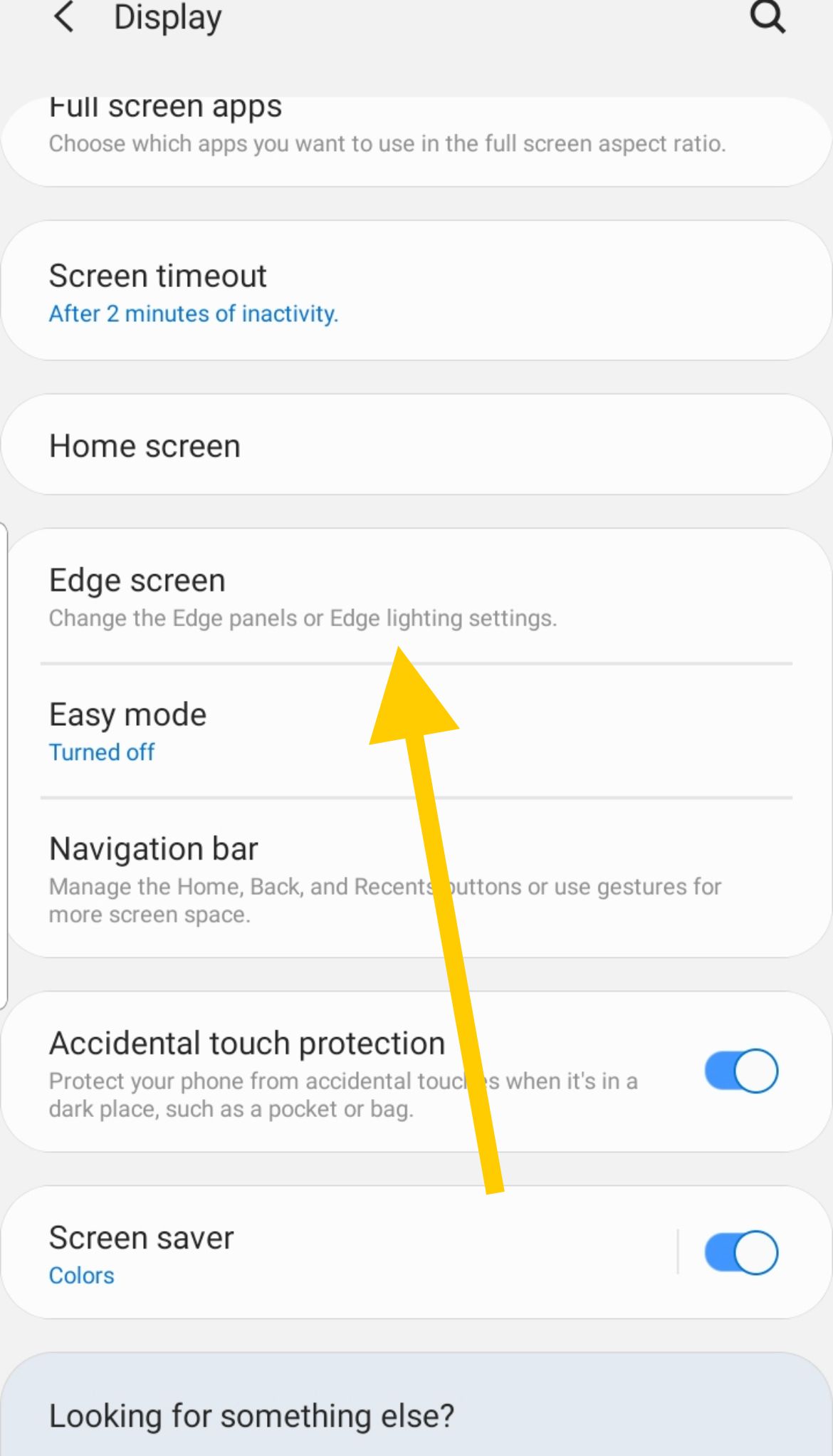
Settings > Display > Edge panels
Open Settings on your Galaxy phone or tablet.
Tap Display.
Tap Edge panels.
Tap the toggle at the top of the screen to switch Edge panels off.
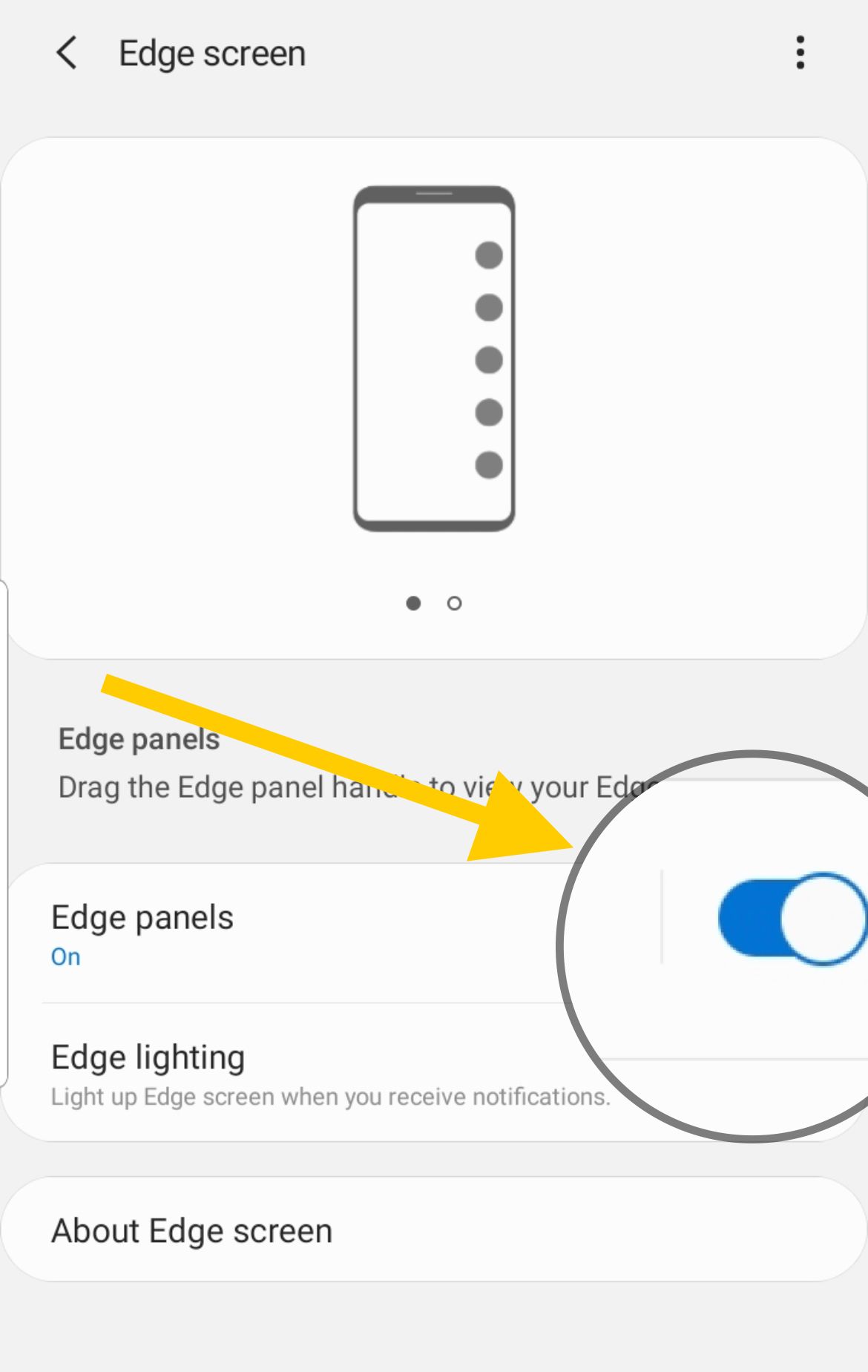
The handle disappears immediately and the panel will no longer slide out when you swipe from the edge. Nothing else on your phone is affected, and you can switch it back on any time using the same toggle.
How to Remove the Handle Without Disabling Panels
Some people want to keep edge panels working but stop the handle from getting in the way. You cannot fully hide the handle while the feature is on, but you can make it almost invisible and lock it out of the area where it bothers you.
Settings > Display > Edge panels > Handle
Inside the Handle menu, drag the Transparency slider toward High and the Size slider toward Small. A faint, narrow handle is far less distracting while still letting you open the panel when you need it.
If you mainly trigger it by accident, also turn on Lock handle position so the handle cannot drift, then move it to a spot your thumb does not naturally rest on. The next sections explain those controls.
How to Choose Which Panels Appear
You can run several edge panels at once and switch between them. If only one is useful to you, turning the others off makes the sidebar far cleaner.
Settings > Display > Edge panels > Panels
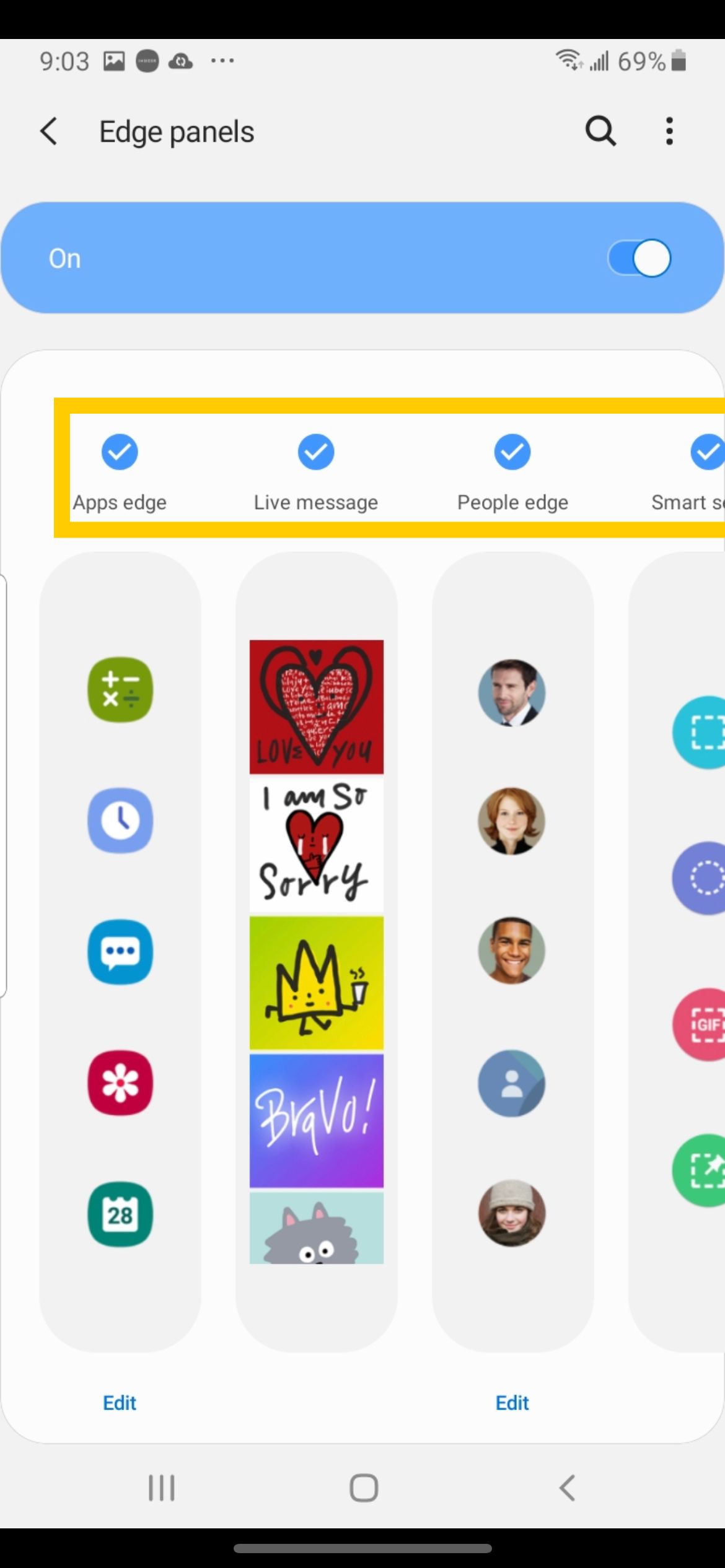
Open the Edge panels menu and tap Panels.
Tap a panel to add a checkmark and turn it on, or tap to clear the checkmark and turn it off.
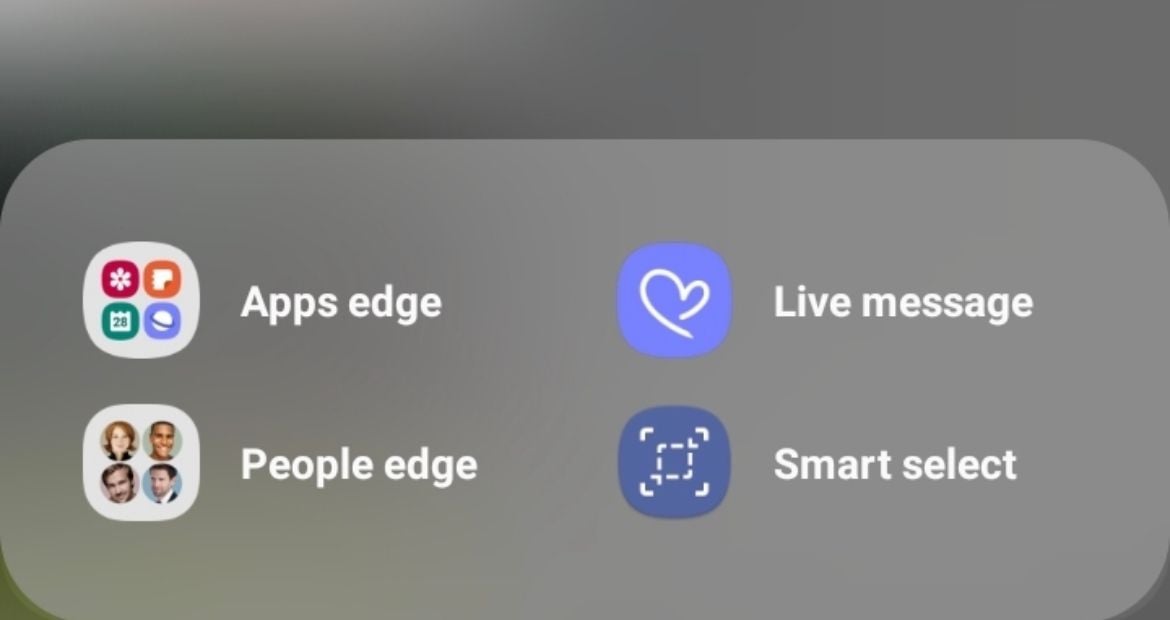
You can have up to ten panels active. Common options include Apps for quick app access, People for favorite contacts, Smart select for screenshots, and Tools for things like the ruler and compass.
Once you swipe the panel open, slide left or right to move between your active panels. You do not have to keep the defaults, so leave on only the ones you actually reach for.
How to Move and Resize the Handle
The handle is the small tab that shows where to swipe. You can move it to the other side of the screen, raise or lower it, and change how it looks.
Settings > Display > Edge panels > Handle
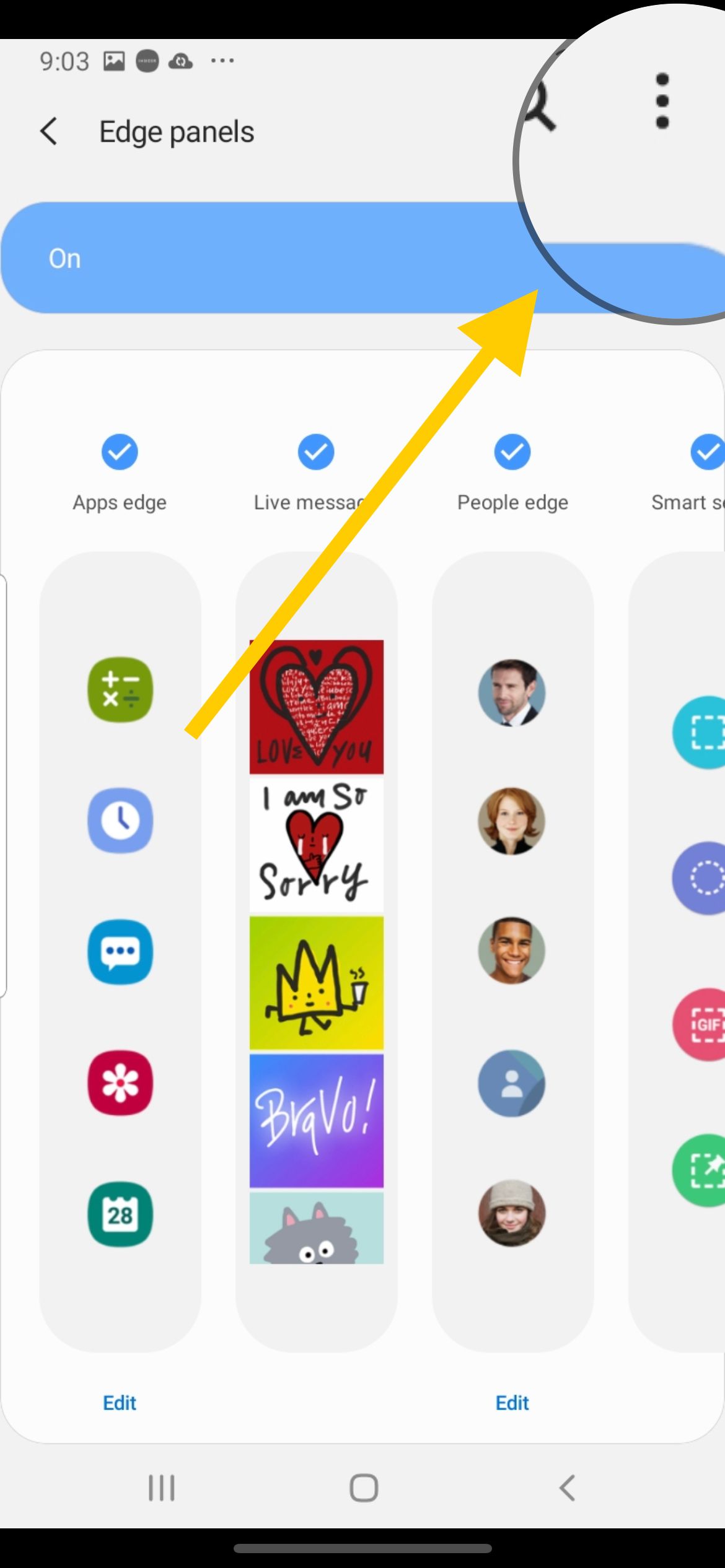
Open the Edge panels menu and tap Handle.
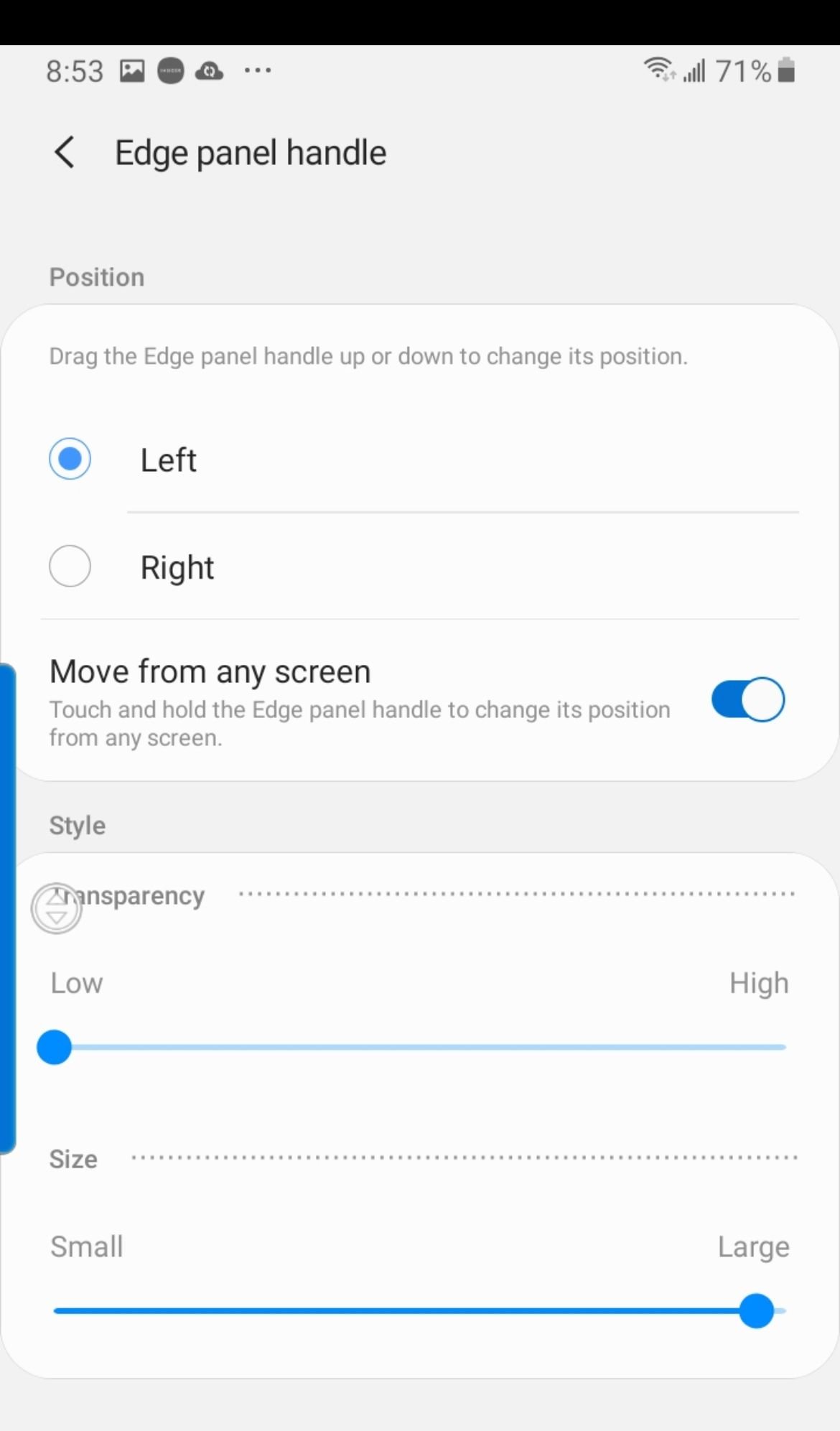
To switch sides, tap Position and choose Left or Right. You can also touch and hold the handle right on your home screen, then drag it up, down, or across to the opposite edge.
From the Handle menu you can also adjust the Size from Small to Large, the Width from Thin to Thick, and the Transparency from Low to High. Turn on Lock handle position if you want it to stay exactly where you put it.
Why You Cannot Download New Edge Panels Anymore
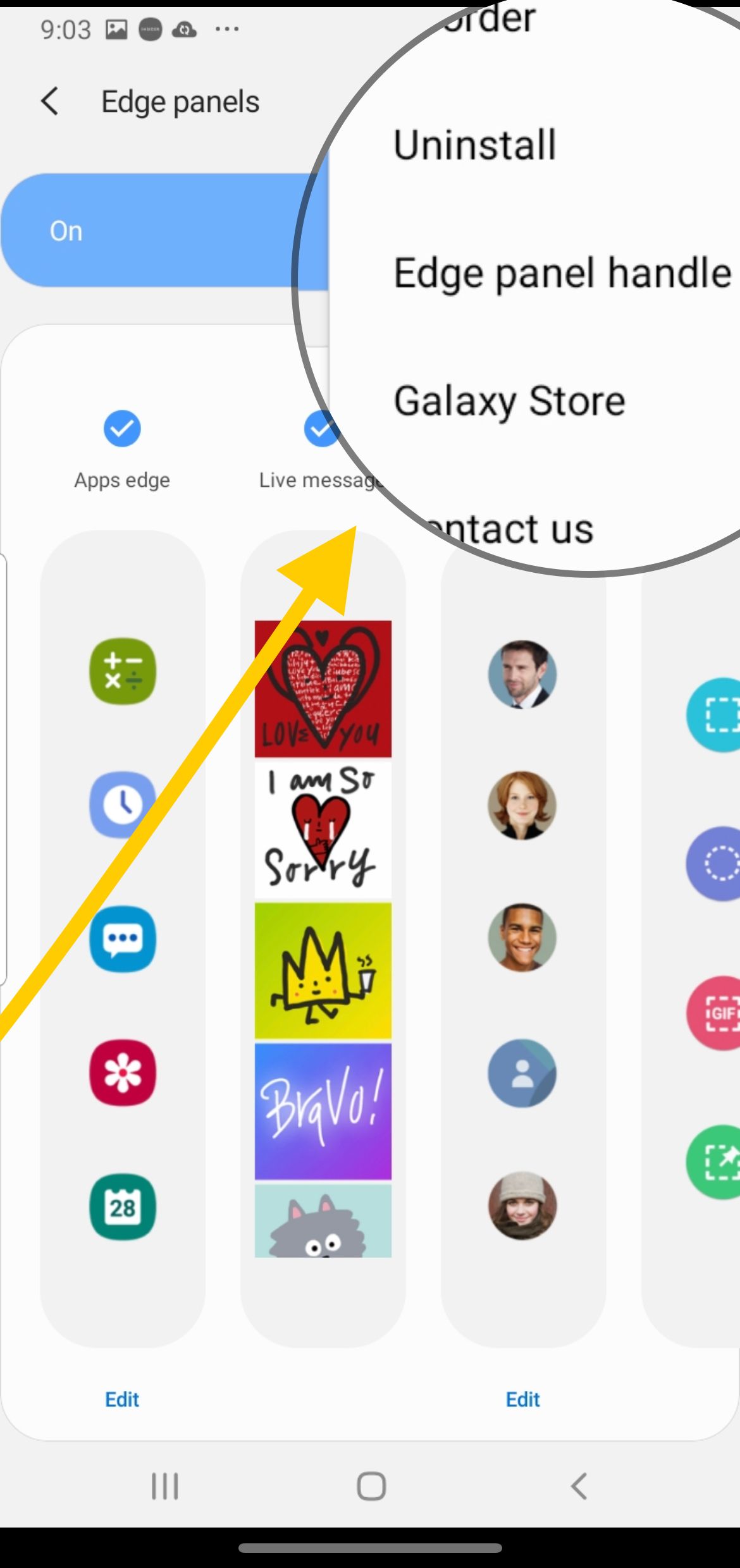
Older One UI versions let you grab extra panels from the Galaxy Store. Starting with One UI 7, Samsung removed that download section, so the option no longer appears in the Edge panels menu.
On older One UI, open the Edge panels menu and look for Galaxy Store to browse free and paid panels.
On One UI 7 and later, that store section is gone and you cannot download new panels.
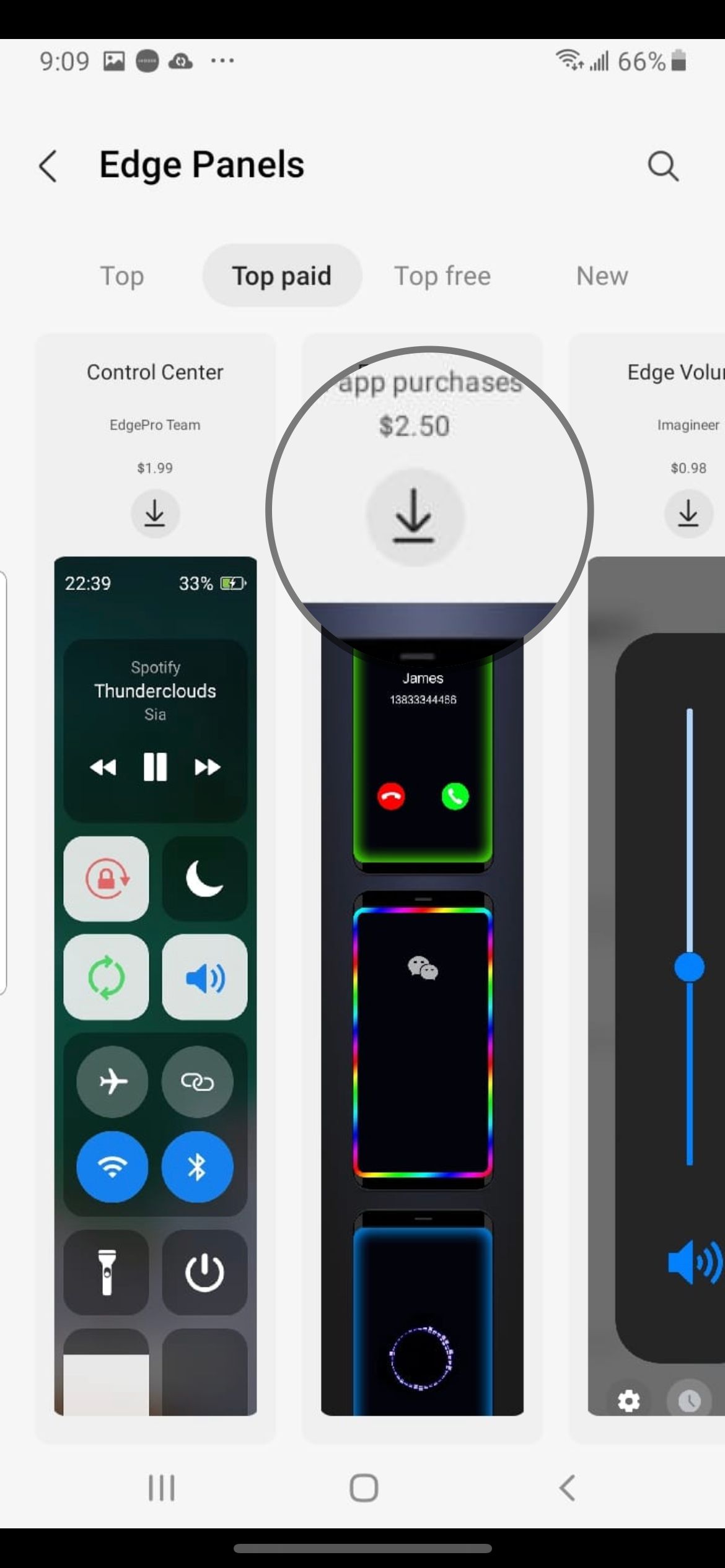
Panels you already installed before updating stay available, but once you uninstall one on One UI 7 you cannot get it back, even a paid one. If you rely on a downloaded panel, avoid removing it after you update.
How to Edit Apps in the Apps Panel
The Apps panel is the most popular one, and you can control exactly which apps it holds. Editing it lets you keep only your real go-to apps within thumb reach.
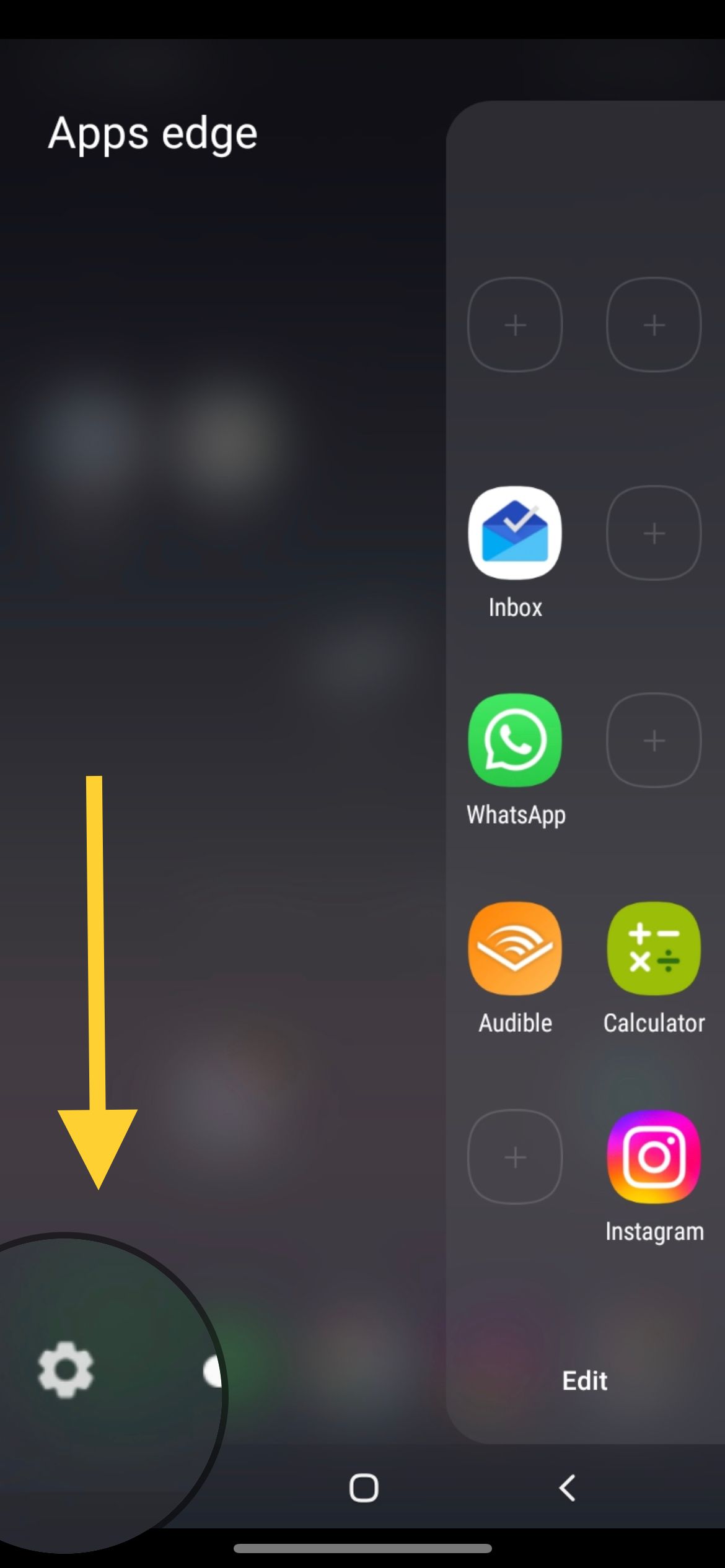
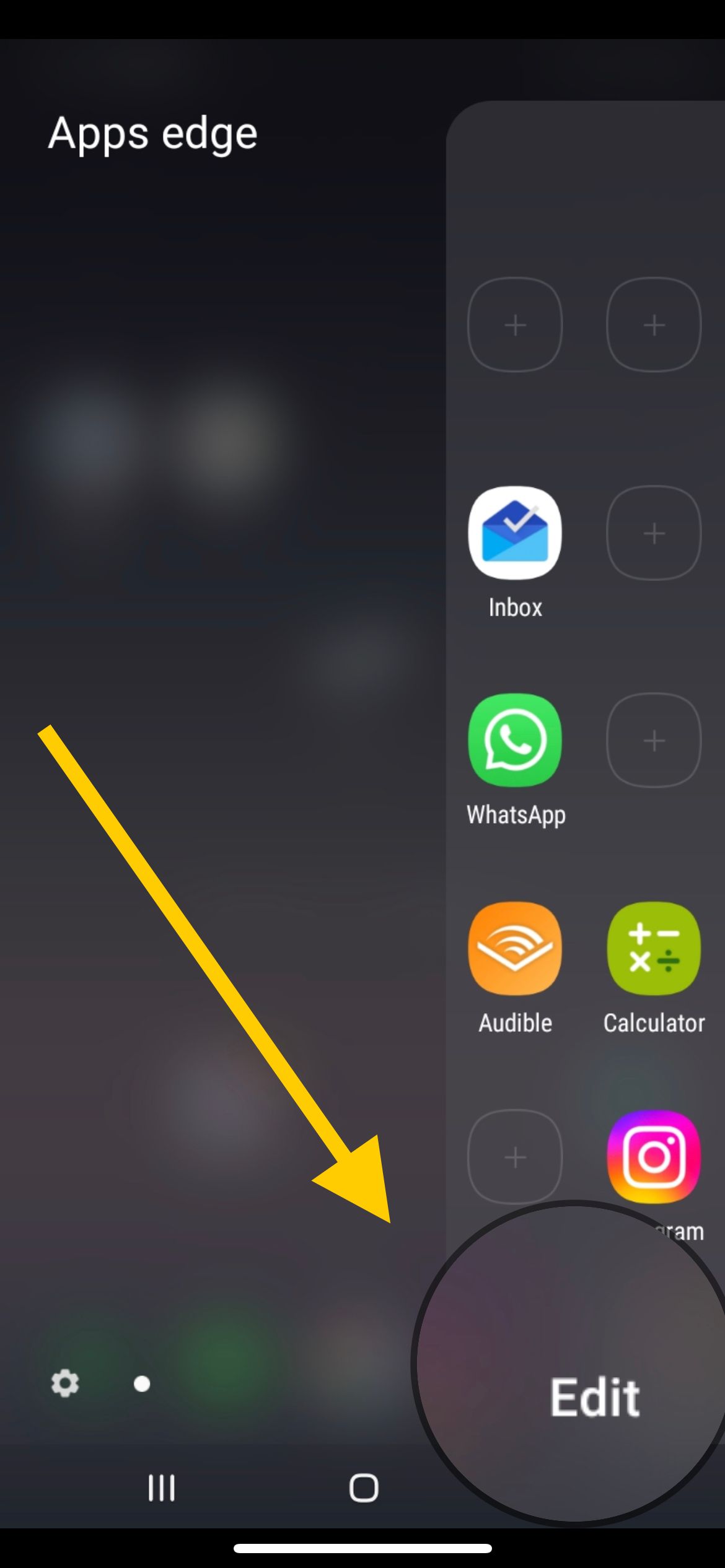
Swipe the edge panel open and tap Edit on the Apps panel.
Browse the full app list shown alongside your current panel.
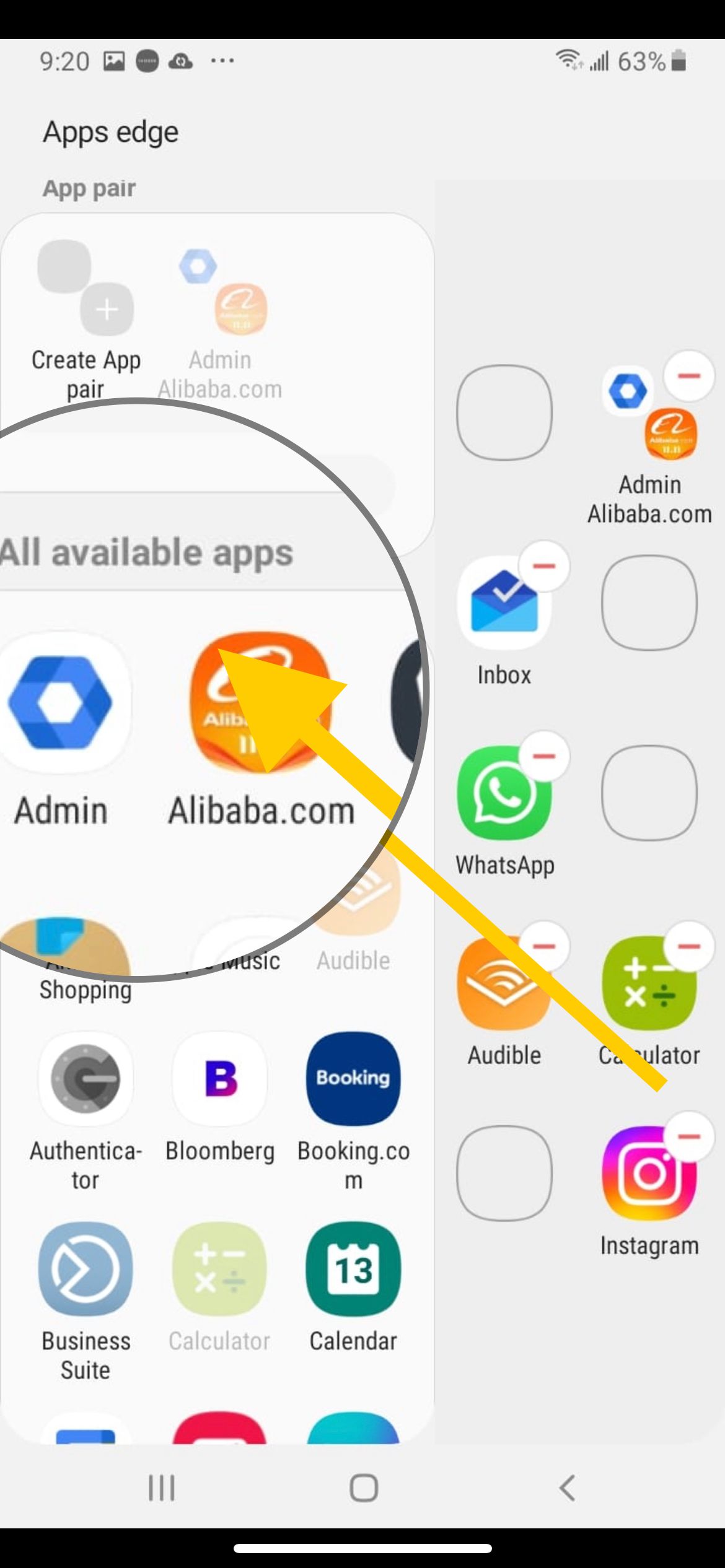
Tap an app to add it, or tap the minus icon on an app already in the panel to remove it.
To make a pair of apps that open together in split screen, tap Create app pair.
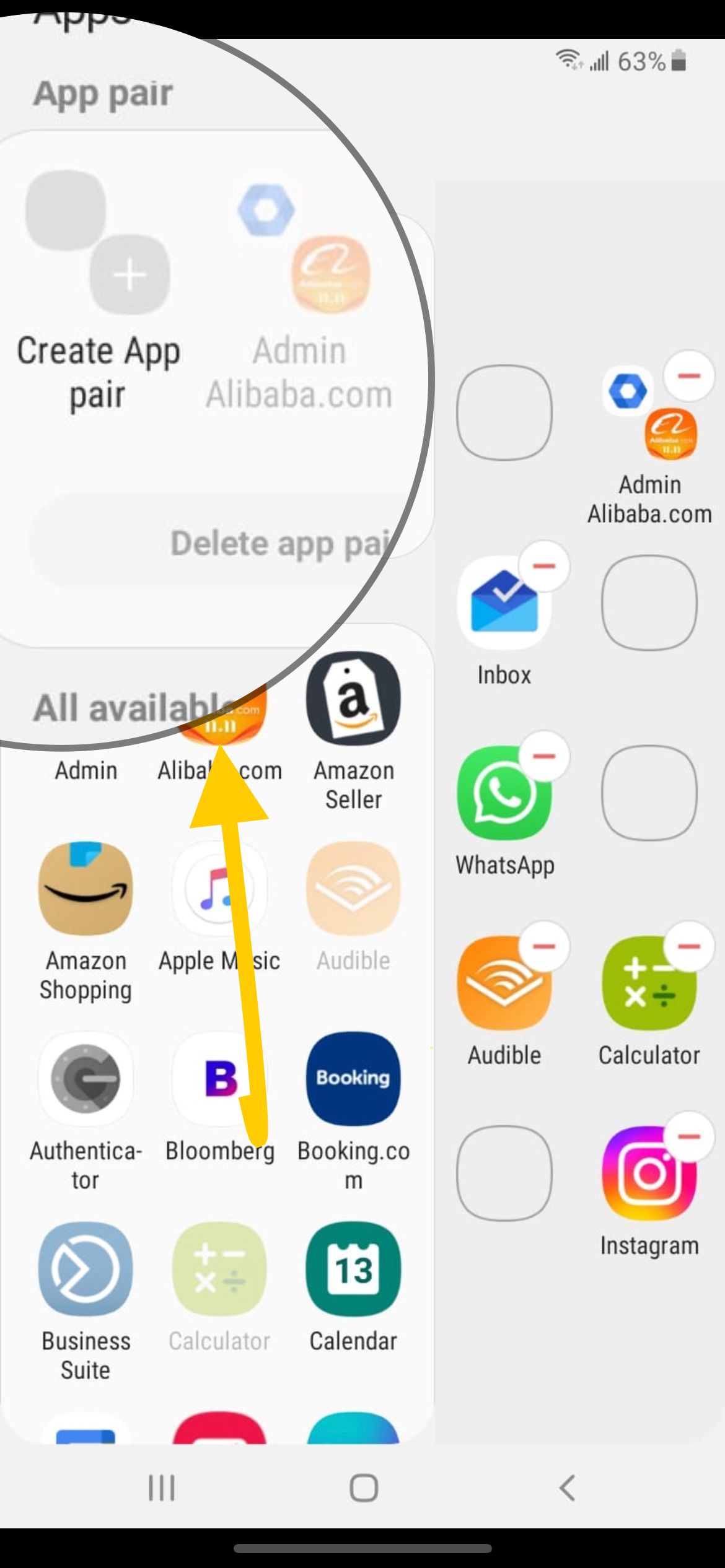
Pick your two apps and tap Done.
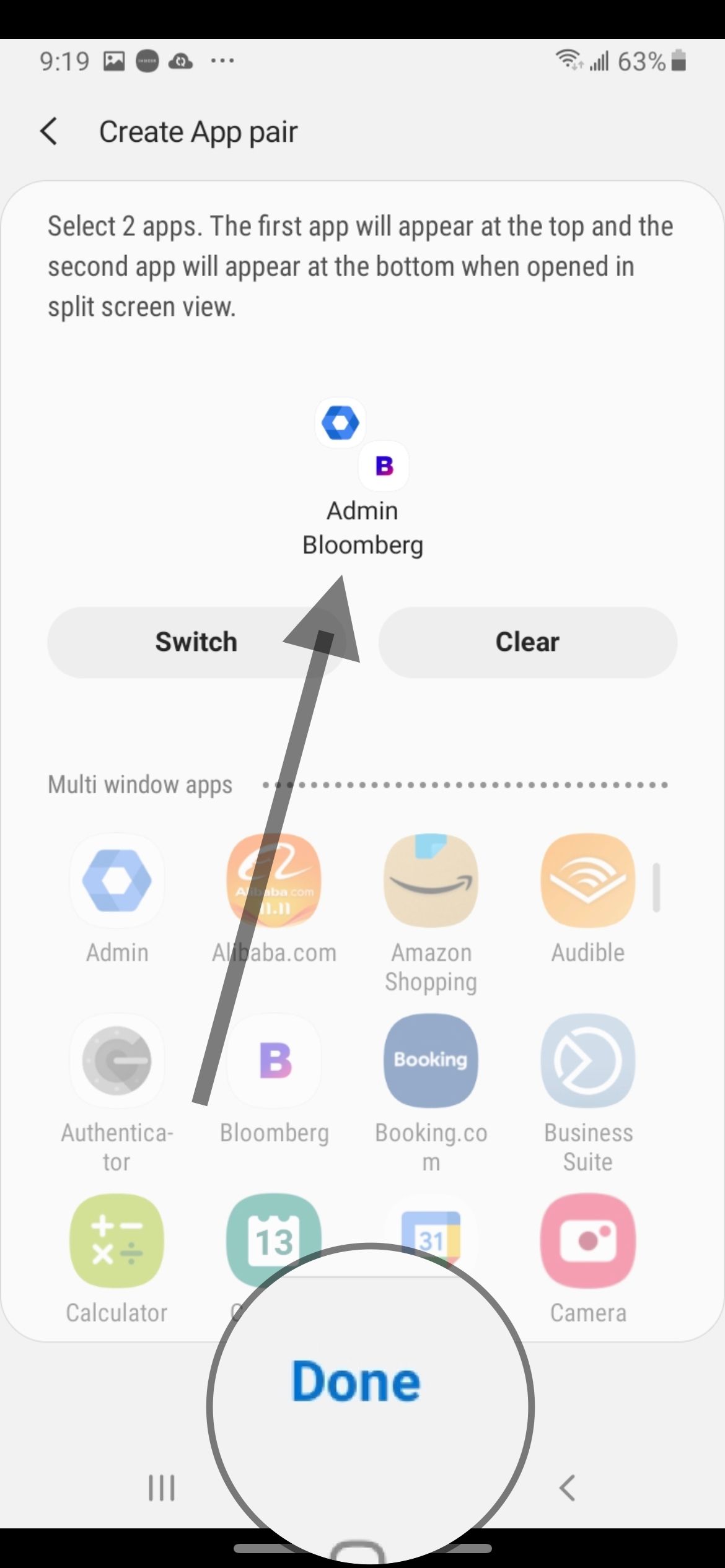
The app pair shows as a single icon and launches both apps side by side when tapped, which is handy for things like a browser next to a notes app. You can edit other panels the same way, such as choosing which contacts appear in the People panel.
Frequently Asked Questions
Why does my Samsung have a sidebar on the right
That sidebar is the Samsung edge panel, which is on by default on many Galaxy phones. The tab on the side is the handle, and swiping it inward opens shortcuts to apps and tools. You can turn it off under Settings > Display > Edge panels.
How do I get rid of the floating edge handle
Go to Settings > Display > Edge panels and switch the toggle off. That removes the handle from every screen. If you want to keep the feature but hide the handle visually, raise its Transparency and lower its Size in the Handle menu.
Can I move the edge panel to the other side of the screen
Yes. Open Settings > Display > Edge panels > Handle > Position and choose Left or Right. You can also touch and hold the handle on your home screen and drag it up, down, or to the opposite edge, as long as Lock handle position is off.
How do I bring the edge panel back after turning it off
Return to Settings > Display > Edge panels and tap the toggle to switch it back on. The handle reappears and your previously active panels return, since turning the feature off does not delete them.
Why can I no longer download edge panels from the Galaxy Store
Samsung removed edge panel downloads from the Galaxy Store starting with One UI 7. Panels already installed before updating keep working, but you cannot download new ones, and uninstalling one on One UI 7 means you cannot get it back.