Your USB drive is plugged in, but your files are nowhere to be seen. Start with the connection checks below, then use the Windows or Mac fixes to find out where access is breaking down. If you need the files on the drive, back up or recover them before attempting repairs, formatting, or initialization.
Rule out the USB connection first
These checks address connection faults and help separate a drive problem from a computer problem.
Disconnect the drive from your computer. Inspect the connector and port for debris, bent pins, or looseness. For debris, follow Dell's cleaning advice: hold a compressed-air can upright and use short bursts.
Arrange service for a physically damaged connector or port. Connect the drive to a different USB port directly on the computer, bypassing any USB hub. Try a replacement cable if your external drive has a detachable one. Bypass or replace any adapter between the drive and the computer.
Test the drive on another computer. If it works there, focus on the original computer and its connection.
Give the drive power and a fresh start
Check the power indicator on an external drive that uses its own power supply. Check that its power adapter is connected securely. Try another wall outlet, connecting directly rather than through a power strip.
Shut down your computer. Turn off the externally powered drive. Turn the drive back on. Start the computer.
Check whether the drive is now recognized. Skip the separate power-supply checks for a USB flash drive; those apply to desktop external drives.
When Windows sees the disk but won't show your files
On Windows 11, press Windows+R, enter diskmgmt.msc, and select OK to open Disk Management. Identify the USB drive by its capacity and inspect its status. If a previously used disk appears as Not Initialized or Unallocated, don't initialize it while it contains files you need.
If the drive is missing from the disk list, reconnect it. Choose Action > Rescan Disks. If it remains absent, continue to the device and driver checks below.
If the disk is marked Offline, right-click that disk and select Online. A recognized, compatible volume needs a drive letter to appear as a drive in File Explorer; mounting it in an empty folder is Microsoft's documented alternative. If it lacks one, open Disk Management with administrator permissions, right-click the volume and choose Change Drive Letter and Paths > Add.
Assign an unused letter, select OK, and confirm. Microsoft requires an account in the Backup Operators or Administrators group and an accessible volume that doesn't hold Windows or your apps, so the option is unavailable for unallocated, EFI System, and Recovery partitions.
On a Mac, check approval and mounting
A drive missing from Finder isn't automatically a failed drive. Check accessory approval, visibility, and mounting to find out whether macOS detects it.
On an Apple-silicon Mac laptop, unlock the Mac. Reconnect the drive. Select Allow when the accessory prompt appears. Receiving power doesn't mean the drive has permission to exchange data.
For a mounted drive missing from the desktop, open Finder > Settings > General. Enable External disks. To show it in the sidebar, open the Sidebar tab. Enable External disks there too.
Look for the drive under Locations in Finder. If the drive remains missing, open Applications > Utilities > Disk Utility. Choose View > Show All Devices, if available. Look for the physical drive and the volumes beneath it.
For an unmounted volume, select it and click Mount. If the physical drive is absent from Disk Utility, hold Option while opening the Apple menu > System Information. Inspect Hardware > USB for the drive. This checks whether the Mac detects the USB connection at all.
Check Windows device errors and drivers
Use these Windows 11 checks when the USB device reports an error or remains unavailable after the connection tests.
- 1.Right-click Start and open Device Manager. Locate the affected device, including under Universal Serial Bus controllers, and open Properties to read its status and error code.
- 2.If the device is disabled, right-click it and choose Enable device.
- 3.Open Settings > Windows Update, select Check for updates, and install applicable updates.
- 4.For optional drivers, open Advanced options > Optional updates > Driver updates. Select applicable updates and install them.
- 5.If the detected device still malfunctions, return to Device Manager, right-click that specific device, and choose Uninstall device > Uninstall. Restart Windows so it attempts to reinstall the driver.
Repair a detected drive before considering formatting
Filesystem repair applies when your computer detects the drive but has trouble reading it. Back up or recover needed files first, because repair changes filesystem structures.
On Windows, open File Explorer > This PC.
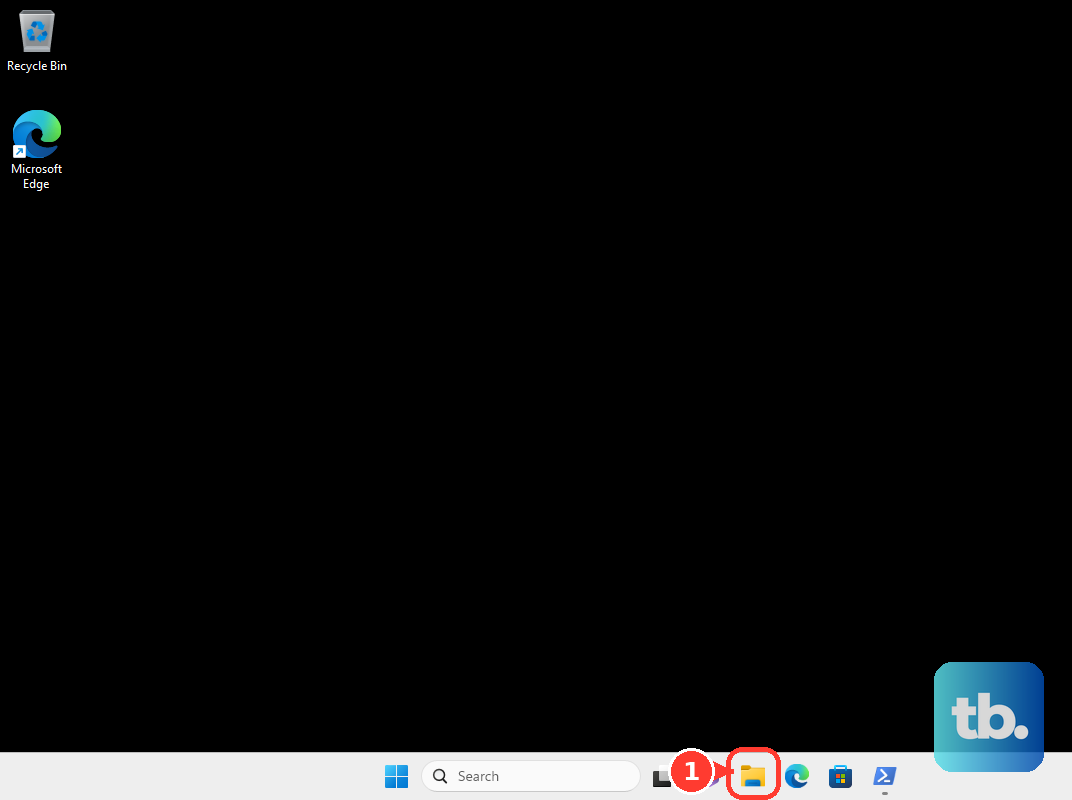
Right-click the accessible USB drive and choose Properties. Open Tools > Error checking > Check > Scan drive. Follow the repair prompts. This cannot fix hardware that Windows never detects.
On a Mac, open Disk Utility. Choose View > Show All Devices, if available. Select the lowest volume listed beneath the affected drive. Choose First Aid > Run.
Repeat First Aid upward through the remaining volumes, then the containers, and finally the physical device. If repair doesn't restore access, consider formatting only after your files are backed up, recovered, or no longer needed. Formatting destroys access to existing files and does not repair failed hardware.
For a recognized Windows volume, open Disk Management. Right-click the correct volume and select Format. Choose formatting settings compatible with the devices that will use the drive.
Select OK. Confirm the formatting operation.
For a Mac external disk, open Disk Utility. Choose View > Show All Devices. Select the physical external device. Click Erase.
Choose the Scheme. Apple's general initialization procedure uses GUID Partition Map. Choose the Format. Enter a name in Name.
Click Erase to confirm. Click Done when the operation finishes.
If the drive still isn't recognized
Let the other-computer test guide your next move. If the drive works elsewhere, focus on the original computer. Keep that readable drive intact.
On a Mac, open Apple menu > System Settings > General > Software Update. Install an offered compatible update.
On Windows, if the failure began immediately after a driver change, open Device Manager. Rolling back requires an administrator account and an available earlier driver. Right-click the affected device and choose Properties > Driver > Roll Back Driver. Select the reason for rolling back.
Confirm the rollback. Restart if requested.
If these steps fail, contact the computer manufacturer for a problem limited to that computer. If the drive also fails on another computer after cable and power checks, contact the drive manufacturer for support or replacement. When the files matter, request data recovery before formatting or replacing the drive.
Frequently Asked Questions
Do I need to download a special driver for a USB flash drive?
Standard USB storage uses drivers built into the operating system. Hardware that requires a separate controller, chipset, or dock driver needs a manufacturer package matching its exact model, architecture, and Windows version.
Can a locked USB drive look unrecognized or empty?
Yes. Some security-enabled Seagate drives present as unallocated while locked. On compatible models, open Toolkit > Seagate Secure > Unlock, enter the existing password, and select Unlock. Don't initialize or format the drive to bypass the lock.
Why does my USB drive work at home but not on my work computer?
Managed computers can block removable-storage access through organizational policies. If your work device blocks the drive, ask IT to review Removable Storage Access, including Removable Disks: Deny read access and broader denial policies.