A second monitor can show no signal, stay black, mirror when you wanted more space, or disappear from display settings. The fix is usually the cable path, the monitor input, the display mode, or the graphics driver. Start with the fast physical checks, then move into the setting that matches your device.
Start with the monitor and cable
Do these basics before changing system settings:
- 1.Turn on the monitor and confirm it is connected to power.
- 2.Use only one video cable between the computer, dock, or adapter and the monitor.
- 3.Push the cable firmly into both ends.
- 4.Open the monitor's Menu or Settings and choose the input that matches the port you used, such as HDMI or DisplayPort.
- 5.Remove hubs, extensions, and adapters for now, then connect directly with a known-good cable.
Set the right display mode in Windows
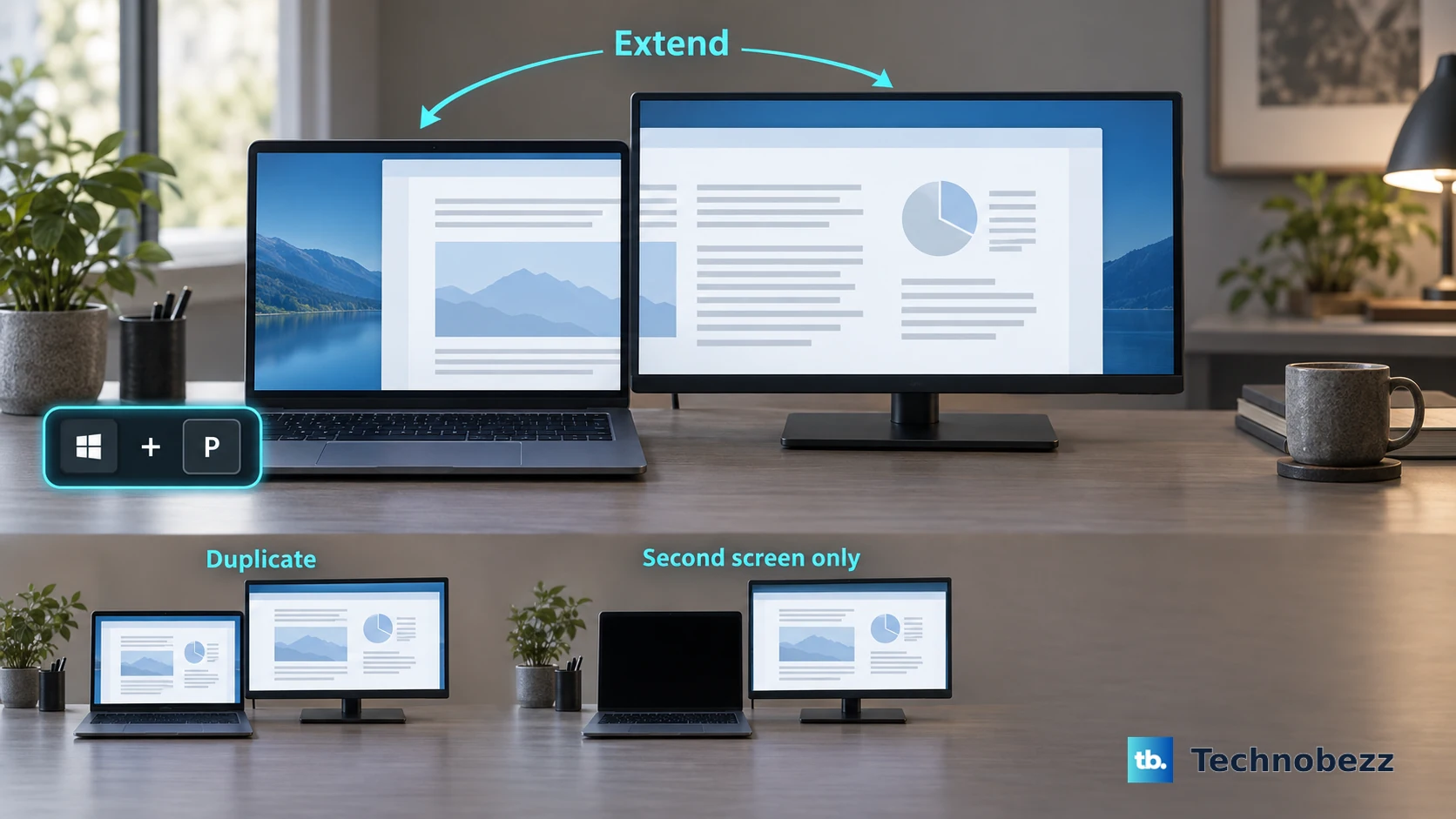
Windows may be sending the desktop to the wrong screen. Press Windows logo key + P and choose Extend if you want the second monitor to act as extra screen space.
Choose Duplicate when you want the same image on both screens. PC screen only turns off the external display, while Second screen only uses only the external display.
If Windows still does not show the monitor, open Start > Settings > System > Display > Multiple displays > Detect. A correctly connected monitor can appear after this scan.
Bypass the dock, adapter, or long cable
Docks, adapters, extension cables, and underspecified cables often break the video signal. Connect the monitor directly to the computer with a known-good cable.
For Surface devices, use HDMI version 2.0 or DisplayPort version 1.2. Keep the cable at 6 feet or 1.8 m or shorter where possible.
If the direct connection works, reconnect the dock or adapter later and troubleshoot that accessory separately. If this method fails, keep the direct cable connected and move to display detection, restart, and driver fixes.
Reset Windows display detection
This applies when a monitor worked before but suddenly went blank, or when Windows is stuck on the wrong graphics state. A graphics reset can recover the display without a full reboot.
Press Windows logo key + Ctrl + Shift + B. The screen may flicker while Windows resets the graphics driver.
Next, restart from Start > Power > Restart. If that does not bring the monitor back, use Start > Power > Shut Down, then turn the device back on.
Update or reinstall the graphics driver
The most common software cause is a display driver that is outdated, damaged, or changed by a recent update.
Open Start > Settings > Windows Update > Check for updates. Install available updates, then test the monitor again.
If the problem started after a driver update, search for Device Manager, open Display adapters, right-click the display adapter, then choose Properties > Driver > Roll Back Driver.
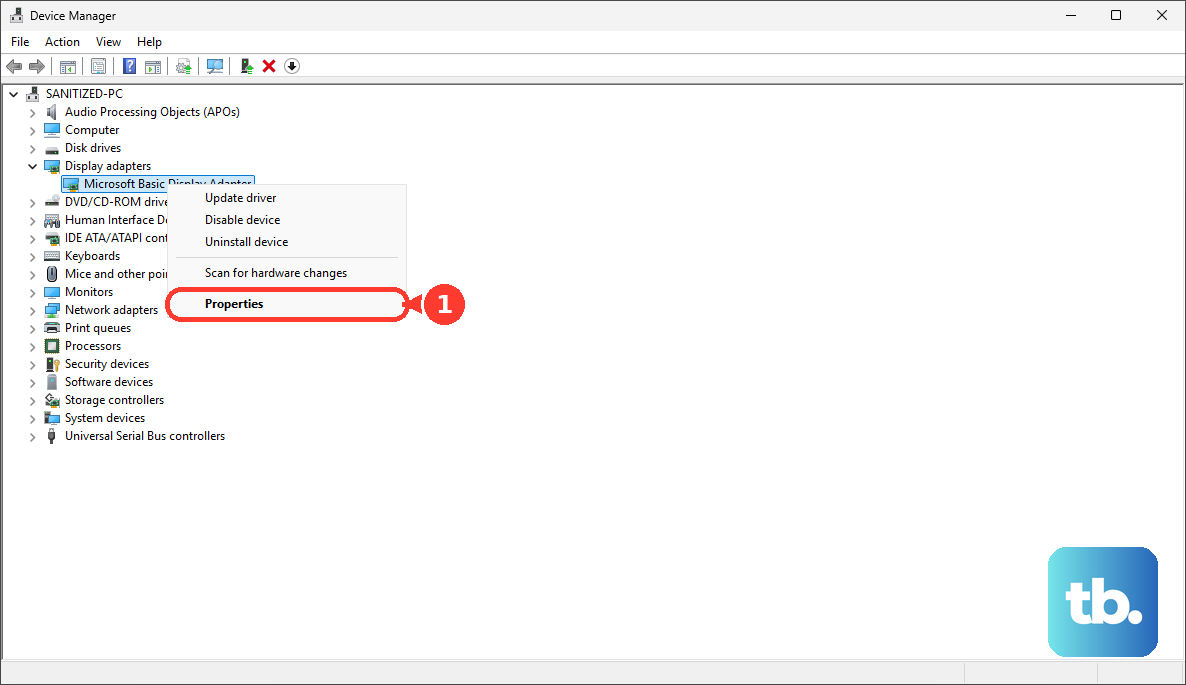
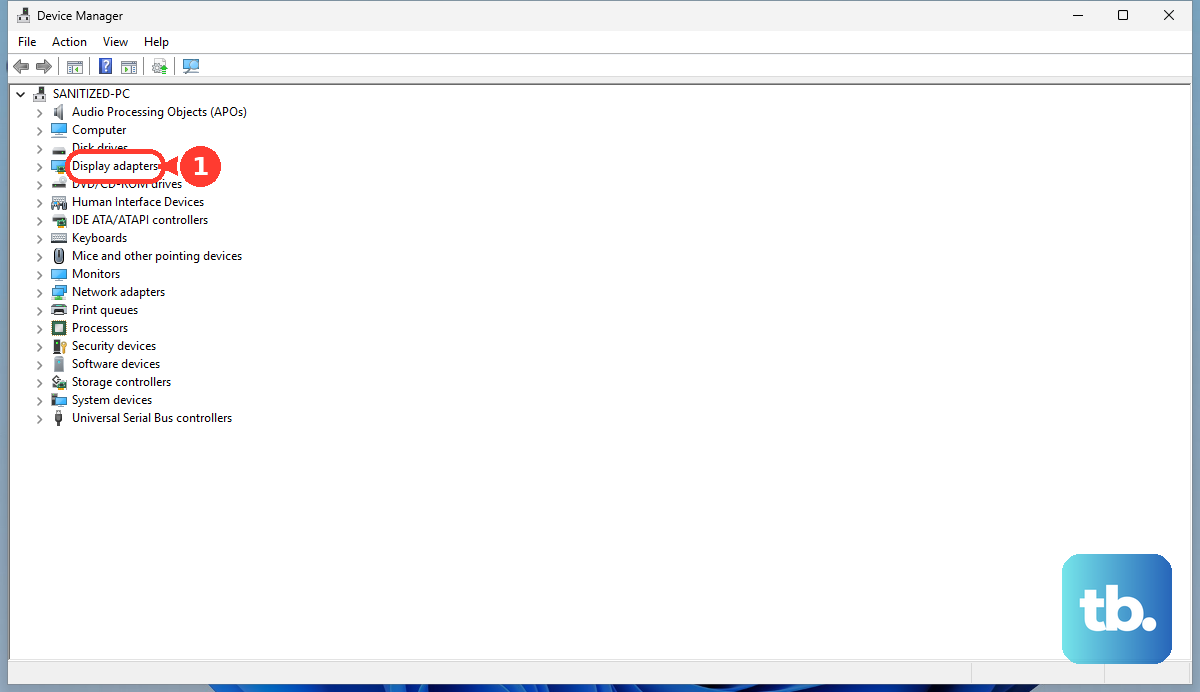
When rollback is unavailable, use Uninstall device, select Attempt to remove the driver for this device, then choose Uninstall. Restart if prompted, reopen Device Manager, expand Display adapters, right-click the adapter, and choose Update driver > Search automatically for updated driver software.
For dedicated graphics, use the official NVIDIA, AMD, or Intel driver tools. DisplayLink docks and USB graphics adapters need DisplayLink software on Windows, while macOS DisplayLink setups need DisplayLink Manager with Screen Recording permission enabled.
Fix a Mac that will not see the second display
This applies when your external monitor is connected to a Mac by Thunderbolt, USB-C, HDMI, or an adapter. The number of external displays a Mac supports depends on the Mac model, display resolution, refresh rate, cable, and adapter.
Connect the display to power, then connect the video cable to the Mac's Thunderbolt or HDMI port with the correct adapter. Open Apple menu > System Settings > Displays to adjust resolution, refresh rate, arrangement, and related display settings.
To force detection, open Apple menu > System Settings > Displays, hold Option, then click Detect Displays.
If the screen stays dark, disconnect the display from the Mac and from power, then reconnect it. Put the Mac to sleep and wake it, or restart the Mac.
On Apple silicon Mac laptops, click Allow when a USB-C or Thunderbolt display accessory asks for permission. To change future behavior, open Apple menu > System Settings > Privacy & Security > Accessories > Allow accessories to connect.
Repair wireless display connections
For Windows wireless displays, Wi-Fi must be on. Select the Network, Sound, or Battery icons on the right side of the taskbar, turn on Wi-Fi, then press Windows logo key + K and choose the wireless display or adapter.
You can also open Start > Settings > System > Display > Multiple displays > Connect. To remove a stuck wireless display, open Settings > Bluetooth & devices > Devices, select the display under Wireless displays & docks, then choose Remove device and reconnect.
When projecting to another Windows 11 PC, install the Wireless Display optional feature from Start > Settings > System > Projecting to this PC. Then launch Wireless Display from taskbar search.
For AirPlay, keep both devices turned on, nearby, updated, and on the same Wi-Fi network. On iPhone, enable receiving under Settings > General > AirPlay & Continuity; on Mac, use System Settings > General > AirDrop & Handoff.
Check Chromebook, Ubuntu, and mobile display settings
Use the built-in display controls for your device:
- 1.On Chromebook, select the time at the bottom right, then open Settings > Device > Displays.
- 2.Select Mirror Built-in Display to show the same image on both screens. Clear Mirror Built-in Display to extend the desktop, then use the arrangement controls to position the displays.
- 3.On Ubuntu, open Activities, type Displays, then click Displays.
- 4.Drag the displays to match their real positions, then choose Join Displays to extend or Mirror to show the same content.
- 5.For iPhone or iPad wired output, use a VGA, Digital AV, or HDMI adapter that matches the device connector.
Frequently Asked Questions
Why does my second monitor say no signal?
The monitor is usually on the wrong input, the cable is loose, the computer is using a one-screen display mode, or a dock, adapter, or cable is not passing video correctly.
Why is my second monitor mirroring instead of extending?
On Windows, press Windows logo key + P and choose Extend. On Chromebook, open Settings > Device > Displays, clear Mirror Built-in Display, then use the arrangement controls to position the displays. On Ubuntu, open Displays and choose Join Displays.
Can a bad dock stop a second monitor from working?
Yes. Remove the dock, hub, extension cable, or adapter and connect the monitor directly with a known-good cable. If that works, troubleshoot the accessory or its driver separately.
When should I get the monitor serviced?
Test the monitor with another device using a known-good cable, such as another PC, phone, tablet, or console. If it fails with every device, the monitor needs service.