When your Seagate external drive stops showing up, won't mount, or turns read-only, you can usually fix it yourself. The cause is often a bad cable, too little power, a missing drive letter, or a locked or damaged volume. Start with the physical checks below, then work through the Windows and Mac fixes, drive diagnostics and Seagate's recovery options.
Start with the cable, port and computer
Unplug both ends of the USB cable and plug them back in firmly.
Move the drive to a different USB port on the same computer.
Swap in a compatible replacement cable.
If you're using a USB adapter, take it out or try a different one.
Connect the drive to another computer. If it works there, the drive hardware is working, so focus on your original computer: its ports, drivers, settings or support for the drive's format.
Seagate doesn't make a model-specific driver for ordinary USB hard drive detection, so skip any site offering a "Seagate USB driver" and rely on the one built into Windows or macOS.
Restore power to a desktop drive
This applies to Seagate desktop drives, either ones supplied with an AC adapter or bus-powered models with a 3.5-inch disk inside. For these drives, power is the first suspect.
For a drive with an AC adapter, check whether the drive light comes on and whether the adapter is connected properly. Plug the adapter straight into a wall outlet instead of a power strip, or try another outlet.
Bus-powered desktop models need the supplied cable and a USB-C port delivering at least 15 W. Give the drive 30 seconds or more to be detected when it starts or wakes. Rapid red flashing means it isn't getting enough power.
Hubs can cause trouble too. Connect the drive directly to the computer and unplug other USB devices. If you have to use a hub, pick a powered one that meets the drive's requirements. Seagate's bus-powered One Touch desktop model needs 15 W from the hub.
If a drive stalls, eject it safely, unplug the cable, wait 10 seconds and reconnect it. Seagate says a wake-from-sleep warning on its own doesn't need a repair as long as the drive remounts and works.
Bring the drive back in Windows Disk Management
Most often the disk is connected but offline or missing a drive letter, so File Explorer has nothing to show.
Right-click Start and choose Disk Management. You can also press Windows+R, type diskmgmt.msc and select OK.
If the disk is marked Offline, right-click it and choose Online.
If the volume has no letter, right-click it and pick Change Drive Letter and Paths, then Add. Choose Assign the following drive letter, pick an unused letter and click OK. Changing a letter that's already assigned can break paths that apps rely on.
An uninitialized disk needs more care. Only initialize a brand-new, empty drive: right-click it, choose Initialize Disk, select GPT and click OK. Never initialize a used disk holding data you need, or a locked Seagate Secure drive. A locked drive can look uninitialized, so unlock it first.
If the drive doesn't appear in Disk Management at all, press Windows+R, enter compmgmt.msc and open Device Manager. Look under Disk drives and Universal Serial Bus controllers, then open the device's Properties > General and read Device status.
For a driver error, right-click the affected device, choose Uninstall device > Uninstall, restart Windows and reconnect the drive. If the trouble began after a driver update, use Properties > Driver > Roll Back Driver instead.
Mount the drive manually on a Mac
If Finder doesn't show the drive, check Disk Utility.
- 1.On Apple silicon laptops, unlock the Mac, reconnect the drive and click Allow when asked to approve the accessory.
- 2.Open Finder > Applications > Utilities > Disk Utility.
- 3.Choose View > Show All Devices.
- 4.Select the external volume under its physical device and click Mount.
- 5.If it mounts but doesn't show on the desktop or sidebar, turn on External disks in Finder > Settings > General and Sidebar.
Repair file system errors
Copy off whatever data you can still reach before you start. Repairs can lose damaged files.
On Windows, open File Explorer > This PC, right-click the drive and choose Properties > Tools > Check > Scan drive.
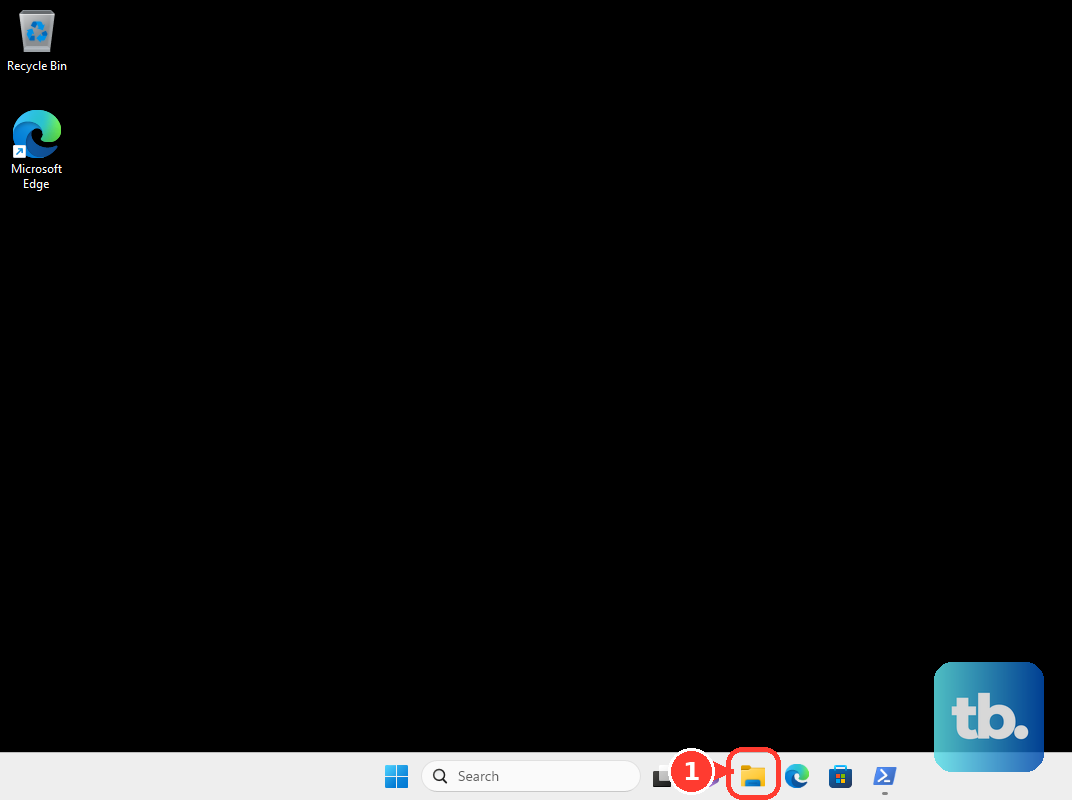
Follow any repair prompt it gives you.
For a deeper fix, open Command Prompt with Run as administrator and run chkdsk X: /f, replacing X with the drive's letter. Using /r also checks for bad sectors.
On a Mac, open Disk Utility and choose View > Show All Devices.
Select the last volume on the external drive and click First Aid > Run.
Work upward through the other volumes and containers, finishing with the physical device.
If Disk Utility can't see the drive at all, shut down the Mac, unplug nonessential devices, and try again after checking the drive's cable and power.
Unlock a Seagate Secure drive
A password-protected drive won't show your files until you unlock it.
- 1.Open Toolkit and go to Seagate Secure > Unlock.
- 2.Enter your password and click Unlock. After too many failed tries, disconnect and reconnect the drive before trying again.
- 3.Without Toolkit, open DriveLocked in File Explorer or Finder, run Unlock Drive for Windows or Unlock Drive for Mac, enter the password and click OK. One Touch with Hub 12 TB and larger requires Toolkit.
- 4.If you forgot the password, click Forgot password?, enter the PSID, sign in to your Seagate account and verify the emailed code to reset it. This works on Seagate Secure 3.0 or later when a reset key was set up.
- 5.To stop repeat lockouts, select Trust this computer at unlock.
Fix a read-only drive on a Mac
NTFS formatting is the usual reason a Seagate drive opens on a Mac but won't let you save or delete files, because macOS only reads NTFS natively.
Seagate's Paragon NTFS driver covers only certain models, such as Backup Plus and GoFlex drives, and not Expansion drives, so check your model's Seagate support page first. If your drive is eligible, install the Seagate edition of Paragon NTFS from Seagate's Software and Firmware Downloads page and complete its permission prompts. macOS 27 needs version 18.2.x or later, and macOS 26 needs 17.2.xx or later. On an Apple silicon Mac, you also have to change startup security: shut down, hold the power button until Loading startup options appears, then click Options > Continue. Choose Utilities > Startup Security Utility, select the startup disk, click Security Policy, choose Reduced Security, turn on Allow user management of kernel extensions from identified developers, click OK and restart. If your model isn't eligible, back up the drive and reformat it instead.
For a drive you share between Mac and Windows, you can reformat it as exFAT instead. Back up first, then in Disk Utility select the physical device, click Erase, set Scheme to GUID Partition Map and Format to ExFAT. Seagate recommends formatting on the Mac, since a Windows-formatted exFAT drive can use allocation sizes macOS won't mount. If that's your issue, copy the files off on a Windows PC first, then reformat on the Mac.
On APFS or Mac OS Extended drives, check permissions via File > Get Info > Sharing & Permissions and set your user to Read & Write.
Test the drive and get it recovered or replaced
Seagate's SeaTools 5 runs on Windows and Linux, with no native Mac version. Download it from Seagate's official SeaTools page, select the drive on Health, and run a Short Self Test or Short Generic Test. Longer tests sit under Extended Tests.
Skip the fixes older guides push. Seagate Dashboard wasn't updated for Windows 11, Microsoft is removing the Hardware and Devices troubleshooter, and Apple silicon Macs reset power management automatically with a normal restart. Microsoft also advises against disabling USB selective suspend.
On a work computer, policy can block removable storage, so ask your IT administrator to review it.
If the drive still fails and holds data you need, go to Seagate Rescue first: enter the serial number, click Continue, supply any product identifier it asks for (such as the BPID, part number or capacity), then click Find Your Plan to check for recovery coverage. Once your data is safe, open the Seagate Warranty & Replacements portal, enter the serial number, click Continue, supply any identifier it requests and click Check Warranty. If the drive is covered, choose Start Claim under Warranty Replacement Claims for a replacement.
Frequently Asked Questions
Do I need to download a driver for my Seagate external drive?
No. Seagate doesn't provide a model-specific driver for normal USB hard drive detection. Windows and macOS use their built-in USB storage driver.
Why can my Mac read my Seagate drive but not write to it?
The drive is probably formatted as NTFS, and macOS only reads NTFS on its own. If Seagate lists your model as eligible for its Paragon NTFS driver, install the Seagate edition. Otherwise, back up the drive and reformat it as exFAT or APFS.
Will formatting fix my Seagate drive?
Formatting can fix file system problems, but it erases everything on the drive. Copy your data first. If the drive can't be read at all, try Seagate Rescue before you erase it.
Why won't my PS5 run games from my Seagate drive?
PS5 games can't run from USB storage, but PS4 games can. Copy PS5 games back to console storage from Game Library > Installed using the Copy option.