
So your Google Pixel 9 won't charge. You've plugged it in, maybe swapped cables, and the screen stays stubbornly dark. It's a frustrating spot to be in, but I've seen this issue pop up with a few different causes, most of which you can fix yourself in a few minutes.
Whether you're dealing with a USB-C port that feels loose, a wireless charger that won't connect, or a phone that seems completely dead, let's walk through the fixes. We'll start with the quickest solutions first.
Force Restart Your Pixel 9
This is almost always the first thing I'd try. A simple force restart can clear out a temporary software glitch that's preventing the phone from recognizing it's plugged in. It takes about 30 seconds and often solves the problem right away.
For the Pixel 9, press and hold the Power button for about 30 seconds. Keep holding it until you see the Google logo appear on the screen, then you can let go. Once it boots back up, plug it in and check for the charging indicator.
Clean the USB-C Charging Port
This is the single most common culprit for charging problems on any phone, and the Pixel 9 is no exception. Lint and dust from your pocket get packed into that USB-C port over time, eventually blocking the cable from making a solid connection.
Grab a flashlight and take a close look inside the port. If you see any debris, turn the phone off first for safety. Then, use a wooden or plastic toothpick to gently scrape the gunk out. Avoid metal tools, as they can damage the delicate gold contacts inside.
You can also try a quick blast of compressed air from a can, holding it a few inches away. Give the phone a gentle tap with the port facing down to dislodge anything stubborn. After cleaning, try your cable again.
Check Your Cable and Power Source
You need to figure out if the issue is with your accessories. The best way is to test each component one by one. Start by trying a different USB-C cable, preferably one you know works.
Then, try a different wall adapter or plug into a different outlet. The Pixel 9 supports up to 27W wired charging, so for the fastest speeds, you'll want Google's 30W USB-C charger or a compatible PD (Power Delivery) adapter. Also, try removing your phone case, as some thicker or misaligned cases can prevent the cable from seating fully.
Look at Adaptive Charging and Battery Settings
The Pixel 9 has a smart feature called Adaptive Charging that's designed to extend your battery's lifespan. It learns your routine and will often hold the charge at around 80% overnight, only topping it up to 100% just before your morning alarm.
If your phone seems to stop charging at 80%, this is likely why. You can check this by going to Settings > Battery > Adaptive charging. You can turn it off if you want a full charge immediately, but I'd recommend leaving it on for long-term battery health.
Also, check if Extreme Battery Saver is enabled, as this mode can sometimes interfere with how the charging indicator is displayed.
Wait for a Completely Drained Battery
If your Pixel 9's battery has hit absolute zero, it won't show any signs of life right when you plug it in. This is normal behavior. Leave it connected to a wall charger (not a computer's slower USB port) for at least 30 minutes.
After that time, you should see a battery icon or the charging percentage on the lock screen. If you still see nothing, try the force restart again while it remains plugged in.
Test with Wireless Charging
Your Pixel 9 supports both standard Qi wireless charging and Google's Battery Share feature (which lets you charge other devices). Trying a wireless charger is a great way to diagnose the problem.
If wireless charging works but your USB-C cable doesn't, the issue is almost certainly with the port or the cable. Remember, for the fastest wireless speeds (up to 15W), you'll need a Google Pixel Stand (2nd gen). Also, if your phone gets stuck on the Battery Share screen, you can toggle it off by pulling down the quick settings shade and tapping the Battery Share tile.
Update Your Pixel's Software
Google regularly releases updates that fix bugs, including ones related to charging. There have been reports from some users of charging issues after a major "Feature Drop" update, which a subsequent patch often resolves.
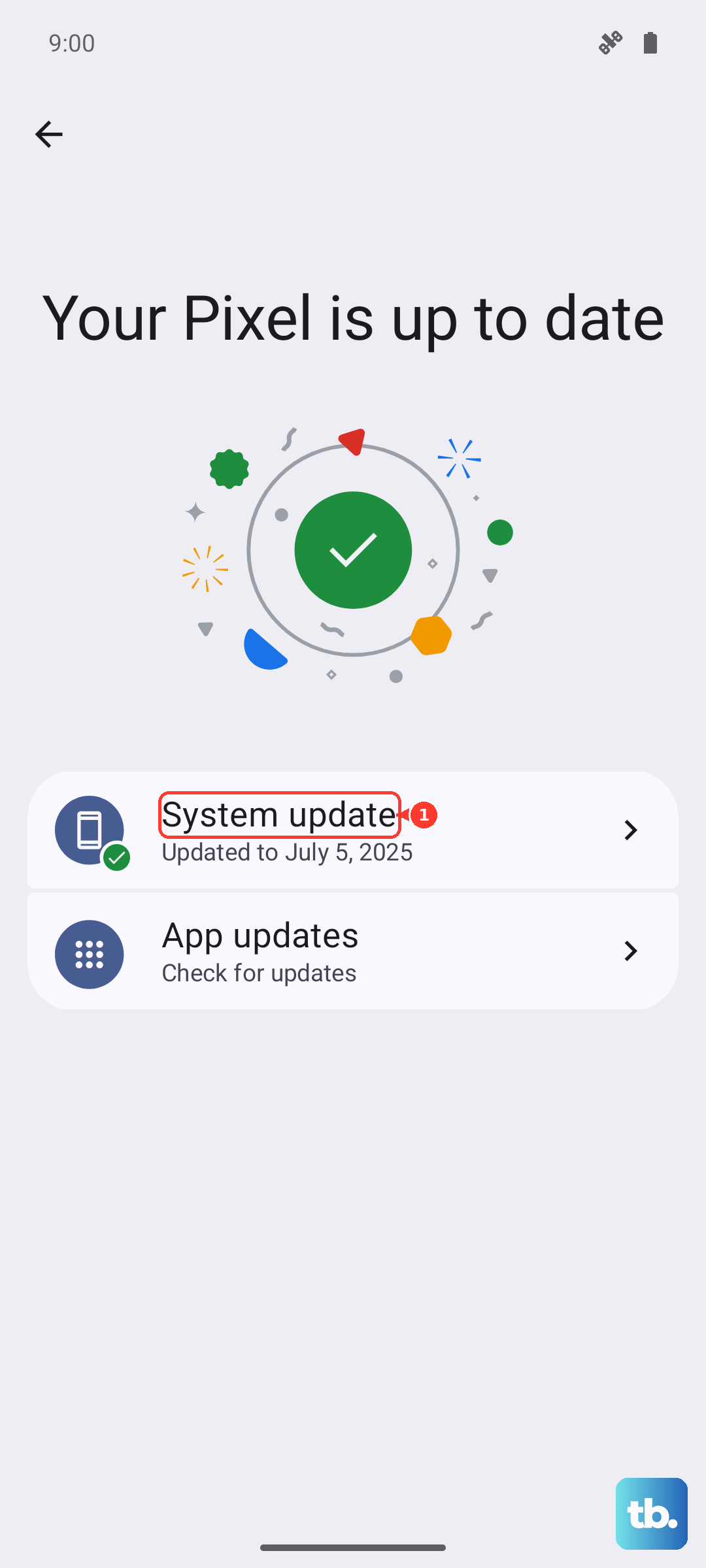
Go to Settings > System > System update to check for and install any available updates. If your phone won't turn on to check for an update, you can try updating it via a computer using the Android Flash Tool.
Charge with the Phone Powered Off
Sometimes, an app or background process can interfere with the charging circuit. A simple test is to turn your Pixel 9 completely off, then plug it in. If it starts charging normally while powered down, you know a software issue is likely to blame.
This is also a handy trick if you need to charge as quickly as possible, as no system processes are running to drain power.
Check for Overheating
Like all smartphones, the Pixel 9 has built-in temperature protection. If the device gets too hot, it will slow down or stop charging altogether to prevent damage. This can happen if you're using it intensively while charging, or if it's left in direct sunlight.
If the phone feels unusually warm, unplug it, move it to a cooler spot, and let it cool down for 15-20 minutes before trying to charge again. Using the phone while it's on a wireless charger can generate extra heat.











