
So your iPad won't charge. You've plugged it in, maybe swapped cables, and the screen stays stubbornly black or the battery icon just sits there. It's a frustrating spot to be in, but I've found this is almost always something you can fix yourself without a trip to the store.
Whether you're using a brand new iPad Pro or an older model, the fixes are generally the same. Let's start with the quickest solution and work our way through the list.
Force Restart Your iPad
This is my go-to first step every single time. A force restart clears out any temporary software glitch that might be preventing the iPad from recognizing it's plugged in. It takes about 30 seconds and works surprisingly often.
The method depends on your iPad model. For iPads without a Home button (like most recent models), press and quickly release the Volume Up button, press and quickly release the Volume Down button, then press and hold the Top button until you see the Apple logo appear.
For iPads with a Home button, just press and hold both the Home button and the Top button at the same time until the Apple logo shows up. Once it reboots, plug it back in and see if the charging indicator appears.
Check Your Charger and Cable
This is a huge one for iPads. They require significantly more power than an iPhone. That little 5W iPhone charger in your drawer will technically charge an iPad, but it will be painfully slow and might not show any sign of life if the battery is completely dead.
You really need at least a 20W USB-C power adapter. If you're using the charger that came with your iPad, you're good. If you're borrowing one, check the fine print on the adapter itself. After confirming the adapter, try a different USB-C cable. Cables fray and fail over time, and a bad cable is a very common culprit.
Clean the USB-C Charging Port
Take a close look at the USB-C port on your iPad. Lint, dust, and pocket debris love to pack in there, and it doesn't take much to block the cable from making a proper connection. Grab a flashlight and peer inside.
If you see any gunk, turn the iPad off first for safety. Then, use a wooden or plastic toothpick to gently scrape out the debris. Don't use anything metal, as it can damage the delicate contacts inside. A quick blast of compressed air can help, too. Just hold the can upright and use short bursts.
Disconnect All Accessories
If you have a USB-C hub, external drive, or even a keyboard case attached, unplug it. Some accessories can draw power from the iPad instead of providing it, which can prevent charging. This is especially true with cheaper or non-certified hubs.
For iPad Pro models that support charging through the Magic Keyboard, try charging the iPad directly by plugging the cable into the iPad's own port, not the keyboard's passthrough port. Sometimes the connection there can be finicky.
Update iPadOS
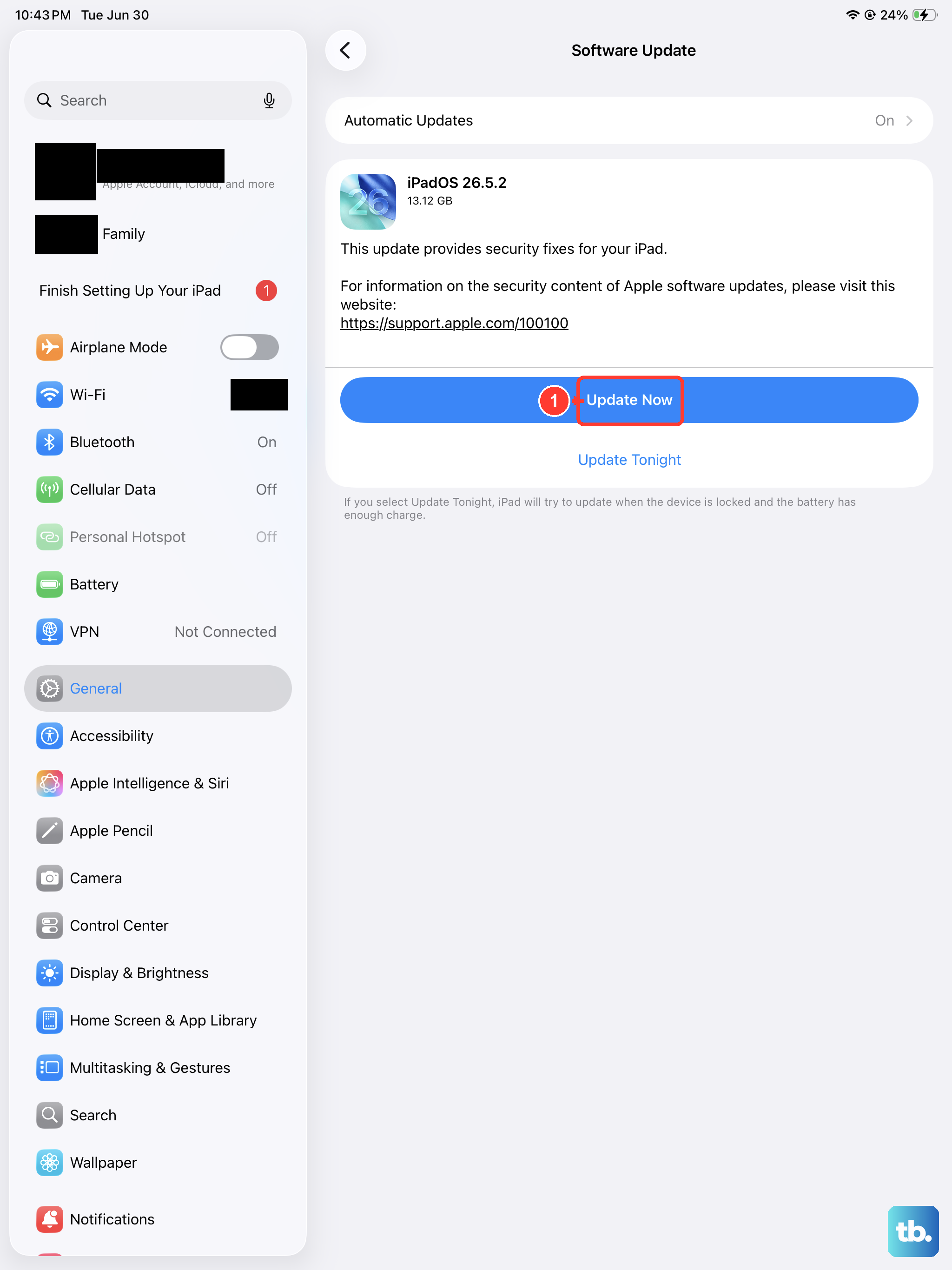
Occasionally, a software bug in iPadOS can interfere with charging. Apple usually patches these quickly. To check, go to Settings > General > Software Update. If an update is available, install it.
If your iPad won't turn on enough to check for an update, you can update it using a computer. Connect your iPad to a Mac or PC with a USB-C cable. On a Mac with macOS Catalina or later, open Finder. On a PC or older Mac, open iTunes. The computer should detect your iPad and give you an option to update it, which won't erase your data.
Let It Sit on the Charger
If your iPad's battery is completely drained to zero, it might not show any sign of life for a while after you plug it in. This is normal. Leave it connected to a known-good wall charger (not a computer port) for at least 30 minutes to an hour.
After that time, try the force restart sequence again while it's still plugged in. You should eventually see a low-battery icon or the charging indicator on the screen if power is getting through.
Check for Overheating
iPads have built-in temperature protection. If the device gets too hot, it will stop charging to protect the battery. Feel the back of your iPad. If it's very warm to the touch, unplug it and move it to a cooler spot out of direct sunlight.
Let it cool down completely before trying to charge it again. Using a demanding app or game while charging, or leaving it on a soft surface like a bed or couch, can cause it to overheat.
Reset All Settings
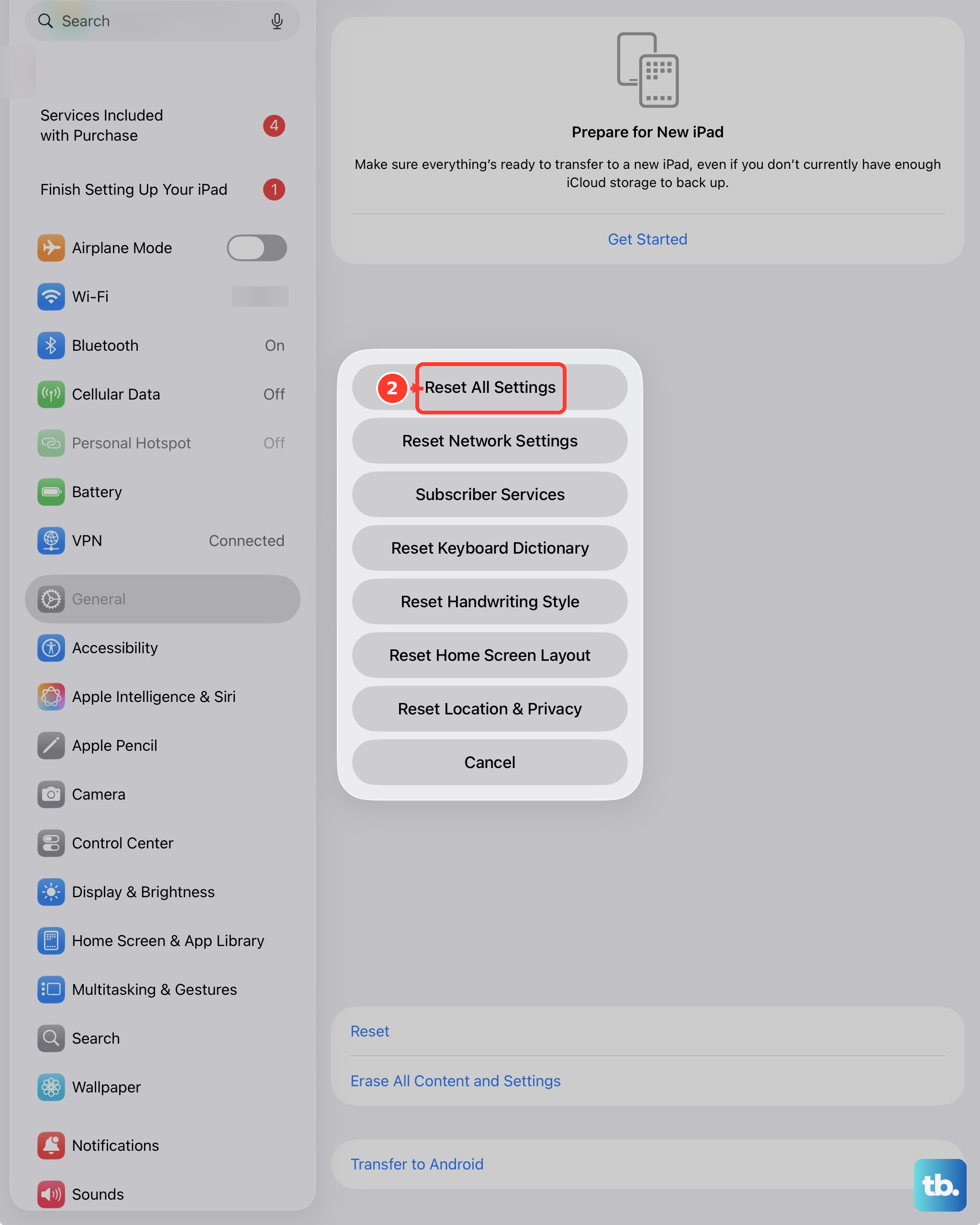
This is a deeper software fix that won't delete your personal data like photos or apps, but it will reset all your system settings to default. Things like Wi-Fi passwords, wallpaper, and display brightness will be lost, so it's a bit of an inconvenience.
To do it, go to Settings > General > Transfer or Reset iPad > Reset, then choose Reset All Settings. This can clear out any corrupted settings that might be causing a charging conflict.
Restore Your iPad via Computer
If nothing else has worked, a full restore is the final software step. This will erase everything on your iPad and install a fresh copy of iPadOS. You'll need a computer to do this.
First, put your iPad into Recovery Mode. The steps vary by model, but generally involve connecting it to the computer, then pressing and holding specific buttons until you see the recovery mode screen. From there, you can choose "Restore" in Finder or iTunes. This process can fix deep-seated software issues, but remember to back up your data first if possible.











