A PC stuck on a blue screen — shown as a black stop-error screen on Windows 11 version 24H2 and later — means Windows has hit a stop error and is trying to protect the system from a crash it cannot safely ignore. The fix depends on whether Windows can restart normally, reach Safe Mode, or only open recovery tools. Start with the least disruptive steps, then move toward restore, reset, or reinstall only when the loop keeps coming back.
Let Windows finish one crash cycle
Wait while Windows collects error information and tries to restart on its own.
If the PC returns to the desktop and stays stable, stop there and avoid making several changes at once.
If the same blue screen or stop code returns, shut the PC down.
Disconnect any hardware added before the problem started, including a dock, adapter, external drive, graphics card, RAM, or other peripheral.
Start the PC again with only the essentials connected.
If Windows now starts normally, reconnect devices one at a time so the failing device is easier to identify.
Write down the stop code before Windows restarts so you can use it later in Get Help or Microsoft support.
Get into Windows Recovery Environment
Use Windows Recovery Environment when the PC cannot stay on the desktop long enough to make repairs.
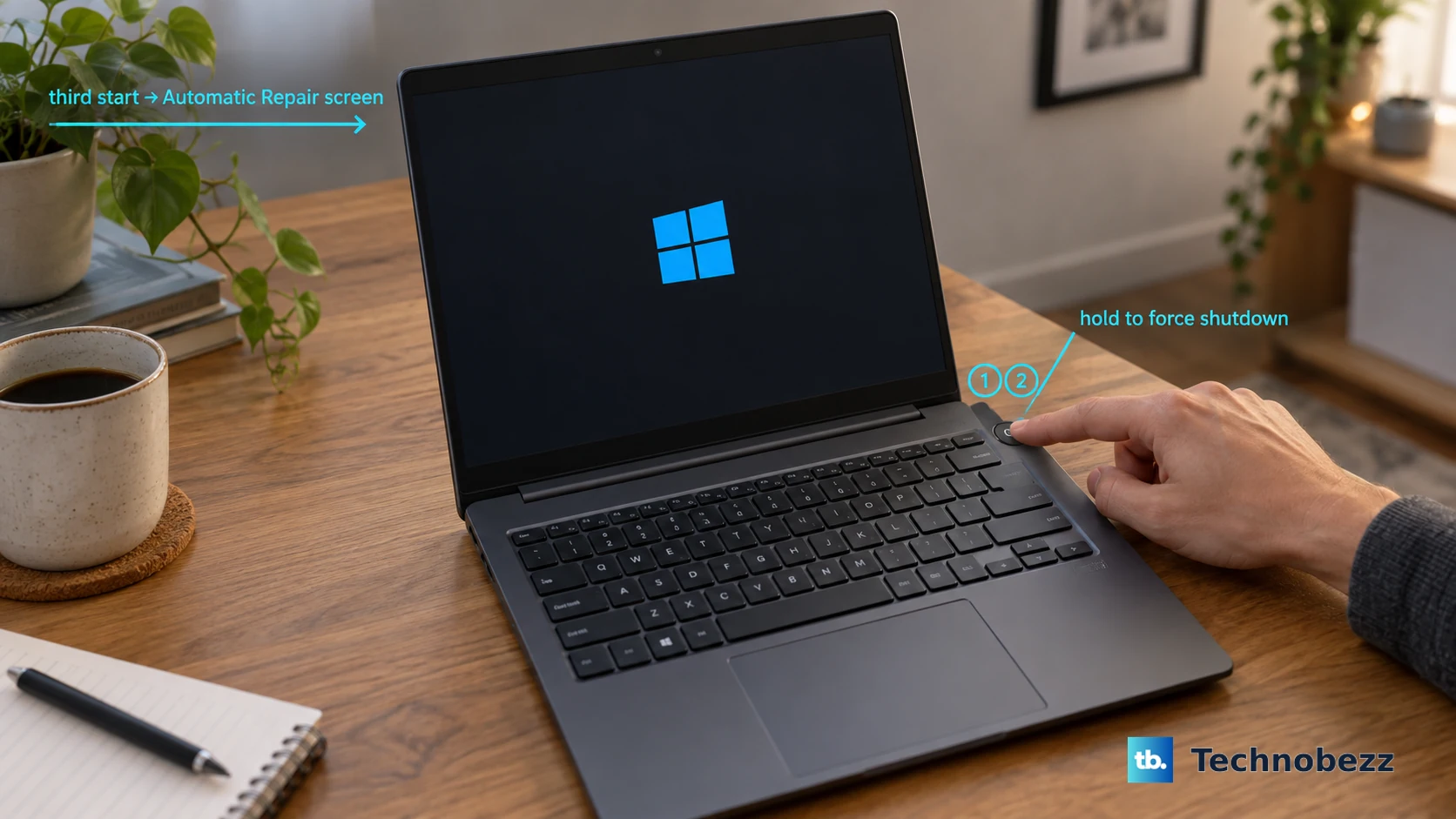
- 1.Start the PC and wait for the Windows logo or the manufacturer logo.
- 2.Press and hold the power button until the device shuts down.
- 3.Turn the PC on again, then repeat the forced shutdown once more.
- 4.Turn it on a third time and wait for Automatic Repair.
- 5.Select Advanced options when it appears.
Start in Safe Mode
Safe Mode starts Windows in a basic state using a limited set of files and drivers, which isolates crashes caused by something that loads during normal startup. If the crash does not happen in Safe Mode, default settings and basic device drivers are not causing it.
From Windows Recovery Environment, select Troubleshoot.
Select Advanced options.
Open Startup Settings.
Select Restart.
Choose Enable Safe Mode, Safe Mode with Networking, or Safe Mode with Command Prompt using the number or function keys.
Enter the BitLocker recovery key if Windows asks for it on an encrypted device.
Run Startup Repair
Startup Repair applies when Windows reaches recovery but cannot boot correctly. It targets startup failures involving damaged system files, boot configuration data, the master boot record, incompatible drivers, and registry errors.
From Windows Recovery Environment, open Troubleshoot.
Select Advanced options.
Choose Startup Repair.
Select Restart and let Windows attempt the repair.
When the repair finishes, allow the PC to restart normally.
If the blue screen returns, go back to Windows Recovery Environment and continue with update and restore options.
Remove the update or app that started it
Use this section when the blue screen began right after a Windows update, feature update, new app, or desktop program. Windows can remove some updates from recovery, and it can remove apps from Start, Settings, or Control Panel when the desktop still opens.
From Windows Recovery Environment, choose Troubleshoot > Advanced options > Uninstall Updates. Select Uninstall latest quality update or Uninstall latest feature update.
If Windows still opens, on Windows 11 use Start > Settings > Windows Update > Update history > Uninstall updates, select the update, then choose Uninstall. On Windows 10, use Start > Settings > Update & Security > Windows Update > View your update history > Uninstall updates, select the update, then choose Uninstall. Some updates cannot be removed.
For an app installed just before the crashes, use Start > All apps, right-click or press and hold the app, then choose Uninstall. On Windows 11, you can also use Start > Settings > Apps > Installed apps, find the app, open More, and choose Uninstall.
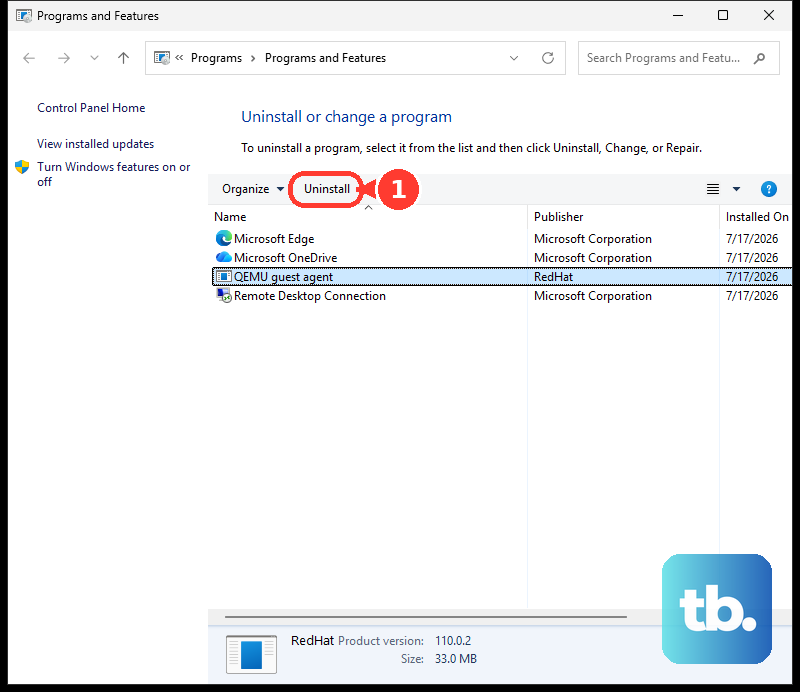
For a desktop program that does not uninstall cleanly from Settings, search for Control Panel, open Programs > Programs and Features, right-click or press and hold the program, then choose Uninstall or Uninstall/Change.
Fix a bad driver
This fixes blue screens that started after a device or driver change.
Right-click Start and open Device Manager.
Expand the device category that matches the changed hardware or the device marked with an exclamation point.
Right-click the device and choose Update driver.
Select Search automatically for updated driver software, then choose Close when it finishes.
If Windows does not find a driver, choose Search for updated drivers on Windows update.
If the problem began after a driver update, right-click the device, open Properties, select the Driver tab, choose Roll Back Driver, pick a reason, then select Yes.
If updating or rolling back does not help, right-click the device, choose Uninstall device, select Uninstall, then restart from Start > Shut down or sign out > Restart.
Use Windows Update repair and Quick machine recovery
Once Windows is reachable, on Windows 11 open Start > Settings > Windows Update and select Check for updates. On Windows 10, open Start > Settings > Update & Security > Windows Update and select Check for updates.
For optional driver updates on Windows 11, go to Start > Settings > Windows Update > Advanced options, turn Receive updates for other Microsoft products on, open Optional updates, select listed driver updates, then choose Download and install.
To repair Windows 11 without jumping straight to a reset, open Start > Settings > System > Recovery. Under Fix problems using Windows Update, select Reinstall now, choose whether to allow an automatic restart 15 minutes after installation, select OK, then restart when required.
On Windows 11 24H2 build 26100.4700 or later, Windows Recovery Environment can offer Quick machine recovery. Open Troubleshoot > Advanced options > Quick machine recovery, connect Ethernet or supported Wi-Fi if prompted, and let Windows check Windows Update for a known remediation.
Use Startup Repair, update removal, or Reset this PC if Quick machine recovery does not resolve the loop.
Restore Windows or reset the PC
Use System Restore when restore points exist and the blue screen started after a change you cannot easily undo.
From Windows Recovery Environment, choose Troubleshoot > Advanced options > System Restore.
Select a restore point.
Choose Scan for affected programs if you want to see what will change.
Select Next, then Finish.
Select Restart when the restore finishes.
Some Windows 11 PCs also offer Point-in-time restore from Windows Recovery Environment. Restoring from it is still in preview and rolling out, so use it only if Point-in-time restore actually appears in your recovery menu. It is not a drop-in for System Restore: it reverts the whole system state captured in the last 72 hours, including personal files, apps, settings, passwords, and keys, so anything changed after the restore point is lost. Enter recovery automatically after repeated boot failures, or use Settings > Recovery > Advanced startup, then choose Troubleshoot > Point-in-time restore, enter the BitLocker recovery key, select a restore point, choose Continue, review the warning, and select Restore.
If restoring fails or no restore point is available, use Reset this PC from Windows Recovery Environment. Select Troubleshoot > Reset this PC, choose Keep my files or Remove everything, then choose Cloud download or Local reinstall where offered and follow the prompts.
Reinstall only after repair options fail
This is the last-resort path for a PC that still cannot be repaired through recovery, restore, driver rollback, update removal, or Reset this PC.
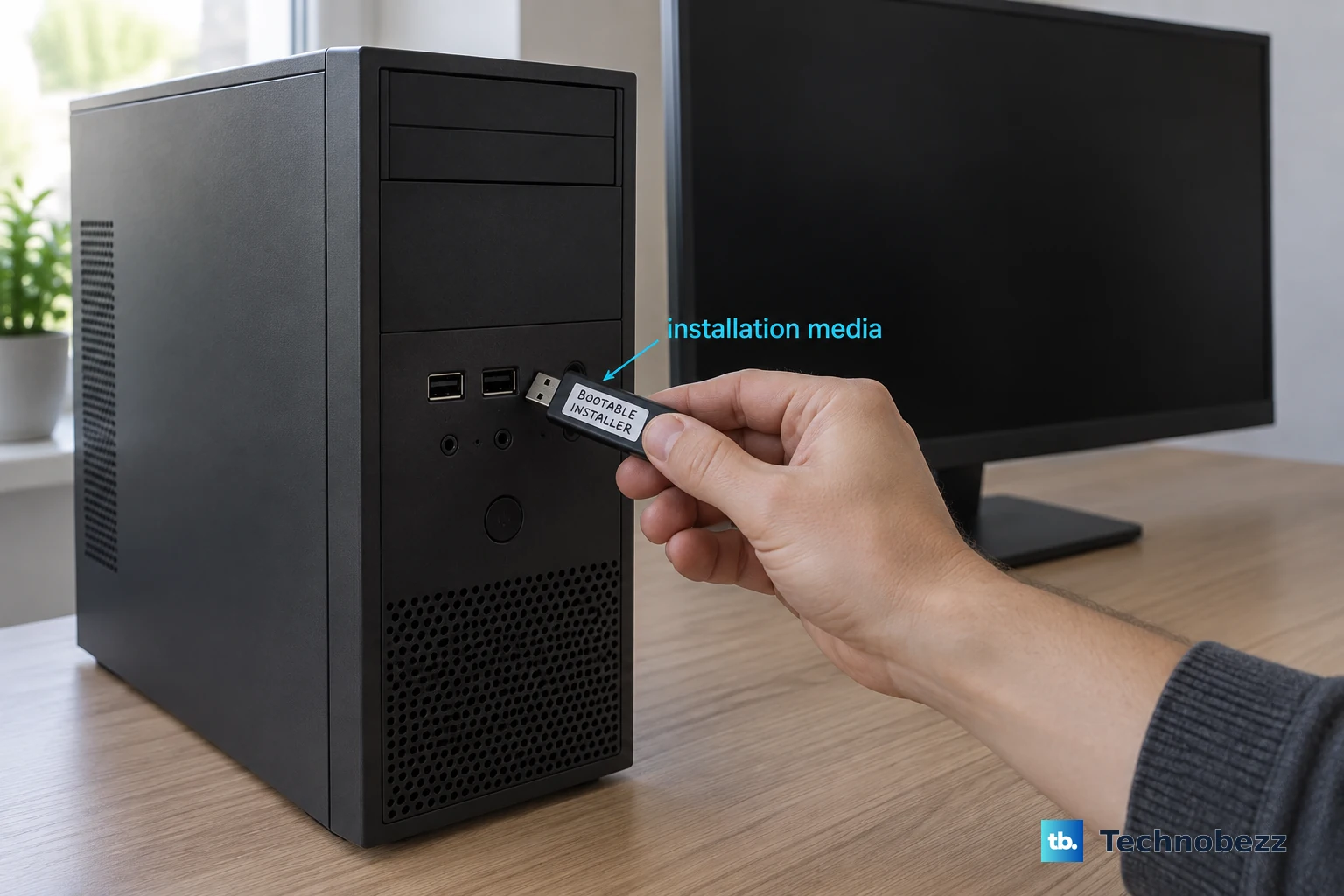
On a working PC, go to Microsoft’s official Windows 11 download page and use Create Windows 11 Installation Media to make bootable USB or DVD media.
Connect the installation media to the affected PC and start the PC from that media.
On Select language settings, choose your language and localization, then select Next.
On Select keyboard settings, choose your keyboard layout, then select Next.
If your media offers a repair option at this point, take it for one more attempt at recovery tools. Otherwise go back to Windows Recovery Environment for Startup Repair and System Restore.
For a clean install, on Select setup option choose Install Windows 11, select I agree everything will be deleted including files, apps, and settings, select Next, then follow the setup prompts.
Pressing F8 for Safe Mode belongs to older Windows recovery guidance, and restoring registry hives from the RegBack folder is no longer a dependable current Windows repair path. If reinstalling from Windows 11 installation media fails, use Get Help from another working Windows device or Microsoft Support from the web.
Frequently Asked Questions
Why does my PC keep restarting to the same blue screen?
Windows is hitting the same stop error during startup. Let it finish one restart cycle, then use Windows Recovery Environment for Safe Mode, Startup Repair, update removal, System Restore, or Reset this PC.
Can I fix a blue screen without losing my files?
Yes. Start with hardware removal, Safe Mode, Startup Repair, driver rollback, uninstalling updates, and System Restore. If you must reset, choose Keep my files instead of Remove everything.
What should I do if BitLocker asks for a recovery key?
Enter the BitLocker recovery key to continue with Safe Mode, System Restore, Reset this PC, or other recovery tools on an encrypted device.
Are work or school PCs different?
Yes. Some recovery, Windows Update repair, clean boot, and Quick machine recovery behavior can be limited by management settings. Contact your organization’s IT support if those options are missing or blocked.