You’ve plugged the monitor into your laptop, but the screen stays blank. A wrong input or a cable without video support is enough to leave you without a picture. Start with the connection checks, then use the Windows or Mac controls below to detect and enable the screen.
Start with power and wake the laptop
Secure the monitor’s power cable. If the monitor still has no power, test the outlet with another device. Press the monitor’s power button. Wake your laptop by moving the mouse or pressing a keyboard key.
If the screen stays blank, disconnect the monitor from mains power. Reconnect its power cable. Still no picture? Check the monitor’s selected input next.
A powered monitor needs the right input
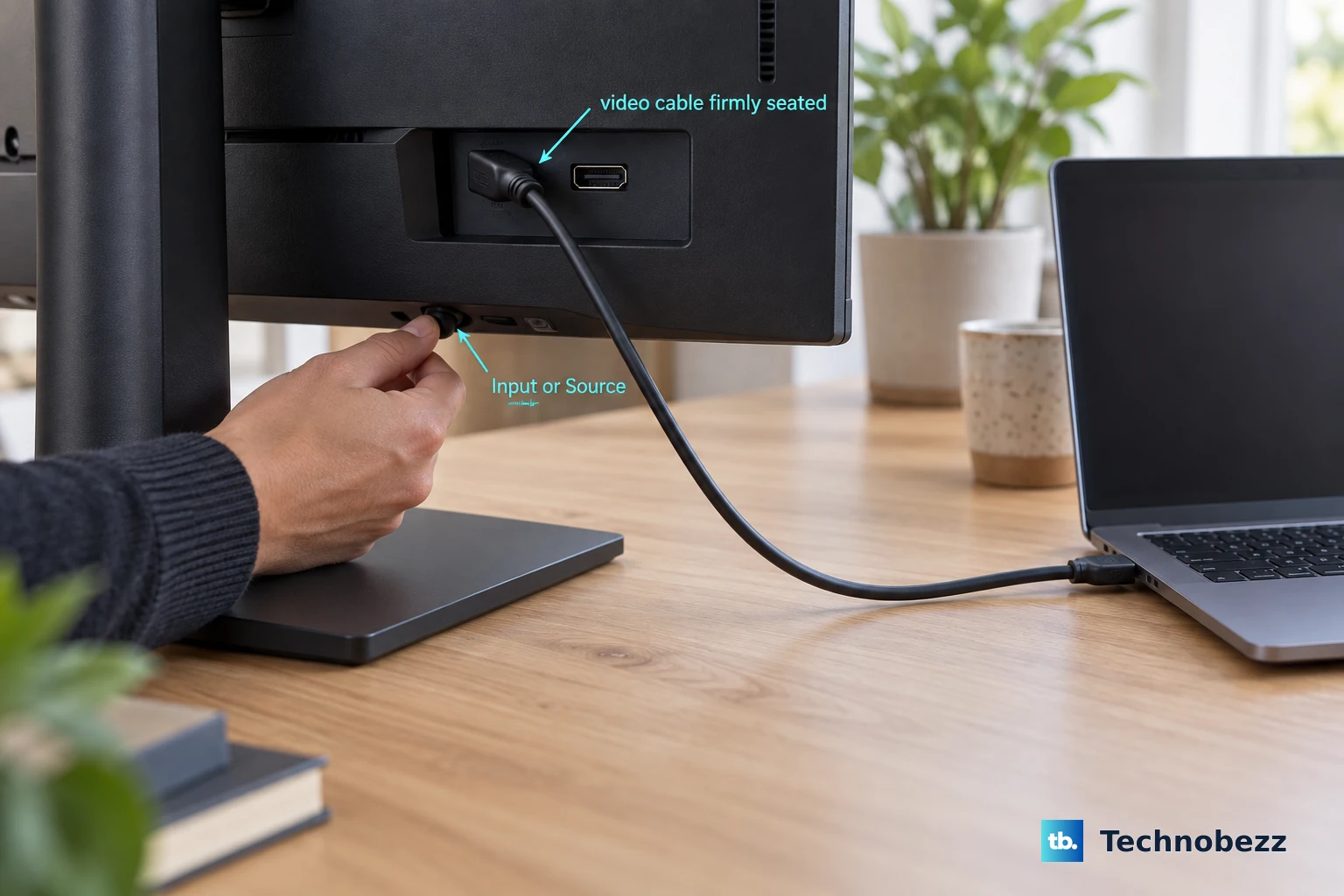
A monitor set to the wrong input won’t show the laptop connected to another port. Use the monitor’s physical buttons or joystick to open Input or Source. The label and button sequence depend on the model.
Select the port connected to your laptop, such as HDMI, DisplayPort, or USB-C. Match this selection to the actual connection on the monitor.
Rule out the cable and accessories
Change one part of the connection at a time to narrow down the fault.
- 1.Reconnect both ends of the video cable securely.
- 2.Replace it with a known-working video cable.
- 3.Bypass the dock or dongle and connect the monitor directly to a compatible laptop video output.
- 4.Try another compatible video-output port on the laptop.
- 5.If you have multiple monitors attached, test with just one external monitor.
- 6.Connect the monitor to another compatible computer to separate a monitor problem from a laptop problem.
Tell Windows to use the external screen
On Windows 11, press Windows+P. Select Extend to use both screens as one desktop, Duplicate for the same picture on both, or Second screen only to use just the monitor.
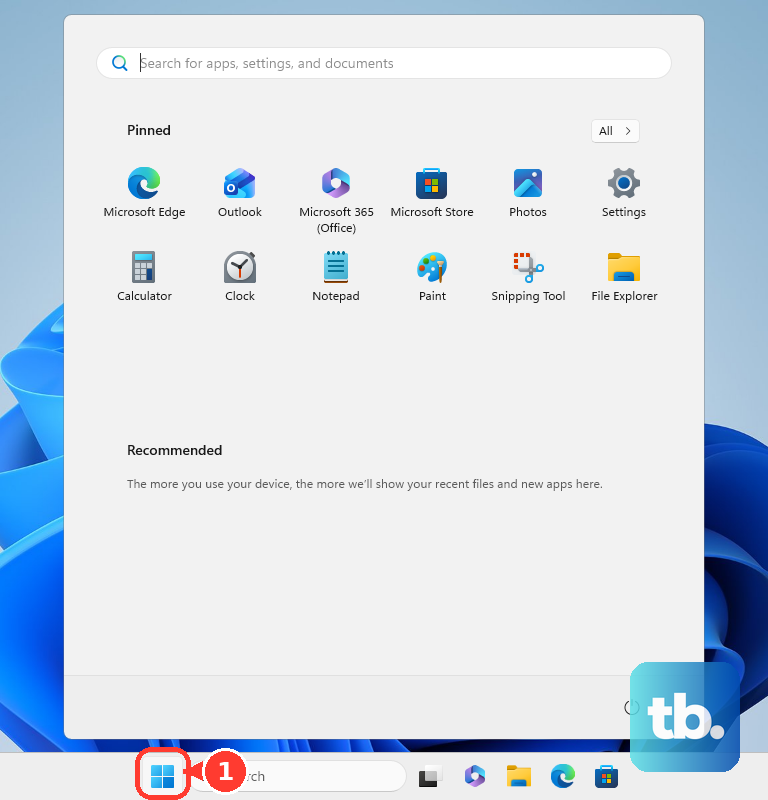
If Windows still hasn’t detected the screen, open Start > Settings > System > Display > Multiple displays. Select Detect.
If this setup worked before, press Windows+Ctrl+Shift+B to reset the graphics driver. When the reset doesn’t help, select Start > Power > Restart. If restarting also fails, select Shut Down. Power the laptop on again.
If you use a Mac, check detection and accessory approval
Open the Apple menu > System Settings > Displays. Hold Option to reveal Detect Displays. Click Detect Displays.
On an Apple-silicon Mac laptop, unlock the Mac before reconnecting the monitor or dock. Reconnect the accessory. Select Allow when asked to approve it. Charging works even when accessory data access has been denied, so power alone doesn’t prove the display connection is approved.
Close the Mac’s lid. Reopen it to wake the connection.
For use with the lid closed, connect the Mac to power. Connect an external keyboard and mouse. Closed-lid operation requires both, and supported display counts still depend on your Mac model.
If the monitor remains blank, select Apple menu > Restart. If that fails, check the cable and dock’s video capabilities below, then move on to software updates.
Check what your USB-C port and dock support
Check the laptop port’s specifications for the video connection your monitor needs: the required DisplayPort Alternate Mode, Thunderbolt, or USB4 functionality. There is no software switch that adds missing Alternate Mode hardware support.
Check the cable’s specifications for video support. A USB-C connection alone doesn’t establish that capability.
Verify that any adapter or dock supports the required video connection. On Windows 11, search for USB settings. Open USB settings. Turn on Connection notifications for messages identifying cable, port, power, or compatibility problems.
For multiple monitors, check your computer’s supported external-display count. On Windows, consult the GPU manufacturer’s supported count; on a Mac, check the exact model and chip. A splitter duplicates one signal and cannot create independent extended desktops.
Before installing DisplayLink software, confirm that your dock actually uses DisplayLink. For a DisplayLink dock, install the compatible software from Synaptics’ official DisplayLink downloads: the Windows driver page or the macOS DisplayLink Manager page.
On a Mac, follow DisplayLink Manager’s setup wizard to its Allow Screen Recording step. Click Open System Settings. Enable DisplayLink Manager’s recording permission. The current macOS permission location is System Settings > Privacy & Security > Screen & System Audio Recording.
Restart DisplayLink Manager. If the wizard requests background permission, click Open System Settings. Enable the requested Background Activity permission for DisplayLink Manager.
Tip: If the monitor works when connected directly, focus the remaining checks on the dock, adapter, or its software.
Update the software or undo a driver problem
These fixes address driver and firmware problems after the connection checks. On Windows 11, open Settings > Windows Update > Advanced options. Enable Receive updates for other Microsoft products.
Under Optional updates, select the relevant driver updates. Choose Download and install. Restart Windows through Start > Power > Restart.
If the monitor stopped working immediately after a graphics-driver update, right-click Start. Rolling back requires administrator access and an available previous driver. Select Device Manager. Expand Display adapters.
Right-click your graphics processor. Select Properties. Open the Driver tab. Select Roll Back Driver.
Select a reason. Confirm with Yes. Restart if prompted.
When updates and the earlier checks haven’t helped, open Device Manager > Display adapters to reinstall the graphics driver. Right-click the graphics processor. Select Uninstall device.
Confirm with Uninstall. Restart Windows through Start > Power > Restart so it attempts to reinstall the driver.
On a Mac, open the Apple menu > System Settings > General > Software Update. Install the offered compatible update. macOS updates also deliver firmware updates for Apple displays. For other monitors, obtain model-specific firmware and installation instructions from the manufacturer.
When the screen is detected but still looks wrong
For a detected monitor in Windows 11, open Settings > System > Display. Select the monitor. Under Scale & layout, set Display resolution to the option marked Recommended.
For an incompatible refresh rate, open Settings > System > Display > Advanced display. Select the affected monitor. Choose a supported value under Choose a refresh rate.
Check brightness if the display looks blank. Use the physical brightness controls on a third-party monitor. If both your keyboard and external display are made by Apple, press the Brightness Up key.
If the monitor also fails with another computer and a known-working cable, use the self-test or built-in diagnostics documented in its manufacturer’s user guide. For a Dell monitor, identify the model on Dell support and follow Documentation > Manuals and Documents > User Guide > Troubleshooting to Self-test or Built-in diagnostics. If abnormalities persist during standalone testing, contact repair support.
Frequently Asked Questions
Why does my monitor stop working when I close my Windows laptop?
Check the laptop’s lid action. Open Control Panel > Hardware and Sound > Power Options > Choose what closing the lid does. Set When I close the lid to Do nothing for the relevant power condition, then save your changes.
How do I use an external monitor with a Chromebook?
After connecting a compatible monitor, select the time and open Settings > Device > Displays. Select Mirror Built-in Display to show the same content on both screens. Hold the Decrease brightness key for external-screen-only output. USB-C connections require a video-capable cable.
What if my desktop appears but I can’t find a window on the monitor?
In Windows 11, open Settings > System > Display > Identify. Drag the display rectangles to match the screens’ physical positions, then select Apply. On a Chromebook, press Search+Alt+M or Launcher+Alt+M to move a window between screens.
Can I connect a monitor wirelessly instead?
For Windows 11, both the laptop and the display or attached receiver must support Miracast. Enable Wi-Fi and power on the receiver. Press Windows+K, then select the display. On a Mac with a compatible AirPlay receiver, connect both devices to the same Wi-Fi network. Open Control Center > Screen Mirroring, then select the receiver.