

Fix a failed GeForce Game Ready driver installation by checking compatibility, restarting Windows, and running a fresh compatible installer as administrator with Perform a clean installation selected. Before retrying, let Windows Update finish and close games and other applications that use your GPU. If installation still fails, use the app repair or recovery option that matches your error.
The short version
- Check compatibility: Your installer must support both your GPU and your Windows version.
- Start with a restart: Finish active Windows updates and close GPU applications before retrying.
- Use the standalone installer: Download a fresh compatible driver and use its clean installation option.
- Escalate selectively: Try app repair or a clean boot before considering Windows recovery for a specific error.
| Fix | When to use it | Main limitation |
|---|---|---|
| Check driver compatibility | The package rejects your GPU or Windows version | Older GPUs need their compatible driver branch |
| Retry through NVIDIA app | You want to retry the Game Ready download | Automatic downloading still requires installation |
| Restart and close applications | Your first installation attempt fails | Let active Windows updates finish |
| Pause third party antivirus monitoring | Your security software interferes | Restore protection immediately afterward |
| Run a manual clean installation | Installation through the app fails | Use a compatible standalone package |
| Download through another browser | You get a 7-Zip or data corruption error | Disable download managers or accelerators |
| Change the download connection | Archive errors continue | Try Ethernet or another cable |
| Transfer a fresh installer by USB | Downloads remain corrupted on your PC | Download the compatible package on another computer |
| Update NVIDIA app | App downloads cannot finish | Older architectures need their designated version |
| Reinstall NVIDIA app | The app remains unreliable | Restart after uninstalling |
| Stop NVIDIA services and processes | Installation fails after ordinary retries | Confirm each process belongs to NVIDIA |
| Try a Windows clean boot | Background software may interfere | Restore disabled items afterward |
| Roll back through NVIDIA app | You need your previous driver | A previous version must be available |
| Roll back through Device Manager | Windows retains an earlier driver | Restores the older version |
| Install a Windows Update driver | You need a compatible replacement | May differ from the latest Game Ready release |
| Free storage space | Insufficient space blocks installation | Review files before removing them |
| Repair Windows system files | System corruption is suspected or diagnosed | Does not address every installer error |
| Contact NVIDIA support | The compatible standalone installer still fails | You may need to supply logs |
Check that the driver supports your GPU
Open NVIDIA's official GeForce driver download page and use Manual Driver Search. Select your GPU and Windows version, choose Game Ready Driver, and check the result's supported products and operating system before downloading. A clean installation cannot make an incompatible package work.
If you have a Maxwell, Pascal, or Volta GPU, including many GTX 900 and GTX 10 series cards, use its compatible security update driver. These architectures have moved away from new Game Ready releases intended for newer GPUs. NVIDIA schedules their security updates through October 2028.
To retry through NVIDIA app, open Drivers and use the control in the upper right corner to set your driver preference to Game Ready Drivers. Choose Download, then Install. Automatic downloading under Settings > Drivers does not complete installation for you; you still need to select Install.
Restart Windows and close interfering applications
Let any active Windows Update operation finish, then restart your PC. Before retrying the compatible installer, exit games, browsers, video players, GPU monitoring tools, tuning utilities, and other applications that use GPU acceleration. NVIDIA says these applications can interfere with installation.
If you use an aggressive third party antivirus product and installation still fails, temporarily pause its real time monitoring through that product's controls. Install the driver, then immediately restore protection. NVIDIA says Microsoft Defender can remain running.
Download a fresh driver and perform a clean installation
NVIDIA recommends a standalone installation when a driver installation through the app fails. Download a fresh compatible package from the official GeForce driver page, then right click the downloaded installer and select Run as administrator. Approve the prompt with Yes and accept the extraction location with OK.
Select NVIDIA Graphics Driver and NVIDIA App, then choose AGREE AND CONTINUE. Select Custom (Advanced), click NEXT, and enable Perform a clean installation. Click Next, let installation finish, and restart your PC.
If you get a 7-Zip or data corruption error, download another copy before retrying installation. Use another browser and disable any download manager or accelerator. Launching the same corrupted installer again will not address the download problem.
For continued archive errors, try downloading over Ethernet instead of Wi-Fi, or use another cable if you already have a wired connection. If corruption persists, download the official compatible installer on a different computer and transfer it to your PC with a USB drive. Run that fresh copy as administrator and repeat the clean installation steps.
Update or reinstall NVIDIA app
When downloads cannot finish in NVIDIA app, install the current compatible app and retry Drivers. NVIDIA lists a fix for unfinished downloads in its app release highlights. For supported newer GPUs, open the official NVIDIA app download page, select Download Now, run the installer, and follow its prompts.
If you have a Maxwell, Pascal, or Volta GPU, use NVIDIA's designated older GPU app download, version 11.0.5.420. Installing that app version does not restore eligibility for new Game Ready releases. Your driver still needs to come from the compatible branch for your GPU.
If the app remains unreliable, uninstall and reinstall it. On Windows 11, open Settings > Apps > Installed apps, find NVIDIA App, open its three dot menu, and select Uninstall. Restart Windows, download the appropriate app again, and reinstall it before retrying the driver.
Stop stuck NVIDIA services and processes
If installation still fails, stop NVIDIA services and processes before another attempt. Administrator access may be required. Open Run, enter the following command, and press Enter.
services.mscIn Services, find services whose names begin with NVIDIA and use Stop to stop them. Next, open Task Manager and inspect remaining NVIDIA or nv prefixed processes. Verify that each belongs to NVIDIA before selecting it and choosing End task, then retry the installer.
Leave any process you cannot identify alone; an nv prefix by itself does not confirm that it belongs to NVIDIA. If installation still fails after you stop the confirmed NVIDIA items, try a clean boot to check for broader background interference.
Try installation with a Windows clean boot
A clean boot lets you retry with nonessential services and startup applications disabled. Microsoft's procedure applies to Windows 10 and Windows 11, but it does not guarantee that your NVIDIA installation will succeed. Start with administrator access and record which services and startup items are enabled so you can restore them afterward.
Search Windows for msconfig and open System Configuration. On the Services tab, select Hide all Microsoft services, then choose Disable all and Apply. Keep Microsoft services hidden before disabling the remaining services.
Open the Startup tab and select Open Task Manager. Disable the enabled startup items you recorded, close Task Manager, and select OK in System Configuration. Restart Windows and retry the compatible driver installer.
After the attempt, return to System Configuration and restore Normal Startup. Re-enable the services and startup items you disabled, then restart. If installation succeeds during the clean boot, background interference is a useful lead for further troubleshooting.
Recover a working display driver
To restore your previous driver through NVIDIA app, open Drivers and locate the previously installed driver beneath the latest driver details. Open its three dot menu and choose Reinstall. This requires a previous driver to be available and restores that version rather than completing the failed update.
You can also roll back through Windows when it retains an earlier driver. With administrator access, right click Start, open Device Manager, and expand Display adapters. Right click your NVIDIA GPU and choose Properties > Driver > Roll Back Driver, select a reason, and choose Yes. Restart if requested.
When no earlier driver is available, check Windows Update for a compatible replacement. On Windows 11, open Settings > Windows Update > Advanced options > Optional updates. Select an offered NVIDIA driver, choose Download and install, and restart.
On Windows 10, open Settings > Update & Security > Windows Update, select Check for updates, then View optional updates. Select and install an offered compatible driver, then restart. The Windows Update version may differ from NVIDIA's latest Game Ready release.
Address specific Windows errors before escalating
If insufficient space blocks installation, free storage before retrying. In Windows 11, open Settings > System > Storage > Cleanup recommendations, review the categories, select expendable items, and choose Clean up. In Windows 10, search for Disk Cleanup, select the affected drive, review the file categories, and confirm removal. Retry installation after freeing space.
For suspected or diagnosed Windows system corruption, complete Windows updates and restart before repairing system files. Open Command Prompt with Run as administrator, then run the following command and wait for it to complete successfully.
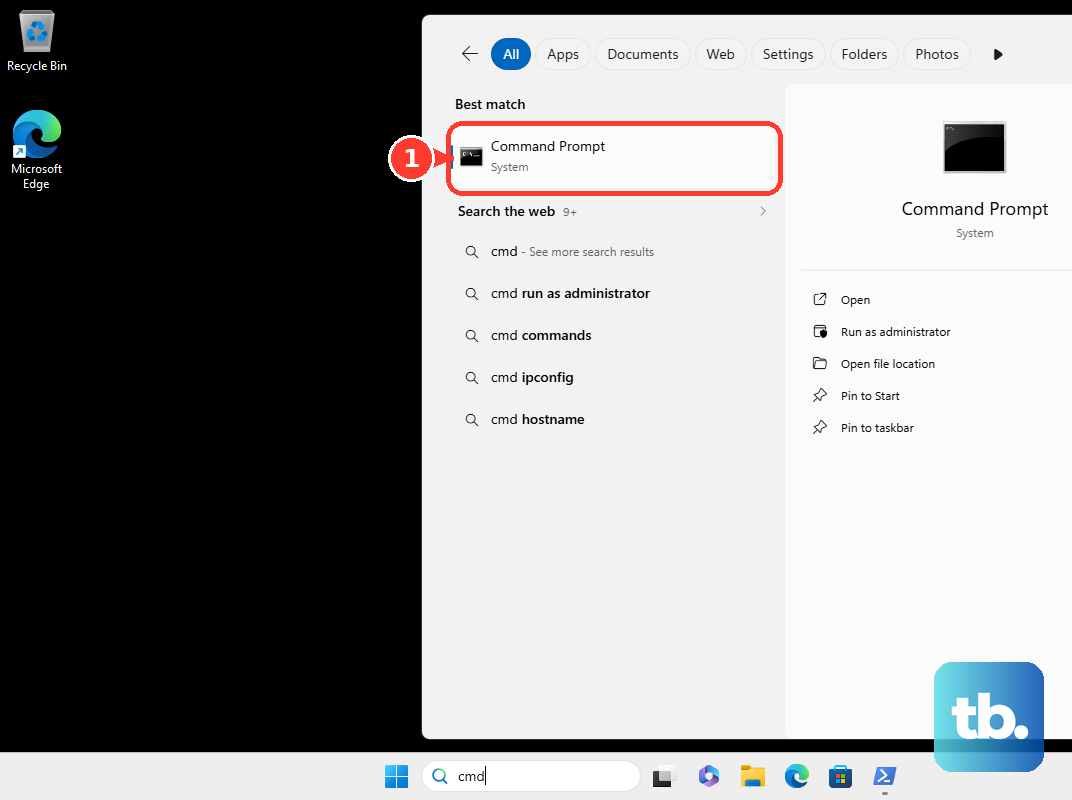
DISM.exe /Online /Cleanup-image /RestorehealthNext, run the System File Checker command below and wait for verification to finish. Retry the driver installation afterward. These commands repair Windows components, so use them when system corruption may be involved.
sfc /scannowIf the compatible standalone installer still fails, contact NVIDIA Customer Care with the exact error. You can also submit app feedback through the [!] icon at the upper right of NVIDIA app's home page. NVIDIA may request installer or app logs to identify the failure before recommending deeper repairs.
Frequently Asked Questions
Should I reinstall GeForce Experience to fix the failure?
No, GeForce Experience is no longer supported. Use NVIDIA app or the standalone driver installer for current installation troubleshooting.
Do I need to sign in to NVIDIA app to install a driver?
No, NVIDIA app's driver functions do not require an account login. You can download and install your driver without signing in.
Why does installation fail immediately after installing Windows 10?
Windows 10 may already be installing another driver silently during its first boot. NVIDIA says to wait at least 15 minutes, restart, and retry the compatible installer. That waiting instruction applies specifically to the Windows 10 first boot situation.
Can I use a Studio driver instead of a Game Ready driver?
Yes, if your GPU is eligible for Studio drivers, use the control in the upper right corner of NVIDIA app's Drivers page to switch your driver preference to Studio Drivers, then choose Download and Install. This gives you an alternative driver without completing the failed Game Ready release. Switching channels may not resolve the underlying installation problem.
Do I need Display Driver Uninstaller for every driver update?
No, DDU is a third party tool maintained by Wagnardsoft for persistent driver removal problems. You do not need it for ordinary updates. If you use it for a persistent removal problem, prepare a backup or restore point and download your replacement driver before cleanup.
What does error 1459 or an interactive window station error mean?
When your installation logs contain these errors, NVIDIA identifies operating system drive permissions as a possible cause. Have Microsoft support or your PC manufacturer repair the affected permissions. NVIDIA does not provide a universal current Windows 11 permissions reset procedure for this error.