Your Dell microphone stops working when Windows listens to the wrong input, microphone access is blocked, the headset is muted, or the audio driver fails. Start with the checks that take under a minute, then move through Windows settings, calling apps, Dell tools, drivers, and diagnostics. By the end, you will know whether this is a setting, software, driver, or hardware problem.
1. Restart Windows and inspect the mic
Start here because these physical checks clear the most basic failures before you spend time inside settings.
Select Start, then Power, then Restart.
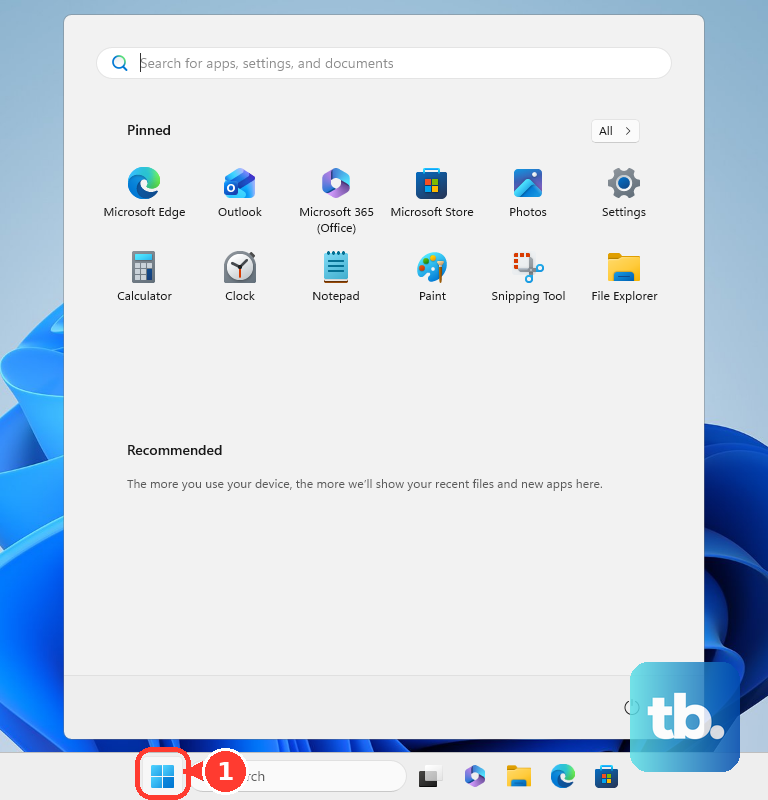
After Windows restarts, test the microphone again.
For a headset, webcam mic, USB mic, or external microphone, confirm the device is connected firmly.
Check the headset or microphone for a physical Mute button and turn mute off.
Next, turn off the computer and unplug all cables.
Inspect the microphone port, cable, and connector for bent pins, cracks, loose sockets, dust, lint, or debris.
Use compressed air to clear debris, reconnect the microphone, and test again.
On Dell laptops with one combo audio jack, use a single 4-pole TRRS headset plug. For a headset with separate headphone and microphone plugs, use a compatible Y-splitter adapter.
2. Unmute the Dell F4 microphone key
Press Fn + F4 to toggle microphone mute.
If Fn Lock is enabled in BIOS, press F4 instead.
Check the F4 LED. LED on means Mute. LED off means Un-Mute.
When the LED shows the microphone is muted, press the same shortcut again.
On supported Latitude laptops, Precision mobile workstations, and the XPS 13 9315, the keyboard mute key blocks the microphone at the hardware level. Dell notes that exceptions exist, so use the laptop manual when the F4 behavior does not match these steps.
3. Allow microphone access in Windows 11
Windows privacy controls must allow microphone access before apps can record from it.
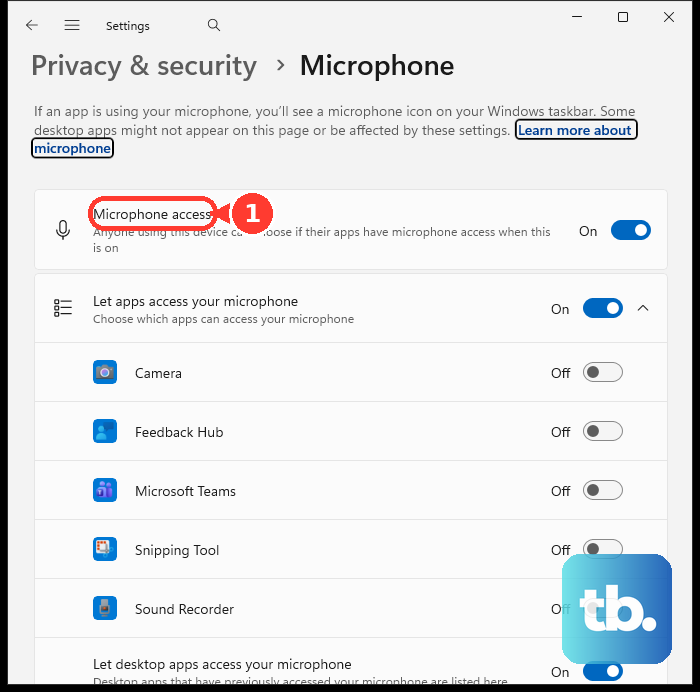
Select Start, then Settings.
Open Privacy & security, then Microphone.
Turn Microphone access on.
Turn Let apps access your microphone on.
Choose the Microsoft Store apps that have microphone access.
For desktop apps, turn Let desktop apps access your microphone on.
For Windows voice typing, use the same Microphone access switch, then start voice typing with Windows logo key + H. For Windows voice access, select Start > Settings > Accessibility > Speech, turn Voice access on, and use Select default microphone.
4. Select the right input and test the recording
Select Start > Settings > System > Sound.
Under Input, open Choose a device for speaking or recording.
Select the microphone you want to use.
Then select the arrow to the right of that device.
Under Microphone test, select Start test.
Speak normally, select Stop test, then choose Play under Recorded sample.
Move the Input volume slider up when the recorded sample is too quiet, then test again.
A Dell microphone that looks dead in a meeting app is often the wrong Windows input device. For driver-level volume controls, open Additional device properties, select the Levels tab, set the input volume slider to 100, and test before changing other settings. Dell notes that Microphone Boost and other advanced controls depend on the audio driver.
5. Disable enhancements and run the input troubleshooter
Give audio processing and Windows input errors one quick pass before you reinstall drivers.
Select Start > Settings > System > Sound.
Under Input, select your microphone.
Select Additional device properties.
Set Audio enhancements to Off.
Turn Audio enhancements back on when switching it off does not change the recording.
Now run the Windows input troubleshooter. In Start > Settings > System > Sound, go to Advanced, select Input devices under Troubleshoot common sound problems, follow the prompts, and test the microphone again.
6. Fix Zoom Teams Meet Discord and browser permissions
In the affected app, open Settings, then open Devices or Audio. Select the correct microphone, turn app mute off, and run the app microphone test.
In Microsoft Teams, select Settings and more > Settings > Devices > Manage devices. Under Audio settings, choose the connected mic from Microphone, then select Make a test call.
In Google Meet, open the meeting or meet.google.com, select View site information in the address bar, turn Microphone on, then select Turn on microphone in the meeting.
In Zoom on Windows, first confirm Windows itself allows microphone access at Start > Settings > Privacy & security > Microphone, and turn on Microphone access, Let apps access your microphone, and Let desktop apps access your microphone. Reconnect the microphone cable or Bluetooth device, then test Zoom again.
In Discord, select the cogwheel icon to open User Settings, open Voice & Video, choose the microphone from Input Device, check hardware mute, try another USB or input port, and test Push to Talk and Voice Activity.
In Chrome, select More > Settings > Privacy and security > Site settings > Microphone. Review allowed and blocked sites, and use the down arrow to choose the default microphone.
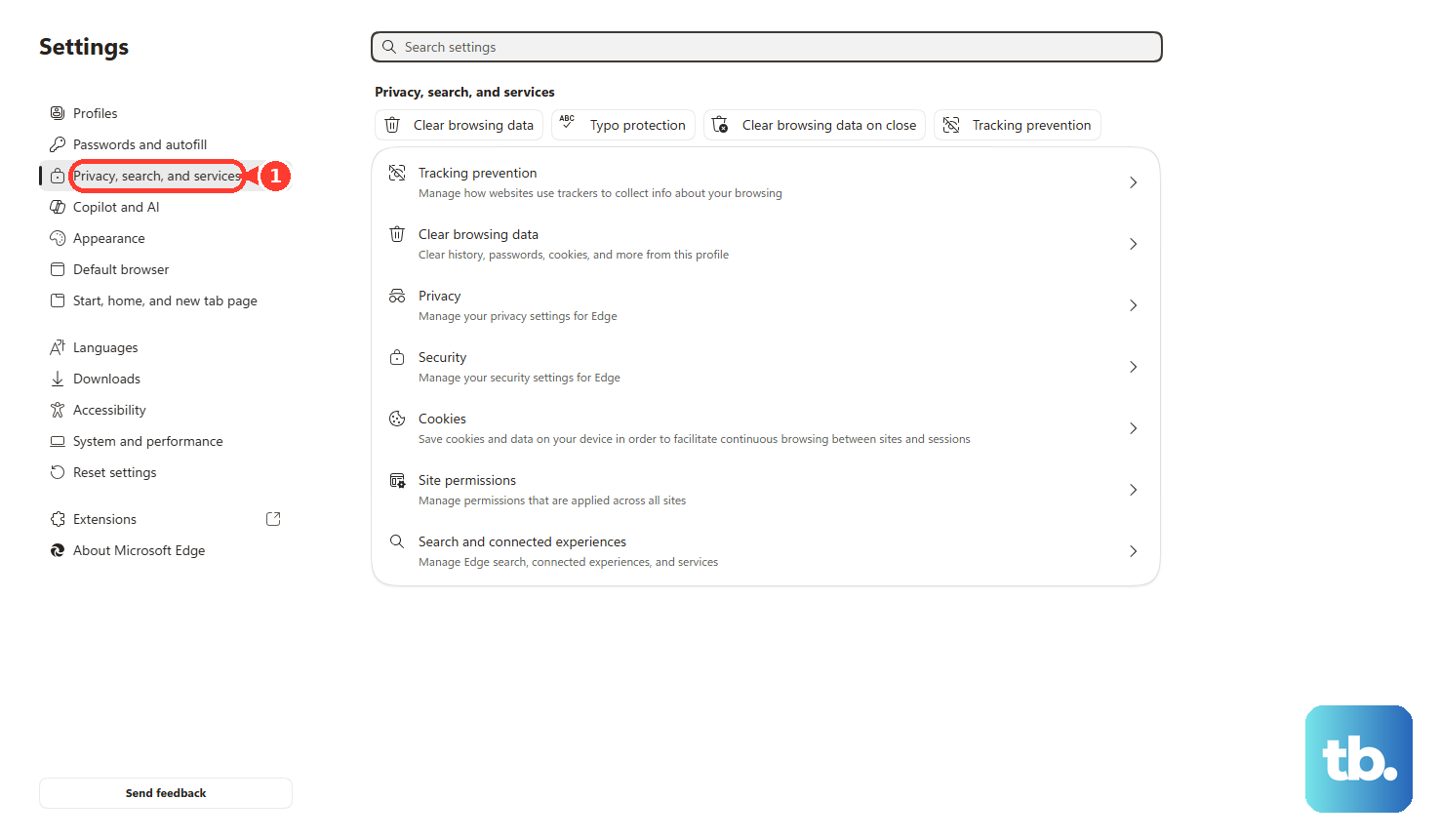
In Microsoft Edge, select Settings and more > Settings > Privacy, search, and services > Site Permissions > All sites, select the website, and change the Microphone dropdown.
In Firefox, open Settings > Privacy & Security. Under Permissions, find Microphone, select Settings, change the site's Allow or Block status, click Save Changes, and reload the site.
Calling apps and browsers keep their own microphone choices, so check the app that is failing after Windows records your voice correctly. For a Bluetooth headset or wireless microphone, power it on and confirm it is paired and connected in Windows. Unpair it, pair it again, and test once more.
7. Adjust Dell Optimizer and install Dell drivers
Dell systems with Dell Optimizer add another audio layer, and Dell driver updates are the cleanest way to fix a missing or unstable microphone.
On most Dell computers, Dell Optimizer 6.x has replaced Dell Optimizer 4.2 and older, and its Audio section no longer carries the old noise and voice-quality toggles. On these current systems, set background-noise removal and voice quality inside your conferencing app such as Zoom or Microsoft Teams instead, then test the microphone. Dell devices auto-detect headsets, headphones, and speakers, and because the 3.5 mm jack does not support mic-in or line-in, an analog microphone needs a compatible USB or 3.5 mm jack adapter. On a legacy Dell Optimizer 4.2 or older install, you can still open Dell Optimizer, click Audio, and switch Remove My Background Noise, Remove Others' Background Noise, and Voice Quality Monitoring on or off.
Search for and open SupportAssist.
On the Home tab, select Update software.
Select Start to check for driver updates.
Follow the on-screen instructions to install available updates.
For manual audio drivers, go to Dell Drivers & Downloads, identify the PC by Service Tag, Detect PC, or Browse all products, then open Drivers & Downloads. Select Find Drivers, choose AUDIO in the category tab under manual download, download all audio drivers, install them, restart, and test the microphone.
When the microphone problem began after Windows Update, open Device Manager, right-click the audio device, select Properties, open the Driver tab, and select Roll Back Driver when that button is available.
8. Reinstall audio devices and run Dell diagnostics
Right-click Start and select Device Manager.
Expand Sound, video and game controllers.
Right-click the audio device and select Uninstall device.
Check Attempt to remove the driver for this device, then select Uninstall.
Repeat for other audio devices when required, then restart the PC.
If Windows does not reinstall the device automatically, open Device Manager, right-click Sound, video and game controllers, select Scan for hardware changes, then right-click the audio driver and select Update driver.
Use these deeper repairs when the internal mic is missing from input devices, driver updates do not restore it, or Windows still fails to record. Install pending Windows updates from Start > Settings > Windows Update > Check for updates. Then update Dell BIOS and Chipset drivers from Dell Drivers & Downloads, restart, and test the microphone.
For Dell hardware checks inside Windows, open the Dell SupportAssist microphone diagnostic in your browser, install SupportAssist when prompted, and follow the result prompts. For pre-boot diagnostics, restart the PC, tap F12 at the Dell logo, select Diagnostics, press Enter, and run the full hardware check. If a test fails, write down the error code, validation code, and Service Tag before contacting Dell Technical Support.
9. Escalate missing internal mic or managed PC blocks
When a Dell system using Intel Smart Sound Technology shows a missing internal mic with yellow warning icons, use Dell's specific recovery path.
Disconnect from the Internet and sign in as an administrator.
Open Device Manager.
Check Intel Smart Sound Technology (Intel SST) Audio controller and Intel Smart Sound Technology (Intel SST) OED.
If either device has a yellow warning icon, remove both devices.
When prompted, remove the software too.
Restart, reconnect to the Internet, run Windows Update, and restart again.
Check Audio inputs and outputs and Sound, video and game controllers.
Install Dell AUDIO drivers from Drivers & Downloads, restart, and test.
If a BIOS setting is blocking microphone detection, restart the PC and press F2 repeatedly to enter BIOS or System Setup. Reset steps depend on your BIOS interface. On Modern UEFI, click Load Defaults. On a UEFI screen with a left-side menu, choose Restore Settings or Load Defaults. On Legacy BIOS, press F9 or go to Exit and select Restore Defaults or Load Optimal Defaults. Confirm Yes, press F10 to save and exit, and test after the PC restarts.
On a work or school Dell PC, organization policy blocks microphone changes when Windows or the browser says settings are managed. For Microsoft Edge, enterprise audio capture policy also blocks prompts unless the site is allowed by policy. Contact your workplace or school support team when those messages appear. If diagnostics pass and every software repair fails, back up personal files before using Dell SupportAssist OS Recovery, because Dell warns that a reset removes personal data, applications, and files.
Frequently Asked Questions
Why does my Dell microphone work in Windows but not in Teams or Zoom?
The app is using its own audio device or mute setting. Open the app’s Settings, choose the correct microphone under Devices or Audio, turn app mute off, and run the app’s test call or microphone test.
What does the F4 microphone light mean on a Dell laptop?
On supported Dell laptops, the F4 LED on means the microphone is hardware-muted. LED off means unmuted. Press Fn + F4, or F4 when Fn Lock is enabled, to toggle it.
Why is my Dell internal microphone missing from input devices?
Dell points to audio driver problems and Intel Smart Sound Technology device errors for missing internal microphones. Install Dell AUDIO drivers first, then use the Intel SST removal path only when those Intel SST devices show yellow warning icons.
Why does my browser never ask for microphone permission?
Chrome, Edge, and Firefox each store site microphone permissions. Open the browser’s site permission settings, allow the affected site, select the correct default microphone where available, and reload the site.
When should I use SupportAssist OS Recovery for a microphone problem?
Use it only after Windows settings, app settings, Dell drivers, Device Manager repair, updates, and Dell diagnostics fail. Back up personal files first because Dell warns that a reset removes personal data, applications, and files.