Your computer sound system is not working, and the problem is sitting in one of a few places: output selection, mute controls, Bluetooth, drivers, browser permissions, or app audio settings. Start with the fastest checks, then use the section for your device or app.
1. Start With the Speaker Checks
Handle the physical setup first. Check the speaker or headphone cords, use the correct 3.5 mm jack, USB port, dock, monitor, or headset connection, then turn on the speaker Power switch.
Raise the speaker volume control, raise the computer volume, and make sure the speaker, headset, app, and system are not muted. If headphones are plugged in and you want speaker sound, unplug the headphones.
2. Switch to the Right Output Device
Windows sends sound to the selected output device, so pick the one you actually want.
Select the Speakers icon on the Windows 11 taskbar.
Select the arrow to the right of the volume slider, labeled Select a sound output.
Choose your Speakers, Headphones, monitor, dock, or Bluetooth audio device.
On Mac, open the Apple menu > System Settings > Sound > Output. Select the built-in speakers or your preferred device, drag Output volume up, and clear Mute.
On Chromebook, select the time at the bottom right, drag the volume slider, open Audio settings, then choose the correct device under Output.
3. Raise Windows App Volume
If one Windows app is silent while other sounds work, open Start > Settings > System > Sound > Volume mixer. Raise System, raise the affected app slider, and turn off mute for that app.
If that app plays through the wrong speaker, stay in Volume mixer. Under Apps, set the app's Output device to the speaker or headphones you want.
4. Repair Windows Audio
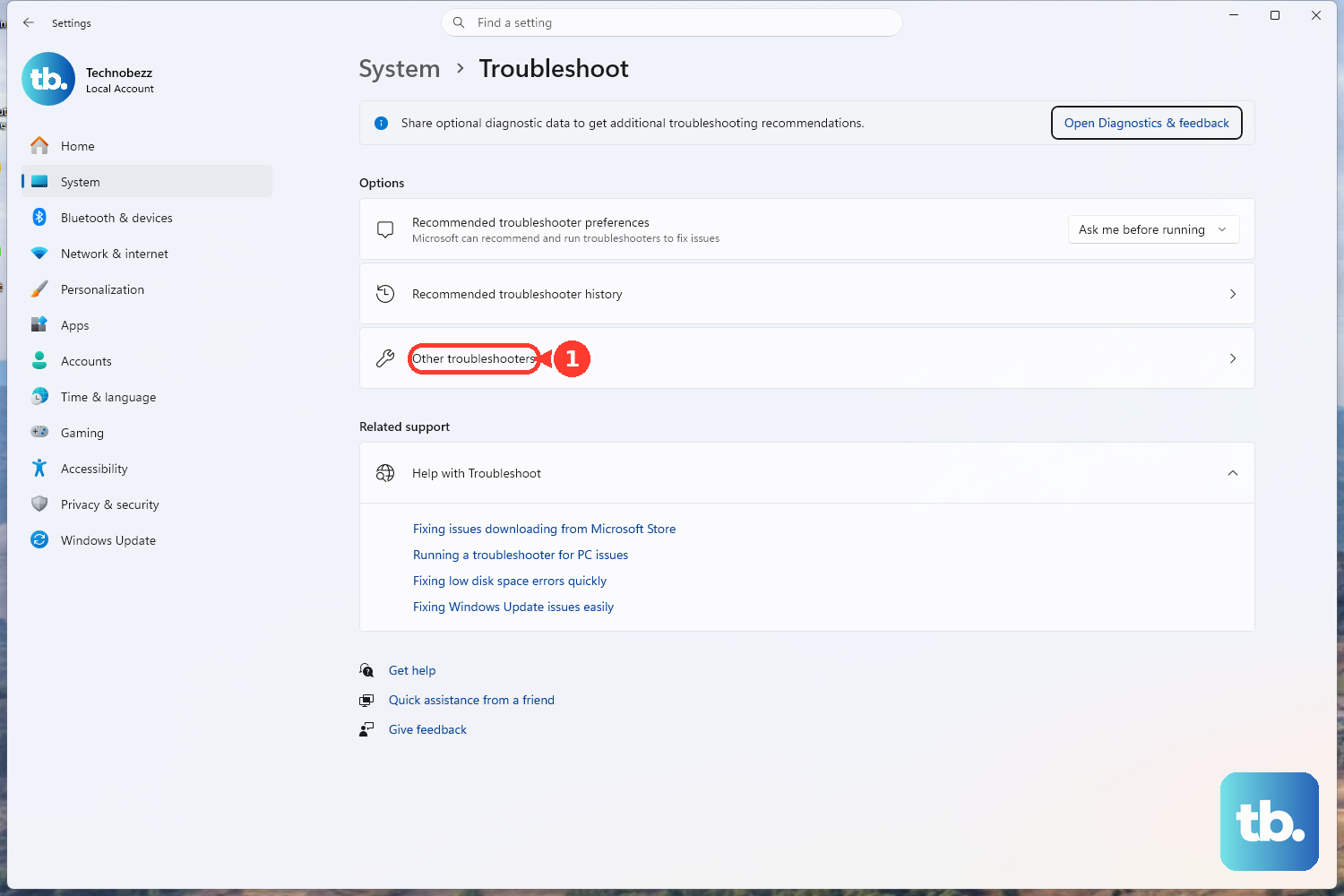
Use Windows 11's built-in repair path next. Open Start > Settings > System > Troubleshoot > Other troubleshooters > Audio, then select Run.
Then turn off enhancements. Go to Start > Settings > Sound, select your output device under Output, open Advanced settings, and set Audio enhancements to Off.
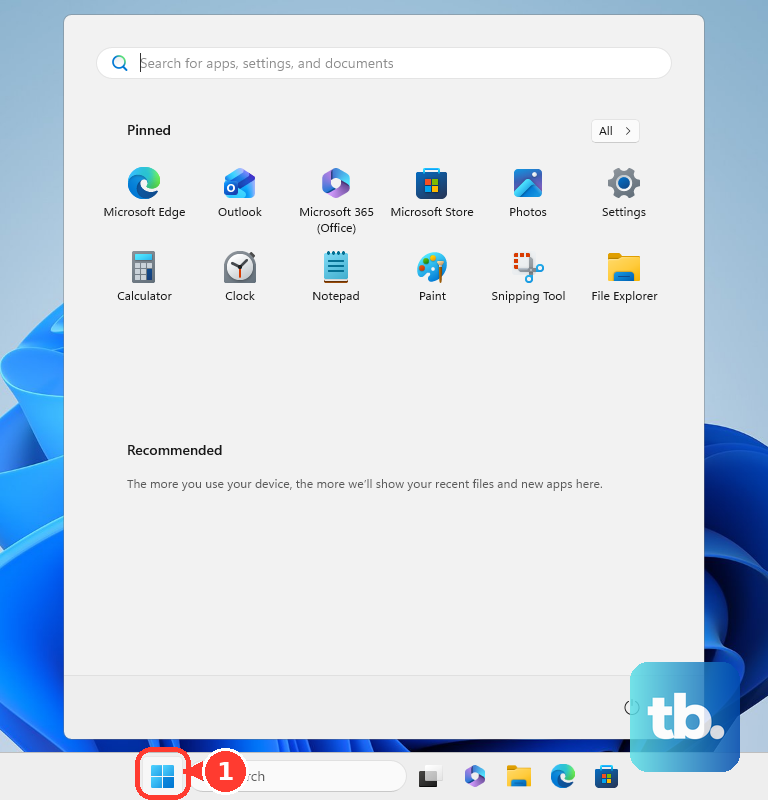
Restart the audio services if sound still fails. Open Start, type services.msc, press Enter, right-click Windows Audio, select Restart, then right-click Windows Audio Endpoint Builder and select Restart.
5. Update or Reinstall the Windows Driver
Open Start, type Device Manager, then open Device Manager.
Expand Sound, video and game controllers.
Right-click your audio device, select Update driver, then choose Search automatically for drivers.
Follow the prompts and restart the PC.
If the audio device is missing, open Device Manager > View > Show hidden devices, then select Action > Scan for hardware changes. If the device appears disabled, right-click it and select Enable device.
If the driver still fails, right-click the audio device in Device Manager, select Uninstall device, confirm when prompted, and restart the PC. Windows reinstalls the audio driver after restart.
Also open Start > Settings > Windows Update > Check for updates, install available updates, and restart. For PC-maker drivers, use Dell Drivers & Downloads, HP Drivers and Software Download, or Lenovo PC Support, identify your model, download the Windows 11 audio driver, install it, and restart.
6. Reconnect Bluetooth Speakers and Headphones
First, set the Bluetooth device as the sound output. Select the Windows taskbar Sound icon and choose the Bluetooth speaker or headphones, or open Start > Settings > System > Sound and confirm the device under Output.
- 1.Open Start > Settings > Bluetooth & devices.
- 2.Turn Bluetooth off.
- 3.Wait 10 seconds.
- 4.Turn Bluetooth on.
- 5.Pair or connect the audio device again.
If it stays silent, remove and re-pair it. In Bluetooth & devices, find the device, select More options, choose Remove device, then select Add device and pick the device from the list.
7. Correct Mac and Chromebook Audio
For Mac built-in speakers, open the Apple menu > System Settings > Sound > Output. Select the built-in speakers shown in the Type column, drag Output volume up, clear Mute, and test sound again.
For external audio devices or third-party audio drivers on Mac, open Audio MIDI Setup, select the device in Audio Devices, open Configure Selected Device, and choose Use This Device for Sound Output. For USB, interface, or pro-audio devices, select the Format pop-up menu and set the sample rate and bit depth to match the device.
On Chromebook, select the time at the bottom right, open Settings > Device > Audio, then adjust Volume, Mute, and Device under Output. To update ChromeOS, connect to Wi-Fi and go to Settings > About ChromeOS > Check for updates, then restart when prompted.
Use Chromebook reset and recovery only after output, mute, device, and update checks. Recovery erases local data.
8. Unblock Browser and Meeting App Sound
For Chrome, open More > Settings > Privacy and security > Site settings > Additional content settings > Sound, then allow sites to play sound. For one site, open the site, select View site information > Site settings, and change the sound permission.
For Firefox, open Settings or Preferences > Privacy & Security > Permissions > Autoplay settings, choose Allow Audio and Video, then select Save Changes.
For Safari, open Safari > Settings > Websites > Auto-Play, select the website, then choose Allow All Auto-Play, Stop Media with Sound, or Never Auto-Play.
For Microsoft Teams Free, open Settings > Devices, then choose the primary audio device, speaker, and microphone under Audio Settings. In a meeting, open More > Audio settings.
For Google Meet, before joining or during a call, open Settings > Audio, then choose the correct Speakers and Microphone.
In Chrome, use Media control at the top right while audio or video is playing to pause, play, skip, or return to the tab making sound.
9. Ask IT to Check Managed Device Policies
Work and school computers use administrator policies for Microsoft Edge, Chrome, and ChromeOS. Those policies control media autoplay, allowed autoplay sites, and audio capture prompts.
After checking output, volume, Bluetooth, browser sound, and meeting-app settings, contact your IT administrator. Give them the app name, browser name, speaker or headset model, and website that has no sound.
Frequently Asked Questions
Why does my computer have sound in one app but not another?
The app is muted, set too low in Windows Volume mixer, or assigned to the wrong output device. Open Settings > System > Sound > Volume mixer and check the app slider, mute status, and Output device.
Why are my Bluetooth headphones connected but silent?
Windows is sending audio to a different output device or the Bluetooth connection needs to be refreshed. Select the Bluetooth headphones from the taskbar Sound output list, then toggle Bluetooth off for 10 seconds and reconnect.
Should I reinstall my audio driver?
Reinstall the driver after checking output selection, volume, the Windows audio troubleshooter, Windows Update, and driver updates. In Device Manager, uninstall the audio device and restart the PC so Windows reinstalls it.
Why do videos have no sound only in my browser?
The browser is blocking site sound or autoplay media. Check Chrome Sound settings, Firefox Autoplay settings, or Safari Auto-Play settings for the affected website.
Why does my Chromebook still have no sound after changing output?
Check Settings > Device > Audio for Volume, Mute, and Device, then update ChromeOS from Settings > About ChromeOS > Check for updates. Use reset or recovery only after those checks, because recovery erases local data.