Your PC name is the label Windows uses to identify your computer on the device itself and in places like Microsoft account device lists. When file sharing, network checks, or device cleanup asks for a computer name, Windows already has it tucked into Settings. Start with the fastest Windows 11 route, then use the command-line or admin options only when they fit the job.
1. Start in Settings
- 1.Right-click Start.
- 2.Select Windows Settings.
- 3.Open System.
- 4.Select About.
- 5.Under Device specifications, read Device name.
That Device name entry is your Windows PC name.
2. Rename It from Settings
For a personal Windows PC, use Settings > System > About > Rename this PC. Enter the new name, select Next, then choose Restart now or Restart later. The new name applies after the restart.
3. Jump to About with Search
This fixes the slow menu hunt when you only need the name. Press the Windows key, type System, and select About. Then look under Device specifications and read Device name.
4. Check It in Command Prompt
Open Command Prompt or Windows Terminal. Type hostname, press Enter, and read the name printed on the next line.
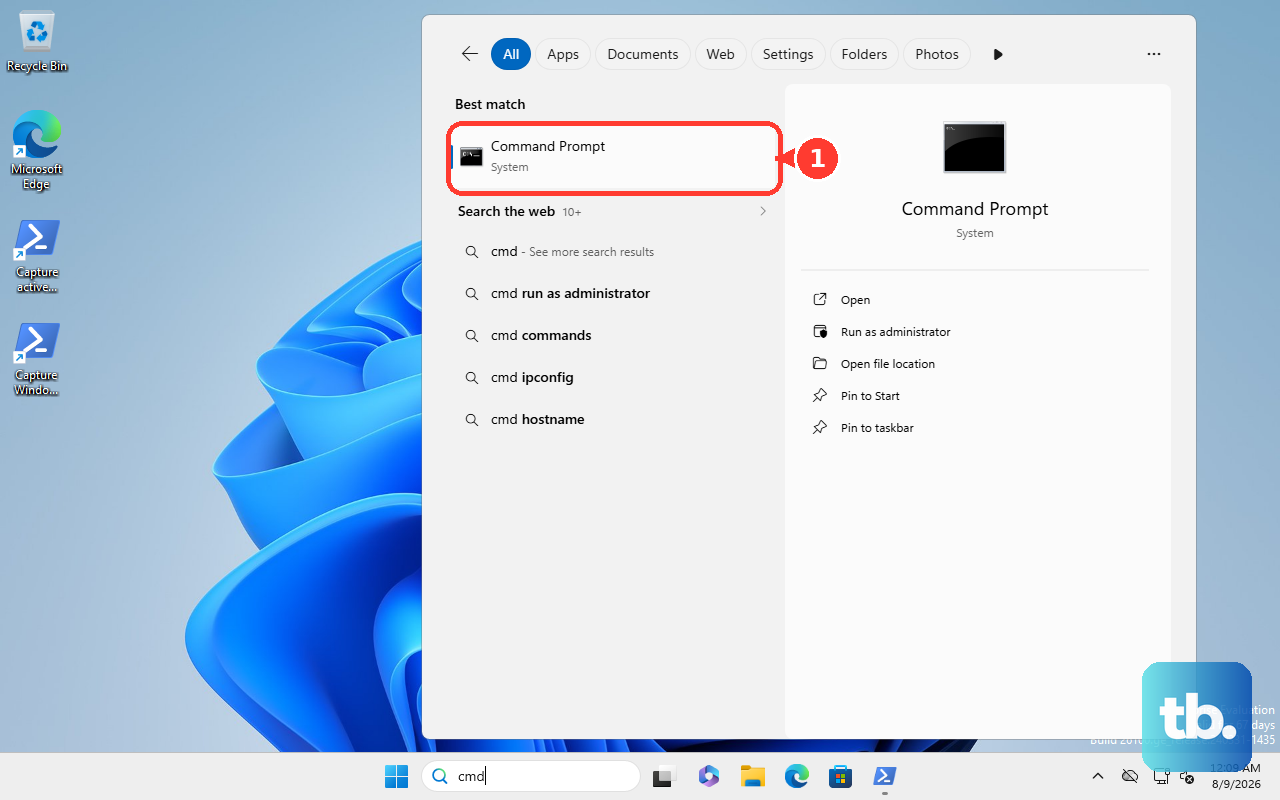
For another command-line check, open Command Prompt. Type echo %COMPUTERNAME%, then press Enter. Use hostname when you want the shortest current command for the computer name.
5. Open System Information
For a fuller system summary, use Windows + R > msinfo32 > Enter. In System Summary, read System Name. That field shows the computer name inside Windows System Information.
6. Rename It with PowerShell
This fixes the job from an administrator shell when Settings is not the route you want. Open PowerShell as administrator, then run Rename-Computer -NewName "NEW-PC-NAME" -Restart.
Replace NEW-PC-NAME with the name you want. Standard names use letters, numbers, and hyphens, with no spaces or periods; the name cannot be all digits and cannot run longer than 63 characters. Let Windows restart so the new computer name fully applies.
7. Use System Properties
Press Windows + R, type sysdm.cpl, and press Enter. On the Computer Name tab, select Change. In Computer name, enter the new name, select OK, then restart when prompted.
This classic Windows route remains useful when the old System Properties dialog is already part of your workflow.
8. Handle Work PCs Carefully
This fixes the confusion between a managed device label and the real Windows computer name. For corporate-owned managed Windows devices, use Microsoft Intune admin center > Devices > All devices > Rename device. To rename multiple managed devices, use Microsoft Intune admin center > Devices > All devices > Bulk Device Actions.
Set the platform under OS. Set Device action to Rename, then finish the wizard. Bulk rename uses the same name rules as a single rename, but the name must also include either {{serialnumber}} or {{rand:x}}, where x is how many random digits to add.
A name like PC-{{serialnumber}} works; a fixed name on its own does not. For Company Portal, use Rename only for the Company Portal display name; Microsoft says it does not change the local Windows device name. For domain or hybrid-joined work PCs, use the organization’s domain-based method instead of a Company Portal display rename.
9. Skip Old WMIC Steps
Avoid older tutorials that run wmic computersystem where name="%COMPUTERNAME%" call rename name="NEWNAME". Microsoft deprecated WMIC in Windows 10 version 21H1. Starting with Windows 11 version 24H2, WMIC is not preinstalled as a Feature on Demand.
Use Settings, Rename-Computer, or current WMI/CIM and PowerShell methods instead. For a regular home PC, Settings > System > About > Rename this PC is the clean replacement for old WMIC rename commands.
Frequently Asked Questions
Is my PC name the same as Device name in Windows Settings?
Yes. Windows shows the computer name as Device name under Device specifications on the About page.
Do I need to restart after changing my PC name?
Yes. In Settings, Windows lets you choose Restart now or Restart later, and the new name applies after restart.
Can I rename my PC from my Microsoft account page?
No. Microsoft account device management can open local Windows Settings, but the rename happens in Windows Settings on the PC.
What command shows my PC name fastest?
Open Command Prompt or Windows Terminal, type hostname, and press Enter. Windows prints the PC name on the next line.