
Selling your Galaxy Z Flip 7 or just dealing with a software bug that won't budge? A factory reset wipes everything clean, sending the phone back to the exact state it was in when you unboxed it. Here's the right way to do it on the Z Flip 7 without running into issues.
Get your data off the phone first
Before you wipe anything, back up what you want to keep. Open Settings > Accounts and backup and tap Back up data to use Samsung Cloud, or select Google Drive for a Google backup. You can also plug the Z Flip 7 into a computer and use Smart Switch for a full local backup.
Once the backup is done, go back to Settings > Accounts and backup > Manage accounts and remove your Samsung and Google accounts. Leaving them on triggers Factory Reset Protection, which locks the phone to your accounts even after the wipe. It takes an extra minute, but it saves a major headache.
The quick way: Reset from Settings
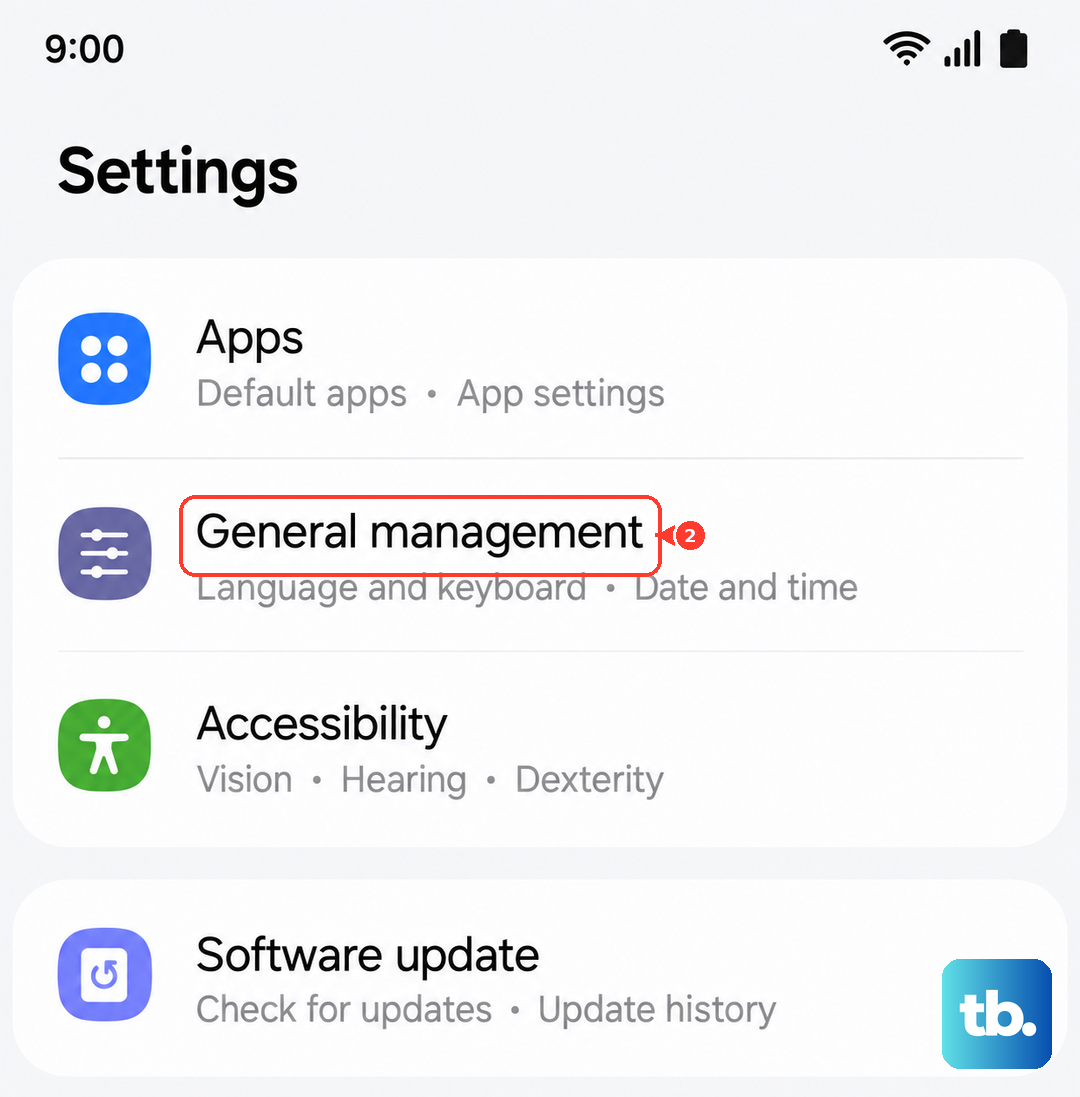
If your Z Flip 7 is working well enough to get through the menus, this is the fastest route. Head to Settings > General management > Reset > Factory data reset. You'll see a full list of everything that gets erased, scroll down and tap Reset, then Delete all.
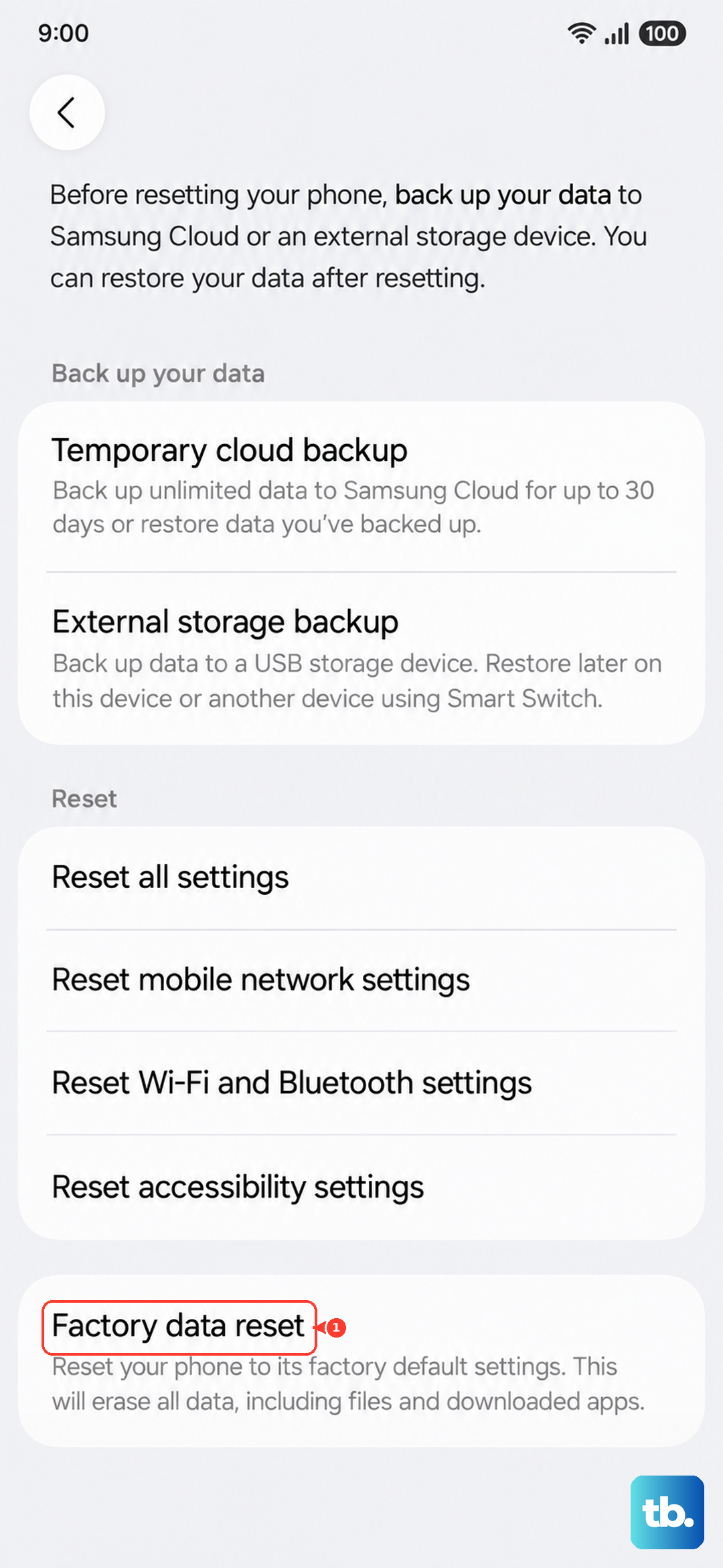
Enter your lock screen PIN or password when it prompts you. The phone restarts and starts erasing everything. When it finishes, you'll see the Android 16 welcome screen ready to go.
The button way: Use Recovery Mode
If your Z Flip 7 is frozen, stuck on the Samsung logo, or won't boot at all, you can still do a factory reset using the hardware buttons. First, make sure the phone is completely powered off. Press and hold Volume Up + Side key until the Samsung logo appears and the recovery menu loads.
Use the Volume keys to scroll to Wipe data/factory reset and press the Side key to select it. Confirm by picking Factory data reset on the next screen. Once it finishes, select Reboot system now to start fresh.
Try a partial reset instead
A full factory reset is overkill if you're just trying to fix a Wi-Fi bug or a settings glitch. Go to Settings > General management > Reset and you'll see options to reset just your network settings, accessibility settings, or app preferences.
These targeted resets don't touch your photos, apps, or accounts. They clear up a lot of minor annoyances without forcing you to set up the entire phone again.
What happens after the reset
Once the wipe finishes, your Z Flip 7 boots straight into the Android 16 setup wizard. Pick your language, connect to Wi-Fi, and sign into your Google and Samsung accounts. If you backed up earlier, the phone will ask if you want to restore your data, say yes and let it do its thing.
Keep in mind that the Z Flip 7 maxes out at 25W wired charging, which is on the slower side compared to some competitors. Wireless charging works best with Samsung's official pads, and you'll want to center the phone on the pad for a reliable connection. If you hit any charging hiccups after setting up, a quick press and hold of Volume Down + Side key for 10 15 seconds usually sorts it out.