Hyper-V Integration Services can be enabled on a Windows Server 2025 Hyper-V host from the VM settings, but the option sits a few clicks deep. The supported paths are Hyper-V Manager for a single VM, Hyper-V PowerShell for command-line or remote administration, and guest-side service checks when the in-guest component is stopped.
Start on the host first. After the host setting is enabled, check the Windows or Linux guest only if the matching service still is not running.
1. Enable the service in Hyper-V Manager
Use Hyper-V Manager when you are working on a standalone host and want the fastest visual path. Open Hyper-V Manager, then in the center pane, right-click the virtual machine. Select Settings.
In the left pane, under Management, select Integration Services. Check the integration service you want to enable, then select Apply or OK.
For Windows guests, Microsoft says all integration services are enabled by default except Hyper-V Guest Service Interface. If file copy or guest-service features are missing, check that service first.
2. Turn it on with PowerShell
Open PowerShell as Administrator on the Hyper-V host. Run Get-VMIntegrationService -VMName "DemoVM". Then run Enable-VMIntegrationService -VMName "DemoVM" -Name "Guest Service Interface".
Use the Hyper-V PowerShell module when you want the exact service state or need to enable the same setting without opening the VM settings window. Replace DemoVM with the VM name. For multiple services, Microsoft documents comma-separated names, such as Enable-VMIntegrationService -Name Shutdown,VSS -VMName Test1.
3. Manage a remote Hyper-V host
For Server Core or another Hyper-V host, run the same cmdlet from an elevated administrative session with a target host name. Open PowerShell as Administrator, then run Enable-VMIntegrationService -ComputerName <HyperVHostName> -VMName <VMName> -Name <ServiceName>. Use -CimSession instead when you manage the host through a remote CIM session. Microsoft documents -ComputerName for NetBIOS names, IP addresses, and fully qualified domain names.
4. Start the matching Windows guest service
The host setting does not replace the in-guest service. Microsoft states that each integration service must be enabled on both the host and the guest, and recommends controlling services from Hyper-V when possible.
Inside the Windows guest, open services.msc as Administrator. Find the matching service whose name starts with Hyper-V. Right-click the service, then select Start.
You can check the same guest services in PowerShell. Inside the Windows guest, open PowerShell as Administrator and run Get-Service -Name vmic* | FT -AutoSize. Then run Start-Service -Name vmicvmsession, replacing vmicvmsession with the service you need. Microsoft lists guest service names including vmicguestinterface, vmicheartbeat, vmickvpexchange, vmicshutdown, vmictimesync, vmicvss, and vmicvmsession.
5. Update Windows guest components
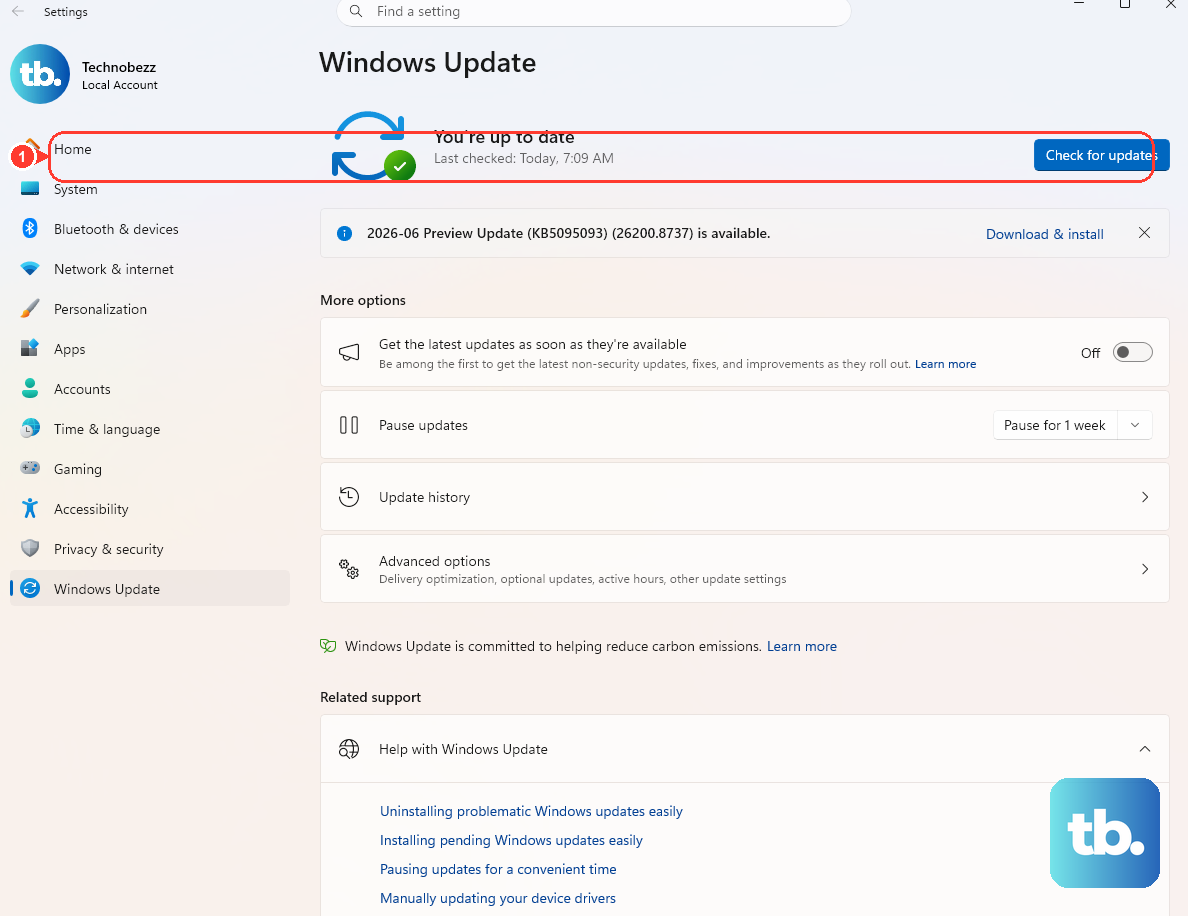
On Windows Server with Desktop Experience, open Settings. Select Windows Update, then select Check for updates.
Enabling an integration service and updating the guest components are separate jobs. Windows guests receive Integration Services updates by default when they are configured to get important updates from Windows Update.
On Server Core, use SConfig. Sign in to the Server Core guest. If SConfig does not open automatically, run sconfig. Type 5 to configure Windows Update behavior.
Type 6 to open Install updates. Choose the update category, for example 1 for all quality updates. Type A to install all available updates or S for a specific update.
Do not use wuauclt /detectnow: Microsoft has removed that command and no longer supports it. To force an update scan from PowerShell, run $AutoUpdates = New-Object -ComObject "Microsoft.Update.AutoUpdate"; $AutoUpdates.DetectNow(). Install the updates through SConfig or Windows Update. That command only triggers detection; it does not install updates on its own.
6. Verify Linux guest integration
For current Linux distributions, Microsoft says Linux Integration Services are generally built into the kernel. Host-side enablement through Hyper-V Manager or Enable-VMIntegrationService is still required for services controlled by the host.
Inside the Linux guest, run lsmod | grep hv_utils. Next, run ps -ef | grep hv. Then run compgen -c hv_.
If the needed daemon exists but is stopped, start it as root, for example sudo hv_kvp_daemon. Microsoft examples also show hv_vss_daemon and hv_fcopy_daemon.
For Ubuntu LTS, Microsoft says to use the latest virtual Hardware Enablement kernel for up-to-date Linux Integration Services; its Azure-tuned kernel example uses apt-get update and apt-get install linux-azure.
7. Use VMM in managed environments
Run $VM = Get-SCVirtualMachine -Name "VM01". Then run Set-SCVirtualMachine -VM $VM -EnableBackup $True, replacing the switch with the setting you need.
System Center Virtual Machine Manager 2025 has its own supported PowerShell surface for Hyper-V VMs. In the VMM PowerShell module, get the VM object first. Apply the relevant Boolean setting. Microsoft documents switches including -EnableBackup $True, -EnableDataExchange $True, -EnableHeartbeat $True, -EnableOperatingSystemShutdown $True, and -EnableTimeSync $True.
8. Avoid legacy setup disk instructions
Do not use Insert Integration Services Setup Disk, VMGuest.iso, or separate Integration Services downloads as the working fix for Windows Server 2025 Hyper-V. Microsoft scopes those paths to older Hyper-V hosts or older guest operating systems. For Windows Server 2025, use Hyper-V Manager, Enable-VMIntegrationService, guest-side service checks, and Windows Update.
Frequently Asked Questions
What is the first place to enable Integration Services in Windows Server 2025?
Use Hyper-V Manager on the host. Open the VM settings, select Integration Services under Management, check the service, then select Apply or OK.
Which Integration Service is disabled by default in Windows guests?
Microsoft says Windows guests have all Integration Services enabled by default except Hyper-V Guest Service Interface.
Does starting a vmic service inside the guest enable the host setting too?
No. The matching integration service must also be enabled on the Hyper-V host through Hyper-V Manager or Enable-VMIntegrationService.
Should current Linux guests use a separate Linux Integration Services download?
No for current Linux distributions. Microsoft says Linux Integration Services are generally built into the kernel, so update the kernel through the distribution package manager.