Realtek Audio Control gives Windows PCs with compatible Realtek audio drivers a place to manage speakers, microphones, effects, and jack settings.
The catch is simple: the app needs the matching Realtek UAD/HSA driver, so Store installs fail or disappear when the driver is wrong.
Start with the official Store path, then fix the driver, controls, updates, and repairs in the order below.
1. Start with the Microsoft Store version
For most home PCs, the current Realtek Audio Control download path is Microsoft Store.
Open the Realtek Audio Control Store listing, choose Get in Store app, then select Get or Install in Microsoft Store.
The Store package requires Windows 10 version 17763.0 or higher, x64 Windows, and a compatible Realtek driver component such as Realtek-RealtekHSA.inf or Realtek-RealtekRS5HSA.inf, and incompatible hardware or drivers block the install button.
2. Use WinGet when Store search fails
This fixes installs where Microsoft Store search does not show Realtek Audio Control.
- 1.Open Terminal, PowerShell, or Command Prompt.
- 2.Run winget install 9P2B8MCSVPLN -s msstore.
- 3.Accept the source or package prompts shown on screen.
- 4.Wait for the Microsoft Store source to finish the install.
3. Install the right Realtek driver first
Realtek Audio Control works only when the matching Realtek driver is installed.
For a desktop, laptop, or motherboard, use your manufacturer support page path: Support > your exact model > Audio driver > Download.
Install the model-specific audio driver, restart Windows, then return to Microsoft Store and select Install or open Realtek Audio Control.
Realtek's public audio drivers are general drivers and do not include every PC maker's custom audio features.
4. Open the app and find the main controls
Open Start.
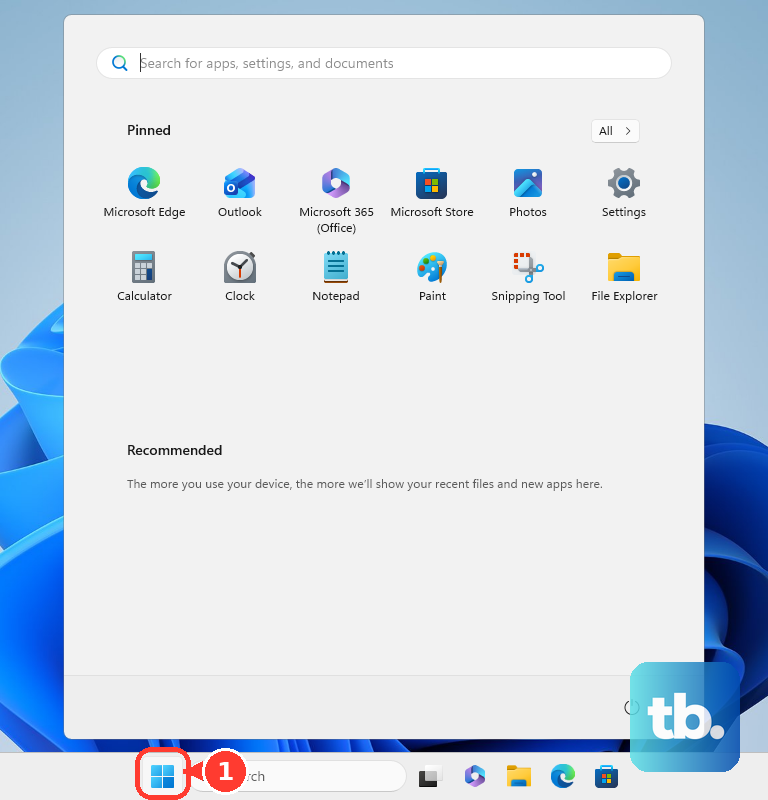
Select Realtek Audio Control or Realtek Audio Console.
Then choose the Playback devices icon for speaker settings.
Next, choose the Recording devices icon for microphone settings.
Open Information to check the audio driver version and UI version.
5. Adjust speakers, effects, and the equalizer
This fixes speaker volume, sound effect, equalizer, environment, and format settings after the app is installed.
Open Start.
Select Realtek Audio Control or Realtek Audio Console.
Go to Playback Devices.
Adjust Main Volume.
After that, open Sound effects, Equalizer, Environment, or Default Format.
In Equalizer, select a preset or create a custom preset by entering a preset name or choosing an existing preset.
6. Set up microphone and jack detection
Open Start.
Select Realtek Audio Control or Realtek Audio Console.
Go to Recording Devices.
Adjust Main Volume for the recording device.
Open Microphone Effects for supported microphone options.
Move to Device advanced settings.
Check connector settings, connector retasking, and whether the expected port, such as Front Speaker Out or Headphone, is detected.
Feature names vary by Realtek codec, OEM driver, speakers, microphone, and attached devices.
7. Check Windows audio output too
Realtek Audio Control does not replace the Windows output picker.
Use the taskbar path speaker icon > current playback device selector > Speakers or Realtek Audio.
This check matters when HDMI, Bluetooth, USB headsets, or monitor speakers are connected.
8. Fix install and launch problems
Run Windows Update on Windows 11 from Start > Settings > Windows Update > Check for updates, then restart.
On Windows 10, use Start > Settings > Update & Security > Windows Update > Check for updates, then restart.
Update the driver manually from Start > Device Manager > Sound, video and game controllers > Realtek audio device > Update driver > Search automatically for drivers.
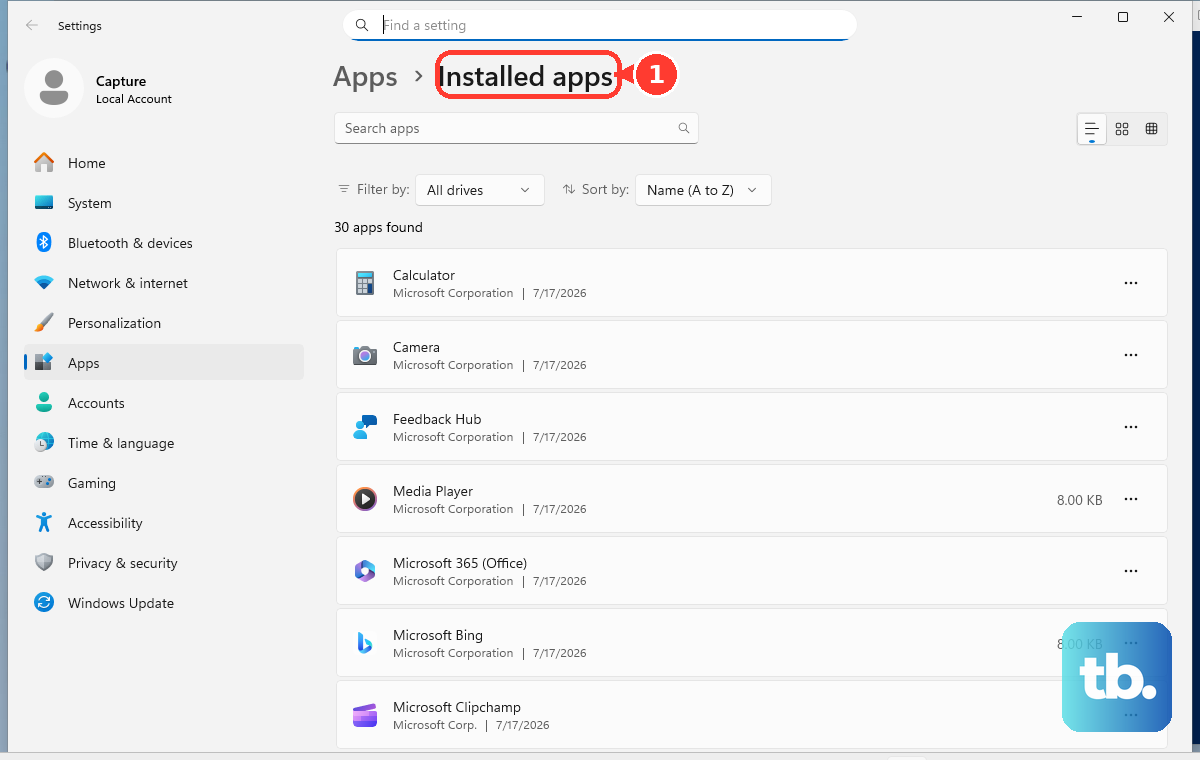
Repair the app on Windows 11 from Start > Settings > Apps > Installed apps > Realtek Audio Control > More > Advanced options > Repair.
Use Reset from the same page when Repair is unavailable or does not fix the app.
Reinstall the Realtek device from Device Manager > Sound, video and game controllers > Realtek audio device > Uninstall device, then restart Windows.
When Windows does not restore Realtek features, install the model-specific audio driver from your PC or motherboard maker.
Skip older Realtek HD Audio Manager and direct Realtek HDA driver guides; the current consumer path is Microsoft Store plus the OEM Realtek UAD driver.
9. Update or remove Realtek Audio Control
To update the app manually, use Microsoft Store > Check for Updates.
In current Store builds that button sits on the Downloads page; older builds still show it as Get updates under Library.
For automatic Store updates, use Microsoft Store > Profile > Store Settings > App updates > On.
To uninstall it, use Start > All apps > Realtek Audio Control > Uninstall, or go to Start > Settings > Apps > Installed apps > Realtek Audio Control > More > Uninstall.
On work or school devices, Store policy controls whether users can install or update the app.
Frequently Asked Questions
Can IT deploy Realtek Audio Control without sending users to the Store?
Yes. In Microsoft Intune, admins can use Apps > All Apps > Create > Microsoft Store app (new), search for Realtek Audio Control or Store app ID 9P2B8MCSVPLN, then assign the app to managed Windows devices.
Which Dell systems does the cited Dell Realtek Audio Console package cover?
The Dell package applies to the Alienware Aurora Ryzen Edition R10 and supports Windows 11, Windows 11 S-Mode, Windows 10 64-bit, and Windows 10 IoT Enterprise LTSC 2019.
What should MSI laptop owners check before reinstalling Realtek Audio Control?
MSI tells notebook owners to open their model's support page, check Utility & Others, and install only the audio apps listed for that exact model, such as Realtek Audio Console, Realtek Audio Control, Nahimic 3, or DTS Audio Processing.
What BIOS setting matters when Windows cannot detect onboard Realtek audio?
Check that onboard audio is enabled in BIOS or UEFI. ASUS documents Advanced > Onboard Device Configuration > USB Audio Controller > Enabled, while MSI documents SETTINGS > Advanced > Integrate Peripheral Devices > HD Audio Controller.