Windows 11 can feel packed before you even install your own apps. Trial software, OEM utilities, Widgets, startup helpers, recommendations, and browser add-ons all compete for space and attention.
The safest fix is to remove the apps you recognize first, then quiet the Windows features that create clutter, and save command-line removal or a clean install for the end.
1. Remove apps from Settings first
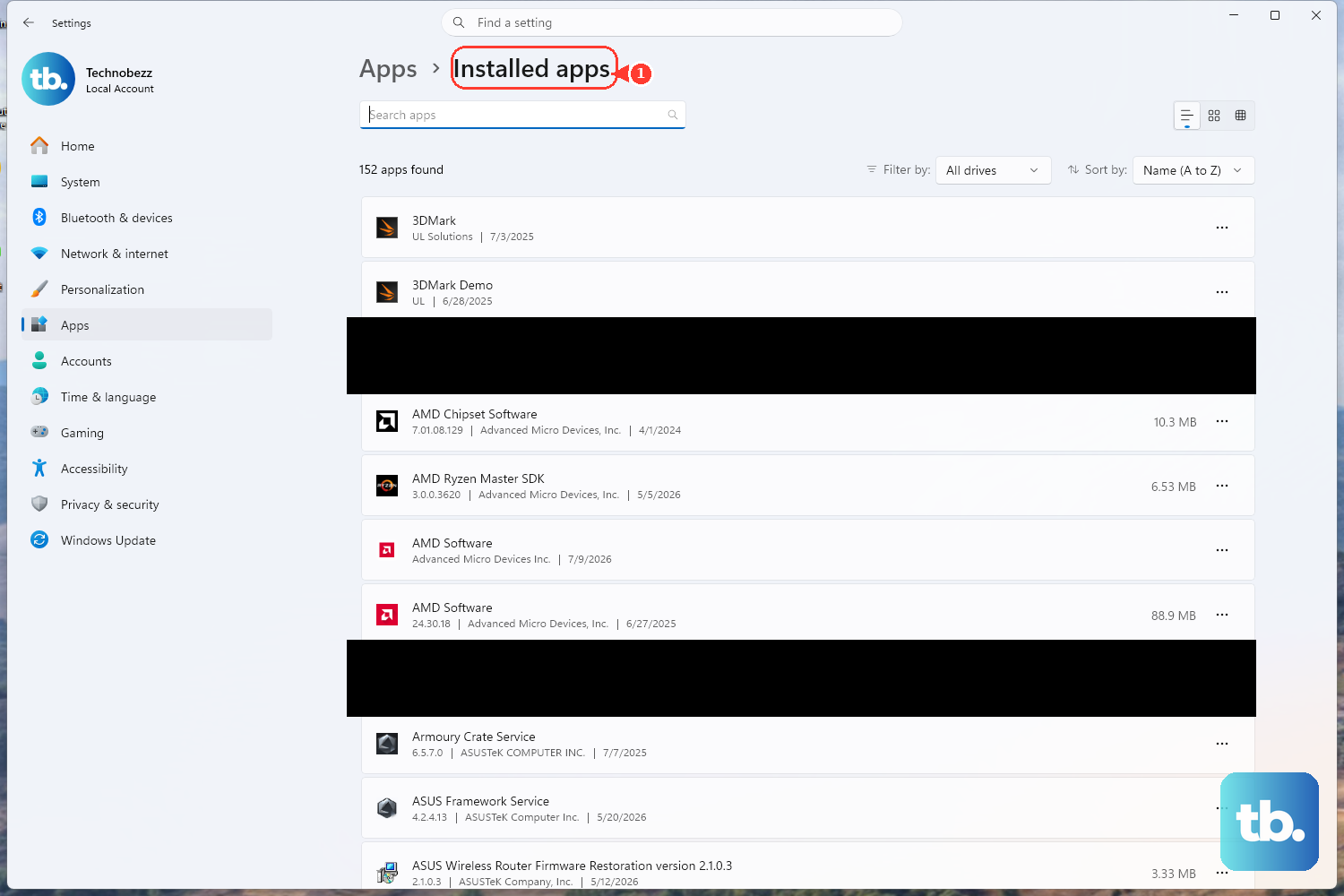
Start here for the cleanest path through normal apps, Microsoft Store apps, OEM utilities, the Copilot app, OneDrive, and most preinstalled consumer software.
- 1.Open Start > Settings > Apps > Installed apps.
- 2.Find an app you recognize and no longer use.
- 3.Select More next to the app.
- 4.Choose Uninstall.
- 5.Follow the prompts, then repeat for the next app.
Another safe route is the Start menu: open Start > All apps, right-click the app, then select Uninstall.
For older desktop programs, search for Control Panel, open Programs > Programs and Features, select the program, then choose Uninstall or Uninstall/Change.
2. Uninstall Copilot OneDrive and other visible extras
Open Settings > Apps > Installed apps.
Search for Copilot.
Select More options.
Choose Uninstall.
Copilot is removable when Windows installed it as an app. This removes the Microsoft Copilot app, but it does not remove Copilot features inside Microsoft 365 or individual Microsoft apps.
OneDrive needs a different call. To stop PC sync while keeping cloud files online, select the OneDrive cloud in the notification area, open Help & Settings > Settings > Account > Unlink this PC, then select Unlink account.
To remove the sync client, open Settings > Apps > Installed apps, find Microsoft OneDrive, then choose Uninstall.
3. Stop startup apps from loading
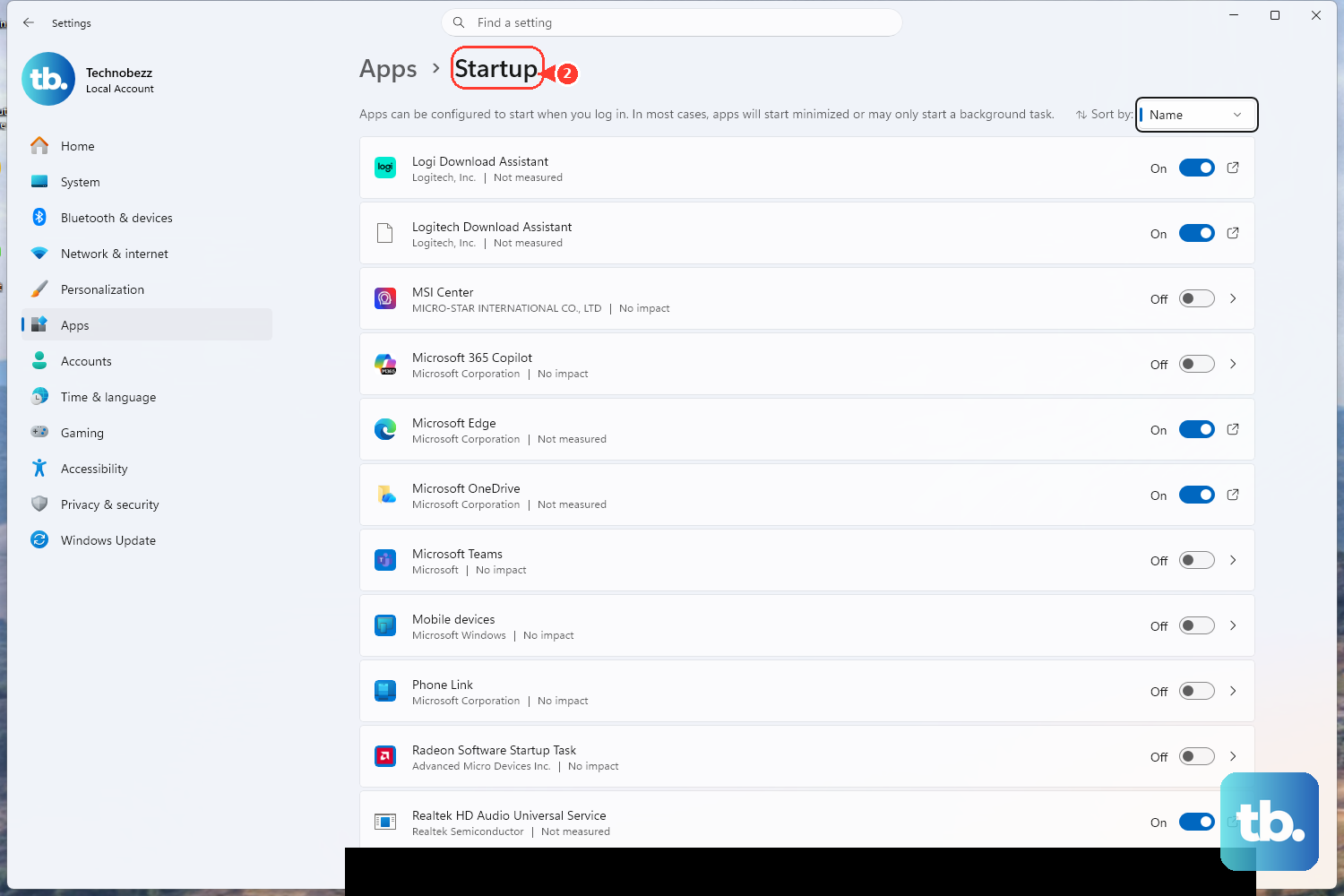
This is the quickest performance cleanup after uninstalling obvious bloat: keep the app installed, but stop it from launching every time Windows starts.
Open Start > Settings > Apps > Startup, then switch unneeded apps to Off.
For more detail, right-click Start, open Task Manager, select Startup apps, choose an app, then select Disable.
Clean boot belongs in troubleshooting, not daily debloating. Use System Configuration and Task Manager clean boot steps only when you are isolating a service or startup problem, then re-enable items after testing.
4. Hide Widgets recommendations and notification clutter
Right-click the taskbar, open Taskbar settings, then switch Widgets to Off.
Next, open Start, unpin unwanted apps, then go to Settings > Personalization > Start and turn off the available recommendation options.
After that, open Settings > Privacy & security > General, then turn off the advertising ID, language list, app launch tracking, and suggested Settings content options you do not want.
Then open Settings > System > Notifications, then turn notifications off or adjust them per app.
Not every annoying Windows 11 surface is an app; these switches reduce the noise without changing core system files.
For app access cleanup, open Settings > Privacy & security > App permissions. Select categories like Location, Camera, Microphone, or Notifications, then switch access off globally or per app.
5. Clear storage with built-in cleanup tools
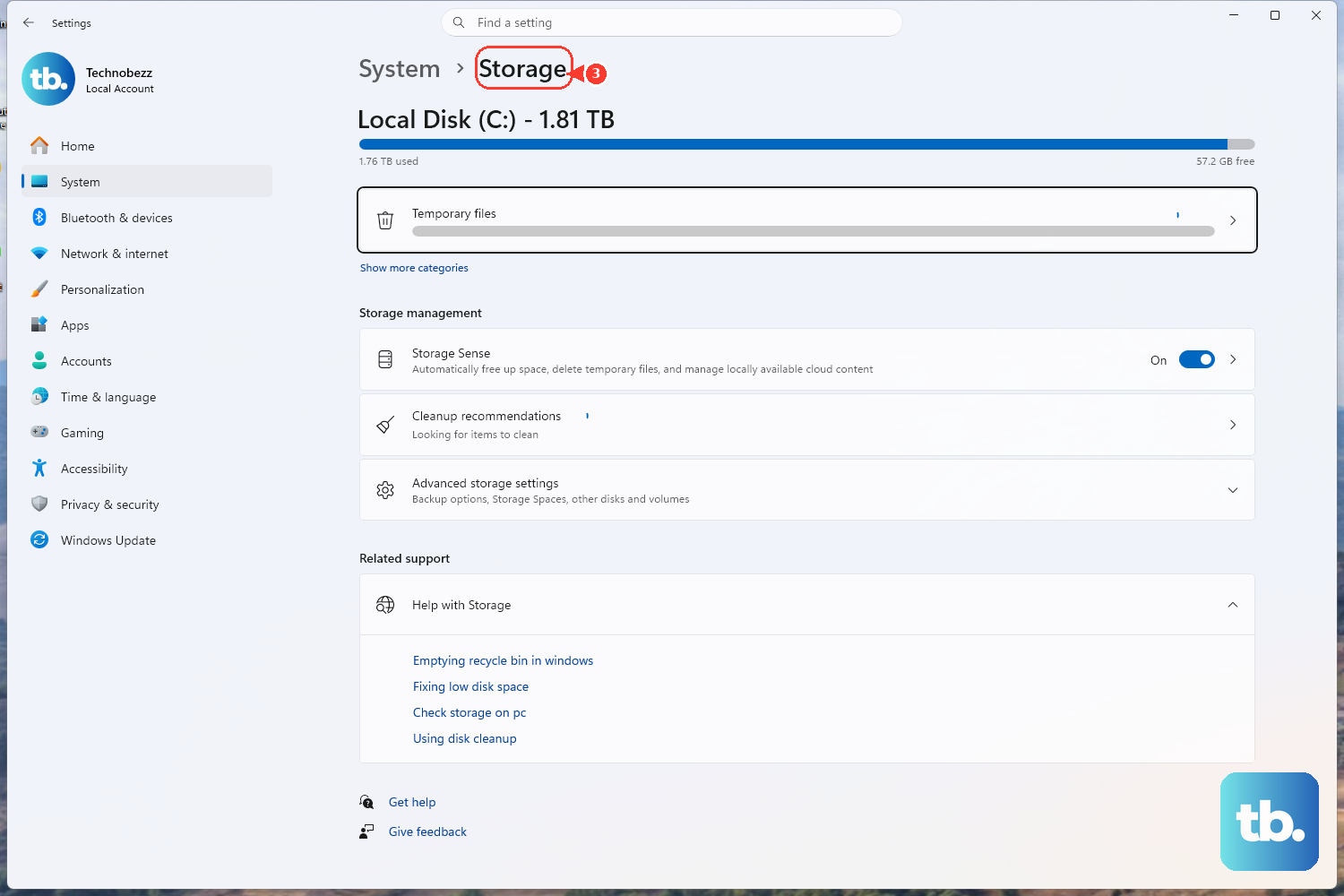
Use the modern Storage page instead of old cleanup routines.
Open Start > Settings > System > Storage.
Turn on Storage Sense.
Configure how Windows handles temporary files, Recycle Bin cleanup, and storage pressure.
For a manual pass, open Settings > System > Storage > Cleanup recommendations, review each category, select the items you want removed, then choose Clean up.
You can also open Settings > System > Storage > Temporary files, select file categories, then choose Remove files.
6. Remove optional Windows features you recognize
Right-click Start.
Open Settings > System > Optional features.
Under Installed features, select the feature to expand it.
Choose Remove.
Optional features are safe to remove when you know what they do. Treat unknown Windows components as leave-alone items.
For classic Windows components, search for Turn Windows features on or off, clear the feature checkbox, select OK, then restart when Windows prompts you.
On Copilot+ PCs with Recall, search for Turn Windows features on or off, uncheck Recall, then restart. Removing Recall deletes saved snapshots. To delete or control snapshots instead, open Settings > Privacy & security > Recall & snapshots, expand Delete snapshots. To clear everything, select Delete all. To clear a range, choose past hour, 24 hours, 7 days, or 30 days, then select Delete snapshots.
7. Clean up Edge apps without forcing Edge out
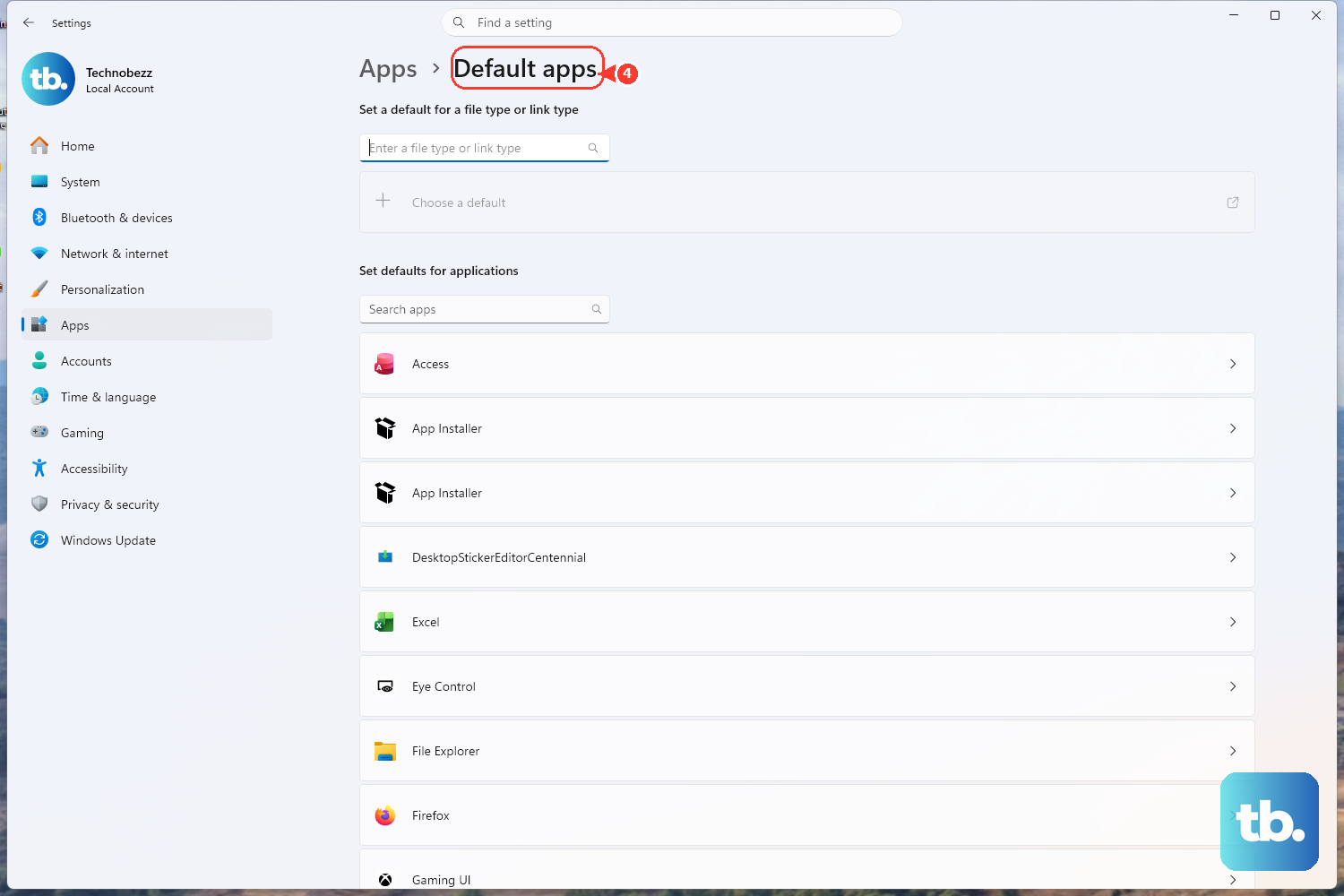
Skip registry edits and old setup command tricks for Microsoft Edge. Microsoft treats Edge as a core Windows component in current consumer guidance, so the supported move is to remove Edge apps and extensions, then change your default browser.
To remove Edge web apps, open Microsoft Edge and go to edge://apps. Select Details on the app card, choose Uninstall, choose whether to delete app history and data, then select Uninstall again.
To remove extensions, select the Extensions puzzle-piece icon, choose More actions next to the extension, then select Remove from Microsoft Edge > Remove.
To switch browsers, open Settings > Apps > Default apps, select your preferred browser, then set the supported file and link defaults.
8. Use command-line removal only for known packages
Open Windows Terminal, PowerShell, or Command Prompt.
Run winget list.
Copy the exact package ID or name.
Run winget uninstall --id <packageId> or winget uninstall --name <app name>.
Windows Package Manager is the least dramatic advanced option. Use it when the app name is clear and Settings did not give you enough control.
For Microsoft Store app packages, open PowerShell, identify the package with Get-AppxPackage, then remove the selected package for the current user with Remove-AppxPackage -Package <PackageFullName>.
Provisioned app removal is for new user accounts. Open elevated PowerShell, identify packages with Get-AppxProvisionedPackage -Online, then run Remove-AppxProvisionedPackage -Online -PackageName <PackageName>. This prevents that package from being installed for new users; it does not remove the app from existing users.
Third-party debloaters such as Raphire Win11Debloat are not Microsoft-supported Windows cleanup tools. Inspect the script, create a backup or restore point, and expect app removal and privacy changes to depend on the Windows build.
9. Reset or clean install for a fresh Windows 11 start
Use Reset when you want to start over from Windows. Open Settings > System > Recovery > Recovery options > Reset PC, choose your reset options, then follow the prompts. During Reset, the Restore preinstalled apps option controls this: when it is enabled, your PC manufacturer's apps and customizations are reapplied.
For the cleanest reinstall, go to Microsoft’s Windows 11 download page, choose Create Windows 11 Installation Media > Download Now, run MediaCreationTool.exe, then create USB, DVD, or ISO media.
Boot from that media, choose your language and keyboard, select Install Windows 11, then confirm the option stating that files, apps, and settings will be deleted. A clean install removes personal files, apps, OEM customizations, and Settings changes.
Work and school PCs use a different path. Windows 11 version 24H2 and later Enterprise or Education devices support policy-based removal of pre-installed Microsoft Store apps through Group Policy or Intune, which belongs with your organization’s IT admin.
Frequently Asked Questions
What is the safest way to debloat Windows 11?
Use Windows 11 built-in tools first: Installed apps, Startup, Storage, Optional features, privacy settings, and Reset. They remove or quiet clutter without unsupported registry edits or forced system component removal.
Should I use a Windows 11 debloater script?
Use a third-party debloater only after inspecting what it changes and creating a backup or restore point. These tools are not Microsoft-supported, and their behavior depends on the Windows build.
Can I uninstall Microsoft Edge from Windows 11?
Microsoft’s current consumer guidance treats Edge as a core Windows component. Remove Edge web apps and extensions, then change your default browser in Settings.
Does resetting Windows 11 remove bloatware?
Reset starts Windows over, but with the Restore preinstalled apps reset option enabled, your PC manufacturer's apps and customizations return. A clean install from Windows 11 installation media removes personal files, apps, OEM customizations, and Settings changes.
What should I remove first when debloating Windows 11?
Remove apps you recognize and no longer use first. After that, disable startup apps, hide Widgets, reduce recommendations, clean temporary files, and review optional features.