Windows Update can get stuck, fail repeatedly, or keep reusing damaged download files. Clearing the right cache forces Windows to fetch fresh update files or remove old update leftovers. Start with the Windows 11 paths below, because SoftwareDistribution, Delivery Optimization, and component-store files are separate stores.
1. Match the cache to the update problem
Use the right cleanup target before deleting anything. SoftwareDistribution is the main Windows Update download cache, and it is the place to clear when an update keeps retrying the same broken download. Delivery Optimization Files are a separate cache used for Windows Update, Microsoft Store apps, and other Microsoft content.
Component store cleanup removes outdated system components, including old Windows Update files. It does not clear the active C:\Windows\SoftwareDistribution download cache. Treat these as three different fixes, because clearing one does not replace the others.
2. Run the Windows Update troubleshooter first
Start with Microsoft’s current Windows 11 automated troubleshooter in Get Help when Windows still opens normally. Open the Get Help app, select Search, enter windows update troubleshooter, and follow the steps shown in Get Help.
You can also run the same repair path from Settings. Open Start, select Settings, go to System, choose Troubleshoot, open Other troubleshooters, then select Run next to Windows Update. Restart the PC, return to Settings, open Windows Update, and select Check for updates.
3. Clear SoftwareDistribution with Services
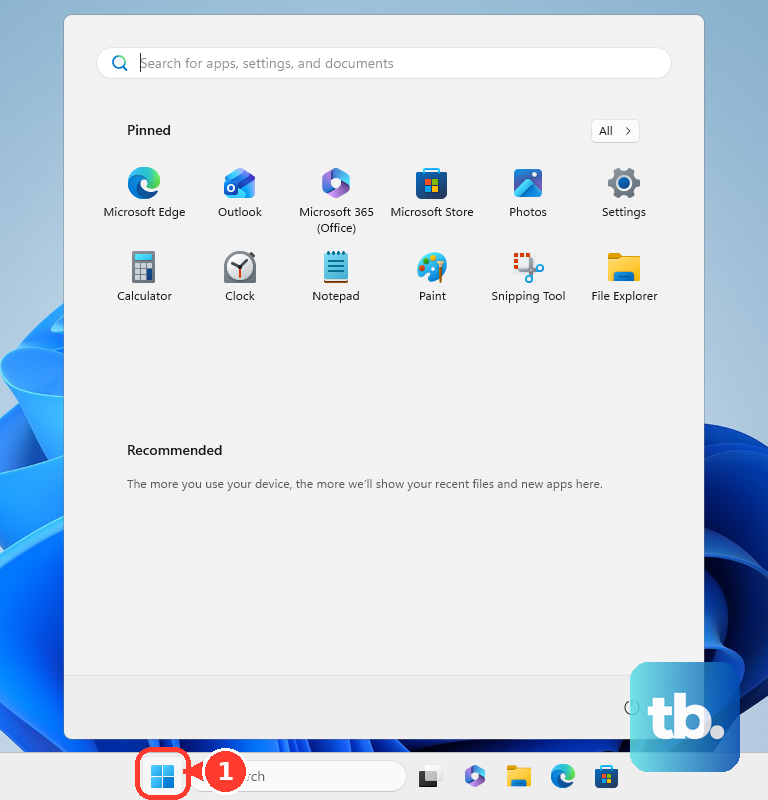
Press Win + R, type services.msc, and press Enter. In Services, find Windows Update, right-click Windows Update, and select Stop.
Open File Explorer, go to C:\Windows\SoftwareDistribution, and delete all files and folders inside SoftwareDistribution. Return to Services, right-click Windows Update, and select Start.

This is the main manual fix for a stuck Windows Update download cache: stop the update service, empty the cache folder, then start the service again. After that, Windows Update downloads fresh files the next time it checks for updates.
4. Reset SoftwareDistribution from Command Prompt
Use this admin method when you prefer commands or File Explorer deletion fails. It resets the same SoftwareDistribution cache used in the Services method.
- 1.Open Command Prompt as administrator.
- 2.Run net stop wuauserv.
- 3.Run rd /s /q %systemroot%\SoftwareDistribution.
- 4.Run net start wuauserv.
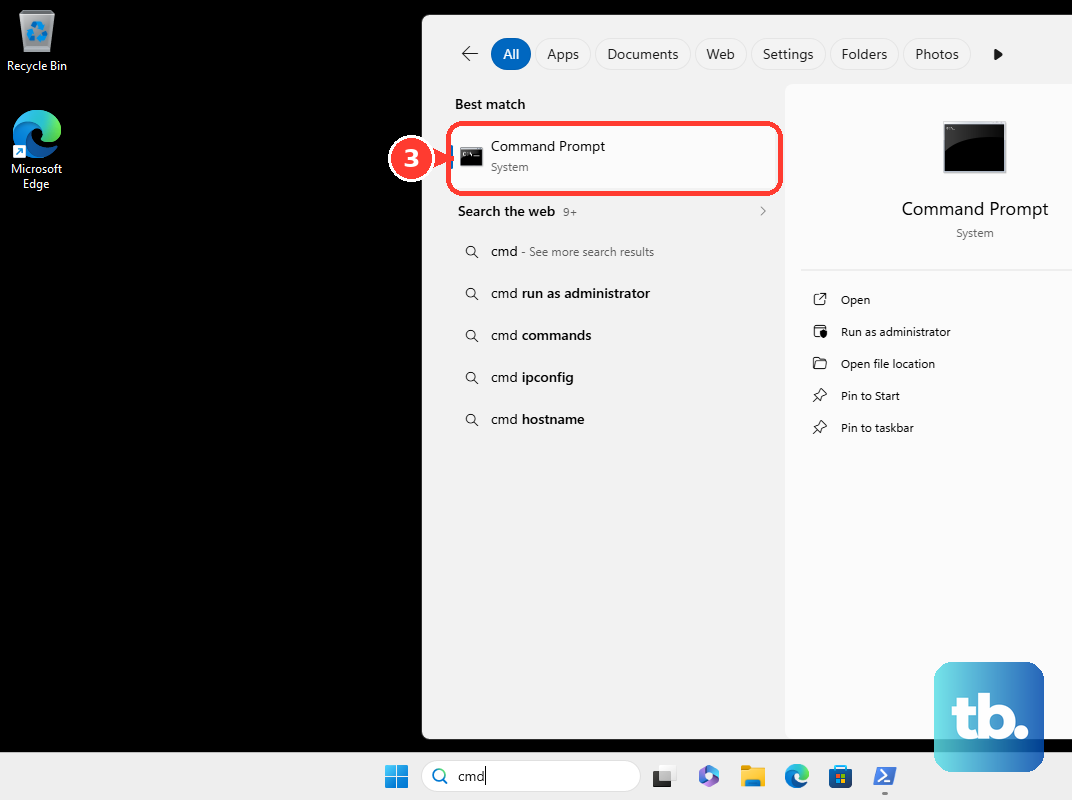
Those commands stop Windows Update, remove the cache folder, and start Windows Update again.
5. Remove Delivery Optimization files
Search the taskbar for disk cleanup and select the Disk Cleanup app. On the Disk Cleanup tab, select Delivery Optimization Files, select OK, and select Delete Files.
Delivery Optimization keeps its own cache. Windows removes these files automatically after a short period or when the cache uses too much disk space, and Disk Cleanup gives you a manual cleanup button.
6. Free update space from Storage
Use Windows Storage tools when an update fails because the PC needs more free space. Open Start, select Settings, go to System, choose Storage, and turn on Storage Sense.
For a Windows update space prompt, open Start, select Settings, go to System, choose Storage, open Cleanup recommendations, review the suggested files, and select Clean up. The cleanup categories shown depend on what Windows finds on the device.
7. Clean old update components
Use component-store cleanup when your goal is to remove outdated system components after updates. This targets old component-store update files, not the active SoftwareDistribution download cache.
Open Task Scheduler and go to Task Scheduler Library\Microsoft\Windows\Servicing\StartComponentCleanup. Under Selected Item, select Run.
For the command version, open Command Prompt as administrator and run Dism.exe /online /Cleanup-Image /StartComponentCleanup.
8. Skip deprecated cache reset advice
Skip downloaded .diagcab troubleshooters, msdt.exe-based troubleshooters, Microsoft Fix it tools, Microsoft Easy Fix tools, and instructions that directly delete C:\Windows\System32\catroot2. Microsoft’s current Windows 11 guidance uses Get Help, Settings, SoftwareDistribution reset steps, and supported command-line reset procedures.
For Catroot2, Microsoft’s current reset procedure uses a rename flow after stopping services. Do not treat direct deletion of catroot2 as the consumer Windows 11 fix.
9. Leave managed cache limits to IT
Work and school PCs can have Delivery Optimization cache limits set through Group Policy, MDM, or Microsoft Intune. Those policies control cache age, cache size, absolute cache size, and cache drive. Use your organization’s IT process before changing update cache behavior on a managed computer.
Frequently Asked Questions
Does clearing the Windows Update cache remove installed updates?
No. Clearing SoftwareDistribution removes Windows Update download cache files. Component-store cleanup removes outdated system components, not currently installed personal files or apps.
What should I clear first when Windows Update is stuck?
Run the Windows Update troubleshooter first, then clear SoftwareDistribution. SoftwareDistribution is the main Windows Update download cache for stuck or damaged update downloads.
Is Delivery Optimization the same as the Windows Update cache?
No. Delivery Optimization has its own cache for Windows Update, Microsoft Store apps, and other Microsoft content. Clear it with Disk Cleanup.
Can I use old MSDT or Fix it reset tools on Windows 11?
No. Current Windows 11 guidance uses Get Help, Settings, SoftwareDistribution reset steps, and supported command-line reset procedures.