
Your OnePlus 12, like any Android phone, builds up temporary cached data over time. This cache helps apps load faster, but when it gets too large or corrupted, it can cause slowdowns, glitches, or storage issues. Clearing it out is a safe way to refresh your phone's performance without losing any personal data.
Clear Individual App Cache
Start by clearing the cache for specific apps that are acting up. Go to Settings > Apps and select the app you want to clean. Tap on Storage & cache and then hit the Clear cache button. This only removes temporary files, so your login info and saved settings will stay right where they are.
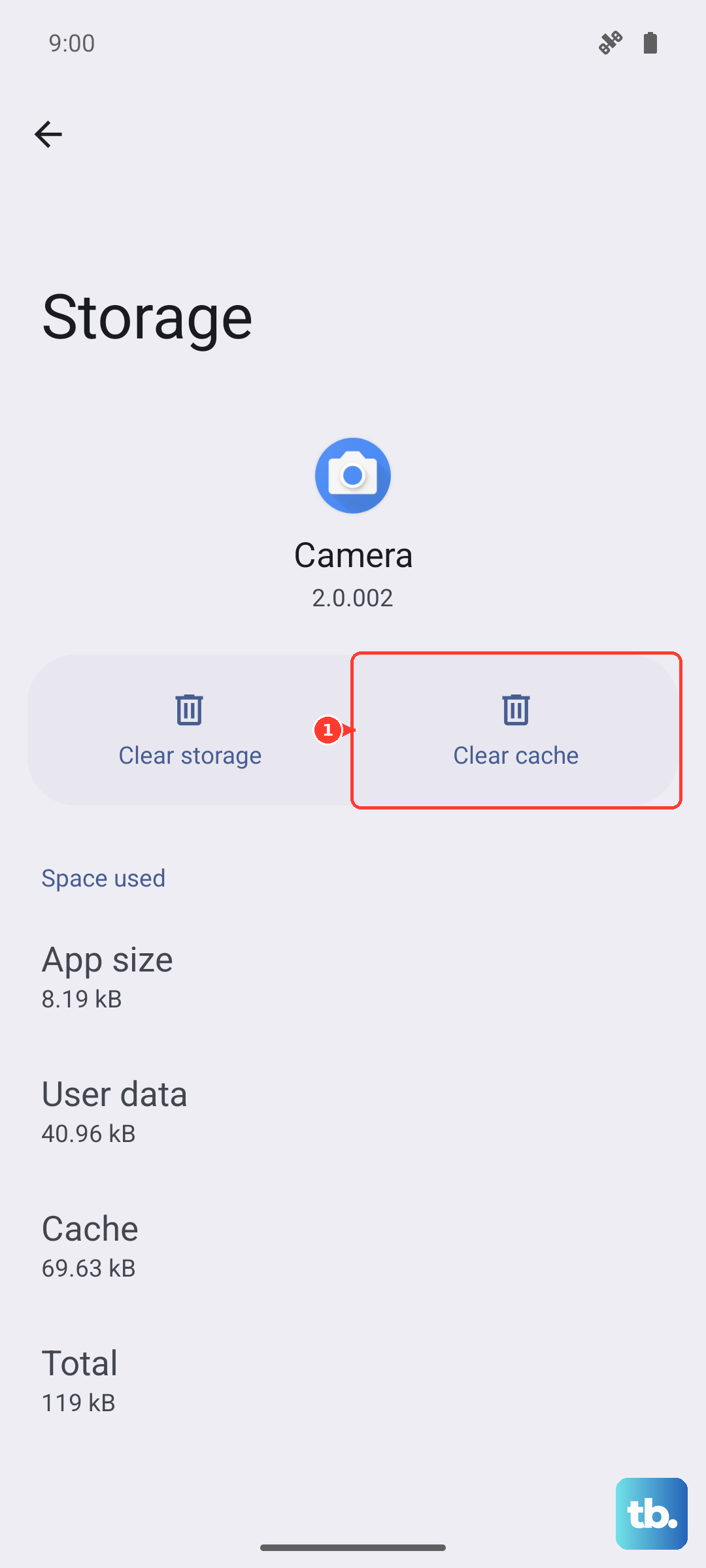
I'd focus on apps that tend to accumulate the most cache, like Chrome, Instagram, YouTube, and Spotify. If an app is crashing or loading slowly, this is almost always the first fix you should try.
Use the Built-in Storage Cleaner
OxygenOS has a handy tool for this. Open the Settings app and go to Storage. You'll see a breakdown of what's using your space. Tap on Clean & optimize or a similar option. The phone will scan for junk files, including app caches, and give you a one-tap button to clear them all at once.
This is the quickest way to free up a chunk of space without having to go through each app individually. It's a good habit to run this every couple of weeks.
Clear Your Browser Cache in Chrome
If web pages aren't loading correctly, your browser cache might be the culprit. Open Chrome, tap the three-dot menu in the top right, and go to Settings > Privacy and security > Clear browsing data. Under the "Basic" tab, make sure Cached images and files is selected.
You can choose a time range, but "All time" gives you the cleanest slate. Tap Clear data. Remember, this won't log you out of your websites unless you also clear cookies and site data.
Wipe the System Cache Partition
For more persistent system-wide lag or odd behavior after an update, you can clear the system cache. First, power off your OnePlus 12 completely. Press and hold the Volume Down and Power buttons together until the OnePlus logo appears, then let go.
You'll boot into recovery mode. Use the volume buttons to navigate to Wipe data and cache and press the power button to select it. Then, choose Wipe cache and confirm. This process only deletes system cache files and is completely safe for your photos, messages, and apps.
Manage Files with the Google Files App
If you don't have it already, download Files by Google from the Play Store. Open the app and tap the Clean button on the bottom left. It does an excellent job of identifying junk files, duplicate photos, and unused app caches that you can safely delete with a single tap.
It's a more visual and powerful tool than the basic storage menu and can help you reclaim several gigabytes of space you didn't even know you were missing.
Clear Out Old Messages and Downloads
Don't forget about your messages and downloads folder. Group texts with lots of photos and videos can silently eat up gigabytes. Open your Messages app and review old conversations, deleting the ones packed with media.
Also, check your Downloads folder by opening the Files app. You'd be surprised how many old APK files, documents, and images pile up in there that you can safely remove.
Perform a Simple Restart
Sometimes, the simplest fix is the best. A restart clears out the phone's active memory (RAM) and flushes temporary system caches. Just press and hold the power button until the power menu appears, then tap Restart.
Making a habit of restarting your OnePlus 12 once a week can prevent a lot of minor performance hiccups before they even start.
Review Your Storage Breakdown
For a bigger picture, go to Settings > Storage. Here, you can see exactly what's filling your phone. Tap on categories like Images, Videos, and Audio to see the largest files.
This is a good time to see if you have any massive video files or old screen recordings you can delete. If your photos are backed up to Google Photos, you can also use its "Free up space" feature to remove the local copies safely.