Keeping your OnePlus 12 updated is the best way to get new features, improve performance, and patch security vulnerabilities. OxygenOS updates roll out regularly, and checking for them is a straightforward process.
Check for System Updates
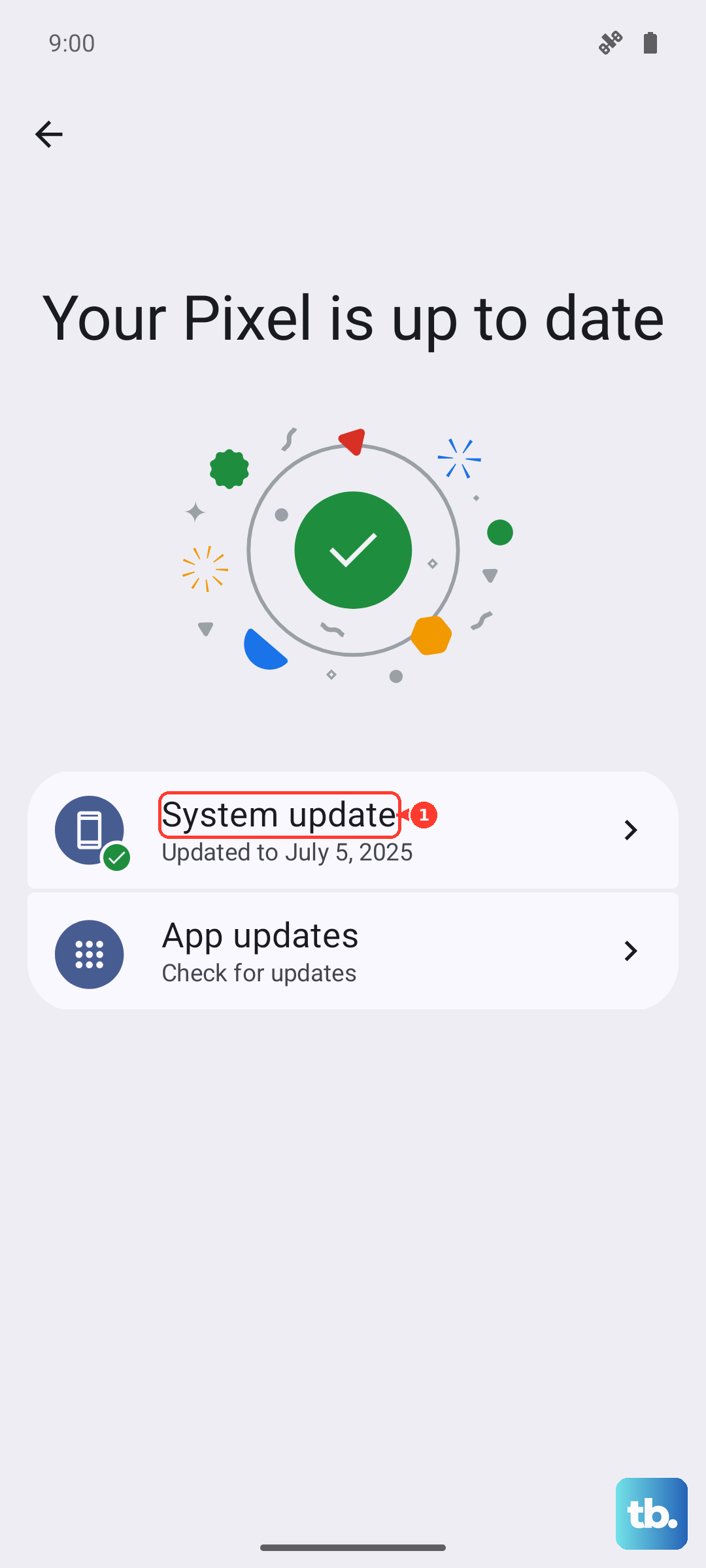
Open your Settings app and scroll down to About device. Tap on it, then select Software update. Your phone will immediately check for any available OxygenOS or Android updates. If one is found, you'll see an option to download and install it.
For a major OS upgrade, I'd recommend being connected to Wi-Fi and having your phone plugged into the included 100W SUPERVOOC charger. These downloads can be large, and you don't want the installation interrupted by a dead battery.
Enable Automatic Updates
You can set your OnePlus 12 to handle updates automatically. After navigating to Settings > About device > Software update, tap the three-dot menu in the top right corner. Select Settings from the menu that appears.
Here, you can toggle on Auto download over Wi-Fi. With this enabled, your phone will automatically download updates when connected to a Wi-Fi network. You'll still get a notification to approve the installation, giving you control over when it happens.
Update Using Oxygen Updater (Advanced)
If your phone isn't showing an available update through the official channel, you can use the community-driven Oxygen Updater app from the Google Play Store. This app often gets new builds faster, pulling them directly from OnePlus's servers.
It's a popular tool among OnePlus users, but it's a third-party method. Always ensure you're downloading a stable, full update package for your exact model. The app provides clear instructions for a local upgrade once the file is downloaded.
Fix a Stuck Update Download
If an update seems to be frozen while downloading, first try switching from mobile data to a stable Wi-Fi connection. A weak or unstable network is a common culprit for failed downloads.
If the update process itself gets stuck during installation, a force restart can help. Press and hold the Power button for 10 to 15 seconds until the phone vibrates and the OnePlus logo appears. After it reboots, go back to the Software update menu to try again.
Check Your Current Software Version
Knowing your current build is helpful. Go to Settings > About device and look at the OxygenOS version and Android version entries. This information is useful for troubleshooting or confirming you've received a specific update.
You can also see the Android security update level here. OnePlus typically releases these monthly patches, so if yours is several months old, an update is likely pending for your device.
Update All Your Apps
System updates are crucial, but your apps need love too. Open the Google Play Store, tap your profile icon in the top right, and go to Manage apps & device. Under the "Updates available" section, tap Update all.
Outdated apps can cause crashes, drain your battery faster, or even pose security risks. Making this a weekly habit keeps everything running smoothly alongside your updated OS.
Check for Google Play System Updates
Separate from OxygenOS updates, Google can update core Android components through the Play Store. To check for these, go to Settings > About device > Software update.
Tap the three-dot menu and select Google Play system update. Your phone will check for any available modules. Installing these updates is important for patching low-level system security without a full OS rollout.
Clear the Update Engine Cache
If you're consistently having issues checking for or downloading updates, clearing the system update cache can help. Go to Settings > Apps and tap the three-line menu to show system apps. Find and select Software update.
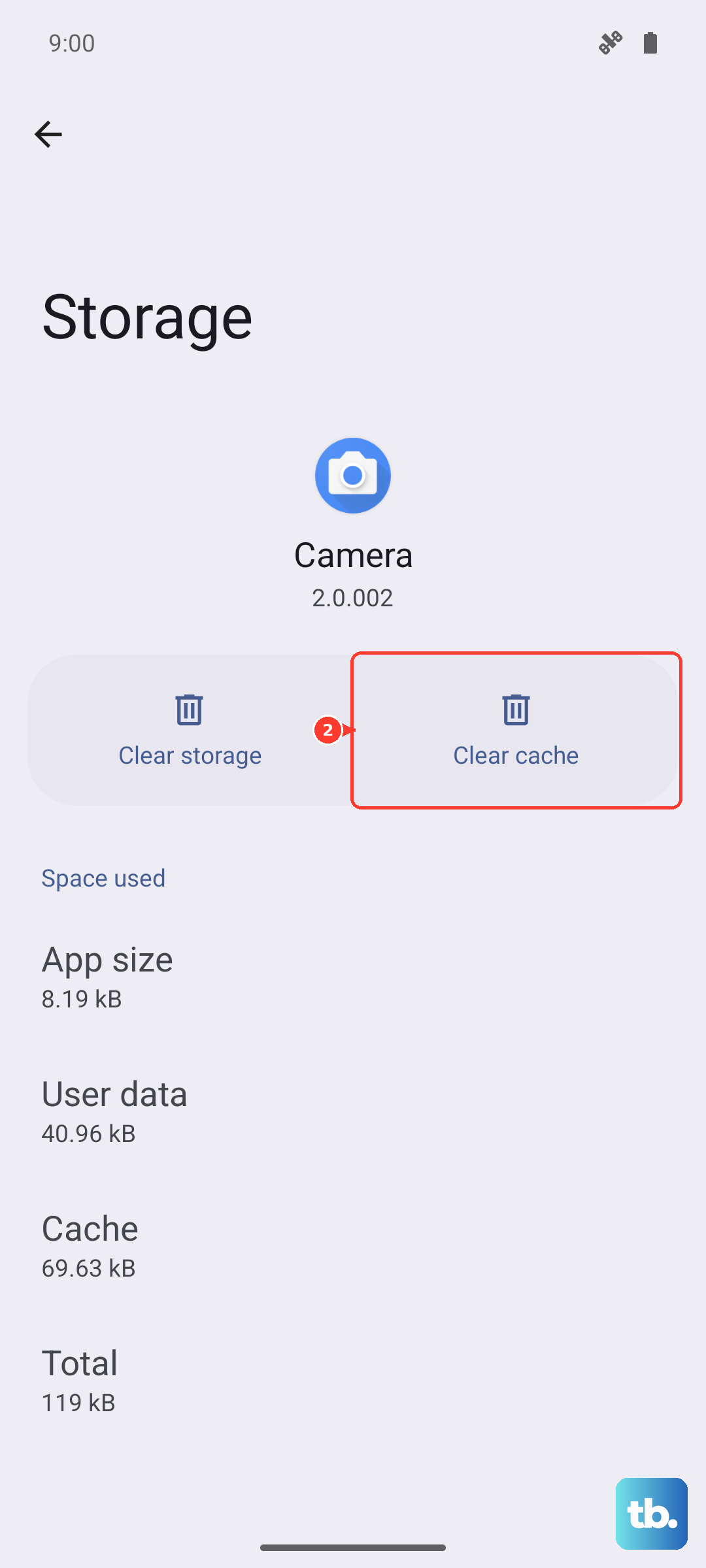
Tap Storage & cache and then select Clear cache. This doesn't delete any personal data. After doing this, restart your phone and check for updates again. It often resolves glitches in the update service.