That "Unfortunately, the keyboard has stopped" pop-up is a real conversation killer on your OnePlus Open. It's a common Android hiccup, but on a foldable, it can feel especially disruptive when you're trying to use both screens. The good news is you can almost always fix it yourself with a few steps.
Restart Your Keyboard App
This is the quickest fix and often works immediately. You just need to force stop the app to clear its temporary state. Head into your Settings and tap on Apps.
You'll see a list of your installed apps. Find your current keyboard here, it might be labeled as Gboard, SwiftKey, or the stock OnePlus Keyboard. Tap on it, then tap the "Force Stop" button on the app info page.
Once you confirm, exit Settings and try bringing up the keyboard again in any app. This fresh start resolves a lot of minor glitches.
Give Your Phone a Quick Reboot
If force stopping the keyboard didn't do the trick, a full restart of your OnePlus Open is the logical next step. It clears out any system-wide hiccups that might be interfering.
Just press and hold the power button until the power menu appears, then tap "Restart." If the phone is completely unresponsive, you can force a restart by holding the power button down for about 10 seconds until you feel it vibrate and reboot.
Clear the Keyboard's Cache and Data
Corrupted temporary files (cache) can definitely cause crashes. Clearing them is safe and won't delete your personal data like photos or messages. You will, however, lose any custom dictionary words or specific keyboard settings.
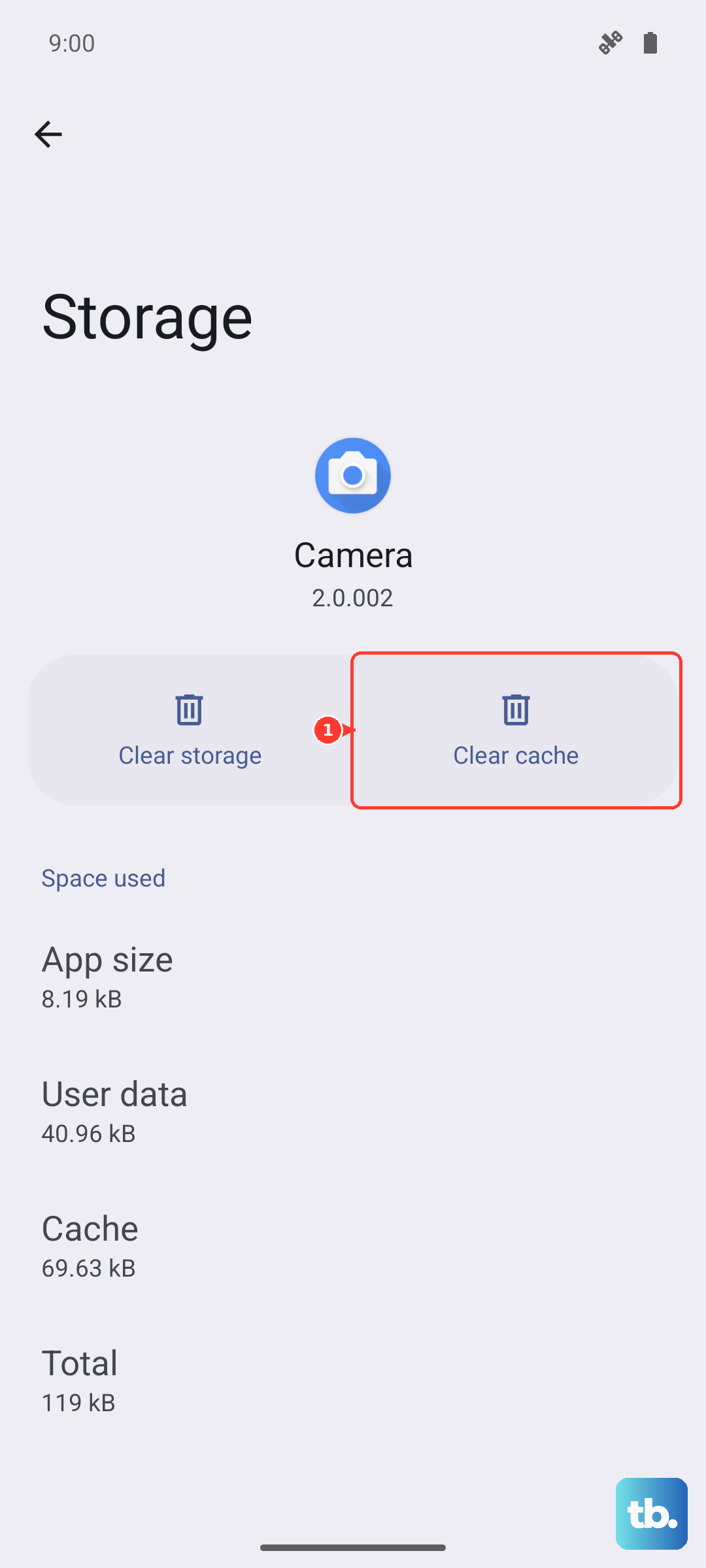
Go back to Settings > Apps, find your keyboard app, and tap "Storage & cache." Tap "Clear cache" first. If the problem persists, come back and tap "Clear storage" or "Clear data." This resets the app to its freshly installed state.
Update Your Keyboard App
An outdated app can have bugs that newer versions of OxygenOS or other apps don't play nicely with. Open the Google Play Store, tap your profile icon, and go to "Manage apps & device."
Under "Updates available," see if your keyboard app is listed. If it is, tap "Update" next to it. I've seen this resolve compatibility issues, especially after a major system update.
Check for a System Software Update
Since your Open runs OxygenOS 14, OnePlus regularly pushes updates that fix bugs affecting core functions like the keyboard. It's worth checking to make sure you're on the latest version.
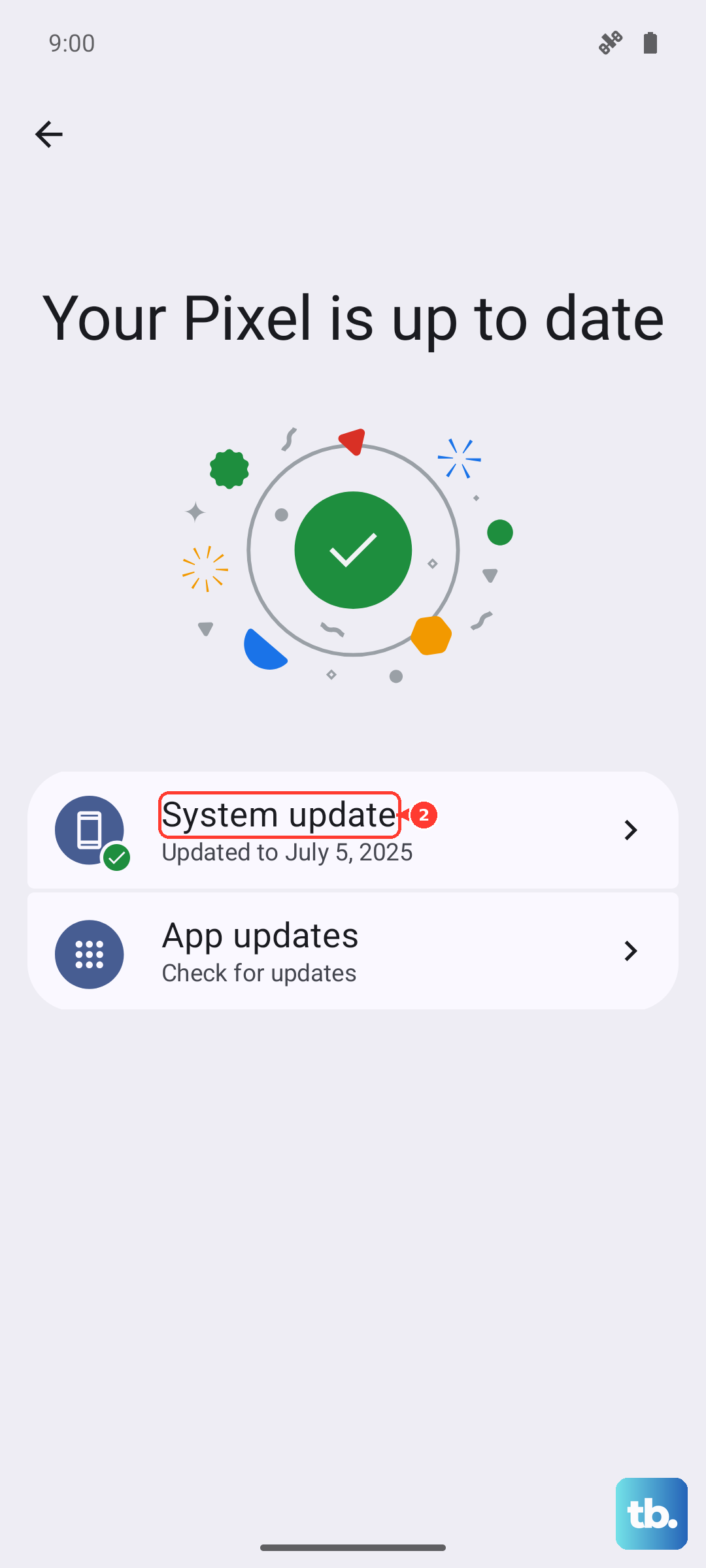
Go to Settings > About device and tap on "OxygenOS version." It will check for updates. If one is available, I'd recommend installing it, as it often includes stability patches that address these exact kinds of app crashes.
Try a Different Keyboard App
This is a great diagnostic step and a potential permanent solution. If the stock keyboard keeps failing, installing a popular third-party option like Gboard or SwiftKey from the Play Store can get you typing again immediately.
Once installed, you'll need to enable it. Go to Settings > System > Languages & input > On-screen keyboard and toggle on your new keyboard. You can then set it as your default.
Boot Into Safe Mode
If the keyboard works fine with a third-party app, or if you want to test if another app is causing the conflict, Safe Mode is your tool. It temporarily disables all apps you've installed.
To enter Safe Mode on the OnePlus Open, press and hold the power button until the power off menu appears. Then, press and hold the "Power off" text on the screen until a "Reboot to safe mode" prompt appears. Tap OK.
If the keyboard works perfectly in Safe Mode, you know a downloaded app is the culprit. Start by removing any recently installed apps, or apps that have overlay permissions, to find the offender.
Reset All App Preferences
This is less drastic than a factory reset but can fix misconfigured settings causing conflicts. It resets permissions, default apps, and background data restrictions for all apps.
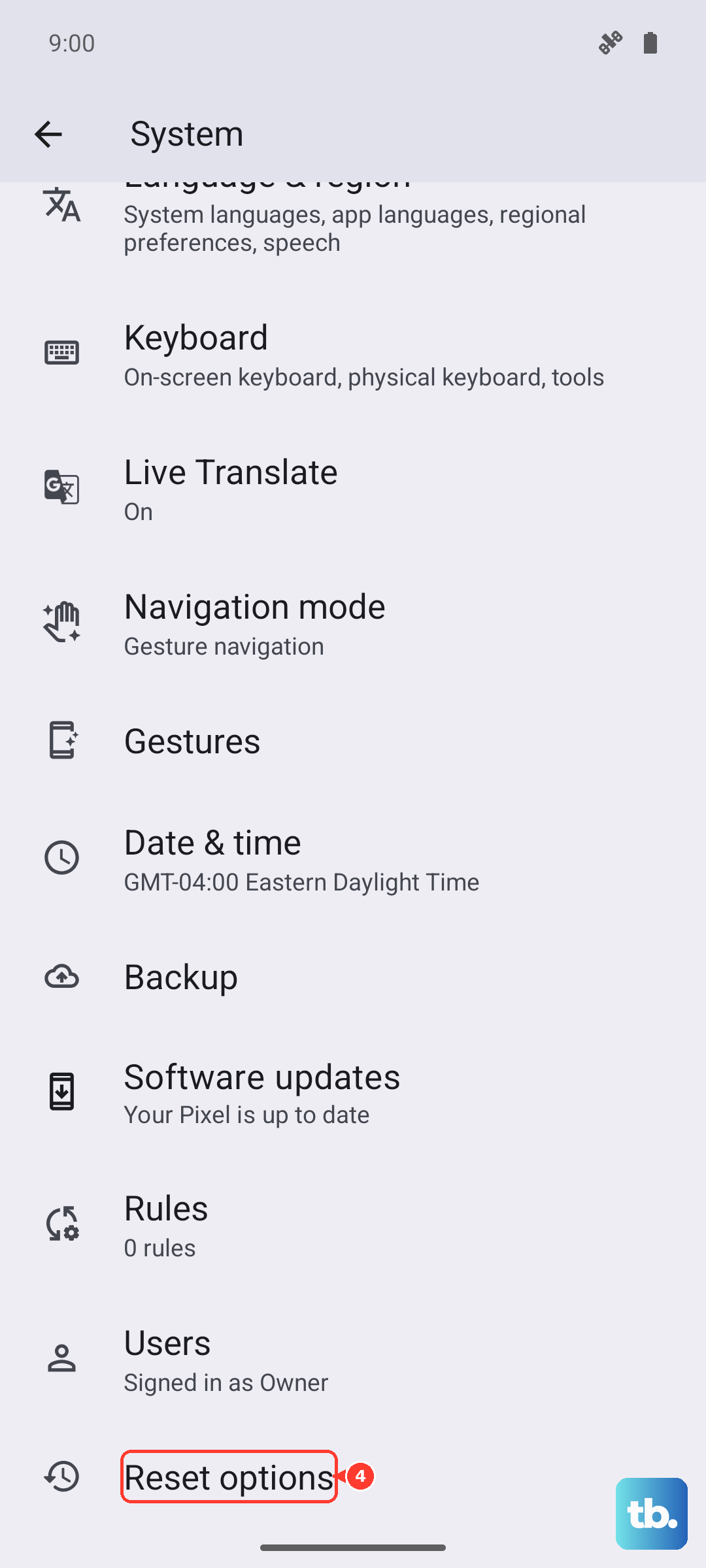
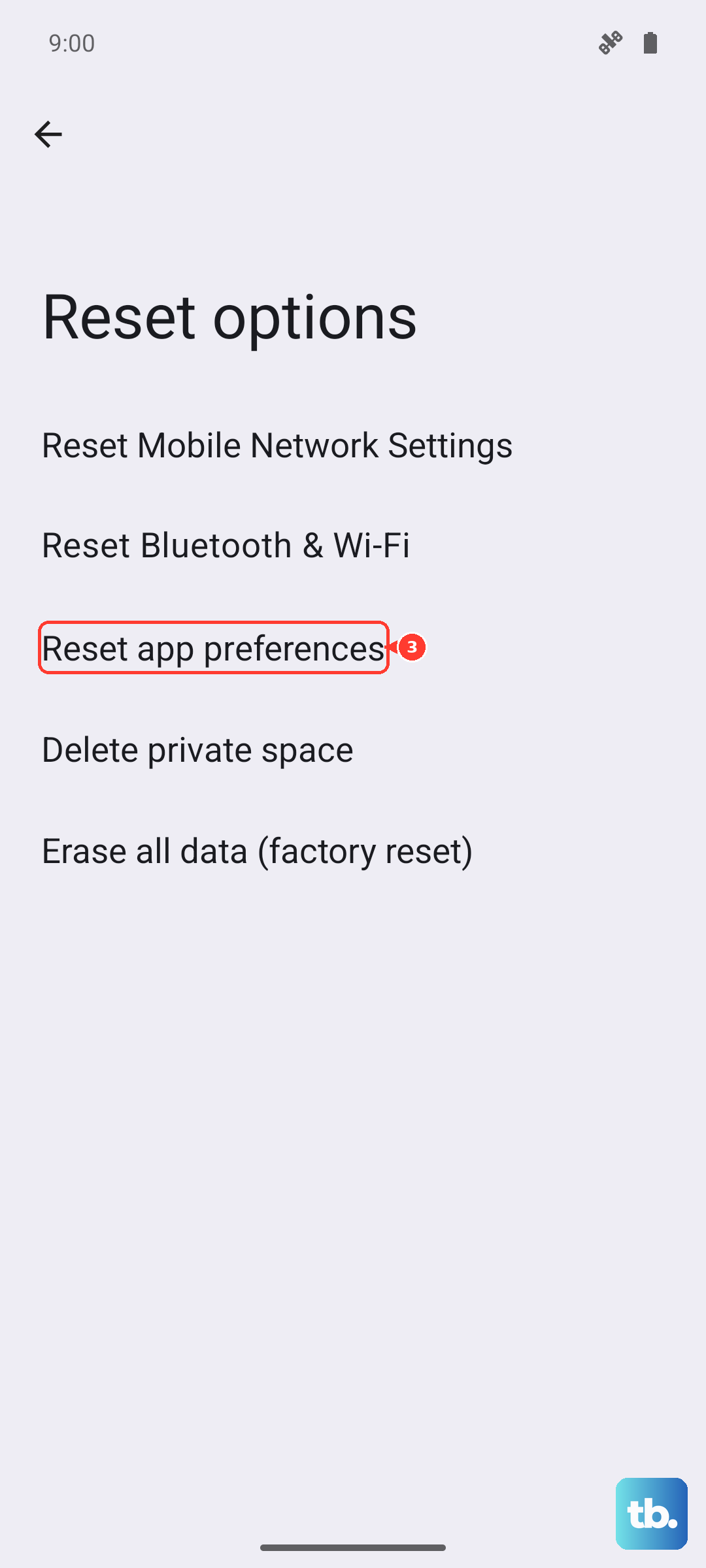
Go to Settings > System > Reset options. Tap on "Reset app preferences" and confirm. You'll need to re-grant permissions to apps afterward, but your personal data remains untouched.
Consider a Factory Reset
This is your last resort if nothing else has worked. A factory reset wipes your phone back to its original software state, so it's crucial to back up everything important first using Google One or your preferred method.
Once backed up, you can find the reset option under Settings > System > Reset options > Erase all data (factory reset). After the phone restores itself, set it up as new and test the keyboard before restoring your full backup, in case the backup contains the corrupted data.