
Your iPad mini stores temporary files, cached data, and other digital clutter that accumulates as you use it. When you start getting low storage warnings or apps feel sluggish, clearing out this cache can free up a surprising amount of space and smooth things out. The process is a bit different than on an iPhone, but it's just as straightforward.
Clear Safari Cache on iPad
Safari's cache is often the biggest space hog. To wipe it completely, open the Settings app and go to Safari. Scroll down and tap Clear History and Website Data, then confirm. This erases your browsing history, cookies, and all cached website files. You'll be signed out of any websites, so keep your passwords handy.
If you want to keep your browsing history but still clear the cached data, there's another path. Go to Settings > Safari > Advanced > Website Data. Here, you can tap Remove All Website Data to delete the cache without touching your history.
Manage App Cache with Offloading
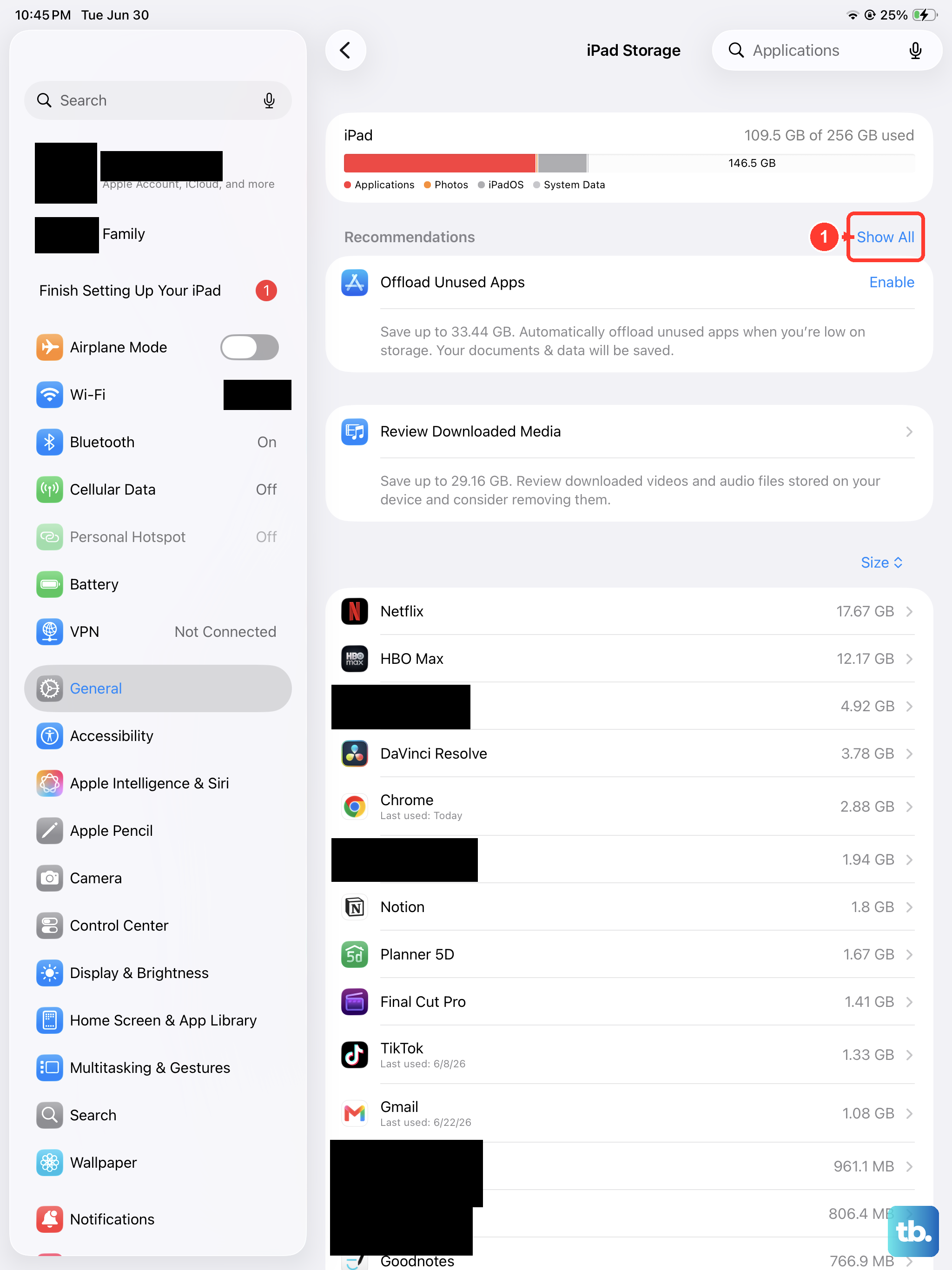
iPadOS doesn't have a simple "clear cache" button for most apps, but offloading is an excellent workaround. Head to Settings > General > iPad Storage. You'll see a list of all your apps sorted by size. Tap on any app, like a streaming service or social media app, and select Offload App.
This removes the app itself but keeps all your documents and data. Just tap the cloud icon to reinstall it from the App Store, and you'll have a fresh app without its accumulated cache. I've seen this reclaim several hundred megabytes from a single app.
Delete and Reinstall Apps for a Deep Clean
For the most thorough cache clearing, delete the app entirely. Touch and hold its icon on your Home Screen, tap Remove App, and then choose Delete App. This erases the app and all its associated data, including the cache. You can then download it again fresh from the App Store.
Remember, this means you'll need to sign back in and reconfigure any settings. It's very effective for apps known to build up large caches over time, like games or video editors.
Clear Messages Attachments and Media
The Messages app can silently consume gigabytes with photos, videos, and GIFs. To manage this, go to Settings > General > iPad Storage and tap on Messages. You'll get a detailed breakdown showing how much space is used by photos, videos, and other files.
You can review and delete items from each category here. For automatic cleanup, go to Settings > Messages and look for Keep Messages. Changing this from Forever to 30 Days or 1 Year will automatically purge older conversations and their attachments.
Flush the DNS Cache
If websites are loading slowly or failing to connect, a clogged DNS cache might be the culprit. The easiest fix is to toggle Airplane Mode. Open Control Center by swiping down from the top-right corner of the screen and tap the airplane icon. Wait about ten seconds, then tap it again to turn Airplane Mode off.
This forces your iPad mini to refresh its network connections and clear the DNS lookup cache. A simple restart, which I'd recommend doing weekly, also clears this and other temporary system files.
Use iPadOS Storage Recommendations
Your iPad has built-in tools to help manage space automatically. Go to Settings > General > iPad Storage and look at the recommendations at the top of the screen. iPadOS might suggest enabling Offload Unused Apps, which automatically removes apps you haven't used in a while but keeps their data.
Other common suggestions include reviewing large attachments in Messages or clearing out your Recently Deleted album in Photos. Letting the system handle these tasks can save you a lot of manual cleanup.
Restart Your iPad mini
Never underestimate a simple restart. It clears temporary system caches, frees up active memory (RAM), and can resolve minor glitches. To restart your 7th generation iPad mini, quickly press and release the Volume Up button, then quickly press and release the Volume Down button. Finally, press and hold the Top button until you see the Apple logo appear on the screen.
Making this a regular habit, especially after updating to a new version of iPadOS, helps keep everything running smoothly. It only takes a moment and can prevent a lot of small issues from building up.