
Your iPhone 16 Pro is a powerhouse, but all that power generates data. Over time, cached files from apps and websites can start to eat into your precious storage space, sometimes even causing apps to feel a bit sluggish. Clearing out this digital clutter is a great way to reclaim gigabytes and keep your phone running fast.
Clear Safari Cache on iPhone 16 Pro
Safari's browser cache is often the biggest space-waster. To wipe it clean, open Settings and tap Safari. Scroll all the way down and select Clear History and Website Data. Confirm your choice when prompted.
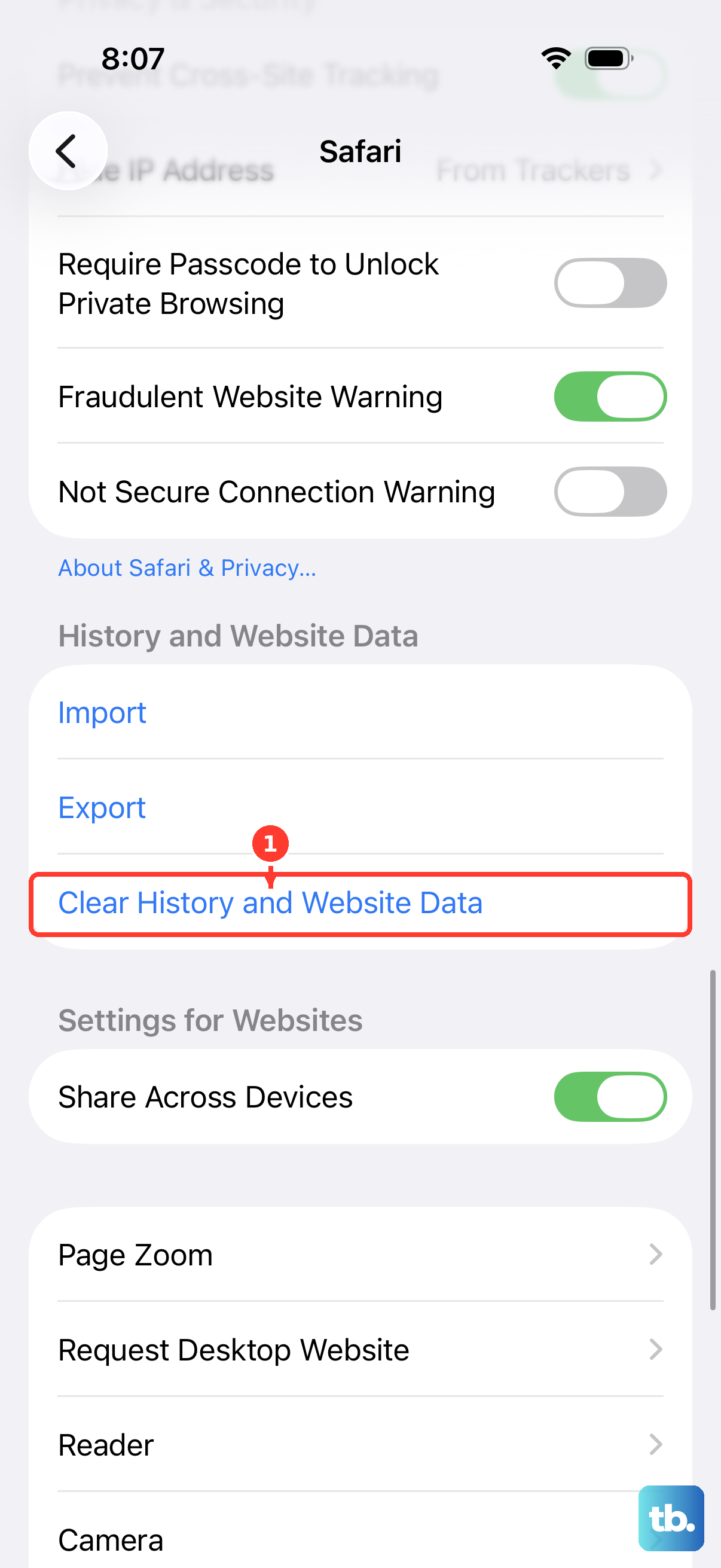
This action removes your browsing history, cookies, and all cached website files. Be aware it will log you out of most websites, so keep your passwords handy. If you want to keep your history but still clear the cached data, there's another path.
Go to Settings > Safari > Advanced > Website Data. Here, you can tap Remove All Website Data to delete just the cached files without touching your browsing history. I'd start with this method if you don't want to lose your open tabs or history.
Use Offload App to Clear Cache
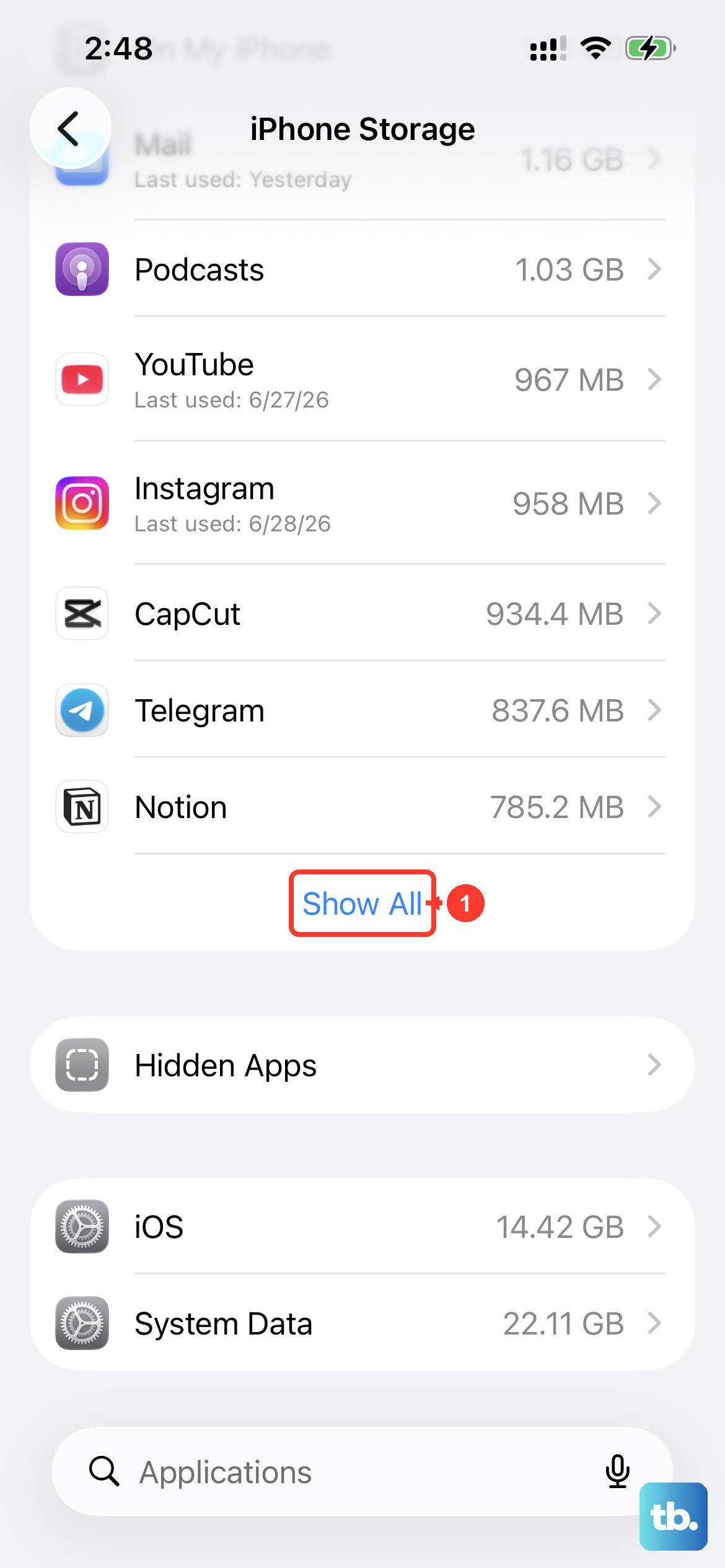
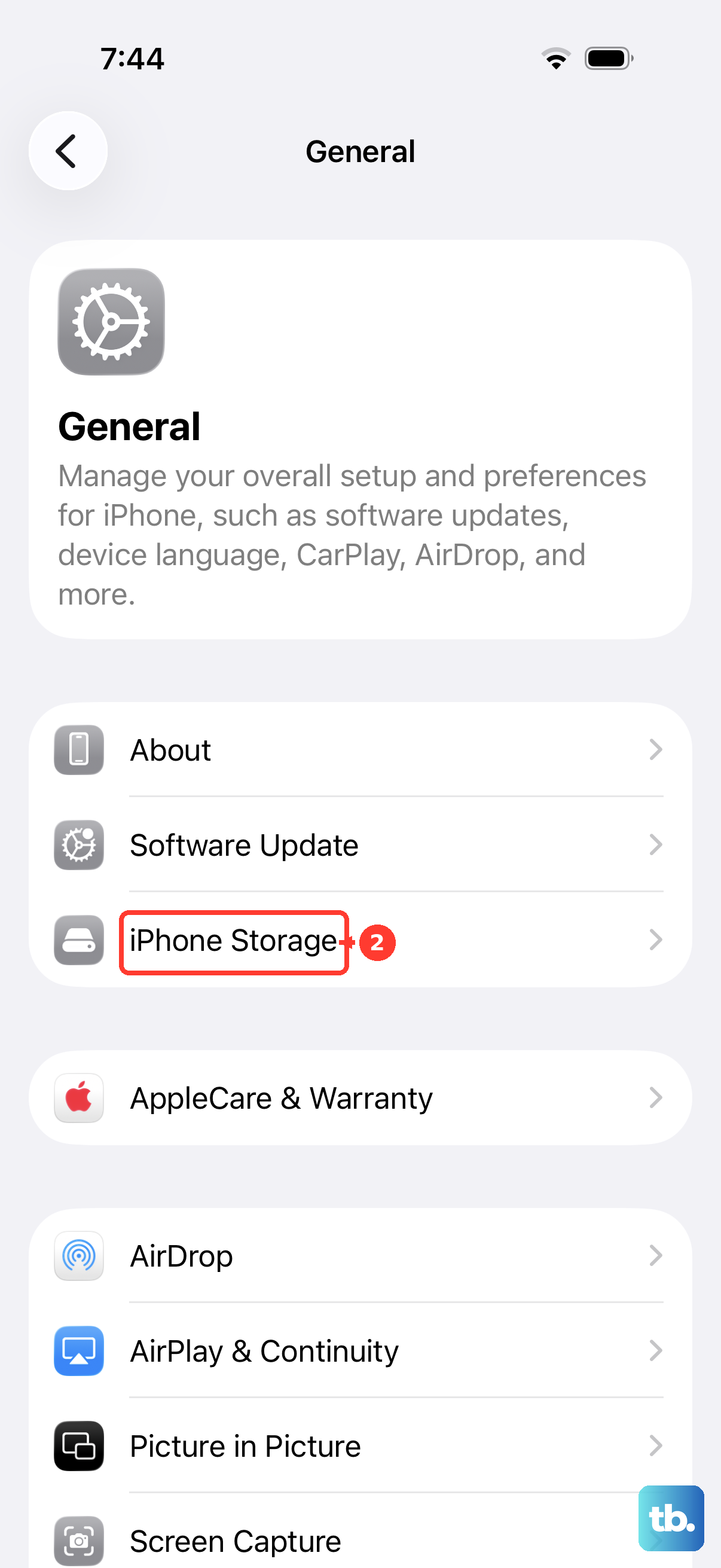
iOS 26 doesn't have a one-tap "clear cache" button for every app, but offloading is the next best thing. Head to Settings > General > iPhone Storage. After a moment, you'll see a list of all your apps sorted by how much space they use.
Tap on any app, like Instagram or Spotify, and you'll see an option for Offload App. Tapping this removes the app itself but keeps all your documents and data, including your login info. You then reinstall it from the App Store to get a fresh, cache-free version.
This is perfect for social media and streaming apps that quietly accumulate hundreds of megabytes of temporary files. It's a safe way to clear their cache without losing your settings.
Delete and Reinstall Apps Completely
For the most thorough clean, you can delete an app entirely. Press and hold its icon on your home screen, tap Remove App, and then choose Delete App. This erases the app, all its cached data, and any downloaded content within it.
After deleting, just head to the App Store to download it again. You'll need to sign back in and set up any preferences, but you'll start with a completely clean slate. I've found this especially effective for games and news apps that store a lot of temporary media files.
Manage Your Messages Cache
With all the high-resolution photos and videos shared in Messages, its cache can balloon quickly. To manage it, go to Settings > General > iPhone Storage and tap on Messages.
You'll get a detailed breakdown showing storage used by photos, videos, and other attachments. You can tap into each category to review and bulk delete items you no longer need. This is often where you'll find several gigabytes just waiting to be freed.
You can also set messages to auto-delete. Go to Settings > Messages > Keep Messages and change the setting from Forever to 30 Days or 1 Year. This automatically cleans up old conversations and their attachments.
Flush the DNS Cache
If websites on your iPhone 16 Pro are loading slowly or failing to load, a clogged DNS cache might be the culprit. The fastest fix is to toggle Airplane Mode. Swipe into your Control Center and tap the airplane icon to turn it on, wait about 10 seconds, then tap it again to turn it off.
This forces your phone to clear its local DNS records and fetch fresh ones. A simple restart also does the trick, clearing the DNS cache along with other temporary system files. It's a good, quick step if your internet feels slow but your connection is fine.
Let iOS 26 Free Up Space Automatically
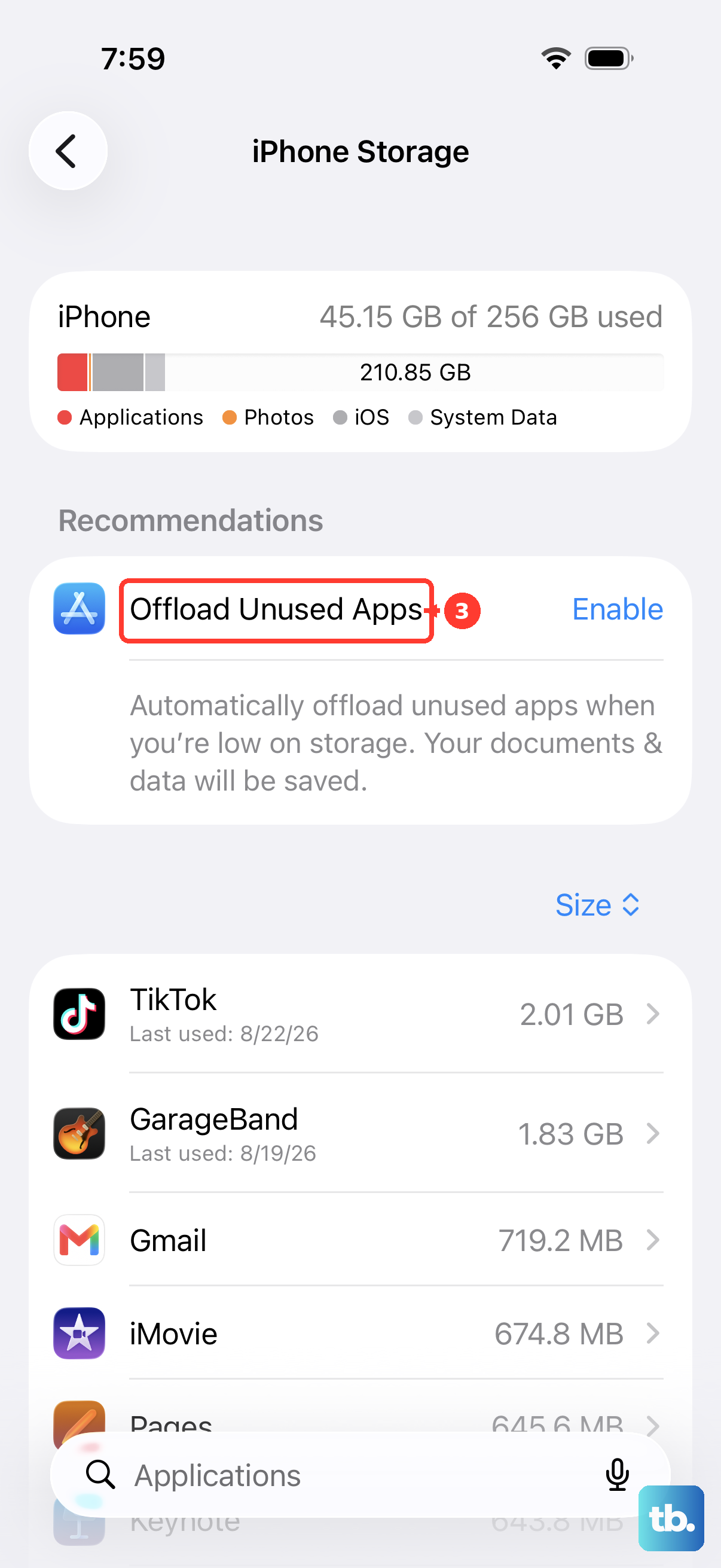
Your iPhone 16 Pro has smart tools built right in. Go back to Settings > General > iPhone Storage. At the very top, under "Recommendations," you'll see suggestions tailored to your phone.
iOS might recommend enabling Offload Unused Apps, which automatically removes apps you haven't used in a while while keeping their data. It also suggests reviewing large attachments or clearing out your "Recently Deleted" album in Photos. Turning on these automatic features can handle a lot of the cleanup for you.
Restart Your iPhone 16 Pro
Never underestimate a simple restart. It clears out temporary system caches and frees up RAM, which can instantly resolve minor performance hiccups. To restart, press and quickly release the Volume Up button, then quickly press and release the Volume Down button.
Finally, press and hold the Side button until you see the Apple logo appear, then let go. Making a habit of restarting your phone once a week helps keep it running smoothly by periodically wiping this temporary data.











