
Your iPhone 17 Pro Max is a powerhouse, but temporary files and cached data can still take up storage. When apps feel sluggish or you get that "Storage Almost Full" alert, clearing out this digital clutter can make a noticeable difference. The process is a bit different for each part of the system, so here’s where to look.
Clear Safari Cache and Data
Safari can accumulate cached data over time. To wipe it clean, head to Settings > Apps > Safari and scroll down. Tap Clear History and Website Data, choose a timeframe, then tap Clear History. This action removes browsing history, cookies, and cache for the selected timeframe.
Be aware that you'll be signed out of most websites after doing this. If you want to keep your browsing history but still clear the cache, there's another path. Go to Settings > Apps > Safari > Advanced > Website Data, tap Remove All Website Data, then tap Remove Now. This clears cookies and cache while keeping your browsing history.
Use Offloading to Free App Storage
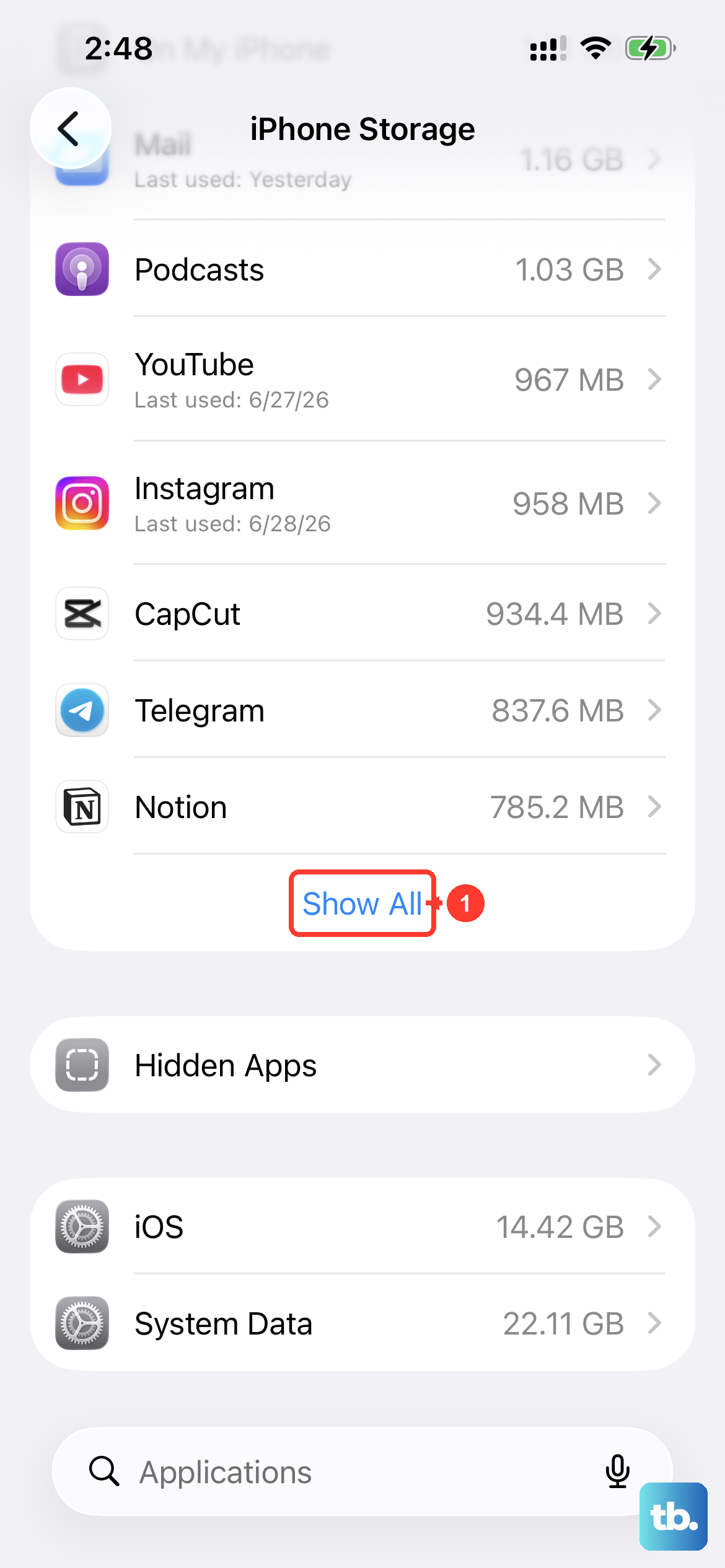
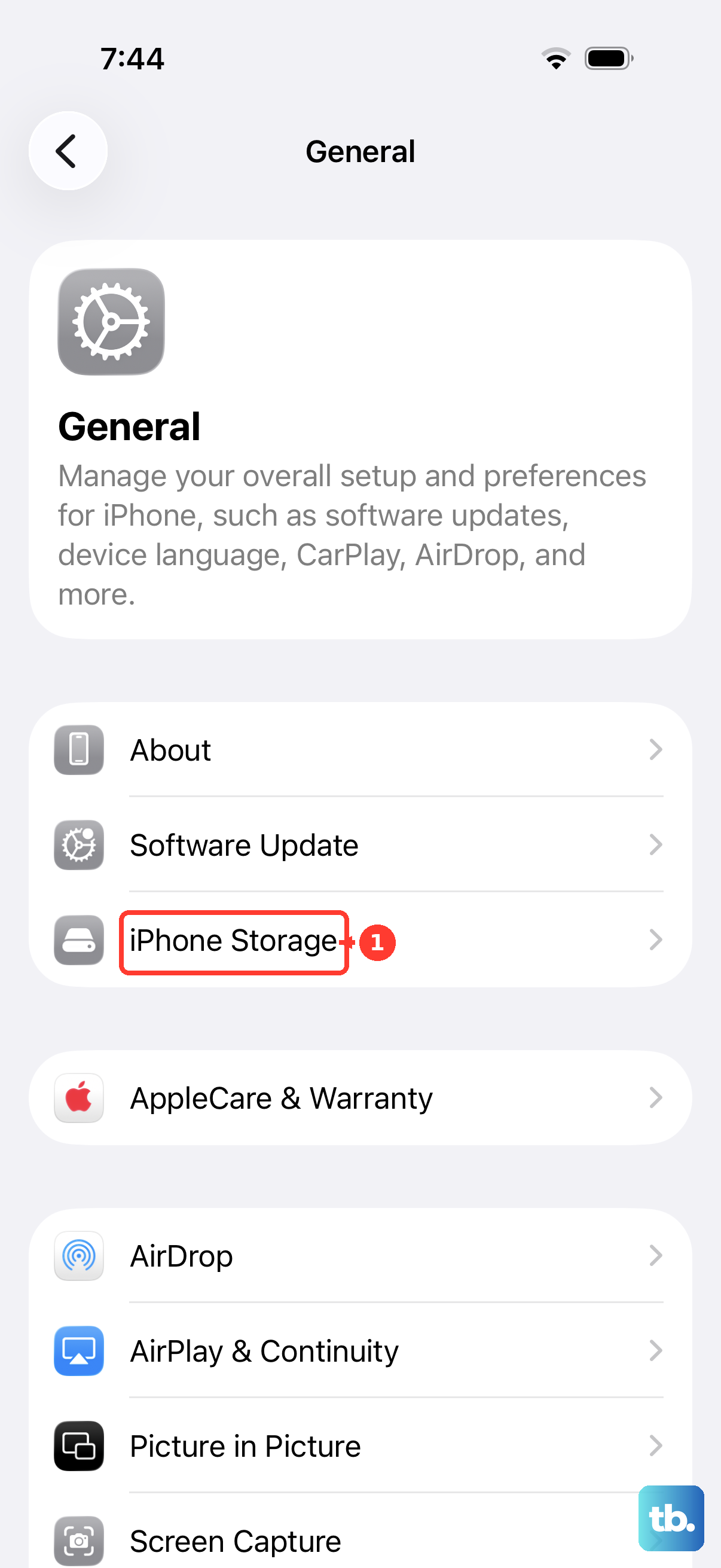
Offloading frees the storage used by an app while keeping its documents and data. Open Settings > General > iPhone Storage and wait for the list to populate. Tap on any app, like Instagram or Spotify, to see its storage breakdown.
Tap Offload App. This removes the app itself but keeps all your documents and data on the phone. Then, just tap the cloud icon or re-download it from the App Store. Your documents and data stay on the phone, so use this option when you want to free app storage without deleting them.
Delete and Reinstall Problem Apps
For a completely clean slate, deleting and reinstalling an app is the most thorough method. Press and hold the app's icon on your Home Screen, tap Remove App, and then choose Delete App. This removes the app and its related data from your phone.
After reinstalling from the App Store, you'll need to log back in and set your preferences again. Reserve this for apps that are consistently buggy or taking up a surprising amount of space in your iPhone 17 Pro Max storage breakdown.
Manage Your Messages Storage
With all the high-resolution photos and videos shared in Messages, its storage use can grow quickly. Navigate to Settings > General > iPhone Storage and tap on Messages. You'll see a detailed breakdown by category, Photos, Videos, GIFs, and Stickers.
You can review and delete items from each category. For automatic management, change how long messages are kept. Go to Settings > Apps > Messages > Message History > Keep Messages and switch from Forever to 30 Days or 1 Year.
Clear Safari Data for Website Problems
For websites that aren't working properly, try clearing Safari's cookies and cache while keeping your browsing history. Open Settings > Apps > Safari > Advanced > Website Data, tap Remove All Website Data, then tap Remove Now.
This removes website data used for tracking and saved login information, so you may need to sign in again. If the button is gray, there may be no data to clear, or you may need to check web content restrictions in Screen Time.
Review Automatic Storage Recommendations
Your phone is pretty smart about managing its own space. Go to Settings > General > iPhone Storage and look at the recommendations at the top of the screen. iOS may suggest actions like enabling Offload Unused Apps to automatically offload apps you don't use.
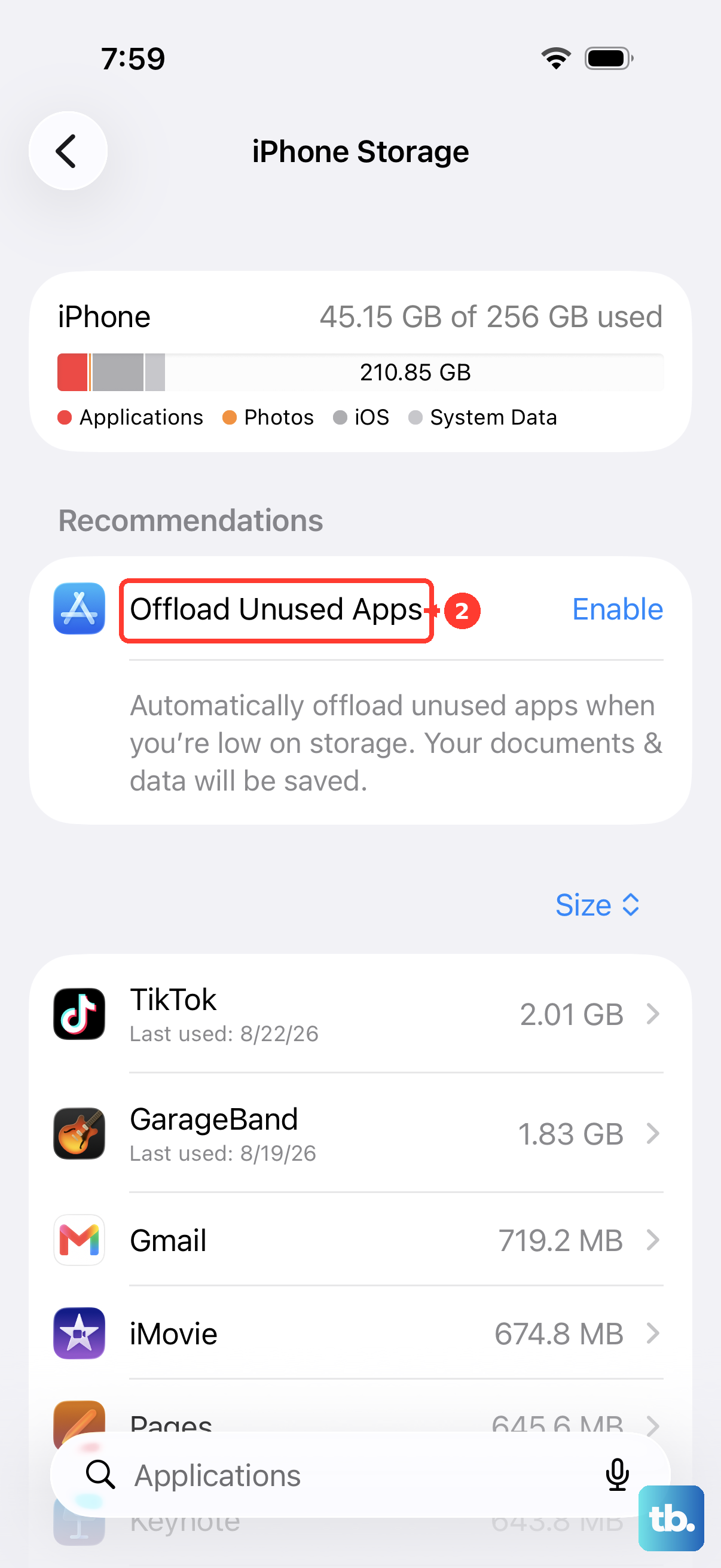
It might also prompt you to review large attachments or empty the Recently Deleted album in Photos. Using these built-in tools is the easiest way to keep your storage in check without having to dig through each app manually.
Restart Your iPhone 17 Pro Max
Never underestimate the power of a reboot. Restarting can help with minor glitches. If your phone is unresponsive, force restart it: press and quickly release the Volume Up button, press and quickly release the Volume Down button, then press and hold the Side button until you see the Apple logo appear. This can take longer than 10 seconds.
For storage problems, focus on the Safari data, app storage, and storage recommendations covered above. Your phone also removes some cached and temporary files when it needs more space.