
The Google Pixel 10a runs Android 16, which does a solid job managing storage automatically. But cached files from apps and browsers still pile up over time. Here's how to clear that junk and reclaim space on your phone.
Use Files by Google to Clean Junk Files
Your Pixel 10a comes with Files by Google pre-installed. Open it and tap the Clean tab at the bottom. It scans for temporary app files, old APKs, and duplicate downloads.
Tap Clean next to each category or hit Free up space to remove it all at once. I usually check the large files and old screenshots section too. It's the fastest way to bulk-delete cache without digging through each app individually.
Clear App Cache from Settings
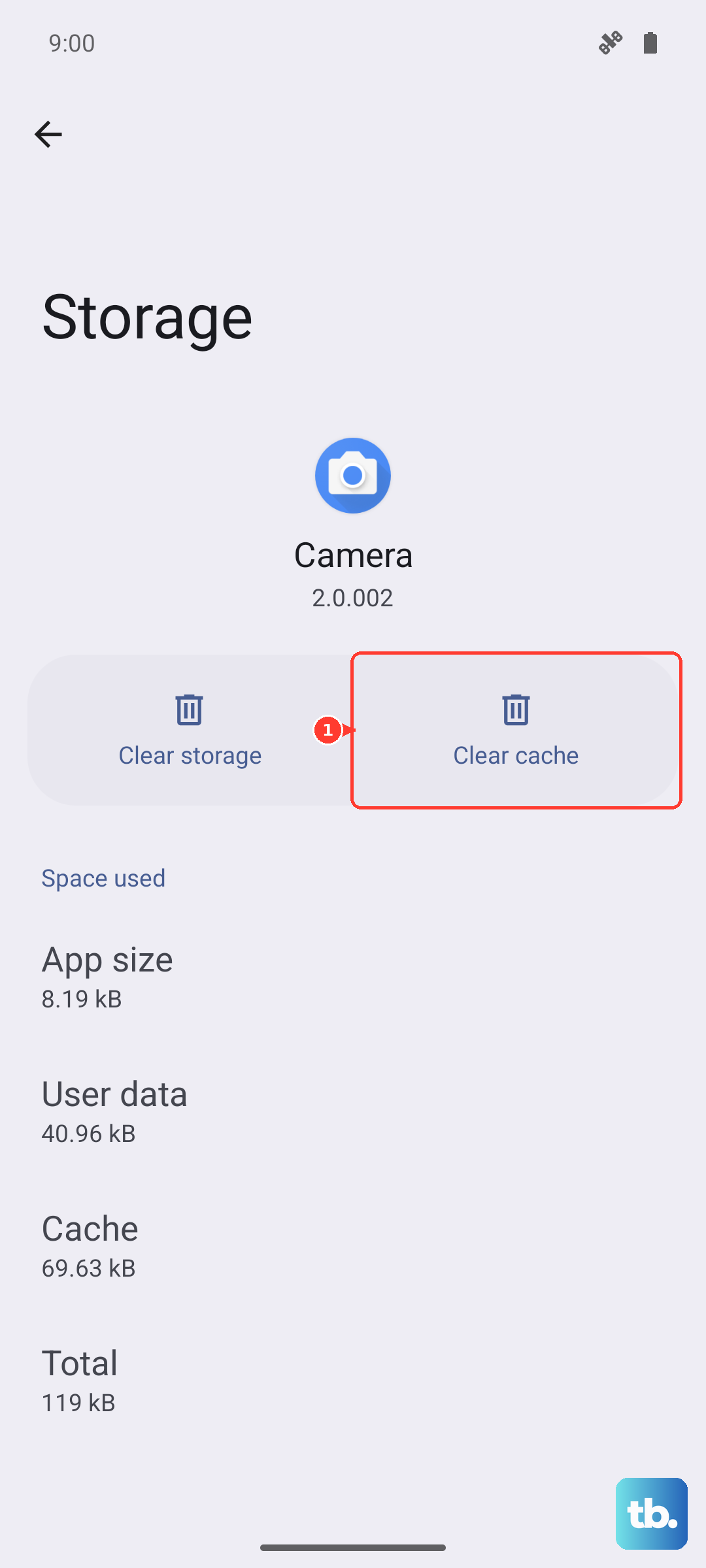
For app-specific cache, go to Settings > Apps > See all apps. Tap on any app, then select Storage & cache.
Tap Clear cache to remove the temporary files. This won't delete your login details or personal data. Focus on heavy apps like Instagram, YouTube, and Chrome to free up the most space.
Wipe the System Cache Partition
System-level cache can cause lag or weird behavior after a major update. To clear it, turn off your Pixel 10a completely.
Press and hold Power + Volume Down to boot into Recovery Mode. Use the volume buttons to scroll down to Wipe cache partition and press the Power button to select it. This clears system junk without affecting any of your personal files or settings.
Clear Browser Cache in Chrome
Open Chrome, tap the three dots in the top corner, and go to Settings > Privacy and security > Clear browsing data. Check the box for Cached images and files.
Pick a time range (Last hour, Last 24 hours, or All time) and tap Clear data. This won't sign you out of any sites unless you also select Cookies and site data.
Remove Old Downloads and Media
Open Files by Google and tap the Browse tab. Check the Downloads folder for old PDFs, APKs, or random files you no longer need.
In Settings > Storage, tap Free up space. The Pixel will suggest removing photos and videos that are already backed up to Google Photos. Clearing those out usually recovers the most storage.
Restart Your Phone to Clear Temporary Glitches
A simple restart clears the system's temporary cache and frees up RAM. Press and hold the Power button on your Pixel 10a, then tap Restart.
Doing this once a week prevents minor slowdowns from building up in the first place.
Turn On Smart Storage for Automatic Cleanup
Your Pixel 10a includes a feature called Smart Storage. Find it in Settings > Storage > Storage Manager.
Turn it on and set it to automatically remove backed-up photos and old downloads after 30, 60, or 90 days. It's a set-it-and-forget-it way to keep your cache and storage under control without manual effort.