Crumbs, dust, sticky spots, and dull keys make a keyboard feel dirty fast, and the wrong move can push liquid into the hardware. Start by removing power, then clear loose debris, wipe with a controlled cloth, and use deeper cleaning only on keyboards built for it. These current vendor-supported methods cover everyday external keyboards, laptop keyboards, tablet keyboard covers, and removable mechanical keycaps.
Start with a safe power down
This prevents accidental input and keeps cleaning away from powered hardware.
Unplug a wired keyboard from the computer.
Switch off a wireless keyboard.
Remove replaceable batteries if the keyboard uses them.
Wait 5 to 10 seconds before cleaning.
For an Apple Magic Keyboard, slide the hardware switch on the back edge until no green is visible.
On an earlier Apple Wireless Keyboard, hold the power button until the green LED turns off.
Clear crumbs and loose debris first
Turn the keyboard upside down and gently shake it over a trash can or towel. Give the back a soft tap while it is upside down to dislodge crumbs sitting between the keys.
Use compressed air next. Keep the can upright, use short blasts, and spray through the spaces between the keys.
On supported Mac notebooks, fit the straw included with the compressed air and keep the end of the straw about half an inch from the keyboard as you spray. Hold the notebook at a 75-degree angle and spray left to right. Rotate it to the right side and spray left to right again, then rotate it to the left side and repeat.
For Logitech keyboards, a hair dryer on the cool air setting is a supported alternative to compressed air. If debris still remains after air cleaning, wipe the surface instead of using hot air or liquid spray.
Wipe the keys without soaking the keyboard
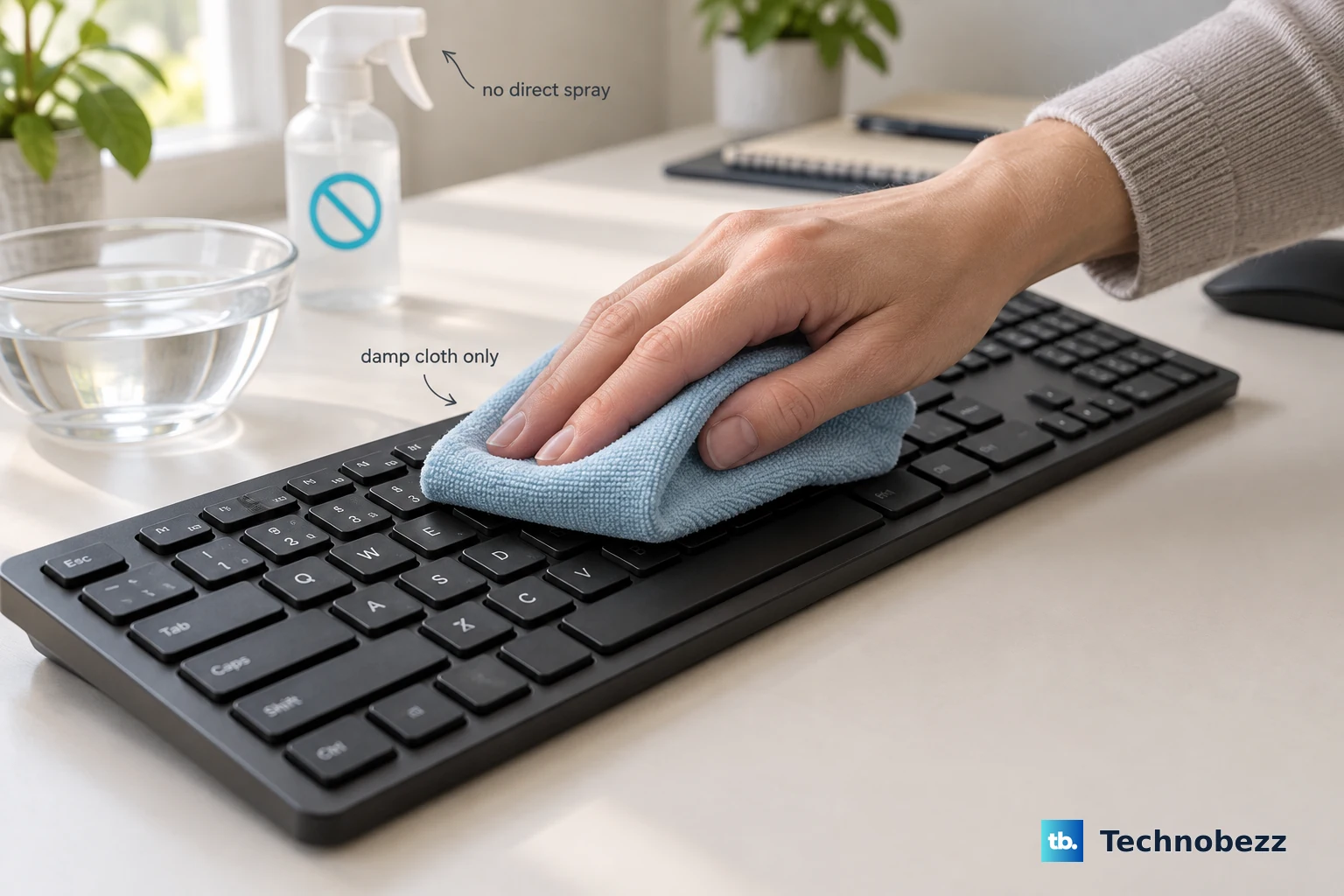
Use a soft, lint-free cloth lightly dampened with water for the basic wipe. Pass it over the keys and keyboard surface, and keep moisture away from openings.
Never use pour or spray liquid directly on the keyboard. The cloth should be damp enough to lift grime, not wet enough to drip.
For Microsoft keyboards and Surface Keyboard or Type Cover models, Microsoft supports mild soap and water. For Surface Keyboard and Type Cover cleaning, use five parts water to one part mild soap.
Let the keyboard dry before reconnecting power or turning it back on. If the keys still feel sticky, clean the affected edges with a cotton swab.
Disinfect the surface carefully
Use disinfectant only where your keyboard maker permits it, and put it on the cloth or approved wipe first.
- 1.Apply 70 percent or lower isopropyl alcohol to a soft, lint-free cloth for Microsoft keyboards and Surface devices.
- 2.Remove Apple Magic Keyboard for iPad from the iPad, then use a 70 percent isopropyl alcohol wipe or Clorox Disinfecting Wipes.
- 3.Use an alcohol swab under 25 percent alcohol on Logitech keyboards, which is what Logitech’s general cleaning guidance specifies. The 70 percent isopropyl alcohol and 30 percent water mix is what Logitech tests with for its Education products, so keep that mix to those models and check your model’s own cleaning page otherwise.
- 4.Use isopropyl alcohol with minimal moisture on Corsair keyboards.
- 5.Keep disinfectant away from openings, and do not submerge the keyboard.
Treat sticky keys and residue
The most common cause is residue around the key edges, beyond the reach of a broad surface wipe.
Lightly moisten a cotton swab with mild soap and water.
Wipe around the affected key edges and the nearby surface.
Keep the swab controlled so moisture does not drip into the keyboard.
Use isopropyl alcohol on the swab only where the vendor permits it.
Let the keyboard dry fully before testing the key again.
If a key remains unresponsive after supported cleaning, use the device maker’s service path. Apple directs Mac notebook users to an Apple Retail Store or Apple Authorized Service Provider after compressed-air cleaning fails, and Dell points users with visible damage toward Dell Technical Support repair options based on warranty status.
Deep clean removable keycaps
Remove keycaps only on keyboards with removable keycaps, such as supported mechanical, Corsair, Logitech MX or mechanical, and Razer mechanical or optical keyboards. Do not pry off laptop or low-profile keycaps unless the vendor or model service guide says they are removable.
Take a photo of the keyboard layout before removing any keycaps. That photo is the reference for putting them back in the right positions.
After removing supported keycaps, clean the exposed keyboard area with light compressed air and a damp cloth. Keep liquid off the PCB and keep the keyboard body out of water.
Wash only the removed keycaps in warm soapy water for 30 to 60 minutes. Rinse them, towel dry them, air dry them overnight, and reinstall them only when fully dry.
Clean iPad and Surface keyboard connections
This helps when tablet keyboard contacts are dirty or a cover connection is unreliable.
Disconnect Apple Magic Keyboard, Magic Keyboard Folio, Smart Keyboard, or Smart Keyboard Folio from the iPad.
Clean the Smart Connector on the keyboard with a soft, lint-free cloth.
Clean the Smart Connector on the back or edge of the iPad with the same type of cloth.
Remove any other iPad case or cover before using Magic Keyboard or Smart Keyboard Folio.
Reconnect the keyboard.
For Surface Keyboard and Type Cover models, wipe the keyboard with mild soap and water. If the spine or magnetic connections are dirty or stained, clean them with a soft, lint-free cloth dampened with a small amount of isopropyl alcohol, then remove any magnetic or metal particles from the cloth before using it elsewhere.
Use laptop cleaning lock tools
The most common cause is keyboard input firing while a laptop is still on during wiping.
On supported HP Business PCs, install or open HP Easy Clean. HP says the app freezes PC functions so you can sanitize and clean the keyboard, screen, camera, and touchpad without shutting down.
To get it through Microsoft Store, open the HP Easy Clean listing and select Get or Install.
On supported ThinkPad models, install Lenovo Clean Your Device from Lenovo Support. Lenovo describes it as an application that locks keyboard and mouse input so the laptop keyboard can be wiped down.
On some ThinkPad models the same feature is named Lenovo Quick Clean instead. Lenovo documents the topic as “Lenovo Quick Clean / Clean Your Device” and says the feature your computer supports depends on the model, so treat the two names as one input-locking tool rather than two separate utilities.
For Raycast on macOS or Windows, install the Clean Keyboard extension from the Raycast Store, run Clean Keyboard to lock most keyboard input, and press Ctrl + U to reenable it. Raycast notes that the Fn key, media controls such as volume and play/pause, and the Touch ID button stay active because of operating system limits, so avoid those spots while wiping. On macOS Tahoe 26 or later, enable Lock Fn / function row keys in the extension preferences to block the function row where supported.
Skip older risky cleaning tricks
Current vendor guidance replaces aggressive shortcuts with controlled wiping, air cleaning, removable-keycap cleaning, and service when cleaning does not fix the problem.
- 1.Do not wash or submerge a whole keyboard.
- 2.Do not spray cleaner directly onto the keys.
- 3.Do not use bleach, acetone, solvents, abrasives, or hot hair-dryer air.
- 4.Do not pry off laptop or low-profile keycaps without model-specific vendor support.
- 5.Use compressed air, a lightly damp lint-free cloth, supported disinfecting wipes, removable-keycap cleaning, or professional service instead.
Frequently Asked Questions
Can I use water to clean a keyboard?
Yes. Put water only on a soft, lint-free cloth, keep the cloth lightly damp, and keep moisture out of openings.
Can I remove every keyboard key for cleaning?
No. Remove keycaps only from keyboards designed for removable keycaps. Keep laptop and low-profile keycaps in place unless the vendor or service guide says they are removable.
What should I use to disinfect keyboard keys?
Use the disinfectant your keyboard maker permits. Supported examples include 70 percent or lower isopropyl alcohol for Microsoft keyboards and Surface devices, 70 percent isopropyl alcohol wipes or Clorox Disinfecting Wipes for Apple Magic Keyboard for iPad, and an alcohol swab under 25 percent alcohol for Logitech keyboards, with the 70 percent isopropyl alcohol and 30 percent water mix reserved for Logitech Education products.
What if a key still does not work after cleaning?
Stop adding liquid or forcing the key. After supported air cleaning and careful wiping, unresponsive or visibly damaged keys belong in the device maker’s service or technical support path.