You change a graphics setting, launch a game, and still cannot tell whether it actually runs better. A frame-rate counter shows the real FPS for a game, benchmark, or web animation, so you can confirm smoother play, catch stutter, or compare settings with a number on screen. Start with the counter closest to where you play, then move to the GPU or dedicated tools when you need more detail.
1. Start with Windows Game Bar for a quick FPS check
Press Windows logo key + G to open Game Bar. Then open Widget menu, select Performance, and open the FPS tab.
Select Request access when prompted. Restart your PC when Game Bar requires it. Reopen Game Bar, go back to Performance, then check FPS.
Use the pin icon to keep the Performance widget visible while you play. Unpin or close the widget when you want the counter off your screen.
2. Turn on Steam's performance monitor
Open Steam, go to Settings, then select In Game. Open Overlay Performance Monitor or Show performance monitor.
Choose the on-screen position and detail level you want. Launch a Steam game with the Steam Overlay enabled. Use the same performance monitor control and set it to Off when you want to remove it.
3. Use the NVIDIA App overlay on GeForce PCs
This fixes GeForce systems that need an FPS counter outside Steam. NVIDIA App is not on every GeForce machine: it needs Windows 10 or Windows 11, GeForce driver 551.52 or later, and a supported GeForce GPU, so check NVIDIA's system requirements first if an older card is told its hardware is not supported.
Open NVIDIA App, go to Settings, select Features, then turn on In-Game Overlay. Start a game, then press Alt+R to toggle the statistics overlay. Press Alt+Shift+R to cycle metrics.
To configure the display, press Alt+Z, select Statistics, then choose Configure heads up display. To change shortcuts, press Alt+Z, open the settings cog, then select Shortcuts.
4. Show FPS in AMD Software
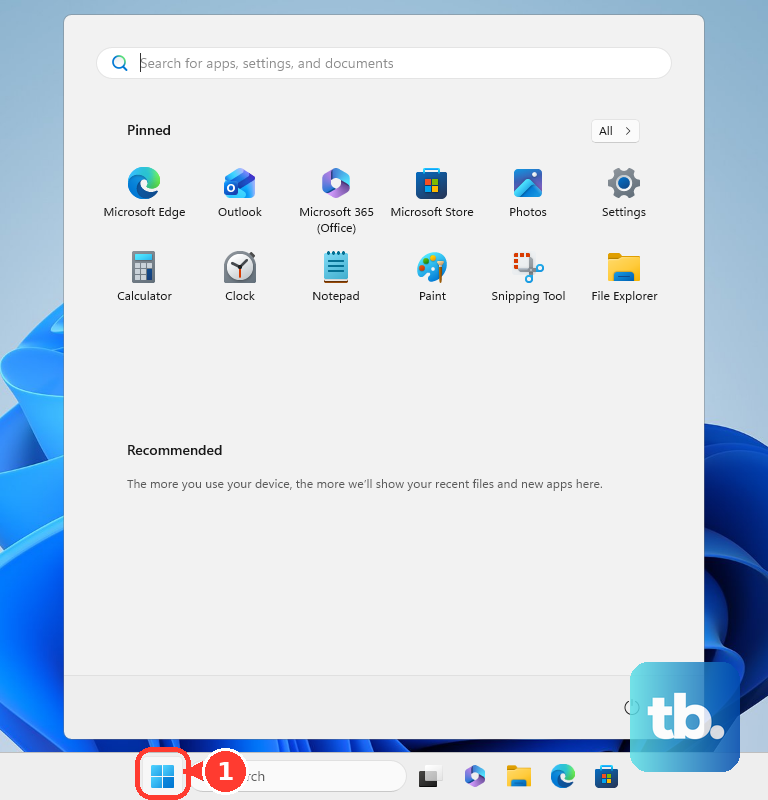
Open Start, type AMD Software, then select AMD Software.
Search for Metrics, then open Performance Metrics. Under Select Metrics, enable Frame Rate or 99th% FPS. Open the Overlay tab.
Turn on Show Metrics Overlay. Choose the overlay Location, Size, Columns, Transparency, and Text Color. Use AMD Software hotkeys to show or hide the metrics overlay in games. Use the current Adrenalin Performance Metrics path above instead of older Radeon Overlay hotkey instructions.
5. Use the game's own FPS counter
In Apex Legends, open Settings, select the Gameplay tab, then set Performance Display to On; FPS and ping appear in the top-right corner. In Battlefield games that expose the option, open the Options menu, go to Networking, then turn on the performance or network data points you want, including FPS.
In supported Frostbite-engine EA games, press ~, enter PerfOverlay.DrawFps 1, then press Enter; use PerfOverlay.DrawFps 0 to turn it off. In F1 24, go to Settings, open Graphics Settings, choose Benchmark Mode, then select Run Benchmark Test; FPS is shown during the benchmark rather than regular gameplay.
In a supported Ubisoft Connect PC game, press Shift+F2, then select the Stats tile to view the current framerate. In a game launched from GOG GALAXY with the overlay enabled, press Shift+Tab to open the overlay, then press Ctrl+Shift+Tab to toggle the FPS counter.
6. Try a dedicated FPS overlay for deeper testing
This fixes cases where a store, Windows, or GPU overlay does not give enough performance detail. For broad performance telemetry, download Intel PresentMon from Intel Gaming Access, install and run PresentMon, configure its customizable overlay with real-time performance charting, then launch the game.
For NVIDIA FrameView, install FrameView from NVIDIA's FrameView page, run it, configure the real-time overlay or logging, then open the game or graphics app to view FPS and frame-time metrics or save logs.
For MSI Afterburner, download MSI Afterburner only from MSI, include RivaTuner Statistics Server during installation when offered, then open Settings, select Monitoring, choose Framerate, and enable Show in On-Screen Display. Launch the game with the overlay tool running and check the on-screen readout.
7. Check FPS in browser games and web animations
For Chrome, open the page, press Ctrl+Shift+P on Windows or Linux, type Rendering, select Show Rendering, then enable Frame rendering stats. The Frame rendering stats overlay shows real-time FPS in the viewport.
For Microsoft Edge, open the page, right-click and choose Inspect, then, if the Quick View panel is not already showing, select Customize and control DevTools > Toggle Quick View panel. On the Quick View toolbar, select More tools > Rendering, then enable Frame Rendering Stats. These DevTools counters are for webpages, browser games, and web animations, not native PC games.
8. Read FPS from a gaming monitor
On supported ASUS gaming monitors, press the monitor OSD button, open OSD menu, go to System Setup, select GamePlus, turn it ON, press the GamePlus hotkey, choose FPS Counter, then confirm. On supported Dell Gaming or Alienware monitors, open the monitor OSD menu, go to Game, choose Game Enhance Mode, then select Frame Rate or Refresh Rate.
Use the same Dell path and set Frame Rate or Refresh Rate to Off when you want to remove the readout. Monitor OSD counters can show refresh-rate style readouts, so use a software counter when you need the game's rendered FPS.
9. Skip old FPS counter advice
Do not rely on Fraps as your main recommendation on a current PC; its vendor download page lists Windows XP, 2003, Vista, and Windows 7, not current Windows 11 support. Do not follow older GeForce Experience FPS-counter paths as the current NVIDIA method; NVIDIA now directs users to NVIDIA App, and the current shortcut is Alt+R after enabling In-Game Overlay.
Treat Intel Arc Control overlay advice as older or transition-era unless Arc Control is already installed; Intel PresentMon is Intel's current cross-vendor performance overlay. On work, school, or family-managed PCs, Game Bar recording and broadcast features may be disabled by policy, so use an allowed game, GPU, browser, or monitor counter instead.
Frequently Asked Questions
What is the fastest way to check FPS on Windows?
Use Xbox Game Bar first: press Windows logo key + G, open Widget menu > Performance > FPS, request access if prompted, then restart when required.
Can Steam show FPS in non-Steam games?
Steam's basic FPS counter works for Steam games and many non-Steam games launched through Steam, as long as the Steam Overlay is enabled.
Should I use a monitor FPS counter or a software FPS counter?
Use software for the most useful game FPS reading. Monitor OSD counters can display refresh-rate style information, especially with variable-refresh features.
What should NVIDIA users use instead of GeForce Experience?
Use NVIDIA App. Enable Settings > Features > In-Game Overlay, then press Alt+R in a game to toggle the statistics overlay.
Can Chrome or Edge show FPS for PC games?
No. Chrome and Edge DevTools FPS meters are for webpages, browser games, and web animations, not native PC games.