
The Galaxy Z Fold 7 uses two battery cells folded into its hinge area, which gives it unique charging behaviors compared to a standard slab phone. If you notice it stopping at 45% or draining faster than expected, the fix is usually a calibration reset or a setting change.
Check Battery Status in Device Care
Open Settings > Battery and device care > Battery. Samsung's One UI 7.1 on Android 15 shows a battery health indicator here. It won't give you an exact percentage like some other phones, but it will tell you if the battery is Normal, Weak, or needs servicing. If it says Weak, the cells are degrading.
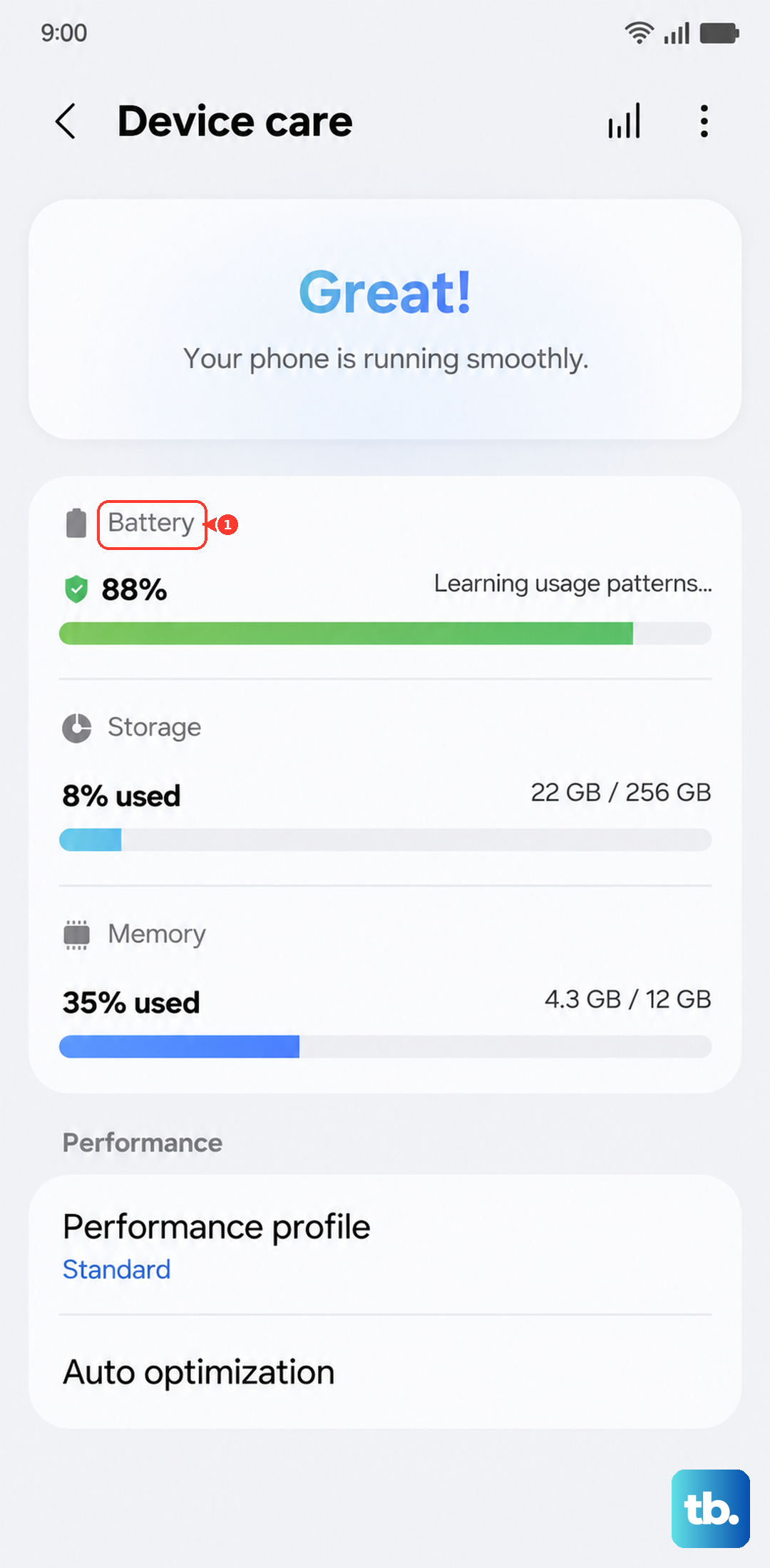
Because the Z Fold 7 packs two separate battery packs, the software monitors the balance between them. If one cell drifts too far from the other in voltage, the device flags it in this menu.
Run the Samsung Members Diagnostic
The pre-installed Samsung Members app provides a more technical breakdown. Tap Get help > Interactive checks > Battery. This runs a voltage and current test across both cells.
If your Z Fold 7 is shutting down early or struggling to hold a charge, this diagnostic usually catches it before the basic Device Care menu does. It's the most reliable way to confirm a battery issue on a foldable.
Fix the "Stuck at 45%" Charging Bug
A known issue specific to the Z Fold 7 is the phone stopping its charge at around 45%. This isn't a hardware failure. It's typically a calibration hiccup caused by the voltage imbalance between the two battery cells.
Start with a forced restart. Press and hold the Volume Down and Side buttons simultaneously for 10 seconds until the device restarts.
If the problem persists, drain the phone completely until it switches off by itself. Then charge it uninterrupted to 100% using a certified Samsung 25W USB PD PPS charger. Do not unplug it during this cycle. This recalibrates the battery gauge software.
Enable Battery Protection Modes
The easiest way to extend the lifespan of your Z Fold 7's battery is to cap the maximum charge. Go to Settings > Battery and device care > Battery > More battery settings > Battery protection.
You have three options. Basic stops at 100% and resumes charging later to top off before your alarm. Adaptive learns your sleep schedule and holds the charge at 85% until you wake up. Maximum hard caps the charge at 80% at all times.
Because the Z Fold 7 generates more heat than a typical phone due to its hinge mechanism, using Adaptive or Maximum protection significantly slows down battery aging.
Optimize Wireless and Wired Charging
The Z Fold 7 supports 25W wired and 15W wireless charging. That wired speed is slower than many competitors, which is actually gentler on the battery by design.
Wireless charging can be tricky on this phone. The charging coil is positioned in the lower half of the device, and some generic Qi pads fail to align properly. If your phone doesn't charge wirelessly, try repositioning it. Stick to Samsung's Wireless Charger Pad or a Qi-certified pad that explicitly lists Z Fold series compatibility.
Clean the USB-C Port
If your phone charges slowly or loses connection frequently, inspect the USB-C port. Dust and pocket lint accumulate easily on foldable phones because the port is exposed more often during daily handling.
Use a can of compressed air or a non-conductive plastic tool to gently clear debris. A dirty port is the most common cause of charging failures and intermittent connection issues on the Z Fold 7.
Recover from Deep Discharge
Letting the battery drain to 0% and sit for several days can trigger a deep discharge state. If your Z Fold 7 won't turn on after being dead for a while, plug it into a wall charger and let it sit for 30 minutes.
Sometimes the software gets confused during deep discharge recovery. While it's plugged in, hold Volume Down + Side for 10 seconds to force a hardware wake-up. This usually jumpstarts the charging process.