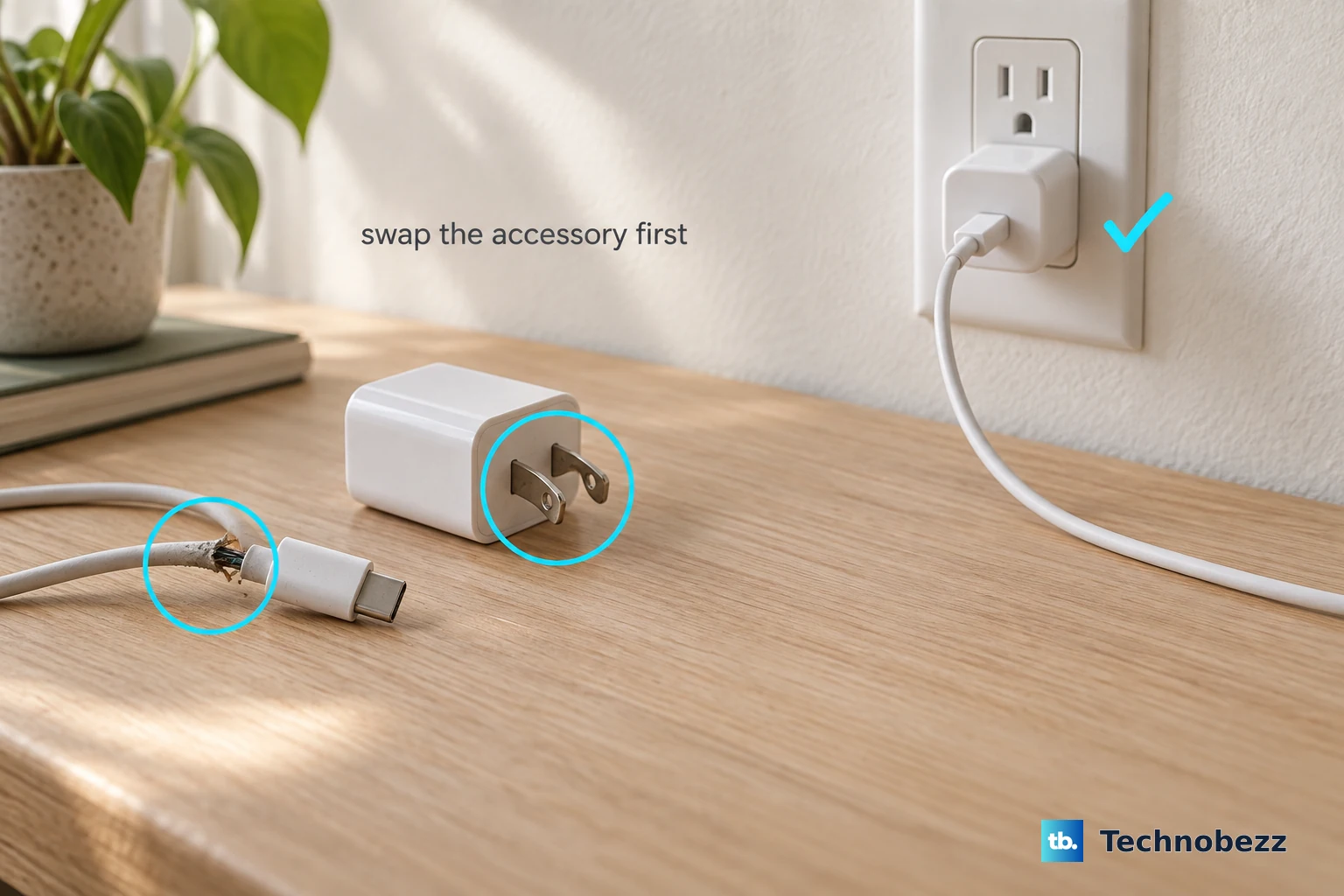
So your Samsung Galaxy S25 Edge isn't charging. You've plugged it in, maybe wiggled the cable, and nothing's happening. This is one of the most common problems with any phone, and the good news is it's almost always something you can fix at home without a trip to the repair shop.
Whether you're dealing with a USB-C port that won't cooperate, wireless charging that's stopped working, or a phone that just sits there looking dead, let's walk through the fixes from quickest to most involved.
Force Restart Your Galaxy S25 Edge
This is always the first thing to try. A force restart clears out temporary software glitches that might be blocking the charging connection. It takes about 10 seconds and works more often than you'd think.
Press and hold Volume Down and the Side (power) button simultaneously for about 10 seconds until the Samsung logo appears. Once it boots back up, plug it in and see if the charging indicator shows up.
If the phone was completely dead, leave it plugged in for a few minutes first before trying the force restart. Sometimes the battery needs a tiny bit of juice before it can respond.
Clean the USB-C Charging Port
This fix solves the problem for a surprising number of people. The USB-C port on the Galaxy S25 Edge is a perfect little pocket for lint, dust, and pocket debris. Over time, all that gunk packs in tight and stops the cable from making a solid connection.
Grab a flashlight and take a close look inside the port. If you see anything in there:
- Turn off the phone first
- Use a wooden or plastic toothpick to gently scrape out the debris
- Try compressed air from a safe distance, but don't blow into it with your mouth (moisture bad)
- Tap the phone gently with the port facing down to shake loose anything stuck
- Never use metal tools, paper clips, or anything sharp that could damage those tiny pins inside
This is especially likely if you've noticed that charging is intermittent, working only when the cable is held at a certain angle. That's a classic sign of debris in the port. If it still feels loose after cleaning, you might be dealing with a damaged port that needs a technician.
Try a Different Cable and Charger
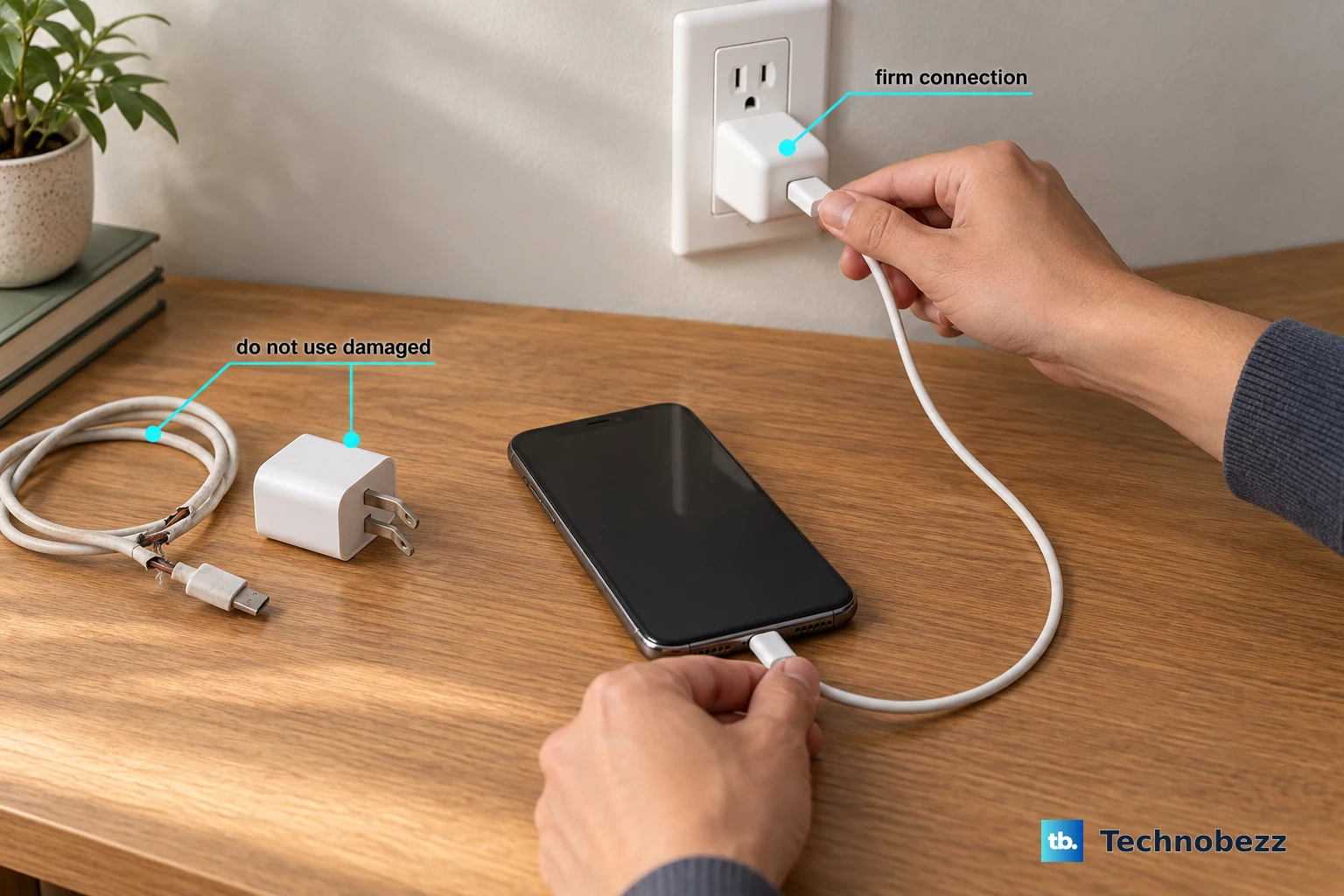
The Galaxy S25 Edge supports up to 25W wired charging, but only with a compatible charger and cable. You need to figure out whether the problem is your cable, your adapter, or the wall outlet.
- Try a different USB-C cable, preferably one that supports fast charging
- Test with the original Samsung 25W charger that came with the phone, or another PD/PPS compatible adapter
- Plug into a different wall outlet entirely
- Try charging from a laptop or computer USB-C port
- Remove your phone case, especially if it's thick or has a magnetic mount built in
If your phone charges fine with a different cable or adapter, you've found the problem. It's worth noting that some third-party chargers don't play well with Samsung's charging protocol and may default to slow charging speeds or not work at all.
Check for Overheating Issues
The Galaxy S25 Edge will limit or completely stop charging if it gets too hot. This is a built-in safety feature to protect the battery, but it can be confusing when your phone just refuses to charge for no apparent reason.
If the phone feels warm to the touch, especially near the back or around the camera area, that's likely what's happening. Move it to a cooler spot out of direct sunlight, remove any case, and let it sit for 15-20 minutes before trying again. Wireless charging can also generate more heat than wired, so if you're using a Qi pad, that might be contributing.
Some Galaxy S25 Edge users have reported that fast charging (the full 25W) generates noticeable heat. If you're in a warm room or the phone was under heavy use before plugging in, this can trigger the temperature protection pretty quickly.
Try Wireless Charging to Test the Port
If wired charging isn't working at all, try placing your Galaxy S25 Edge on a Qi wireless charger. The S25 Edge supports up to 15W wireless charging, and this can help you figure out whether the problem is the USB-C port itself or something else.
A few things to keep in mind:
- Make sure the charger is properly aligned, the charging coil is usually in the center of the phone
- Remove any thick cases or anything with metal plates, they block the wireless signal
- Use a charger that outputs at least 10W for reasonable speeds
- If the phone gets warm on the wireless pad, it may slow down or pause, that's normal
If wireless charging works fine but the USB-C port doesn't, your port likely needs cleaning (see step 2) or potentially repair. If neither method works, the issue is probably with the battery or internal charging circuitry.
Charge With the Phone Turned Off
Sometimes a background app or service goes rogue and interferes with the charging process. Turning the phone completely off eliminates that possibility. Power down your Galaxy S25 Edge, then plug it in. If it starts charging normally, you know it's a software issue.
This is also the fastest way to charge when you're in a hurry. No screen, no background processes, nothing drawing power. The phone will charge at its full rated speed until you turn it back on.
Update to the Latest Software
Samsung occasionally patches charging-related bugs in software updates. If you're running an older version of Android 15 or One UI, an update could resolve the issue.
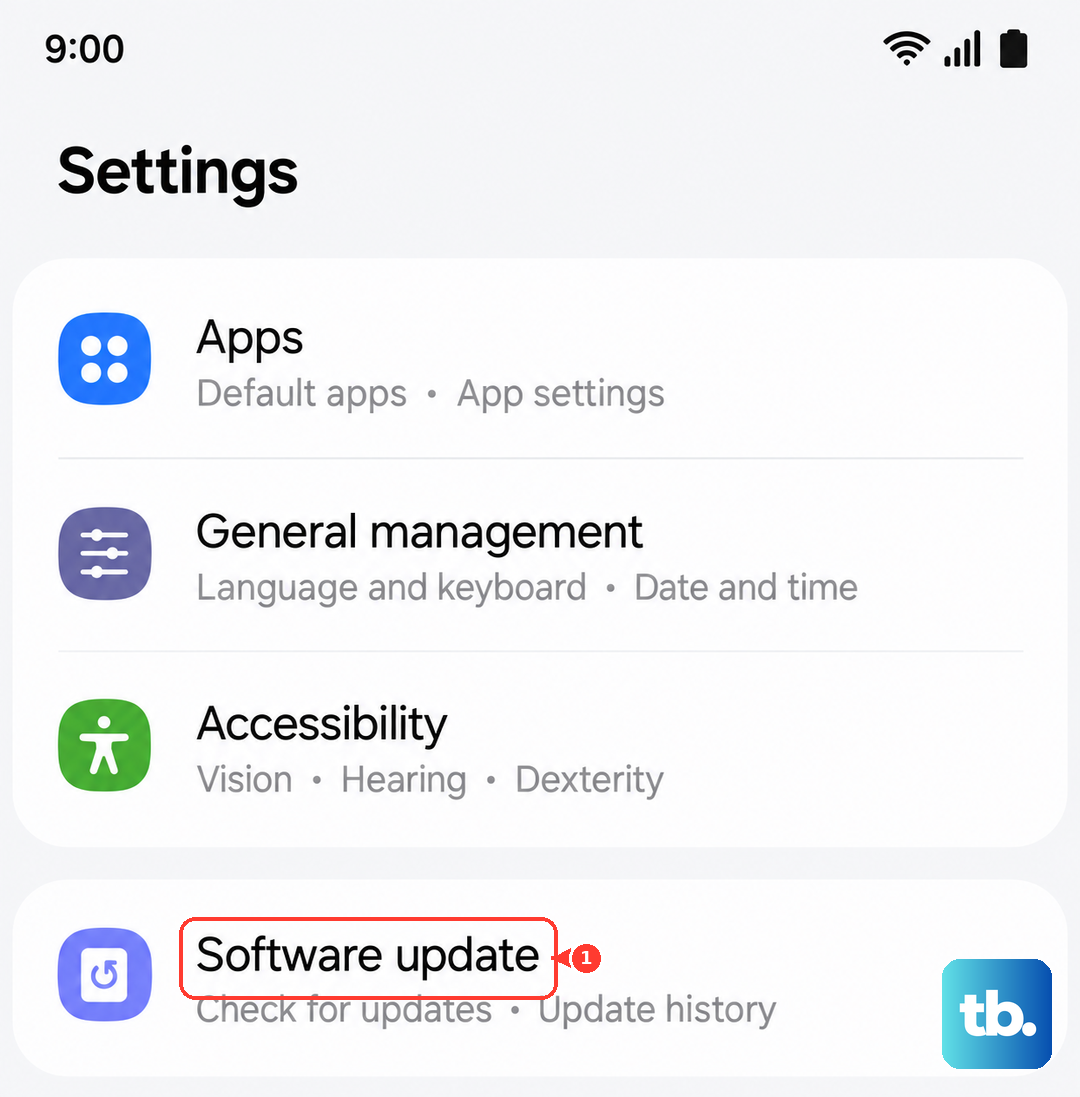
Go to Settings > Software Update > Download and Install. If an update is available, grab it. If your phone won't turn on at all, you can update through a computer using Samsung Smart Switch, but that's a last resort.
Check Your Charging Port for Damage
Take a close look at the USB-C port itself. If the black plastic piece inside looks cracked or broken, or if any of the pins appear bent or missing, that's a hardware problem. Similarly, if the cable feels loose when plugged in even after cleaning, the port may have worn out over time.
The Galaxy S25 Edge's USB-C port is soldered to the main board, so this isn't a DIY repair for most people. If you suspect physical damage, you're looking at a service center visit.
Factory Reset as a Last Resort
If you've tried everything else and your phone still won't charge properly, a factory reset can wipe out deep software corruption that might be interfering with power management. Back up your data first, this erases everything.
Go to Settings > General Management > Reset > Factory Data Reset. After the reset, test charging before restoring your apps, just to confirm whether the fix worked. If it still doesn't charge, you're dealing with a hardware issue that needs professional attention.