
Your Galaxy Z Flip 7's battery is a crucial component, and tracking its health helps you get the most out of your foldable. Samsung includes several built-in tools to check battery status and optimize charging. Here's how to use them specifically on the Z Flip 7.
Find Battery Health in Device Care
Open Settings > Battery and device care > Battery. On the Z Flip 7 running Android 16, you'll see a battery section with diagnostics. Tap Battery health or look for a status indicator, Samsung might label it "Normal," "Weak," or "Replace soon." It won't give you an exact percentage like some other phones, but this tells you whether the battery is still in good shape.
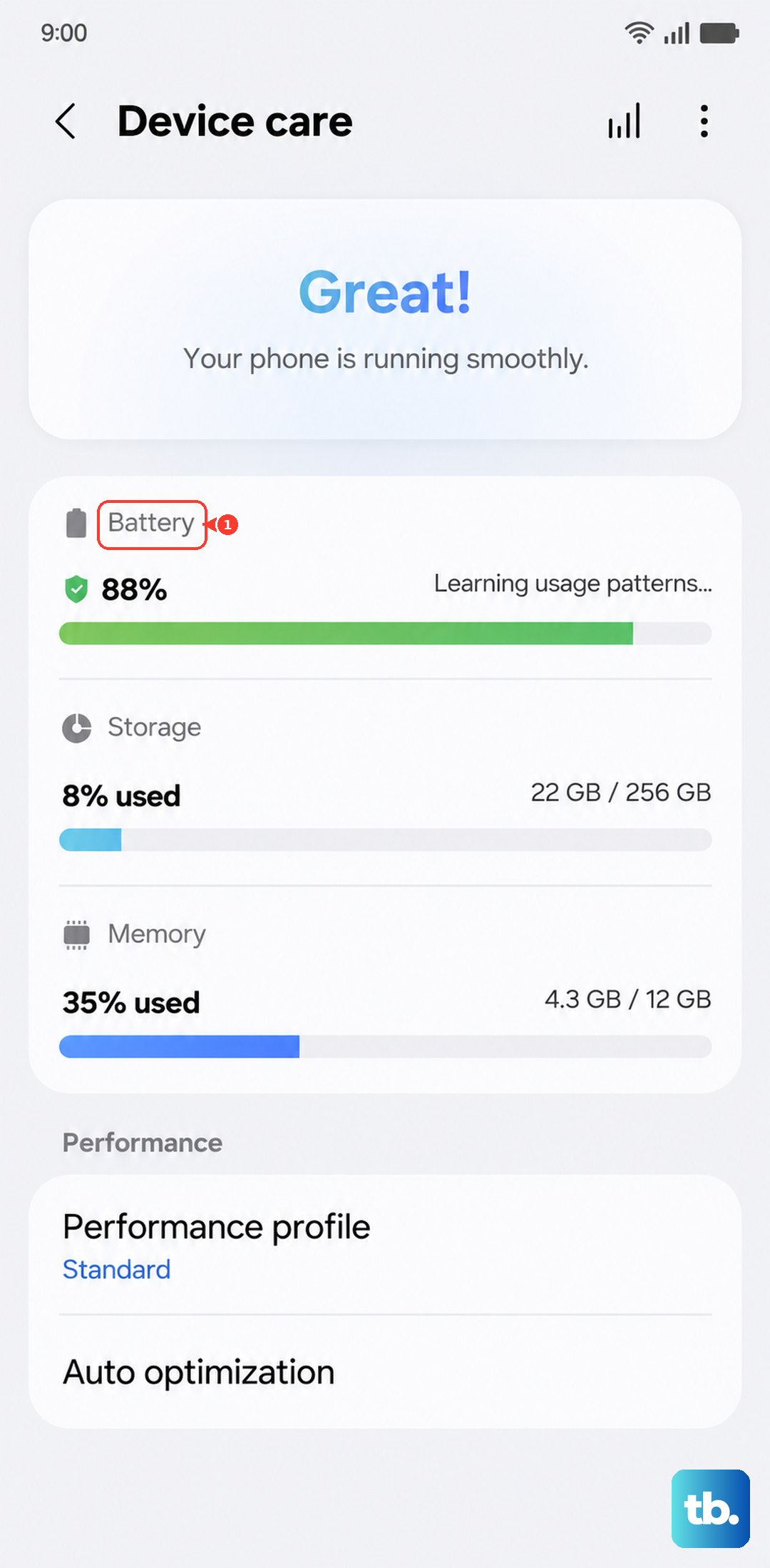
If you don't see a health indicator, the phone might need an update or the feature is region-locked. In that case, use another method below.
Check Deeper Diagnostics with Samsung Members
The Samsung Members app comes pre‑installed on the Z Flip 7. Open it, tap Get help (or the Support tab), then choose Interactive checks > Battery. The app runs a quick test and reports the battery's condition, charging capacity, and any potential issues.
This is the most reliable way to get a clear health verdict without guesswork. If you see "Good," your battery is fine. If it says "Weak," start planning a replacement.
See Which Apps Are Draining the Battery
Head to Settings > Battery and device care > Battery and scroll to Battery usage. You'll get a list of apps consuming power since the last full charge. Tap any app to break down screen time vs. background usage.
If an app you barely open shows high background drain, especially after the Z Flip 7's latest software update, consider putting it to sleep or limiting its background activity. Go to Settings > Battery and device care > Battery > Background usage limits and add the app to the "Sleeping apps" list.
Use the Hidden Diagnostic Code
Open the Phone app and dial *#0228#. This pulls up a hidden Samsung diagnostic menu. You'll see voltage, temperature, and a few other data points. While it doesn't display a health percentage, a significantly lower voltage at full charge (for example, below 4.2V) can hint at degradation.
This menu is a quick way to check if your battery is acting normally without installing extra apps.
Turn On Battery Protection
Go to Settings > Battery and device care > Battery > More battery settings and toggle Battery protection on. The Z Flip 7 offers three modes: Basic (charges to 100% but pauses at 80% for a while to reduce stress), Adaptive (learns your routine and stops at 80% until you wake up), and Maximum (caps at 80% all the time).
Using Adaptive or Maximum protection significantly extends the battery's lifespan. Given the Z Flip 7's 25W wired charging speed, you'll still get a full charge quickly when you need it.
Optimize with Adaptive Battery
Inside the Battery settings, enable Adaptive battery. This feature learns which apps you use most and limits battery for the ones you rarely open. It's especially useful on a foldable like the Z Flip 7, where you might have different usage patterns when using the main screen versus the cover screen.
Also turn on Power saving when you don't need full performance. It reduces background activity, lowers screen brightness, and limits CPU speed without killing your phone's core functions.
Fix Intermittent Charging That Hurts Battery Health
The Z Flip 7 has a known bug where charging stops mid‑session, especially on some wireless chargers. If you notice the phone isn't charging reliably, first try a soft reset: press and hold Volume Down + Side key for 10 15 seconds until the device restarts. This clears temporary glitches without affecting your data.
For wireless charging, make sure the Z Flip 7 is centered on the pad, its smaller coil area requires precise placement. Use Samsung's official wireless charger to get the full 15W speed; third‑party pads may deliver less power or disconnect randomly. If wired charging stops at 99% or won't reach 100%, unplug the USB‑C cable, wait a few seconds, and plug it back in. Samsung has acknowledged this pre‑order issue and is working on a software fix.
Keep the Battery Healthy Over Time
Avoid extreme heat, don't leave the Z Flip 7 in a parked car or charge it under a pillow. Use the included USB‑C cable and a certified 25W adapter (or a compatible USB‑PD charger). Enable Battery Protection as described above. Try not to drain the battery to 0% every day; a top‑up between 20% and 80% is ideal for lithium‑ion cells.
If you notice rapid drain after a software update, give it a few days, the phone's algorithms re‑learn your usage after each major update. After that, check the diagnostic tools to see if the battery health has declined.