
Your Samsung Galaxy Z Fold 7 has one of the most power-hungry displays on the market right now. When the battery starts draining before the day is even half over, the large screen is usually the first suspect. But there are a few other common culprits specifically tied to the Z Fold 7 that are worth checking first.
Fix the 45% Charging Calibration Issue
If you've noticed your phone stops charging at around 45%, you're not imagining things. This is a known calibration issue specific to the Z Fold 7. The fix is usually straightforward: let the battery drain completely until the phone shuts off, then charge it to 100% without interruption. Doing this once can often reset the battery gauge and restore normal charging behavior.
If draining the battery doesn't do the trick, perform a forced restart first. Press and hold the Volume down and Side buttons simultaneously for 10 seconds until the device restarts. This clears out temporary software hiccups that might be interfering with the battery gauge.
Check Battery Usage by App
Go to Settings > Battery and device care > Battery > Battery usage. You'll see a list of apps and their power drain over the last 24 hours. If a specific app stands out with unusually high usage, it may have a bug or poor Android 16 optimization. Update the app first, and if the drain continues, consider restricting its background activity or uninstalling it.
A deep discharge can also knock the battery calibration off. If your Z Fold 7 dies unexpectedly or reports inaccurate percentages, a forced restart followed by a full discharge and recharge cycle usually sorts it out.
Cut Down on Display Power
The 8.0-inch inner display is gorgeous, but it's the No. 1 battery drain on this phone. Dark Mode makes a measurable difference on OLED screens because black pixels are literally turned off. Turn it on in Settings > Display > Dark mode.
Set the screen timeout to 30 seconds or 1 minute so the display shuts off quickly when you aren't looking at it. Adaptive brightness is worth leaving on to avoid manually maxing out the screen in bright conditions. If you keep the cover display closed, the outer screen uses far less power by nature.
Limit Background Activity and Location
One UI has a powerful background limiter built in. Head to Settings > Battery and device care > Battery > Background usage limits. Turn on "Put unused apps to sleep" and manually add any battery-heavy offenders to the "Sleeping apps" list. This stops them from running tasks or syncing data when you aren't actively using them.
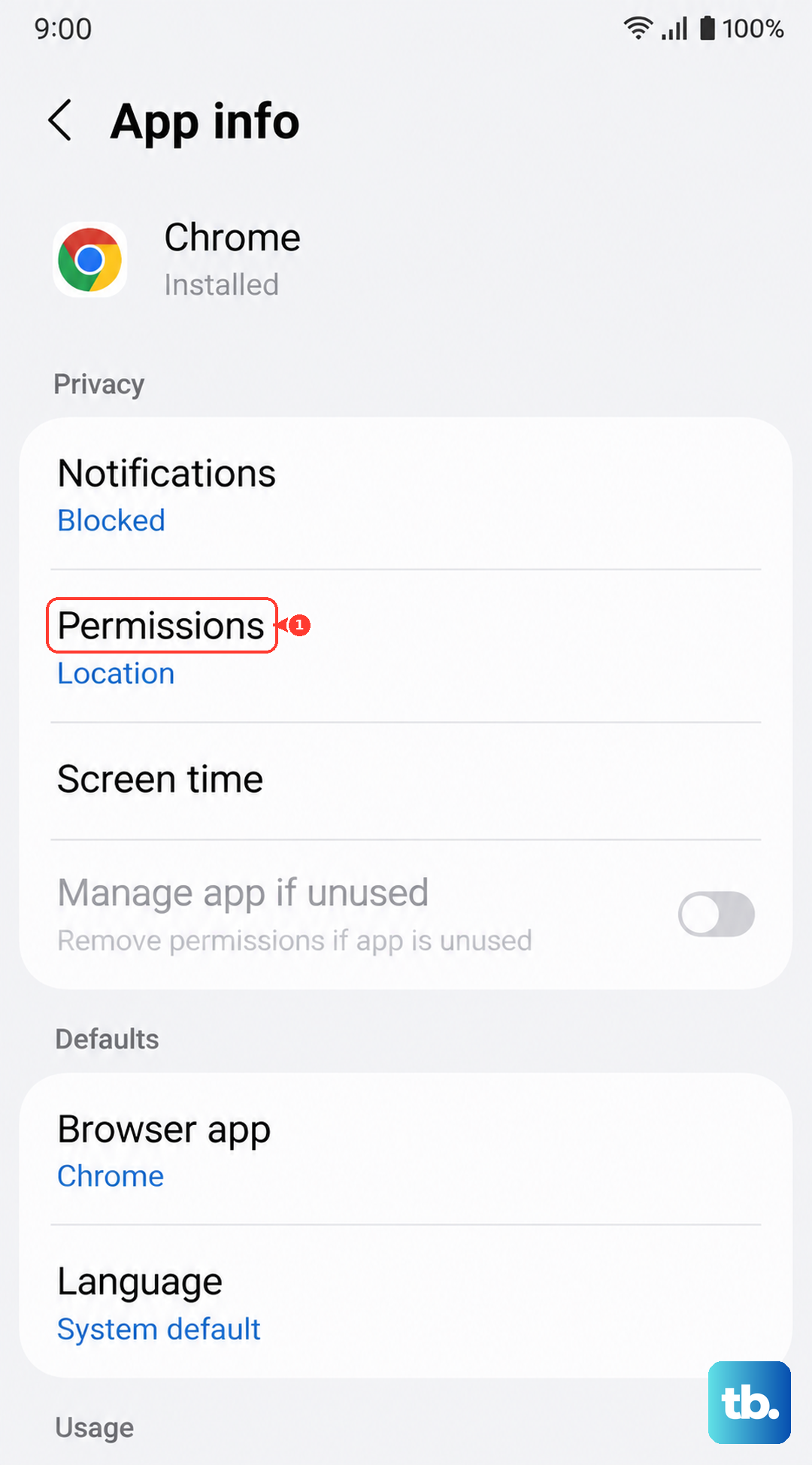
Turn off features you aren't actively using. If you're home on Wi-Fi, toggle off mobile data and Bluetooth from the quick panel. The Z Fold 7 is constantly scanning for signals, and that adds up over the course of a day. Location services is another big one. Go to Settings > Location > App permissions and set it to "While using the app" for everything that doesn't need constant background access.
Use the Right Charger and Cable
Before you even plug in, inspect the USB-C port at the bottom of the Z Fold 7. Pocket lint and debris can get compacted inside and prevent the cable from seating properly. Use a can of compressed air or a very gentle puff of air to clear it out. Don't stick anything sharp in there or you could damage the pins.
The Z Fold 7 charges at a max of 25W wired. That's slower than most flagships today, so jumping on a charger early in the day is a good habit. More importantly, stick to USB PD PPS certified chargers and cables. Using a cheap or uncertified charger can prolong charging times and potentially degrade battery health faster over time. For wireless charging at 15W, make sure your pad is Qi certified and the Z Fold 7 is centered on the coil. Some pads struggle with the phone's specific coil placement, so try repositioning it if wireless charging is slow or inconsistent.
Reset Settings as a Last Resort
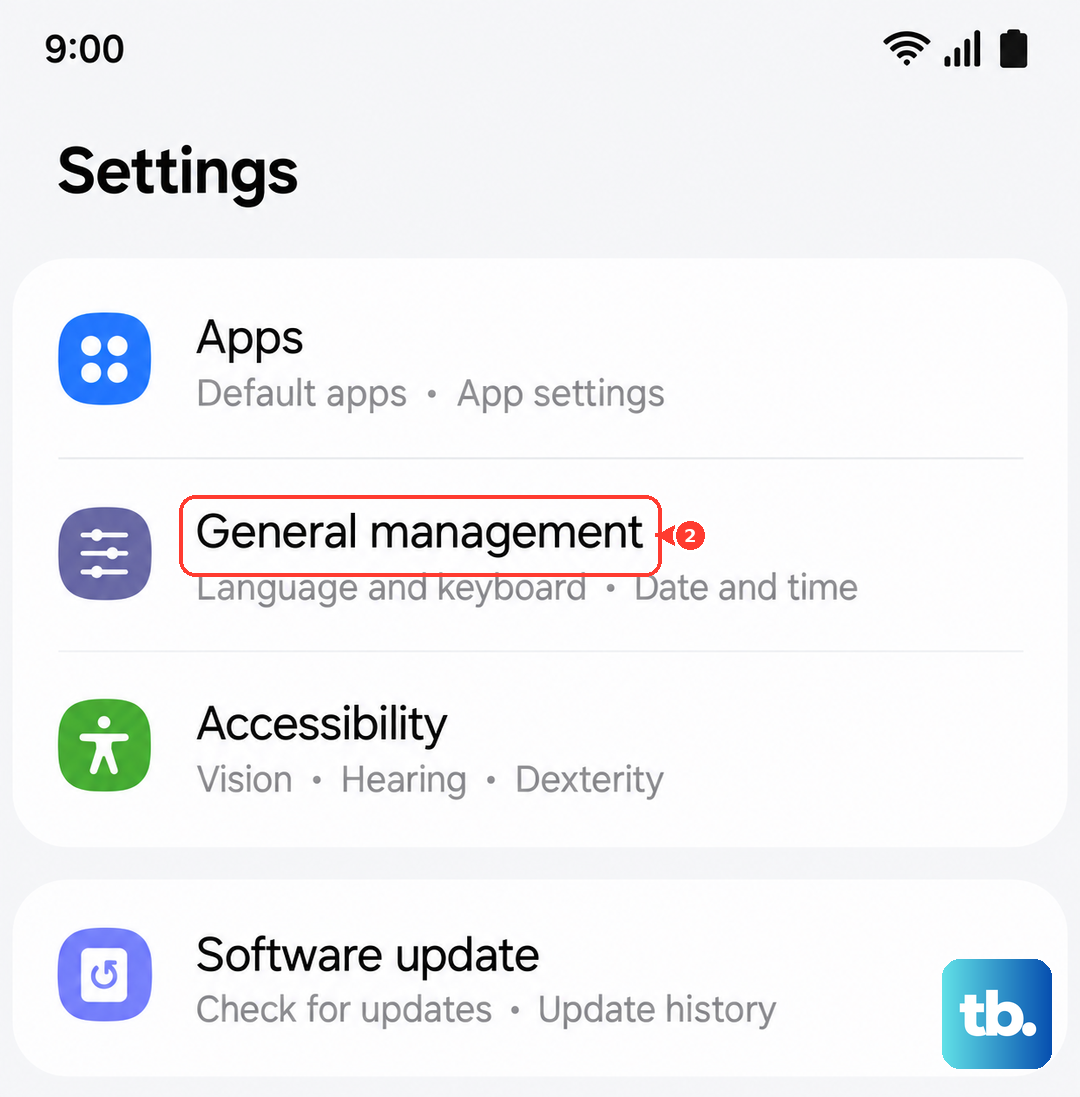
If you've tried everything and the drain persists, a settings reset can clear up configuration conflicts without wiping your data. Go to Settings > General management > Reset > Reset all settings. You won't lose your photos or personal files, but you'll need to re-enter Wi-Fi passwords and redo your home screen layout. It's a solid middle-ground before a full factory reset.
Sometimes the drain isn't hardware at all. A buggy software version can chew through battery overnight. Go to Settings > Software update and check if you're on the latest build. Samsung regularly pushes patches for Android 16 that address battery performance and known charging issues like the 45% bug. Keeping the phone updated is always the easiest fix to try first.