
Your Samsung Galaxy Tab S9's battery is a powerhouse, but like all batteries, its capacity slowly decreases with each charge cycle. Knowing its health helps you understand your tablet's endurance and decide if you need to change your charging habits or consider a service. Samsung provides several built-in ways to check on your battery's status.
I'd start by checking the battery usage stats, as that often gives you the most practical insight into why your tablet might be draining faster than expected.
Check Battery Usage by App
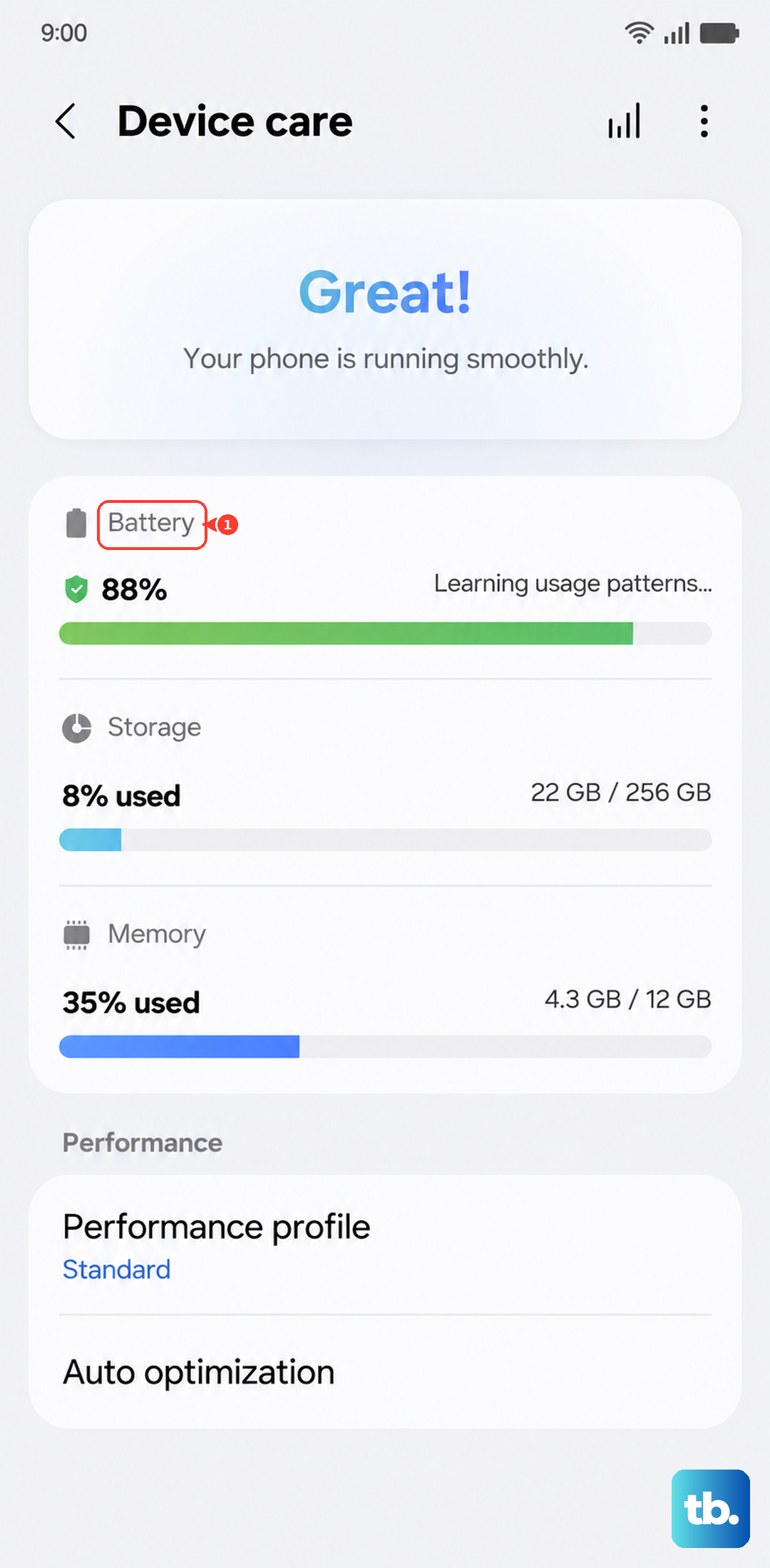
Head to Settings > Battery and device care > Battery. On this screen, tap on Battery usage. You'll see a detailed breakdown of which apps and services have consumed the most power since your last full charge.
Tap on any app to see a split between screen-on time and background activity. If you spot an app you rarely use guzzling power in the background, that's a clear sign to restrict it.
Run a Battery Diagnostic with Samsung Members
For a more formal health check, open the pre-installed Samsung Members app. Tap on the Get help tab at the bottom, then select Interactive checks. From the list of tests, choose Battery status.
This diagnostic will test your battery and give you a clear "Good" or "Needs attention" status. It's the closest thing to an official battery health check on One UI.
Enable Battery Protection to Extend Lifespan
One of the best things you can do for long-term battery health is right in your settings. Go to Settings > Battery and device care > Battery > More battery settings. Here, tap Battery protection.
You can set it to limit maximum charging to 85%, which significantly reduces wear on the battery cells. For daily use where you have easy access to a charger, this is a smart habit to get into.
Optimize Your Charging Setup
The Galaxy Tab S9 supports 45W Super Fast Charging, but you need the right gear. Using a standard phone charger, often 15W or 20W, will charge your tablet very slowly. For the fastest speeds, use Samsung's official 45W charger.
Also, remember that charging with the screen on is much slower. If you need a quick top-up, let the screen turn off. This is especially critical if you're using Samsung DeX mode, which can consume power faster than a weak charger can supply it.
Use Power Saving and Adaptive Features
Back in Settings > Battery and device care, you'll find tools to stretch your battery life. Tapping Power saving will immediately limit background activity and reduce performance. For a smarter, automatic approach, go to More battery settings and ensure Adaptive battery is on.
This feature learns how you use apps and will gradually restrict battery for ones you don't use often. You can also set Background usage limits to put specific apps to sleep.
Recognizing When a Battery Needs Service
Software can only tell you so much. Pay attention to how the tablet behaves. If it shuts down unexpectedly at 20% or 30% charge, that's a strong sign of a degraded battery. A noticeable bulge in the tablet's frame or a screen that's lifting is an urgent sign to stop using it and seek service immediately.
For less dramatic but persistent issues, like not lasting through a normal day of use anymore, it might be time to look into an official battery replacement through Samsung or an authorized repair center.
General care goes a long way. Try to avoid leaving your Tab S9 in a hot car or direct sunlight. Don't charge it under a blanket or pillow where heat can build up. Combining these habits with the 85% battery protection setting is the best recipe for keeping your battery in good shape for years.