
If your Galaxy A56 isn't lasting as long as it used to, the first thing you want to do is check its battery health. Samsung provides a few built-in tools to do this, and the most comprehensive one is in the Samsung Members app. I'd start there for a clear status report.
Run the Battery Diagnostic in Samsung Members
Open the Samsung Members app, which comes pre-installed on your phone. Tap on the Get help tab at the bottom, then select Interactive checks. From the list of tests, choose Battery to run the diagnostic.
The test will analyze your battery's condition and give you a result. It typically tells you if the battery is "Normal," or if there's an issue detected. This is the most straightforward way to get an official health check from Samsung's own diagnostics.
Review Battery Status in Device Care
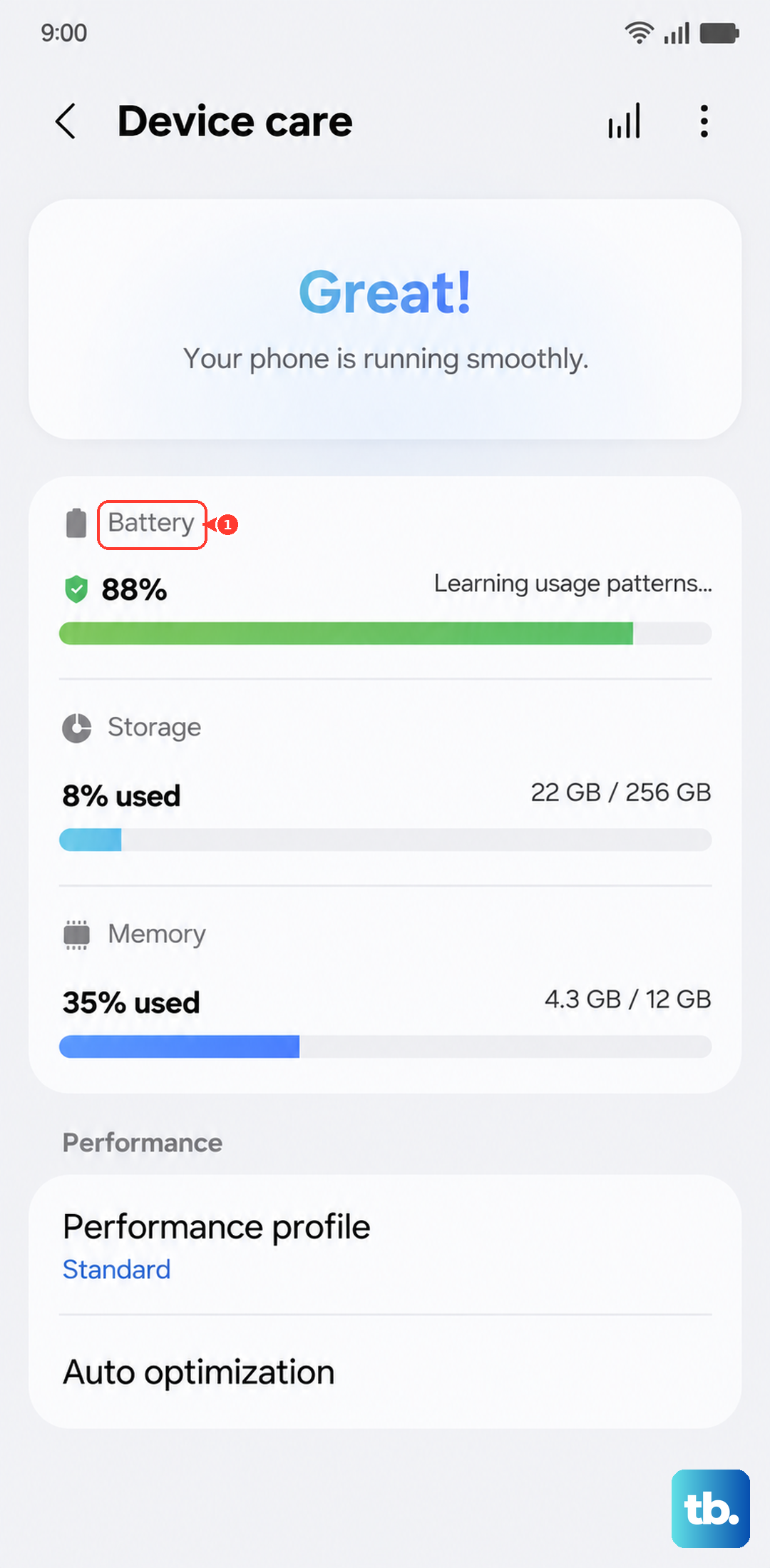
For a quick look, go to your phone's Settings > Battery and device care. Tap on Battery to see the current charge level and an estimate of remaining time. While the A56 on One UI 7 doesn't show a precise health percentage, this screen is your hub for all battery-related settings and optimization.
Scrolling down here, you'll find options for Power saving and Adaptive battery. It's a good place to start managing your battery life if you notice it draining faster than expected.
Check Which Apps Are Using the Most Power
Often, a short battery life isn't about the battery's health but about a misbehaving app. To investigate, go back to Settings > Battery and device care > Battery and tap on Battery usage.
This screen shows a breakdown of power consumption since your last full charge. You can see which apps have used the most battery, and you can tap on any app to see details like foreground and background activity. If you see an app you don't use much high on the list, it might be running excessively in the background.
Use the Hidden Service Menu for Detailed Data
For more technical users, there's a hidden diagnostic menu. Open your Phone app and dial *#0228#. This will bring up a screen with raw battery data like voltage and temperature.
This doesn't give a simple "good" or "bad" rating, but a consistently low voltage reading can indicate the battery is wearing out. Be careful not to change any settings in this menu, as it's meant for diagnostic purposes only.
Enable Battery Protection to Extend Lifespan
To help your battery last longer, Samsung includes a Battery Protection feature. You can find it by going to Settings > Battery and device care > Battery > More battery settings.
Turn on Battery protection. On the A56, this will limit your maximum charge to 85%. While you lose a bit of daily capacity, it significantly reduces wear on the battery cells, helping them stay healthy for years.
Optimize Your Charging Habits
Since the Galaxy A56 doesn't support wireless charging and uses a USB-C port, your charging cable and adapter matter. For the fastest 25W charging, you need to use a compatible 25W USB Power Delivery (PD) charger. Many boxes don't include one, so you may need to buy it separately.
Avoid using cheap, uncertified chargers and cables. Also, if you get a "moisture detected" warning in the USB port, make sure it's completely dry before attempting to charge again. Using a can of compressed air can help clear out any debris.
If your phone is shutting down unexpectedly with charge still left, or the battery life has become unusably short, it's likely time for a replacement. You can get this done through an authorized Samsung service center to ensure you get a genuine battery.