
Missing calls on your Samsung Galaxy A56 can be incredibly frustrating, especially when you're expecting something important. You check your phone and see the missed call notification, but you never heard a sound. This usually comes down to a setting that got changed or a minor software hiccup.
Let's start with the quickest fix. Pull down the notification shade twice to see your quick settings tiles. Look for the sound mode icon. If it shows a speaker with a line through it, your phone is on silent or vibrate. Tap it to switch to sound mode. While you're there, press the volume up button on the side a few times to make sure your ringtone volume isn't turned all the way down.
Check Do Not Disturb and Modes
One UI's Do Not Disturb and Modes features are common culprits. If Do Not Disturb is on, your phone won't ring for calls unless you've made exceptions for certain contacts. You can check this quickly from the quick settings panel or by going into Settings > Modes and routines.
Look at any active Modes, like Sleep or Work. These can automatically silence calls based on your location or the time of day. I'd tap into each one and review the rules to make sure they aren't blocking calls when you don't want them to. You can turn them off temporarily to test if that's the issue.
Verify Your Ringtone and Volume Settings
Sometimes the selected ringtone file itself can become corrupted. Head to Settings > Sounds and vibration > Ringtone. Try switching to a different built-in Samsung tone and then have a friend call you to test it. This simple swap can often resolve the problem immediately.
Also, check the separate volume sliders. Go to Settings > Sounds and vibration > Volume. Ensure the "Call" volume slider is all the way up. There's also a setting called "Use volume keys for media" that, when enabled, means the side buttons only control media volume, not your ringer. You want that option turned off so the buttons adjust your ringtone.
Disconnect Bluetooth and Check Connected Devices
If your Galaxy A56 is connected to a Bluetooth device like headphones, a speaker, or your car, incoming call audio might be routing there instead of to the phone's speaker. Go to Settings > Connections > Bluetooth and toggle it off for a moment, or disconnect from the specific device, then test a call.
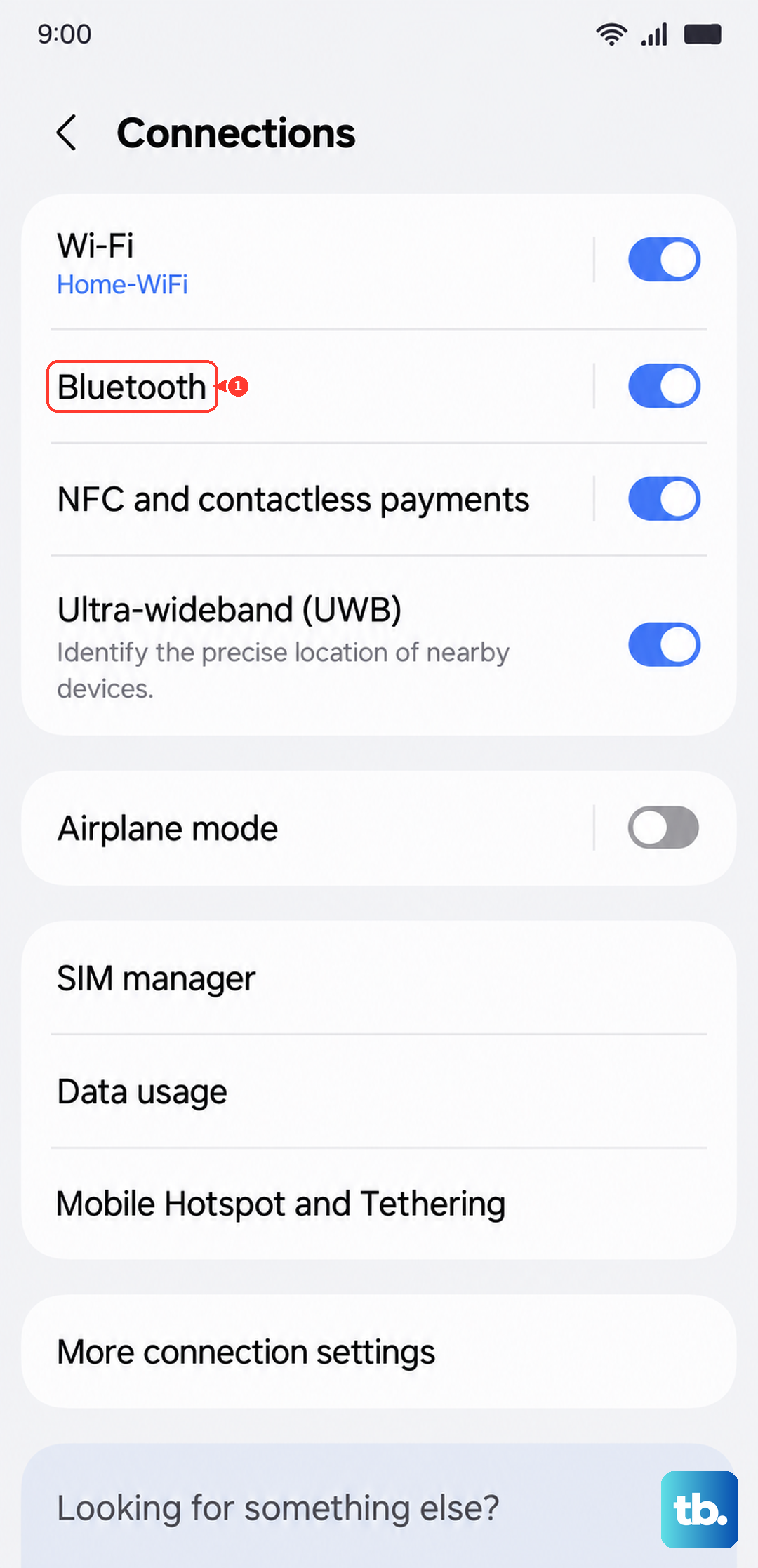
Also, look in Settings > Sounds and vibration > Separate app sound. This feature lets you send audio from specific apps (like your Phone app) to a different output. If it's enabled and set to a Bluetooth device, that would explain the silence.
Review Call Blocking and Screening Settings
Samsung has several features to filter calls. Open your Phone app, tap the three-dot menu, and go to Settings > Block numbers. See if any numbers are accidentally blocked. Also, check for "Caller ID and spam protection" settings which can sometimes send suspected spam straight to voicemail.
Another setting to find is "Silence unknown callers." You can find this in the Phone app's settings menu. When this is on, any number not in your contacts won't make your phone ring. This is great for avoiding spam, but it can cause you to miss calls from new doctors, delivery people, or other legitimate callers.
Force Restart Your Phone
A simple software glitch can often be cleared with a restart. For the Galaxy A56, press and hold the Volume Down button and the Side (power) button together for about 10 seconds. You'll feel a vibration and see the Samsung logo as the phone reboots. This is the same method used on the Galaxy S series and doesn't delete any data.
Check for Software Updates
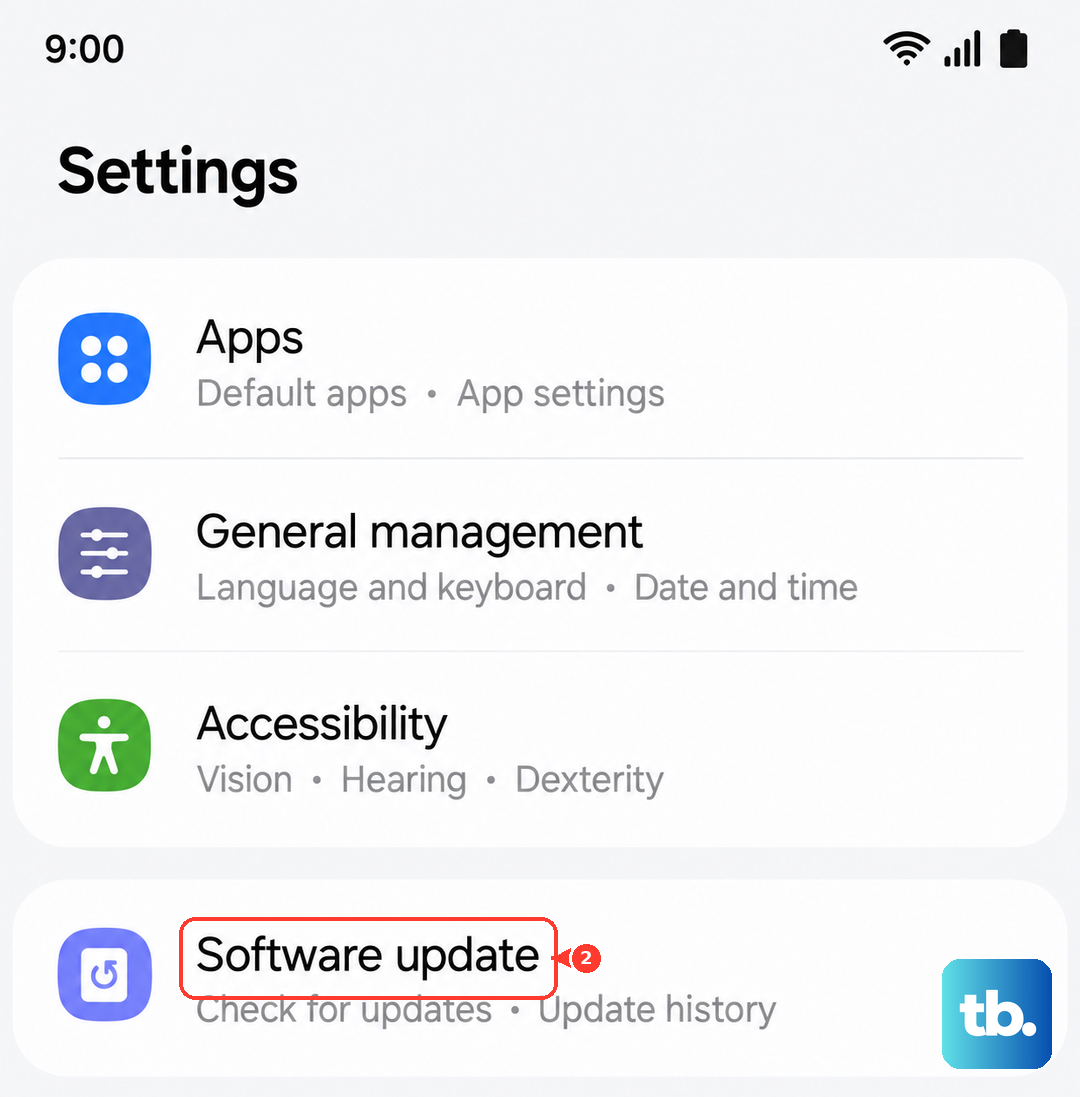
Samsung regularly releases updates that fix bugs, including ones that might affect call audio. Connect to Wi-Fi, then go to Settings > Software update > Download and install. If an update is available, installing it could resolve the ringing issue. Make sure your phone has at least a 50% charge before starting.
Reset App Preferences or Network Settings
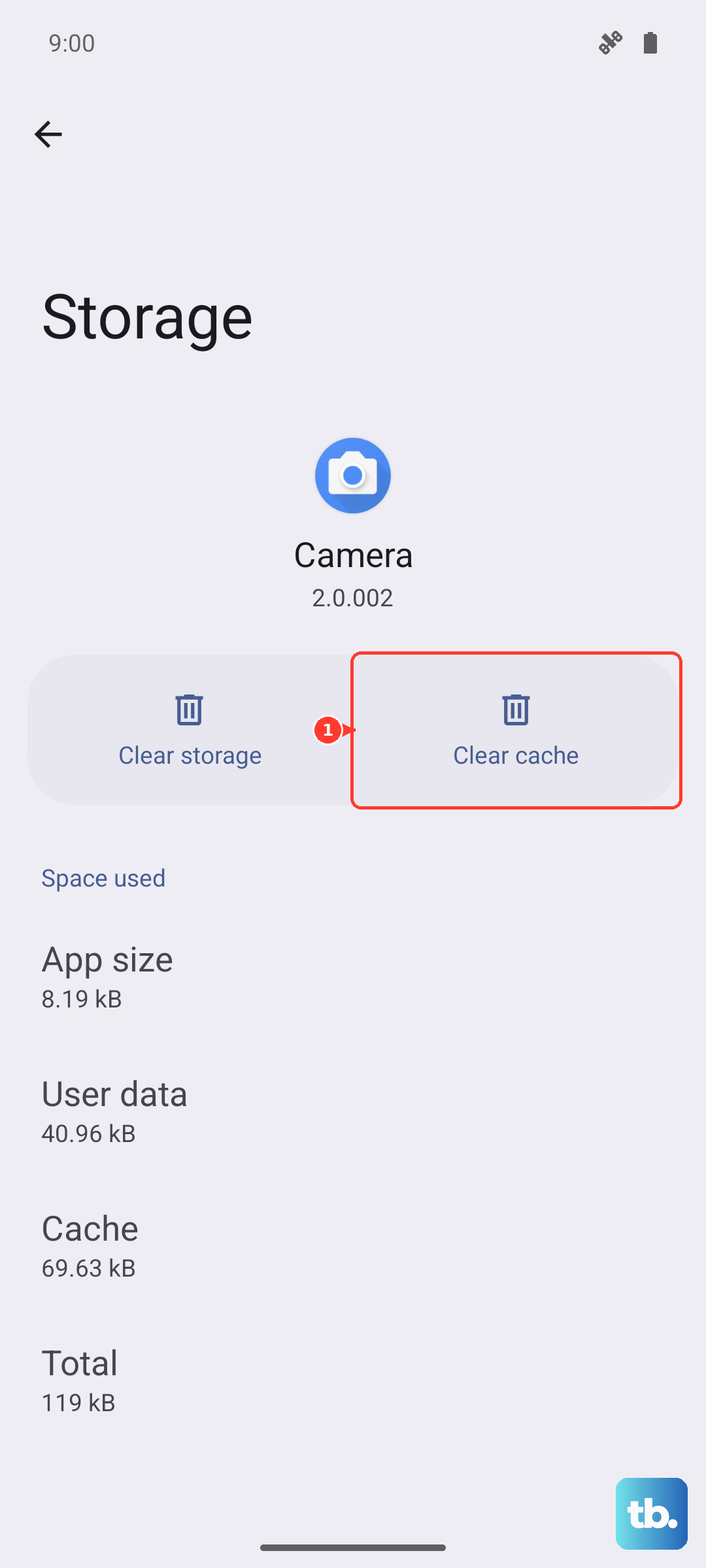
If the problem seems linked to the Phone app specifically, you can reset its preferences without losing your call history or contacts. Go to Settings > Apps, find "Phone" in the list, tap "Storage," and then tap "Clear cache." As a next step, you could tap "Manage permissions" and ensure everything like microphone and phone is allowed.
For broader issues, or if you're also having trouble with call quality, resetting network settings can help. This will erase saved Wi-Fi networks and Bluetooth pairings. Go to Settings > General management > Reset > Reset network settings. You'll need to re-enter Wi-Fi passwords afterward.
Examine SIM Card and Network Connection
Remove the SIM card tray using the ejector tool and take out the SIM card. Gently clean the metal contacts on the card with a soft, dry cloth and blow any dust out of the tray slot. Reinsert the SIM card and restart your phone. A poor connection to your mobile network can sometimes manifest as silent calls.
Also, try making a call yourself first. If you can't hear anything during the call either, the issue might be with the earpiece speaker or a more serious audio channel problem. Testing with a wired headset can help narrow it down.
Consider a Factory Reset
If you've tried everything else and your Galaxy A56 still won't ring, a factory reset is the final step. This will erase all data on your phone, so you must back up everything important first. Use Samsung Cloud or Smart Switch to back up your photos, messages, and settings.
Once backed up, go to Settings > General management > Reset > Factory data reset. Tap "Reset" and follow the prompts. After the phone restarts, you can set it up as new to test if calls ring normally before restoring your data.