
Your Galaxy Z Fold 6's battery is its lifeblood, powering both its stunning inner display and cover screen. Over time, like any battery, its capacity will naturally decrease. Knowing how to check its health can help you understand your phone's performance and decide if you need to adjust settings or consider a service. Samsung provides several built-in tools right on the device to give you a clear picture.
Run a Full Diagnostic with Samsung Members
For the most comprehensive check, open the pre-installed Samsung Members app. Tap on the Get help tab at the bottom, then select Interactive checks. From the list of tests, choose Battery status to run the diagnostic. This tool will analyze your battery and report if its condition is normal or if there are any issues detected.
I find this is the most straightforward method Samsung offers for a health check on the Z Fold 6. It doesn't give a percentage like some phones, but a "Normal" status means your battery is operating within expected parameters for its age.
Review Detailed Battery Usage
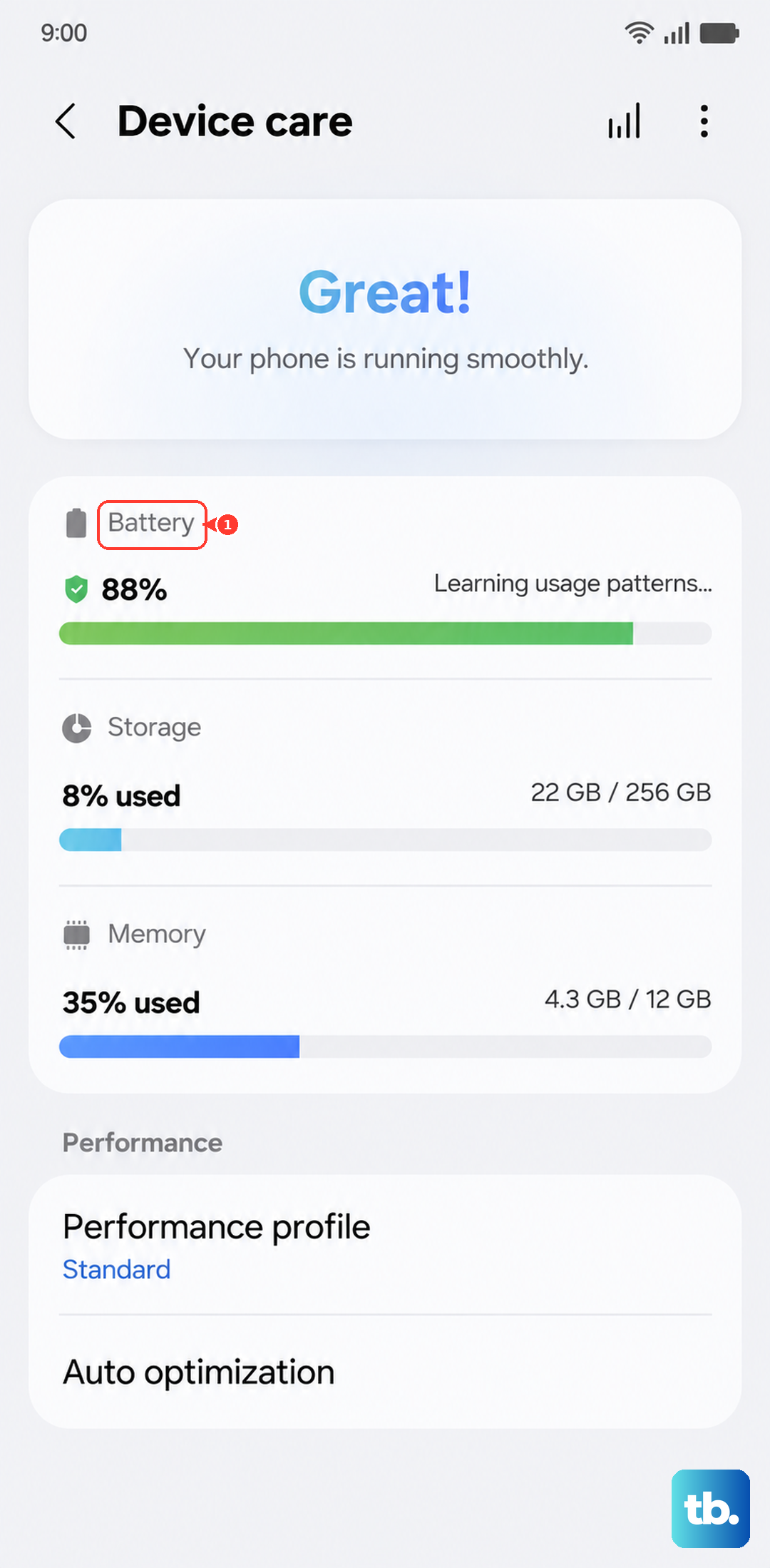
To see exactly what's using power, go to Settings > Battery and device care > Battery. Here, tap on Battery usage. You'll get a detailed breakdown of which apps and services have consumed battery since your last full charge.
This is incredibly useful for spotting power-hungry apps. If you see an app with high background usage that you don't actively use, it might be a candidate for optimization. Tapping on any app lets you set it to Restricted background usage to save power.
Enable Protective Charging Limits
One of the best things you can do for long-term battery health is to limit maximum charge. On your Z Fold 6, navigate to Settings > Battery and device care > Battery > More battery settings. Tap on Battery protection.
You'll have a few options. Basic lets it charge to 100% as usual. I'd recommend selecting Adaptive, which learns your routine and delays finishing the charge past 80% until you need it, or Maximum, which simply caps charging at 85%. Using either of these can significantly reduce wear on the battery cells over hundreds of charge cycles.
Optimize Power with Adaptive Settings
While still in the main Battery settings menu, look for the Power saving and Adaptive battery toggles. Make sure Adaptive battery is on. It uses machine learning to understand which apps you use daily and which you don't, automatically placing unused apps into a deep sleep state to conserve power.
For times when you need to stretch your battery, you can manually enable a Power saving mode. The Z Fold 6 also offers an Enhanced processing option in the same menu, which boosts performance at the cost of higher battery drain, so toggle that off if battery life is a priority.
Use the Hidden Service Menu for Tech Details
There's a hidden diagnostic menu that provides raw battery data. Open your Phone dialer and enter *#0228#. This will launch a service menu showing current battery voltage, temperature, and other stats.
This interface is quite technical and won't give a simple health verdict. However, you can tap the Quick Start button at the bottom, which may help recalibrate the battery percentage reading if it seems inaccurate. Just be sure to exit the menu when you're done.
Recognizing When a Replacement is Needed
Software can only tell you so much. If your Z Fold 6 struggles to last a half-day with your normal use, shuts down unexpectedly at what seems like 20% charge, or takes an exceptionally long time to power up even with the official 25W charger, the battery itself is likely degraded.
Any physical swelling of the device, particularly around the hinge or back cover, is an immediate sign to stop using the phone and contact Samsung Support. For a 2024 device like the Z Fold 6, significant degradation under normal use would be unusual, but it's good to know the signs.
Fold-Specific Battery Care Tips
The Z Fold 6's unique design calls for some specific habits. Avoid exposing it to extreme heat, like leaving it on a car dashboard, as high temperatures accelerate battery aging. When charging wirelessly, which supports up to 15W, ensure the charging pad is clear of metal objects or other debris that can cause inefficient charging and excess heat.
Since the inner display is large and power-hungry, using darker wallpapers and themes can actually help save a bit of battery on that screen. Also, keeping the hinge area clean with occasional bursts of compressed air prevents debris buildup that could interfere with the phone closing fully, potentially putting pressure on the battery over time.