
Your Samsung Galaxy A36's battery is its lifeline, and keeping an eye on its health is one of the smartest things you can do. Over time, every battery loses some capacity, but knowing where yours stands helps you plan ahead. Samsung provides a few different ways to check in on your battery's status right from your phone.
Start with the Device Care Menu
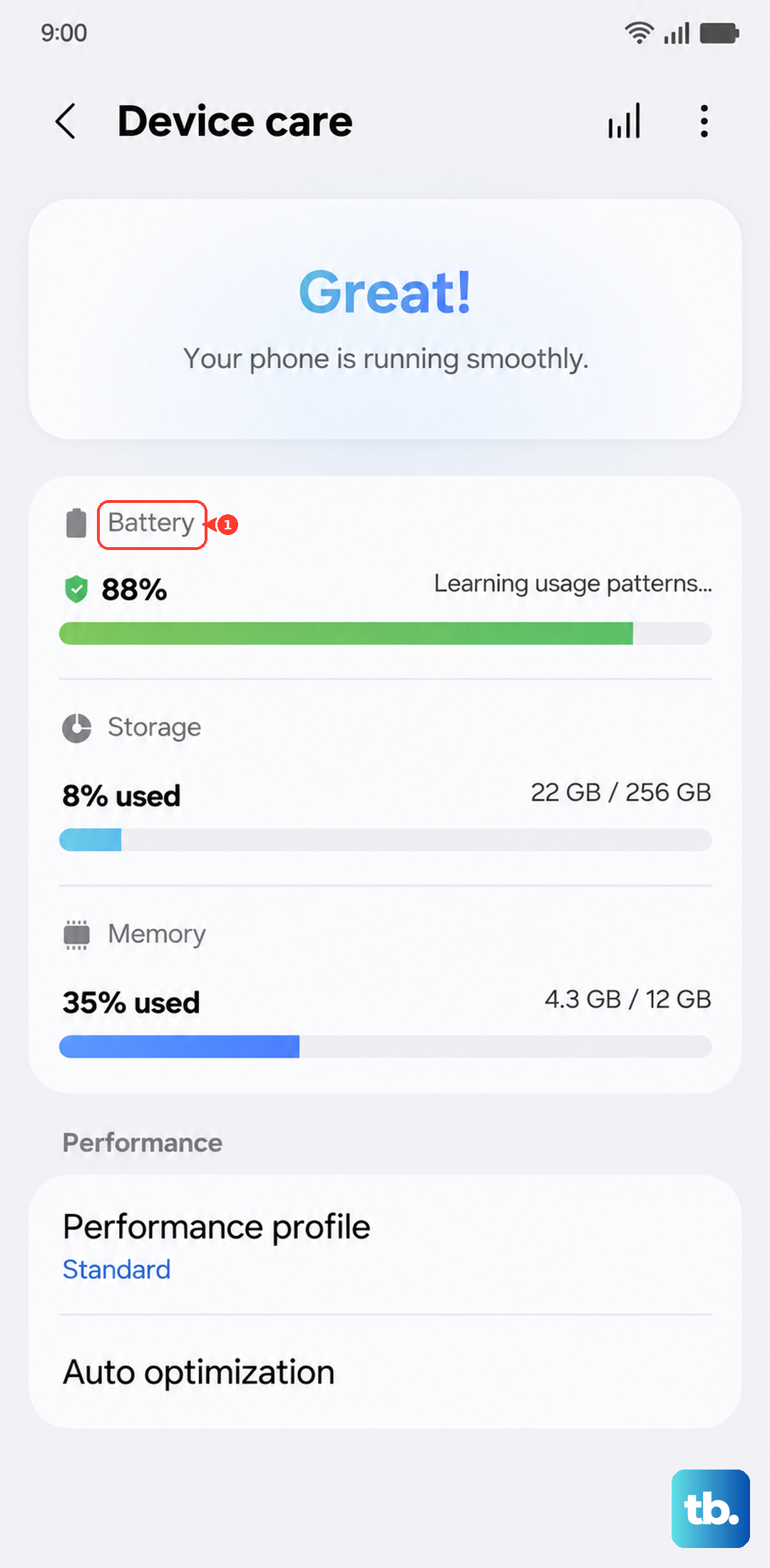
Head into your phone's settings and tap on Battery and device care. From there, select Battery. This is your main hub for all things power-related on the A36. While Samsung doesn't display a precise health percentage like some other brands, it provides a clear status indicator.
You'll typically see a message stating your battery condition is "Normal." If there's a significant issue, it may flag the battery as "Weak" or suggest service. This is your first and fastest check for any major problems.
Run a Diagnostic with Samsung Members
For a more thorough check, open the pre-installed Samsung Members app. Tap on the Get help or Support tab, then look for Interactive checks or Diagnostics. Select the Battery test to run it.
This diagnostic tool performs a quick analysis and will give you a pass/fail result along with more detailed feedback than the basic settings menu. It's a great way to confirm everything is functioning as it should be.
See Exactly What's Using Your Power
Understanding your battery health isn't just about the battery itself, it's also about how you use it. Go back to Settings > Battery and device care > Battery and tap on Battery usage.
This screen breaks down exactly which apps have consumed the most power since your last full charge. Tap on any app to see a split between its screen-on time and background activity. If you spot an app you barely use sucking down a lot of juice in the background, that's a clue to manage its permissions.
Enable Battery Protection for Longevity
One of the best features for preserving your A36's battery over the long run is Battery Protection. You can find it under Settings > Battery and device care > Battery > More battery settings.
Turn this on, and your phone will stop charging at around 85%. While this means you start your day with a bit less than a full charge, it dramatically reduces wear and tear on the battery cells. I'd recommend enabling this if your phone is often plugged in overnight or on a charger at a desk.
Use Adaptive Battery and Background Limits
Your Galaxy A36 has software designed to help your battery last longer. In the same Battery settings menu, make sure Adaptive battery is enabled. This feature learns your daily app usage patterns and gently restricts power for apps you don't use often.
You can take more direct control by tapping Background usage limits. Here, you can put specific apps into "Deep sleep," which prevents them from running in the background at all, saving you precious power throughout the day.
Consider a USB-PD 45W Charger
Since the Galaxy A36 doesn't come with a charger in the box, your choice of charger matters. To get the fastest possible 45W charging speed, you'll need a charger that supports the USB Power Delivery (USB-PD) PPS standard.
Not all USB-C chargers are created equal. Using an old or low-power charger will work, but it will charge much slower. For the best experience, look for a charger explicitly rated for 45W Samsung Super Fast Charging.
Recognizing When a Replacement is Needed
Batteries don't last forever. If your A36 struggles to make it through a day when it used to easily, shuts down unexpectedly at 20% charge, or takes an exceptionally long time to power up, the battery is likely degraded.
In rare cases, you might notice the back of the phone becoming unseated or the screen bulging, which indicates a swollen battery. If you see any of these signs, it's time to stop using the phone and look into an official battery replacement through a Samsung-authorized service center.
Daily Habits for Battery Health
Heat is a battery's biggest enemy. Try not to leave your A36 in a hot car or charge it under a pillow or blanket where heat can build up. Using a certified 45W charger is also safer for the long-term health of the battery circuitry.
Alongside enabling the 85% battery protection, try to avoid regularly draining your phone all the way to 0%. Keeping it between 20% and 85% most of the time is the sweet spot for minimizing stress on the lithium-ion cells inside your phone.