
Your iPad's battery is its lifeblood, and keeping an eye on its health is key to maintaining that all-day performance. Apple provides built-in diagnostics in iPadOS that give you a clear picture of how your battery is holding up. Here's how to check everything on your iPad (11th generation).
Check Battery Health Percentage
Open Settings and go to Battery > Battery Health. You'll see a Maximum Capacity percentage, which shows your battery's current capacity compared to when it was new. A brand new iPad will show 100%. After a year or so of regular use, seeing a number in the 85-95% range is completely normal.
When the maximum capacity drops below 80%, Apple considers the battery significantly degraded. You'll likely notice your iPad needs charging more often, and the system may enable performance management features to prevent unexpected shutdowns. This is a clear sign a replacement might be in order.
Check Your Battery Cycle Count
A charge cycle is counted each time you use 100% of the battery's capacity, which can happen over multiple charging sessions. Apple designs its batteries to retain up to 80% of their original capacity at a certain number of cycles.
For your iPad (11th generation), you can find the cycle count directly in the operating system. Go to Settings > General > About and scroll down. You should see entries for Cycle Count, Manufacture Date, and First Use. This gives you a precise, technical look at how much wear your battery has experienced.
Check Battery Usage by App
To see what's actually draining your battery, head to Settings > Battery. Here, you'll see a breakdown of battery usage by app for the last 24 hours or the last 10 days. Tap Show Activity to see how much time each app spent on screen versus running in the background.
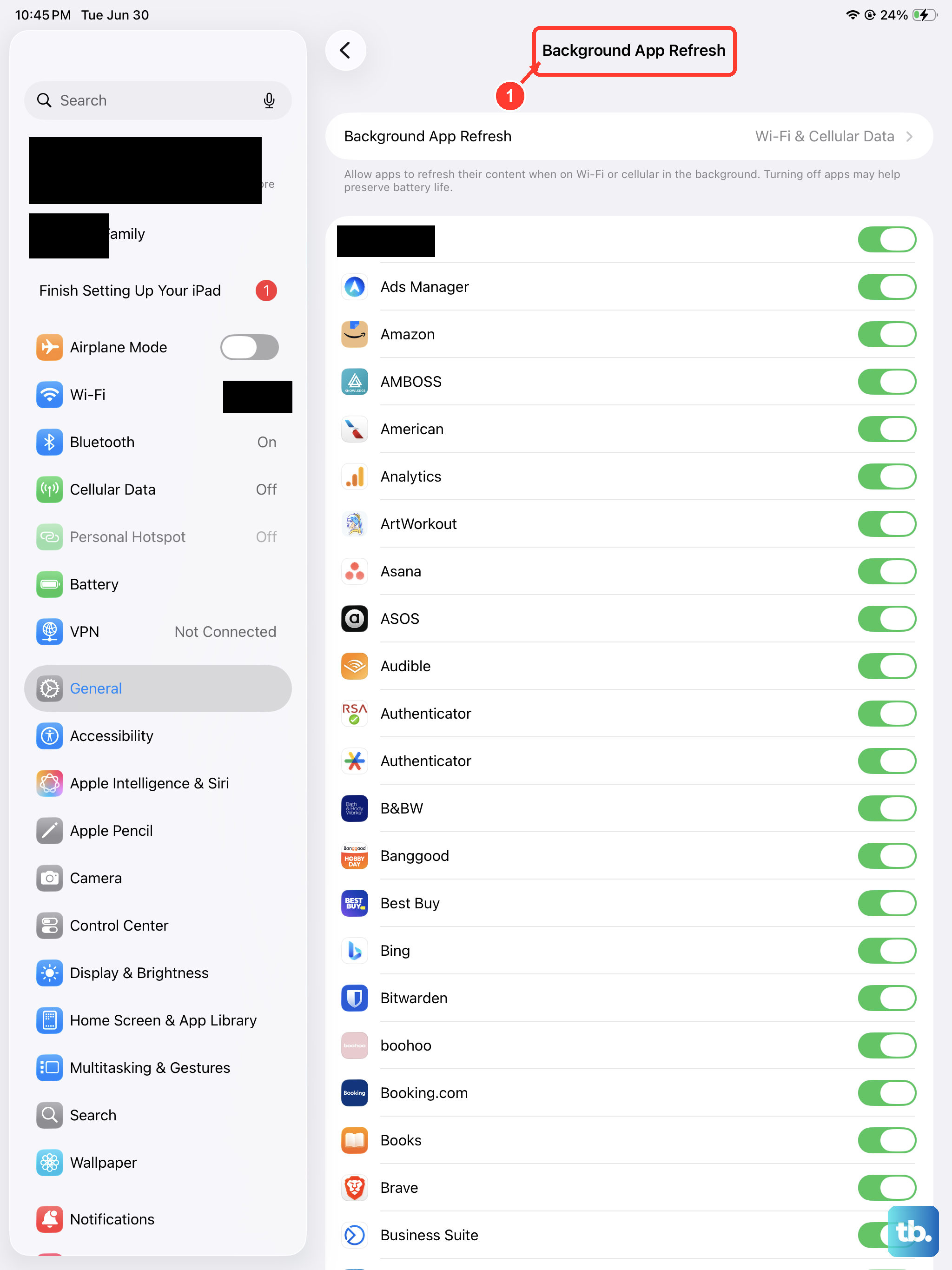
If you notice an app you don't use much is consuming a surprising amount of power, it might be misbehaving. You can force quit the app, check for updates, or restrict its background activity in Settings > General > Background App Refresh.
Enable Optimized Battery Charging
This is a smart feature that helps preserve your battery's long-term health. Go to Settings > Battery > Battery Health and make sure Optimized Battery Charging is turned on. When enabled, your iPad learns your daily routine.
If you typically charge overnight, it will charge to about 80% and then wait to finish charging to 100% until just before you usually wake up. Keeping a lithium-ion battery at 100% charge for prolonged periods can speed up degradation, so this setting helps mitigate that.
Use the Correct Charger
Your iPad (11th generation) uses a USB-C port and supports up to 20W wired charging. For the fastest, most reliable charge, I'd recommend using Apple's 20W USB-C Power Adapter or a certified third-party charger of equal or greater wattage.
Using an underpowered charger, like a small 5W phone charger, will work but will charge your iPad very slowly. Avoid cheap, uncertified chargers, as they can deliver unstable power that might stress the battery over time.
When to Consider a Battery Replacement
The main indicator is that maximum capacity percentage dropping below 80%. At that point, you'll get noticeably less screen-on time from a full charge. You might also see a message in Battery Health about reduced peak performance.
Apple offers battery service for iPads. A new battery will reset the maximum capacity to 100% and restore the original battery life and performance. It's often a more cost-effective option than upgrading to a brand new device.
General Tips for Battery Longevity
Try to avoid letting your iPad regularly get extremely hot or cold. Don't leave it in a hot car or use intensive apps while it's in a thick case that traps heat. For daily use, it's better for battery health to keep it between 20% and 80% charge rather than constantly draining it to zero or leaving it plugged in at 100% all the time.
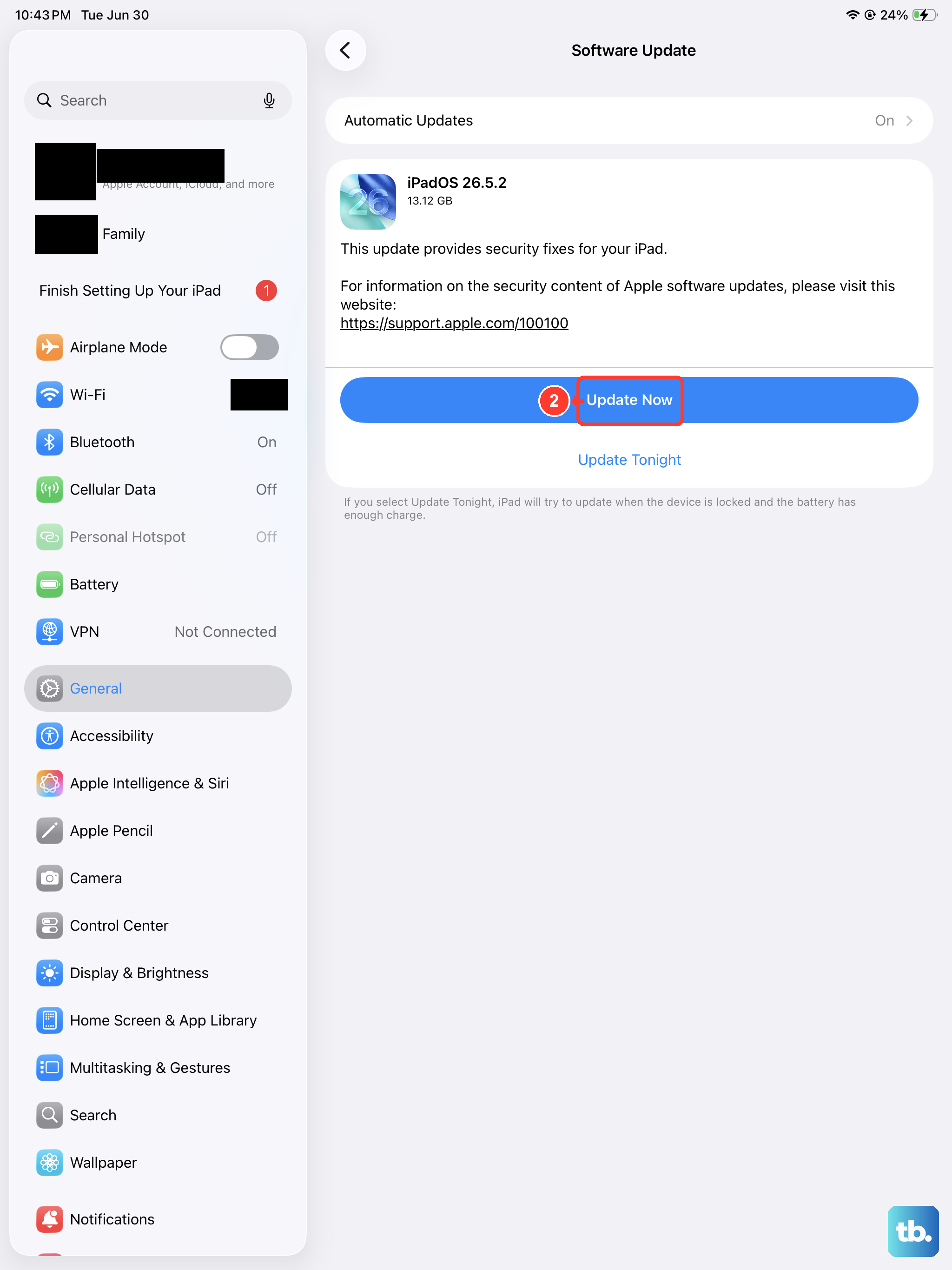
Also, make sure you're running the latest version of iPadOS. Apple often includes battery management improvements and efficiency optimizations in software updates. Regular backups to iCloud or your computer are always a good idea, too.