
Your Google Pixel 9 Pro XL's battery will degrade over time, and knowing its health helps you decide when to replace it or adjust your charging habits. The good news is Android 14 gives you more battery info than ever. Here's how to check your battery status and keep it running like new.
Check Battery Health in Settings
Go to Settings > Battery > Battery health. You'll see your battery's current condition, estimated capacity, and charging cycle count. This feature rolled out with the Pixel 8 series, so your Pixel 9 Pro XL definitely has it.
The cycle count tells you how many full charge cycles your battery has been through. Most modern lithium-ion batteries are rated for around 500 to 800 cycles before noticeable degradation. If you're above that range, it may be time to consider a replacement.
Check Battery Usage by App
Head over to Settings > Battery > Battery usage. This screen shows which apps consumed the most power since your last full charge. Tap any app to see a breakdown of screen-on time versus background usage.
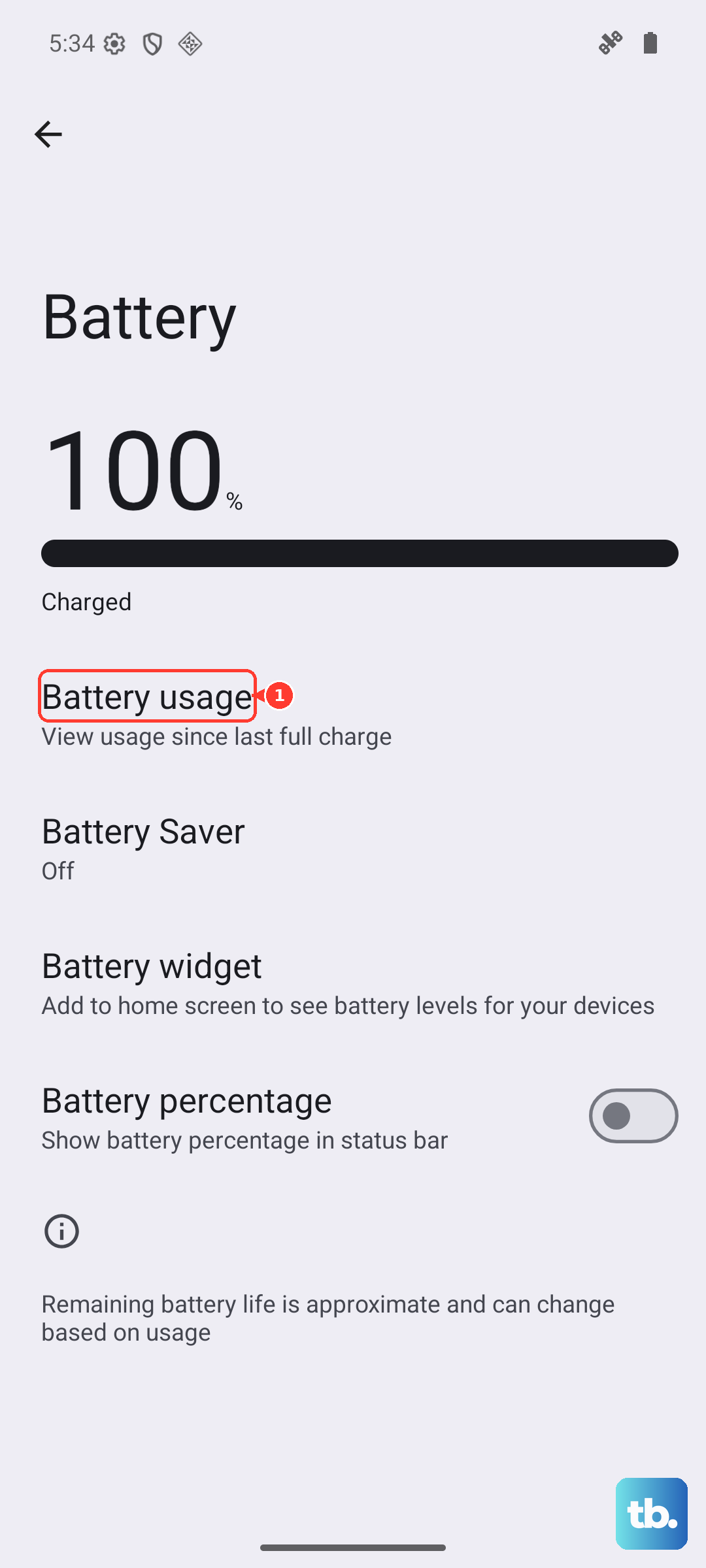
If you spot an app you barely use eating up a significant chunk, that's a red flag. Uninstall it or restrict its background activity from the app info page.
Use AccuBattery for Detailed Estimates
If you want more granular data, install AccuBattery from the Play Store. It tracks your charging sessions and estimates battery health based on real-world usage. After a few charge cycles, it shows your design capacity versus estimated current capacity as a percentage.
It also gives you charge speed in milliamps, which is handy for testing whether your charger is delivering the full 37W the Pixel 9 Pro XL supports. If you're seeing slow charge rates, try a different cable or charger.
Check Battery Info with the Hidden Menu
Open the Phone app and dial *#*#4636#*#*. This pulls up a hidden testing menu. Tap Battery information to see voltage, temperature, and a health status that usually says "Good" or "Unknown."
This doesn't always give you a meaningful health percentage, but it's a quick way to check temperature and voltage without installing anything. If the temperature reads above 40°C while charging, you've got a thermal issue that can accelerate degradation.
Enable Adaptive Battery
Go to Settings > Battery > Adaptive Battery and make sure it's toggled on. This lets Android learn which apps you use most and which you barely touch. Apps you rarely open get their background activity restricted automatically.
The Pixel 9 Pro XL's Tensor G4 chip is optimized for this feature. With Adaptive Battery on, you'll see noticeably better standby time and less unnecessary drain from idle apps.
Turn On Charging Optimization
Navigate to Settings > Battery > Charging optimization and enable it. This feature limits charging to 80% when your phone predicts you don't need a full charge right away. It's one of the best ways to slow battery aging over the long term.
If you notice your phone isn't charging past a certain percentage, this could be why. Smart charging sometimes kicks in when your alarm is set, pausing at 80% until right before you wake up. It's intentional, not a bug.
Watch Out for Cable and Charger Issues
The Pixel 9 Pro XL supports up to 37W wired charging with a USB-C PD charger, but not every charger gets you there. Many third-party chargers can't deliver the full speed, and the official Google cable sometimes stops working properly.
If you see a Check charging accessory notification, swap your cable first. A high-quality USB-C cable, like one from an iPad or a certified third-party brand, often resolves this. I've seen cases where the Google cable goes bad while a different cable charges perfectly fine.
For fastest charging, use the Google 45W USB-C charger or another high-wattage USB-C PD charger. Anything under 30W will charge the phone but won't hit that peak 37W speed.
Keep Your Charge Between 20% and 80%
Lithium-ion batteries degrade fastest when they're fully drained or fully charged for long periods. Keeping your Pixel 9 Pro XL between 20% and 80% most of the time significantly slows capacity loss. Charging optimization helps with the top end, but you'll need to avoid deep drains on your own.
Heat is the other big enemy. Don't charge your phone under your pillow, in direct sunlight, or in a hot car. Wireless charging at 23W generates more heat than wired, so if you're charging overnight, a slower wired charger might actually be better for long-term health.
Avoid draining to 0% regularly and don't leave it plugged in at 100% for hours on end. These habits are simple and make a real difference over two or three years of daily use.