
If your iPad Air M3 is losing power faster than usual, start with the quickest fix: turn on Low Power Mode. Swipe down from the top-right corner to open Control Center and tap the battery icon, or go to Settings > Battery and toggle it on. It cuts background activity and mail fetch, often adding a couple hours right away.
Check Your Battery Health First
Before diving into settings, see if the battery itself is wearing out. Open Settings > Battery > Battery Health. If the Maximum Capacity is below 80% or you see a "Service" message, the battery may need replacement. Also check Battery Usage by App on the same screen to spot any app that's using over 30% power in the last 24 hours. A misbehaving app can drain the entire battery.
Turn Off Background App Refresh
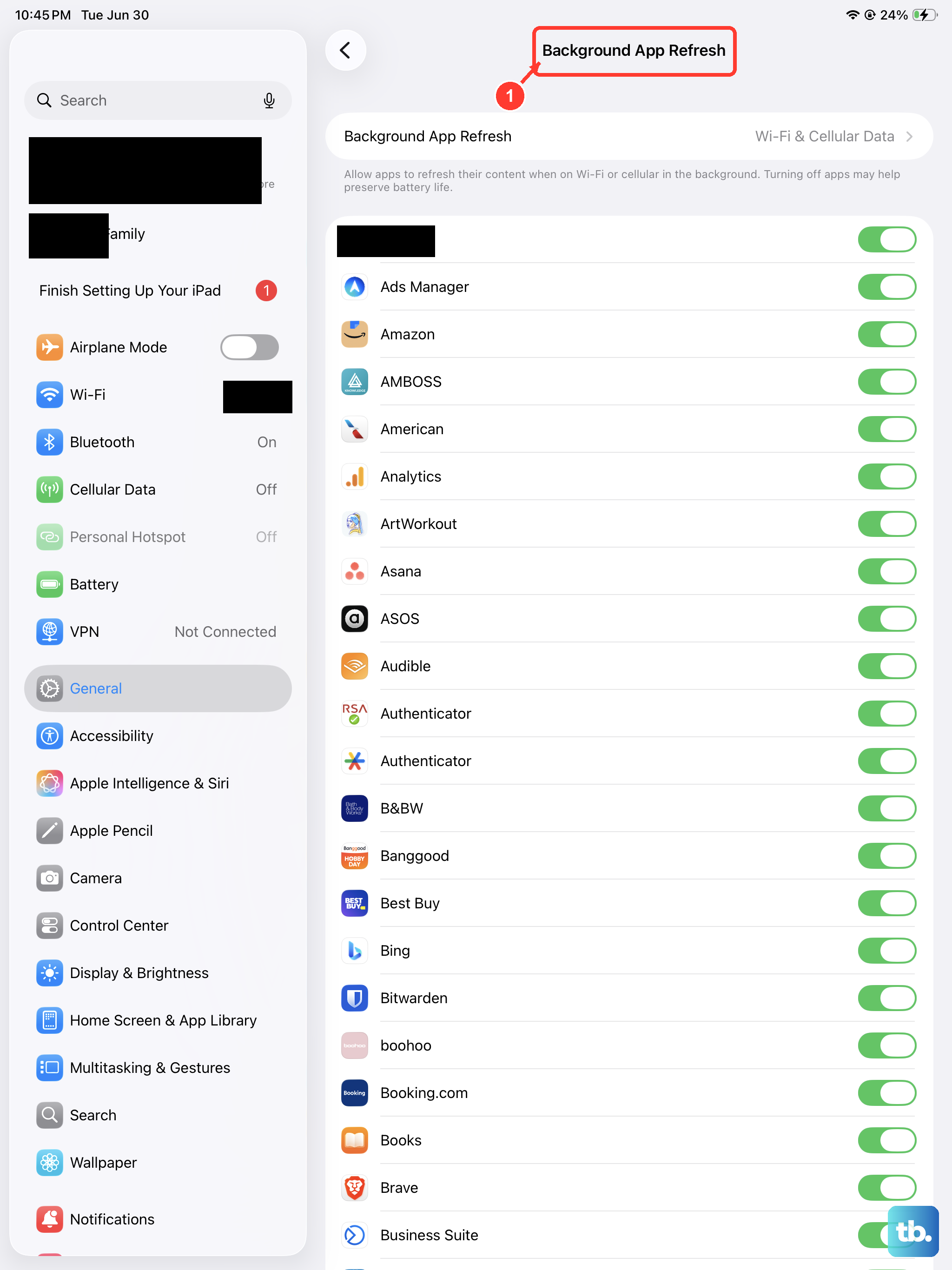
This is one of the biggest hidden drains. Go to Settings > General > Background App Refresh and switch it off entirely or set it to Wi‑Fi only. You don't need every app checking for updates in the background, especially when you're not using them.
Reduce Screen Brightness and Auto‑Lock
The Liquid Retina display on the iPad Air M3 is bright and beautiful, but it uses a lot of power. Drag the brightness slider down in Control Center to a comfortable level. Then go to Settings > Display & Brightness > Auto-Lock and set it to 30 seconds. That way the screen turns off when you're not looking at it.
Use Tap to Wake Controls
iPad does not use the iPhone-style Raise to Wake switch. If accidental screen touches keep waking it, go to Settings > Accessibility > Touch and turn off Tap to Wake. You can still wake the iPad with the top button.
Cut Down on Location Services
Many apps track your location even when you're not using them. Open Settings > Privacy & Security > Location Services and turn it off for apps that don't need it, like weather apps or games. Scroll to the bottom and tap System Services to disable things like Location‑Based Alerts and iPad Analytics. These background checks add up over the day.
Turn Off Unused Connectivity
Bluetooth and Wi‑Fi search for networks and devices even when you're not connecting. If you're not using Bluetooth accessories, swipe open Control Center and tap the Bluetooth icon to disconnect. For Wi‑Fi, you can temporarily disconnect from Control Center, but to fully turn it off you'll need to go to Settings > Wi‑Fi and toggle it off. Also set AirDrop to Receiving Off under Settings > General > AirDrop.
Keep Siri Quiet
Hey Siri is constantly listening for the wake phrase. If you don't use voice commands often, go to Settings > Siri & Search and turn off Listen for "Siri". You can still trigger Siri manually with the top button. This saves a small but noticeable amount of battery over the day.
Reduce Motion and Animations
Animated transitions look nice but use CPU cycles. Go to Settings > Accessibility > Motion and turn on Reduce Motion. It stops the parallax effect on icons and limits fancy transitions. The iPad will feel snappier and the battery will thank you.
Update iPadOS and Apps
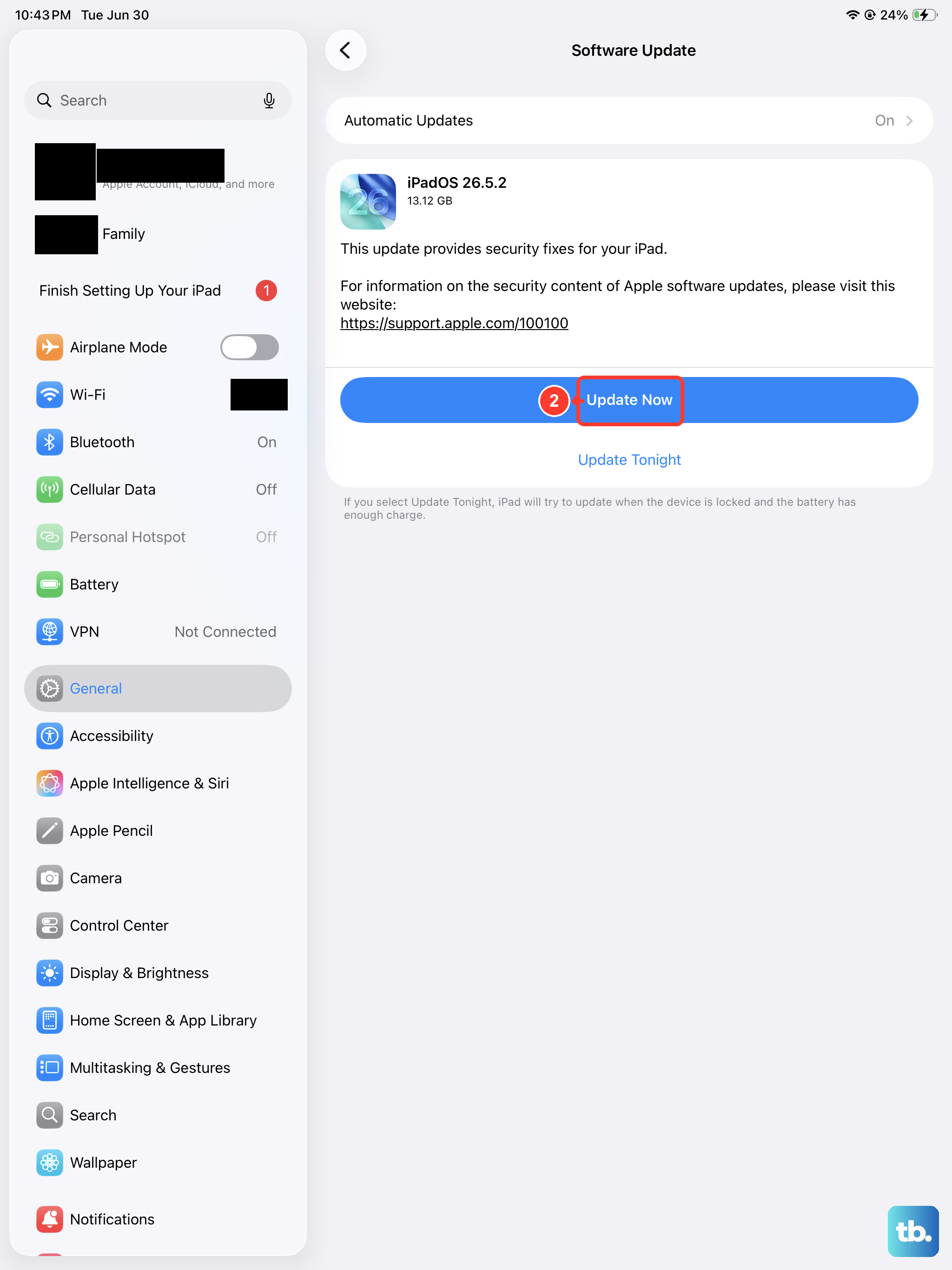
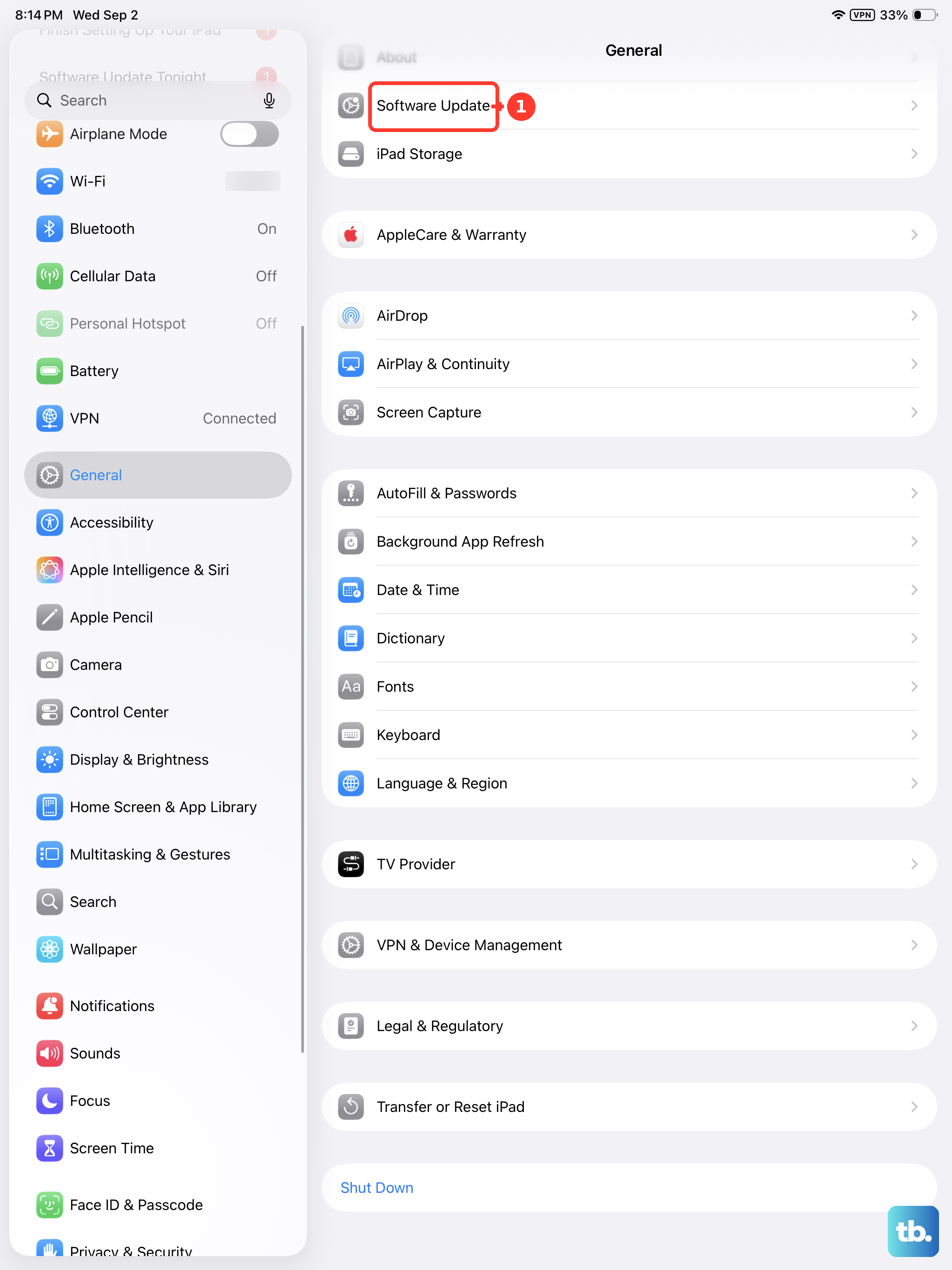
A software bug can wreck your battery life. Check for an iPadOS update by going to Settings > General > Software Update. If there's one available, download and install it. Then open the App Store, tap your profile icon, and update all pending apps. Developers often release battery optimizations in updates.
Reset All Settings If Nothing Helps
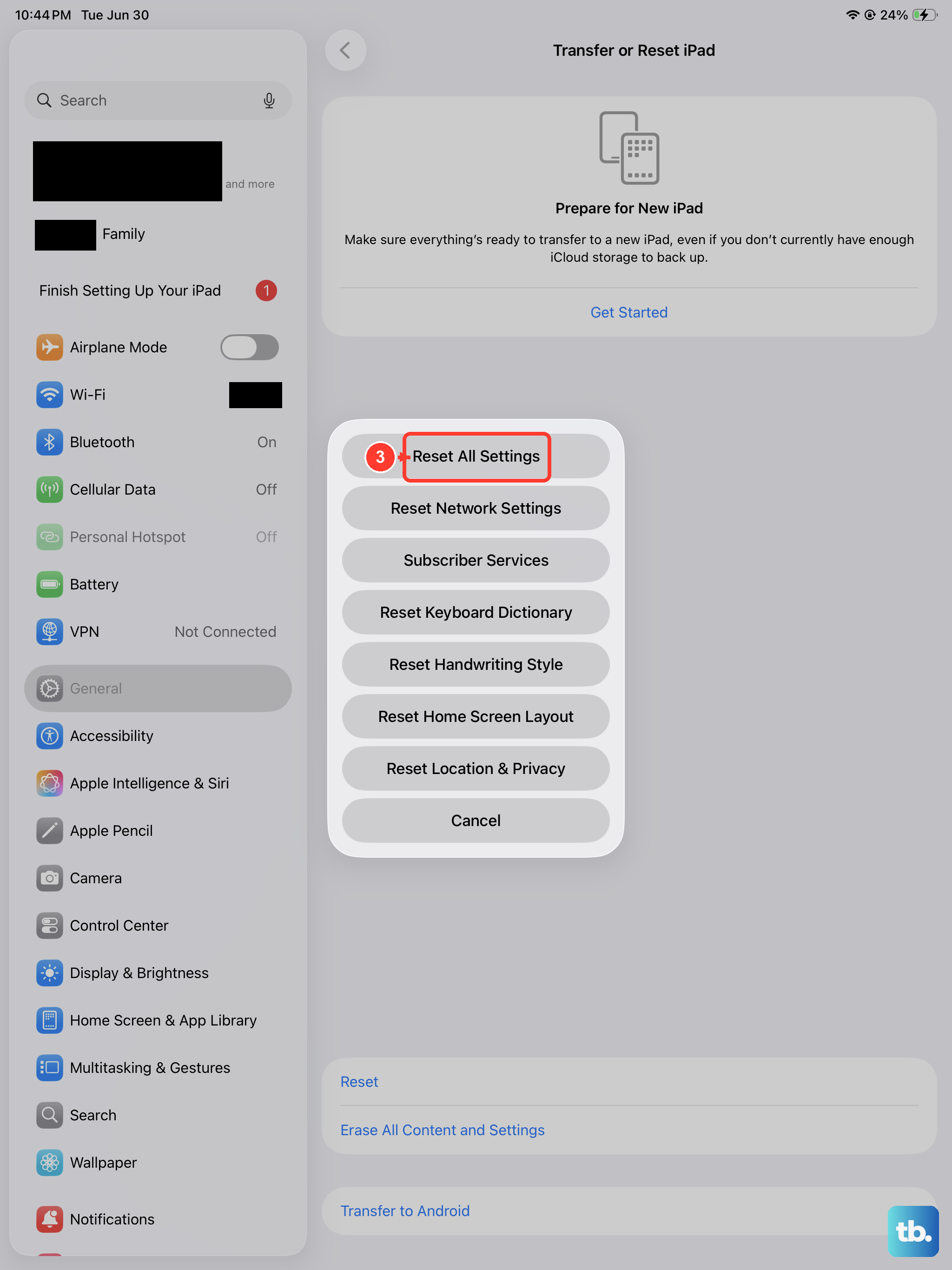
If you've tried everything and the battery is still draining fast, you can reset all settings without deleting your data. Go to Settings > General > Transfer or Reset iPad > Reset > Reset All Settings. This clears system preferences like Wi‑Fi passwords and wallpaper choices, but your photos, apps, and documents stay. It often fixes hidden configuration conflicts causing battery drain.
Fix Charging and Battery Percentage Issues
The iPad Air M3 may show an incorrect battery percentage after a deep discharge. Let it drain completely, then charge it with a 20W or higher USB‑C PD adapter and an Apple‑certified cable. Leave it plugged in until it reaches 100% and keep it on the charger for another 30 minutes. This recalibrates the battery sensor. Also, if you see "Not Charging," the adapter is likely too weak. Swap to a 20W+ adapter and try a different cable. For the scheduled charging feature to work, keep the iPad connected for at least 10 20 minutes after plugging it in.











