
You're looking at your Pixel 9 Pro XL, and the Wi-Fi icon is just gone or it keeps saying "Saved, Secured" without actually connecting. This is a super common headache with Android 14, and in most cases it's a software quirk you can fix in under a minute. Let's run through the steps that usually do the trick.
Quick Fix: Toggle Wi-Fi and Force Restart
Pull down your notification shade and tap the Wi-Fi icon to turn it off. Wait about five seconds, then tap it back on. This forces the phone to re-scan and often solves the problem immediately.
If that doesn't work, do a proper force restart. On the Pixel 9 Pro XL, press and hold the Power button and Volume up button at the same time. When the menu appears, tap Restart. Give it a minute to fully reboot. This clears out any temporary glitches that can mess with your Wi-Fi radio.
Turn Airplane Mode On and Off
This trick resets all your wireless radios at once. Swipe down twice to open the full quick settings panel and tap the Airplane mode icon. Leave it on for about 15 seconds, then tap it off again. Your phone will reconnect to your network with a fresh handshake.
Forget the Network and Reconnect
Your phone might be holding onto corrupted credentials. Go to Settings > Network & internet > Internet. Tap the gear icon next to your Wi-Fi network and choose Forget. Now select the network again and enter your password. This is especially useful if you recently changed your router password or got a new router.
Double-Check Your Password
It sounds basic, but make sure caps lock isn't on and that you're selecting the right network. If your neighbor has a similar SSID, your phone might try to connect to theirs. Wi-Fi passwords are case-sensitive, so one wrong character will keep you offline.
Turn Off Bluetooth Temporarily
Bluetooth and Wi-Fi both use the 2.4GHz band, and they can interfere on some devices. Open quick settings and tap the Bluetooth icon to disable it. If your Wi-Fi connects right after, you've found the conflict. You can leave Bluetooth off or toggle it back on and see if the interference returns.
Disable Adaptive Connectivity
Pixel phones have a feature that automatically switches between Wi-Fi and mobile data based on signal strength. Head to Settings > Network & internet > Internet and tap the gear icon on your Wi-Fi network. Find the Adaptive connectivity toggle (or similar) and turn it off. Sometimes this feature prevents your phone from sticking to Wi-Fi.
Check Power Saving Mode
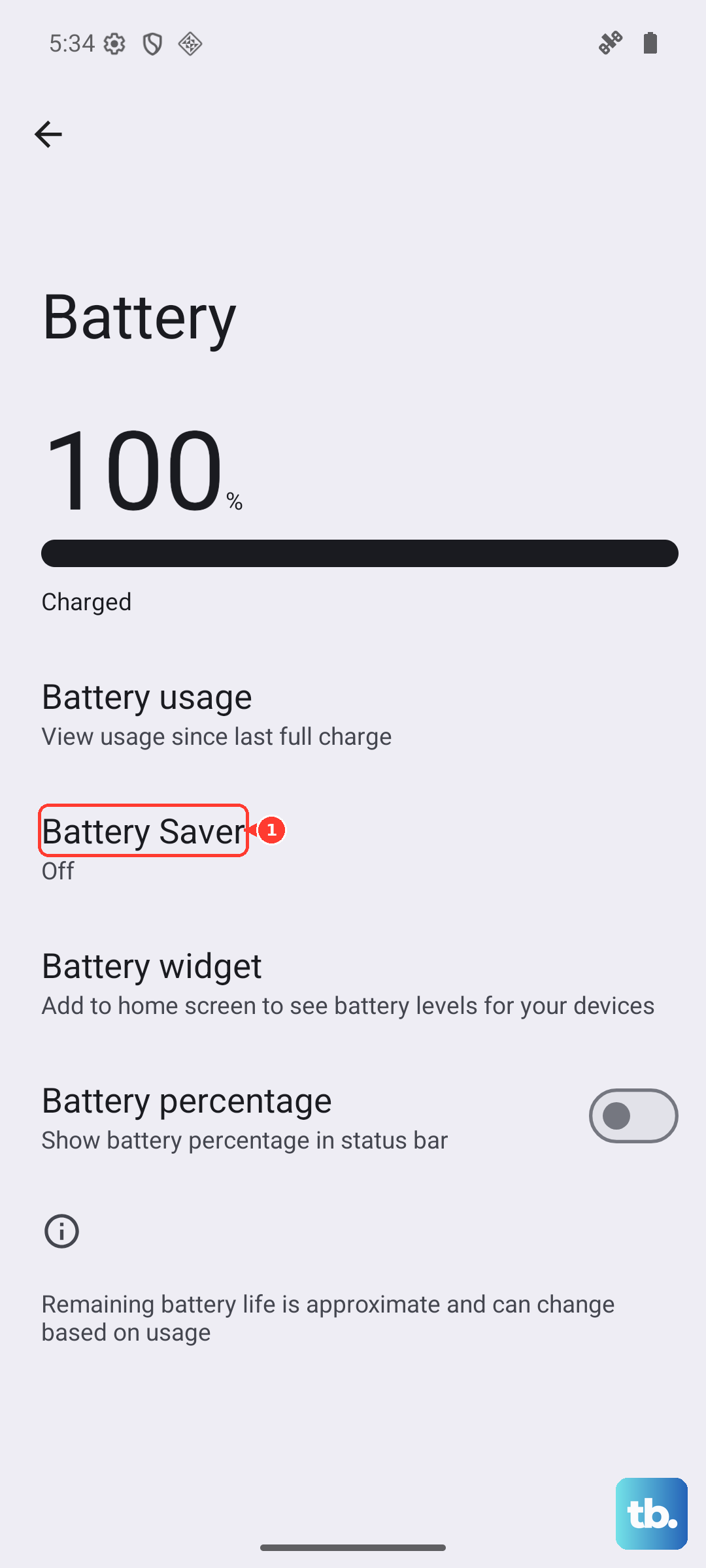
Battery Saver is great for extending your phone's life, but it can throttle Wi-Fi in the background. Go to Settings > Battery > Battery Saver and turn it off. If your connection comes back immediately, you'll want to either keep it off or add Wi-Fi to your exceptions list.
Update Your Pixel's Software
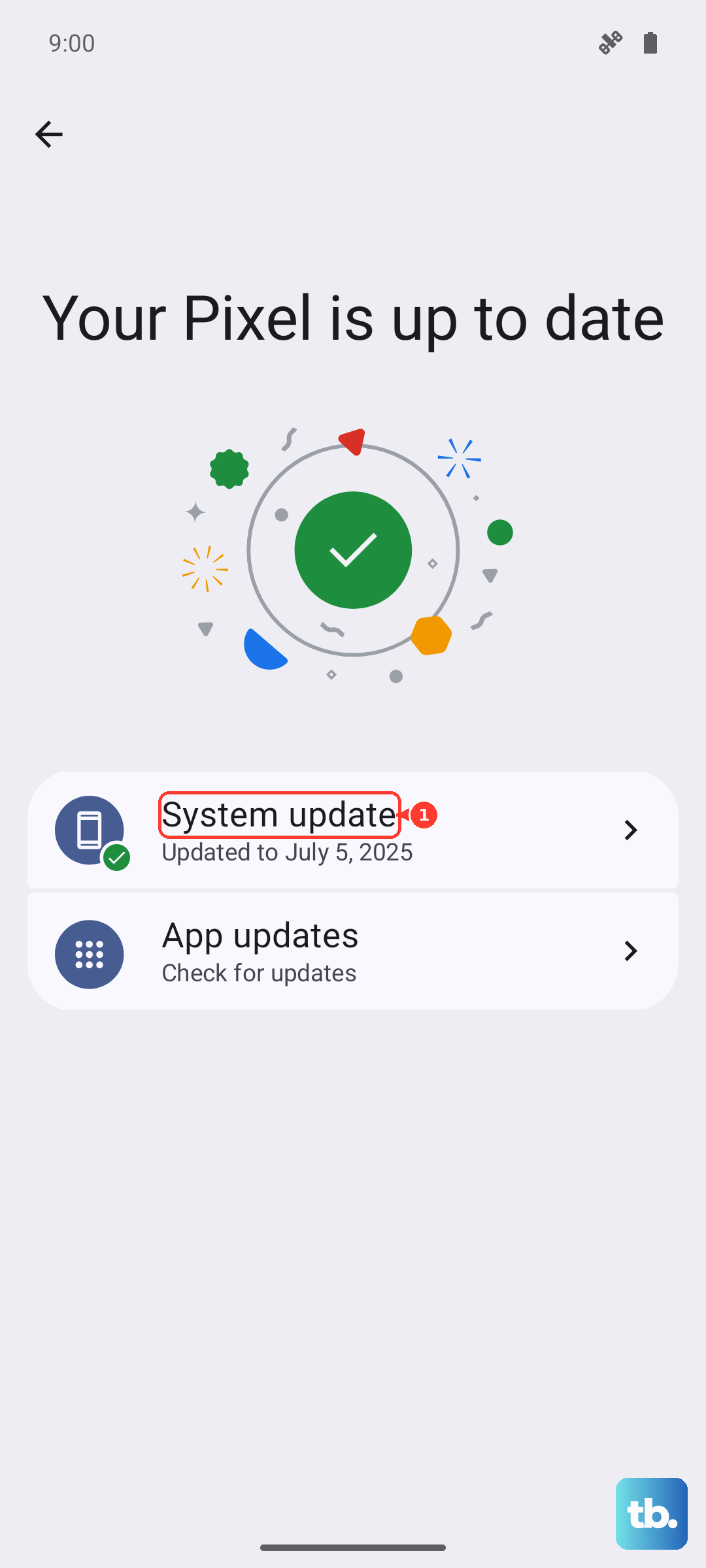
Google regularly pushes Android 14 updates that fix Wi-Fi stability issues. Open Settings > System > System update and tap Check for update. If there's a pending update, install it. A lot of connectivity bugs get squashed this way.
Fix Date and Time Settings
Here's one people rarely think about. If your date or time is off, Wi-Fi security certificates may fail to validate. Go to Settings > System > Date & time and make sure Use automatic date & time is turned on. Your phone will sync with the network and the problem should disappear.
Reset Network Settings
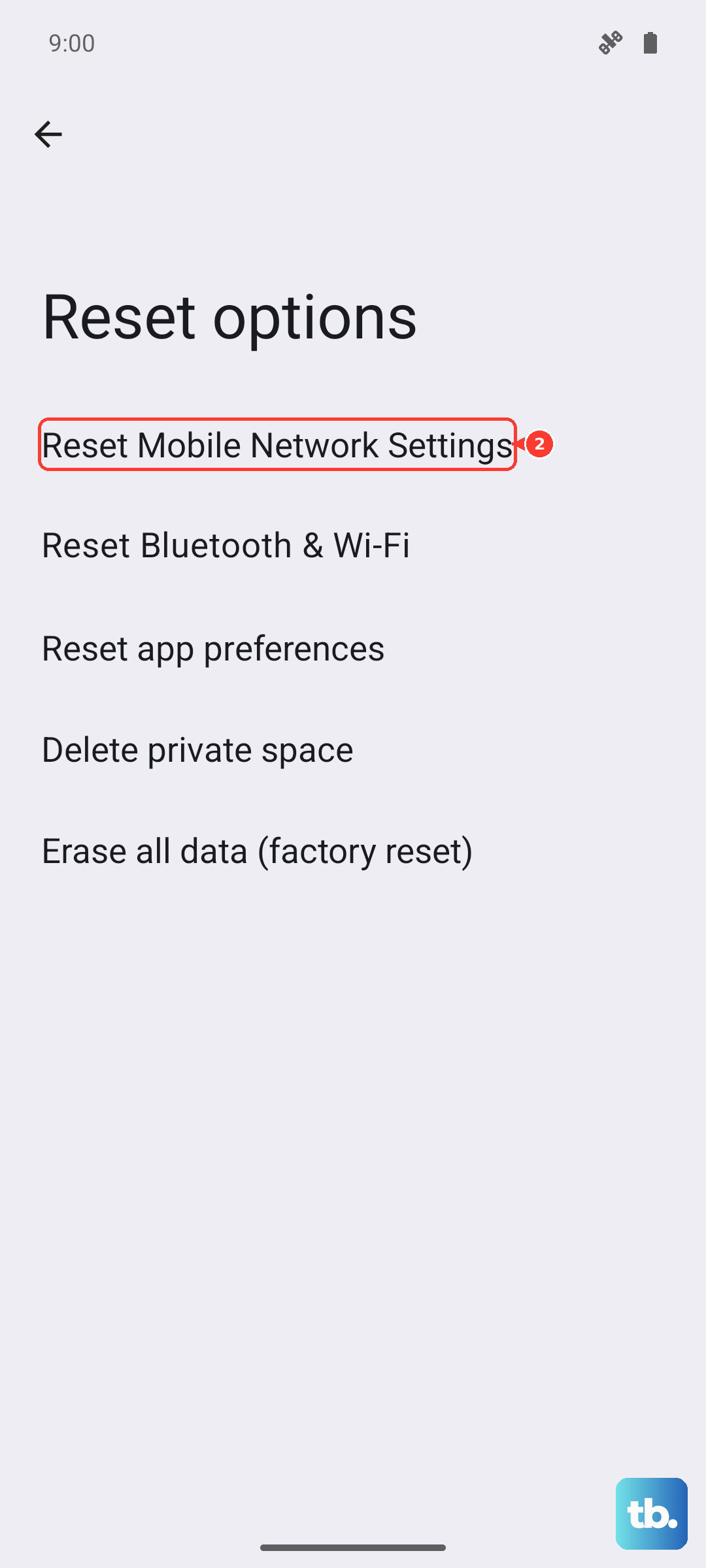
If you've gone through all the steps above and Wi-Fi still won't work, it's time to reset your network configuration. Go to Settings > System > Reset options > Reset mobile network settings, then Reset Bluetooth & Wi-Fi. This wipes all saved networks, Bluetooth pairings, and mobile data settings. You'll need to reconnect to your Wi-Fi and re-pair any Bluetooth devices afterwards, but it's the most thorough fix short of a factory reset.
After the reset, set up your network again and test. In almost every case, one of these ten fixes will get your Pixel 9 Pro XL back on Wi-Fi. If you're still stuck, the issue might be with your router, so try restarting it by unplugging the power for 60 seconds.