
Your iPad mini's battery is its lifeline, and keeping an eye on its health helps you understand when it might need attention or if you should tweak how you charge it. iPadOS 26 includes built-in tools that give you a clear picture of your battery's performance and capacity. Let's walk through how to find and use all of them.
Find Your Battery Health Percentage
Open the Settings app and navigate to Battery > Battery Health. Here, you'll see the Maximum Capacity percentage. This number tells you how much charge your battery can currently hold compared to its original, factory-fresh state. A new iPad mini will show 100%.
As you use your device over months, this number will gradually decrease. It's normal to see it in the 85-95% range after a couple of years. Apple considers a battery significantly degraded once this figure falls below 80%, at which point you'll likely notice your iPad mini doesn't last as long on a single charge.
Check Your Battery Cycle Count
A charge cycle is counted each time you use 100% of your battery's capacity, which can happen over multiple charging sessions. Apple designs its batteries to retain up to 80% of their original capacity after a certain number of cycles. For the iPad mini (7th generation), this is typically rated for 1,000 complete charge cycles.
You can find your exact cycle count in the same Settings > Battery > Battery Health menu. Alongside the Maximum Capacity, iPadOS 26 now displays the cycle count, manufacture date, and first use date right there. This gives you a precise, official look at how much wear your battery has experienced.
See Which Apps Are Using the Most Power
Head back to Settings > Battery and scroll down. You'll see a breakdown of battery usage by app for the last 24 hours or the last 10 days. Tap on Show Activity for any app to see a split between how long it was actively on your screen and how long it was running in the background.
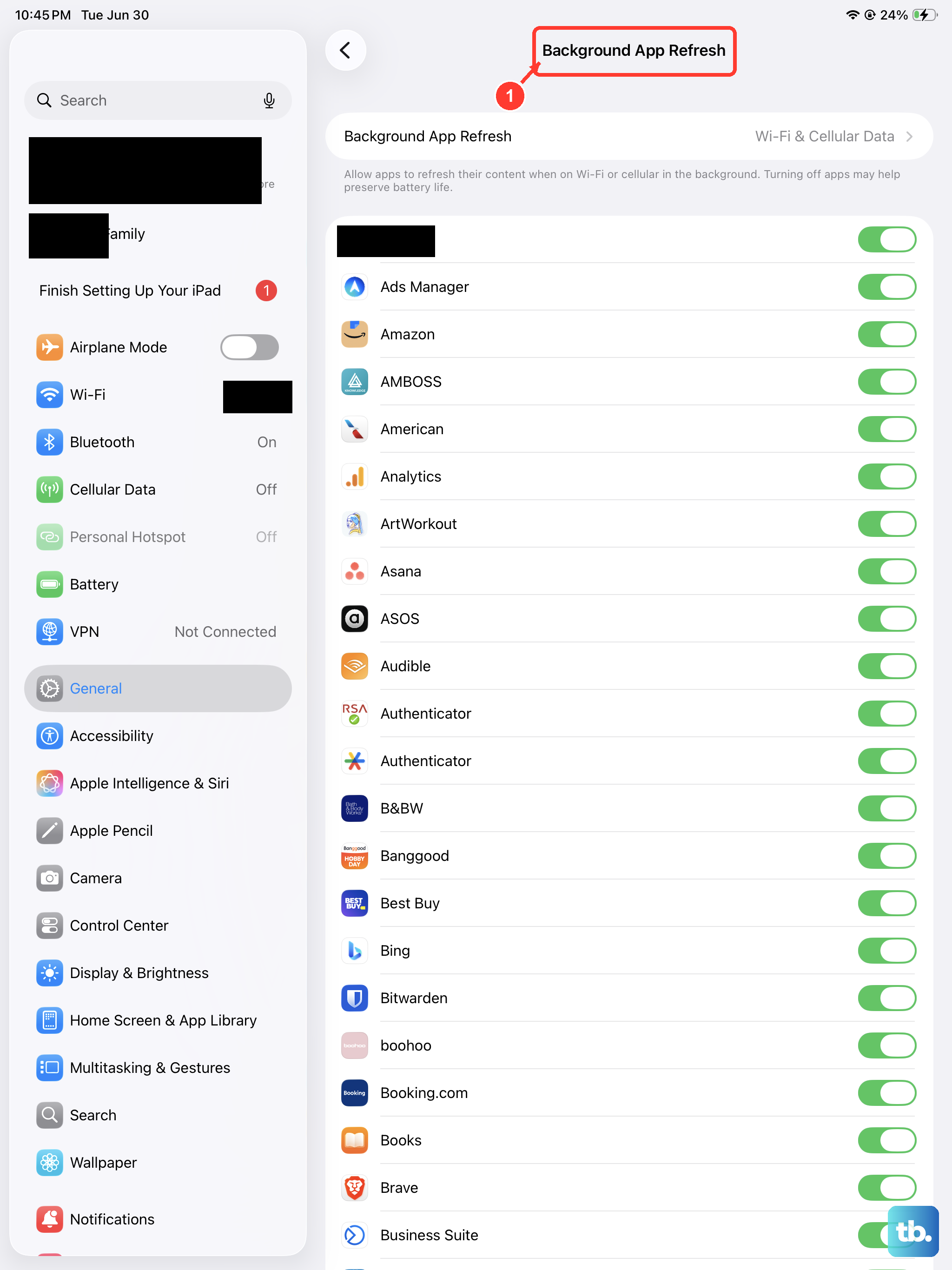
This is incredibly useful for spotting apps that might be draining your battery unnecessarily. If you see a game or social media app with high background activity, you can force close it or adjust its permissions in Settings > General > Background App Refresh.
Turn On Optimized Battery Charging
This is one of the best features for long-term battery care. In Settings > Battery > Battery Health, ensure Optimized Battery Charging is enabled. When active, your iPad mini learns your daily routine.
If you typically charge it overnight, it will charge to about 80% and then wait to top up to 100% until just before you usually wake up. Keeping a lithium-ion battery at a full charge for prolonged periods can speed up wear, so this smart delay helps preserve its health.
Consider the 80% Charging Limit
For the utmost in battery preservation, look for an 80% Limit option in the Battery Health menu. This is a more aggressive setting that simply stops charging once your iPad reaches 80% capacity, no matter when you unplug it.
I'd recommend this if your iPad mini spends most of its time plugged in on a desk or dock, like for a digital photo frame or smart home controller. It's the best way to minimize chemical aging when the device is constantly connected to power.
When a Battery Replacement Makes Sense
Once your Maximum Capacity dips below 80%, you'll start to feel the impact. Your iPad mini will need charging more frequently, and in some cases, the system may subtly manage performance to prevent unexpected shutdowns when the battery is under load.
This is the standard threshold where Apple recommends a replacement. You can get service through Apple Support, an Apple Store, or an Apple Authorized Service Provider. A new battery will reset your Maximum Capacity to near 100% and restore the full battery life you enjoyed when the device was new.
Daily Habits for a Healthier Battery
Heat is a battery's biggest enemy. Try not to leave your iPad mini in a hot car or use intensive apps like games for hours while it's in a thick case that traps heat. For charging, use an official Apple 20W or 30W USB-C power adapter, or a high-quality certified alternative from a reputable brand.
Because the iPad mini doesn't have wireless charging, keeping the USB-C port clean is important. Lint and debris can prevent a solid connection, leading to intermittent charging. A quick, gentle clean with a dry toothpick or compressed air can often solve this. Some users also like magnetic adapter tips to reduce wear and tear on the port itself.
Finally, while you don't need to obsess over it, avoiding constantly draining your battery to 0% or leaving it plugged in at 100% for days on end can help slow the natural aging process. Letting it fluctuate between 20% and 80% in daily use is a good general practice for longevity.