Your webcam looks too dark, opens the wrong camera, or stays blocked even when the hardware is working. Windows 11 puts the main web camera settings in the Settings app, while browsers and meeting apps keep their own camera choices. Start with Windows, then check the app where the problem happens.
Start With Windows Camera Controls
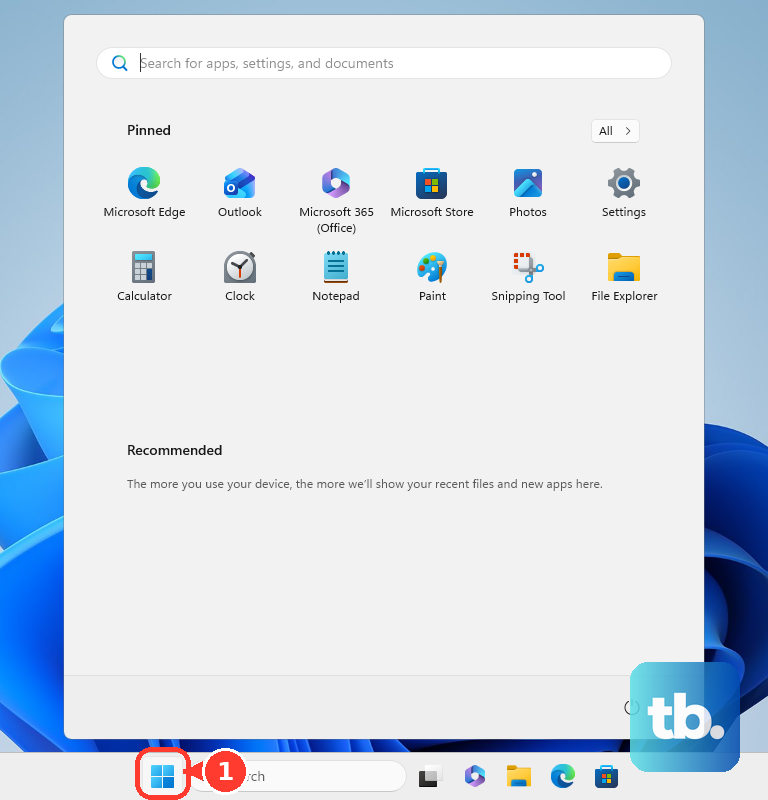
Open Start, choose Settings, then go to Bluetooth & devices and Cameras. Under Connected cameras, select the webcam you want to adjust.
Use the preview controls Windows shows for that camera. Supported controls include Brightness, Contrast, Saturation, Sharpness, Windows Studio Effects, Rotation, and Video HDR.
If the webcam does not appear here, open the camera settings inside the app you are using next. Microsoft lists IR Windows Hello cameras, DirectShow cameras, proprietary cameras, and many network cameras as devices that do not always appear on this Windows 11 page.
Fix Camera Privacy Permissions
Most blocked-camera problems start in privacy settings. Open Start, then go to Settings, Privacy & security, and Camera.
Turn Camera access on. For Microsoft Store apps, turn on Let apps access your camera, then switch camera access on or off for each app listed there.
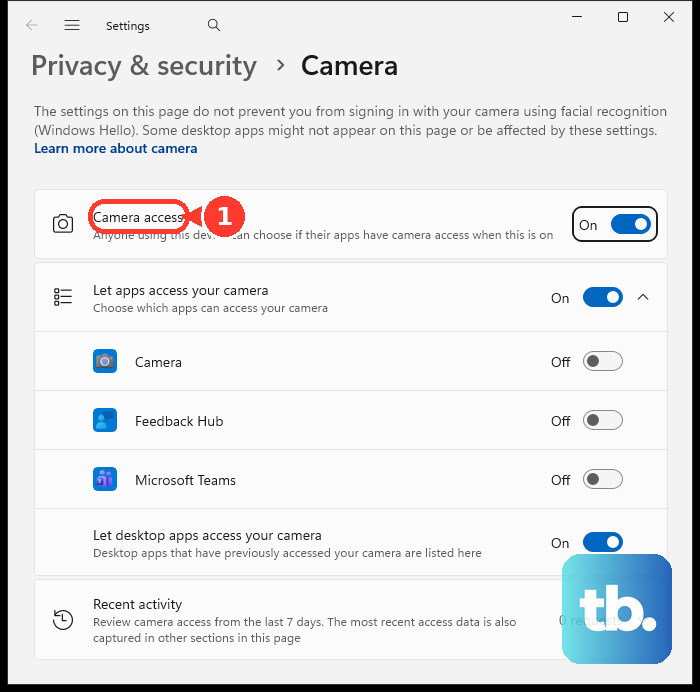
For browsers and many video meeting apps, turn on Let desktop apps access your camera. Windows does not give desktop apps individual toggles on this page, and those apps do not always appear in the list.
Change Options in the Windows Camera App
Open the Camera app and select the Settings icon in the top left corner. Expand Camera settings, Photo settings, Video settings, or Related settings. Adjust the options available for that camera, including advanced controls, framing grids, camera-button behavior, app-vs-system camera settings, photo quality, time lapse, video quality, flicker reduction, location permission, or Camera app privacy settings.
When the PC has more than one webcam, select the Change camera icon at the top right of the Camera app. Use the Camera app as a quick test before troubleshooting a browser or meeting app.
Pick the Right Camera in Your Browser
This fixes websites that open the wrong webcam or keep asking for camera access. In Microsoft Edge, go to the website that needs the camera. Choose Allow when the camera permission dialog appears.
To change a saved Edge permission, open Settings and more, then select Settings. Go to Privacy, search, and services, Site Permissions, and All sites. Select the website, then use the Camera dropdown to block or change the saved camera permission.
In Chrome, open More and select Settings. Go to Privacy and security, Site settings, and Camera. Use the Down arrow to choose the default camera or switch to a different camera.
Chrome sets camera access per site, not with one switch for every site. Find the site under Not allowed to use your camera or microphone or Allowed to use your camera and microphone, select its name, then set the camera permission to Allow.
In Firefox, open Settings. Go to Privacy & Security, Permissions, Camera, and Settings.... Choose Allow or Block, use Remove Website when needed, then select Save Changes.
Adjust Video Inside Teams, Zoom, or Google Meet
Meeting apps often use their own camera picker, so check the app you actually use for calls. In Microsoft Teams, open Settings and more next to your profile picture, then choose Settings, Devices, and Camera.
Teams also offers camera settings and video options such as Automatically adjust camera controls, Adjust brightness, Soft focus, Green screen, and preview when your account, hardware, and app version support them. Before joining a Teams meeting, use Open device settings and Video Settings to change available filters.
In Zoom Workplace, sign in to the desktop app, select your profile picture, open Settings, then choose Video & effects. In Zoom version 6.7.0 and higher, select the gear icon in the navigation bar, then choose Video & effects.
In Google Meet, open meet.google.com in a browser, then go to Settings and Video. Choose Camera, Send resolution, or Receive resolution, then select Done.
Use Windows Studio Effects
Use this method when you want Windows-level framing or visual effects. It applies to Windows 11 devices with supported NPU and camera hardware.
Select the Network, Sound, or Battery icon next to the time and date. Select the Studio Effects tile, then turn the available Windows Studio Effects on or off. To undo those changes, select Reset Effects.
You can also open Start, go to Settings, Bluetooth & devices, and Cameras, select the front-facing camera, and change the available Windows Studio Effects settings there. If the tile is missing, the device lacks a supported NPU or the Studio Effects tile needs to be added to Quick Settings.
Check the Privacy Shutter or Camera Key
The most common hardware cause is a closed privacy shutter or a camera privacy key that turned the webcam off. Look for a small sliding shutter by the lens, a sliding switch on the side of the laptop, or a keyboard key with a camera icon. Open the shutter, move the switch away from the blocked position, or press the camera key once to toggle camera privacy.
On supported HP PCs, the webcam privacy switch sits on the right or left side of the computer or next to the camera, and the webcam shutter key sits in the keyboard action-key row. On Dell laptops with a manual privacy shutter, sliding it left opens access to the lens and sliding it right covers the lens.
On Lenovo models that support Camera Privacy Mode, open Lenovo Vantage, then go to Device, My Device Settings, Display & Camera, and Camera. Turn Camera Privacy Mode on or off.
Use Your Phone or Webcam Maker App
Microsoft's connected camera feature needs a PC running Windows 11 or later, an Android device running Android 10 or later, and the Link to Windows app version 1.24022.0 or later. Open Settings on your PC, then go to Bluetooth & devices and Mobile devices. Select Manage devices.
Choose Add device when your Android phone is not linked yet. Under My devices, turn Use as connected camera on. Select the mobile device from camera dropdowns in Windows Settings or in camera apps.
For supported Logitech webcams, use the current Logitech app for your model, such as Logi Options+, Logitech G HUB, or Logi Tune. These apps adjust supported controls like exposure, white balance, zoom, focus, field of view, aspect ratio, resolution, frames per second, image adjustments, or AI framing.
Use Microsoft Mobile devices for an Android phone, and use the webcam maker app when the camera exposes extra controls outside Windows.
Repair a Camera That Is Missing or Disabled
Use this method when the webcam does not show up, will not start, or stopped working after a driver change. Some driver actions require administrator permission.
Open Start, type device manager, then select Device Manager. Expand Cameras, Imaging devices, or Sound, video and game controllers. Right-click your camera.
If you see Enable device, select it. If you see Disable device, the camera is already enabled.
To update the driver, right-click the camera, then select Update driver. Choose Search automatically for updated driver software.
To undo a bad driver, right-click the camera and open Properties. Choose Driver, then select Roll Back Driver. Choose a reason, then select Yes.
To reinstall the camera, right-click the camera and select Uninstall device. Choose Uninstall, then restart the PC.
For a compatible USB webcam with a troublesome manufacturer driver, choose Update driver, Browse my computer for drivers, Let me pick from a list of available drivers on my computer, USB Video Device, and Next.
For the built-in camera troubleshooter, open Get Help and run the Camera troubleshooter. On builds that still list it, Microsoft also documents Start, Settings, System, Troubleshoot, Other troubleshooters, Camera, and Run.
On a work, school, remote desktop, or otherwise managed PC, camera settings can be controlled by policy and appear grayed out. Ask your organization to allow camera access or video capture redirection for your device.
Frequently Asked Questions
Why are my Windows webcam settings missing?
Windows only shows controls that your camera and driver expose. Microsoft also lists IR Windows Hello cameras, DirectShow cameras, proprietary cameras, and many network cameras as devices that do not always appear in the Windows 11 Cameras settings page.
Why does my webcam work in one app but not another?
That app is using its own camera picker, browser permission, or Windows desktop-app permission. Check Windows Camera access first, then the browser or meeting app settings.
Can I change webcam brightness in Windows 11?
Yes, when your camera supports it. Go to Settings > Bluetooth & devices > Cameras, select the camera under Connected cameras, then use preview controls such as Brightness or Contrast.
Can I use my Android phone as a Windows webcam?
Yes, on a PC running Windows 11 or later with an Android device on Android 10 or later and Link to Windows 1.24022.0 or later. Link the Android device through Mobile devices, turn on Use as connected camera, then choose the phone from the camera dropdown in Windows or your camera app.